Windows Snap Layouts Menu Not Showing? Fix It
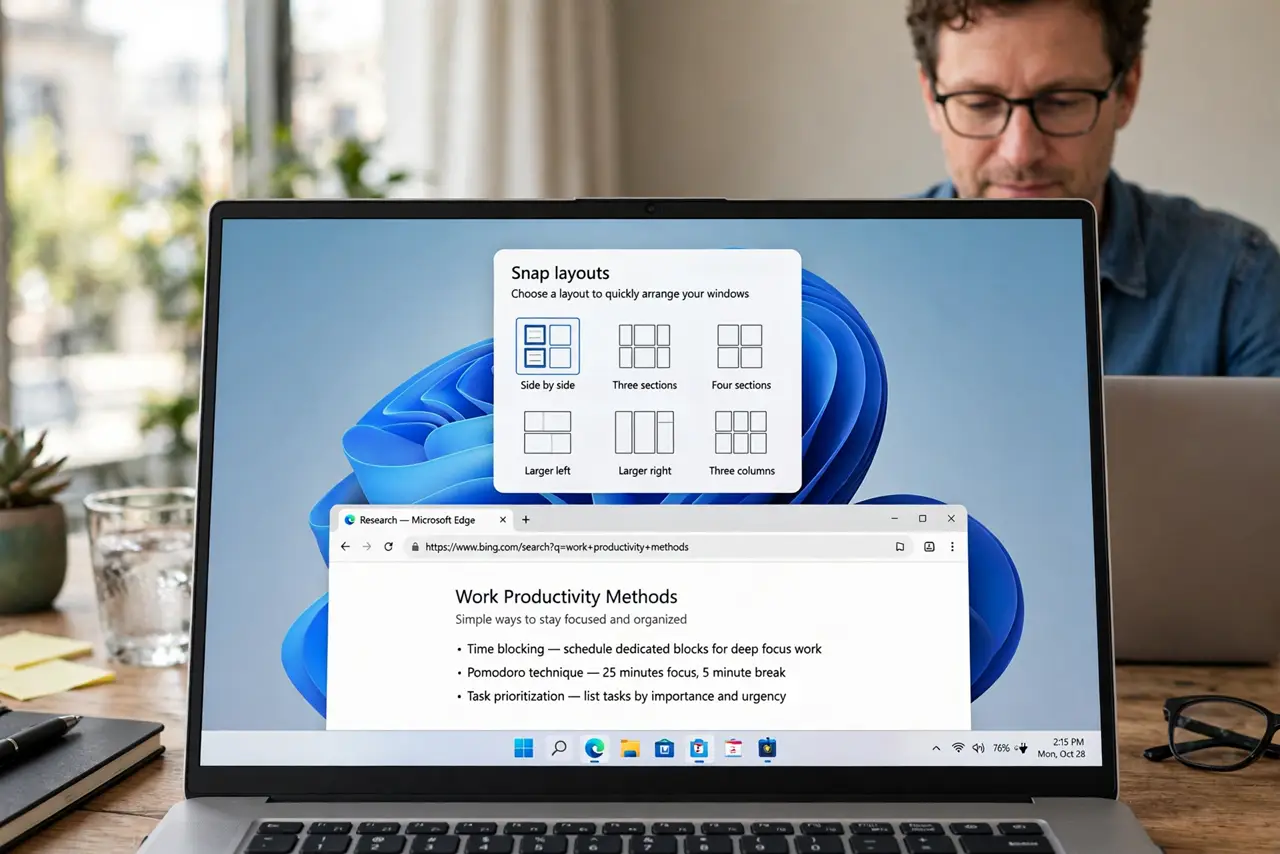
Snap layouts should appear when you hover over a window maximize button, giving you a quick way to tile windows side by side. When the menu never shows, the cause is usually a turned-off snap setting, a window that cannot snap, or a display quirk. This guide checks the setting first, then the window itself, before you blame the app. If a window still will not tile after this, check the companion problem where a window snaps to the wrong half of the screen.
TL;DR / Quick Fix
Quick fix: Check that Snap windows is turned on. Hover slowly over the maximize button. Then work through the remaining steps in order, checking one change at a time, and stop for a technician if you see damage, swelling, or a burning smell.
Follow these steps
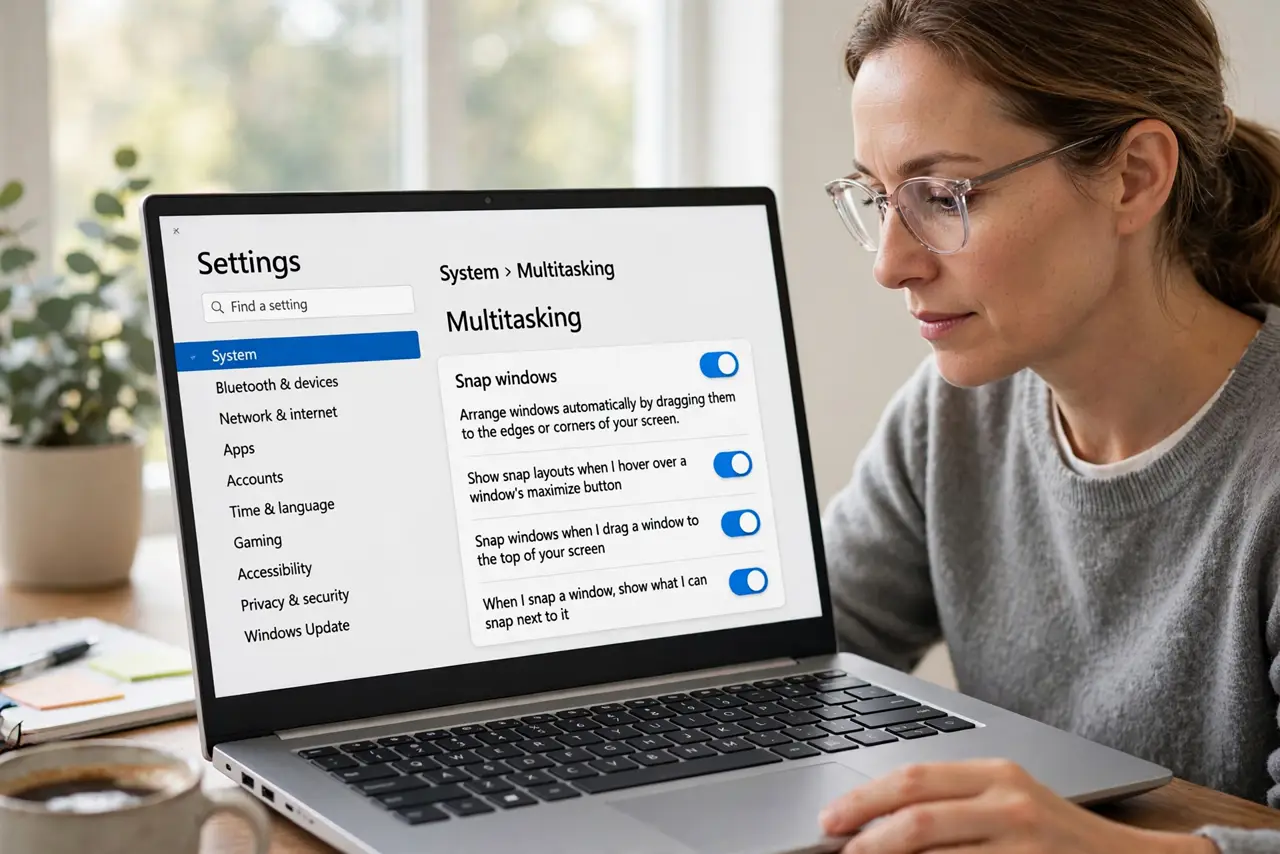
- Check that Snap windows is turned on. Open Settings, then System, then Multitasking, and confirm Snap windows is on. If it is off, nothing else in this guide can work, so turn it on and test again before changing anything else.
- Hover slowly over the maximize button. Move the pointer to the maximize button in the top-right corner of the window and hold it still for a second. Moving too fast, or clicking straight away, skips the menu, so a slow hover is a real test, not a guess.
- Check your screen resolution and scaling. Open Settings, then System, then Display, and confirm your screen resolution matches the recommended value for your monitor. Wrong scaling can hide the menu or push it off screen on smaller displays.
- Try a window that can definitely snap. Test with File Explorer or a browser window, maximized first and then restored to a normal size. Some apps, full-screen games, and windows fixed to one size cannot snap, and that is normal behavior, not a fault.
- Turn Snap windows off and back on. In the same Multitasking page, turn Snap windows off, close Settings, reopen it, and turn it back on. This resets the snap feature without touching your files, apps, or personal settings.
- Restart Windows and test once more. Restart the computer, open one normal window, and hover over its maximize button again. If the menu still does not appear after a restart, note which apps fail and ask support with that list in hand.
What NOT to do
- Do not install a third-party window manager to force snap layouts. It can conflict with Windows and is hard to remove cleanly.
- Do not edit the registry to bring the menu back. A wrong registry value can cause wider problems than a missing menu.
- Do not assume every app is broken. Test a standard app first, because some windows are designed not to snap.
- Do not reset Windows over a missing menu. The setting and hover checks above solve most cases without such a drastic step.
Frequently asked questions
Why does the menu show for some apps but not others?
Some apps use a custom window frame or a fixed size, so Windows cannot offer snap layouts for them. Standard apps such as File Explorer and browsers should always show it.
Does Snap windows need a restart after turning it on?
Usually no. The setting takes effect right away, but a restart is a fair final check if the menu still does not appear.
Can I snap with the keyboard instead?
Yes. Press the Windows key plus a left or right arrow to snap the active window to that half of the screen.