The All Apps List Is Missing From Start
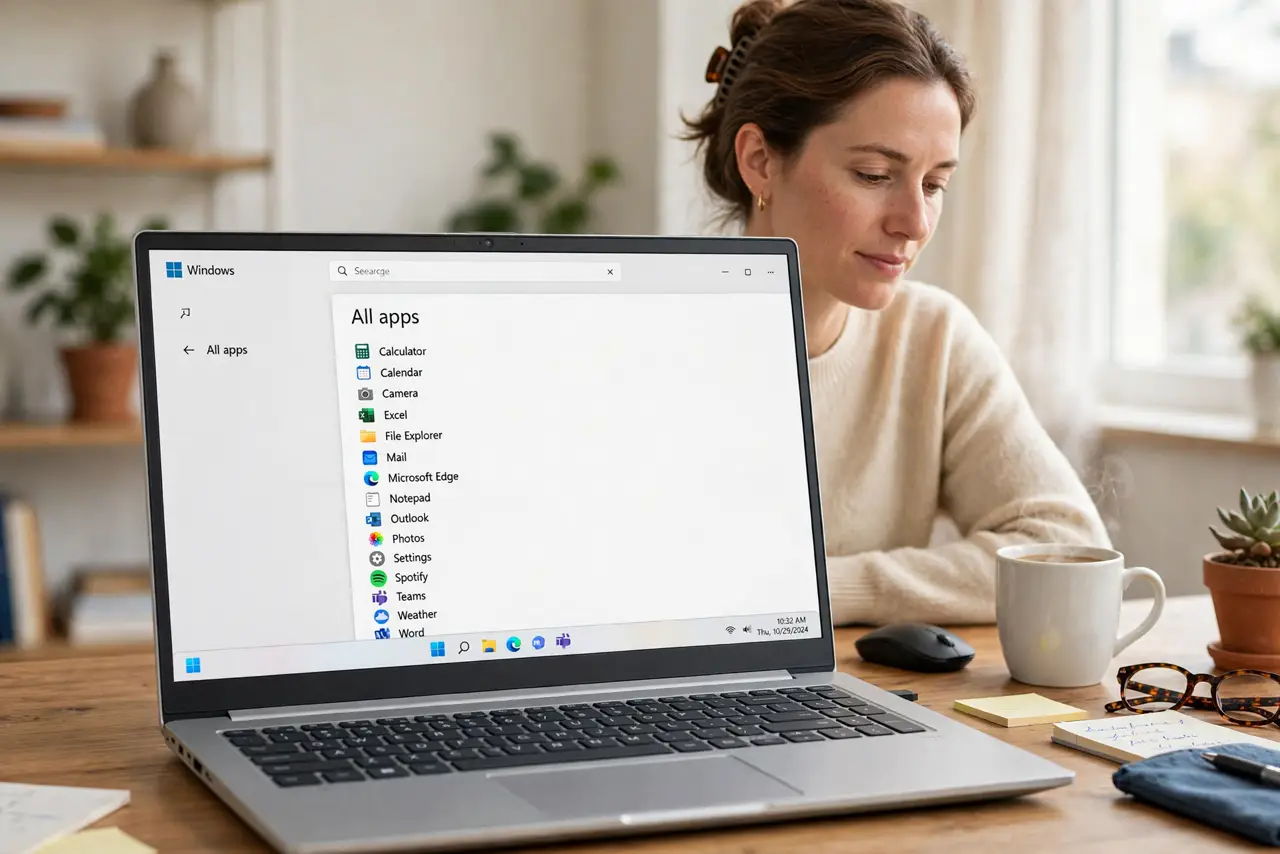
The All Apps list is the alphabetical list of everything installed, and losing it makes Start feel empty even though your apps are still there. The list is usually hidden by a layout change, a Start setting, or a corrupted Start menu cache, not by deleted apps. This guide brings it back step by step. If Start search itself is the problem, see the guide on stopping Start search web results.
TL;DR / Quick Fix
Quick fix: Open Start and look for All apps. Check Start personalization settings. Then work through the remaining steps in order, checking one change at a time, and stop for a technician if you see damage, swelling, or a burning smell.
Follow these steps
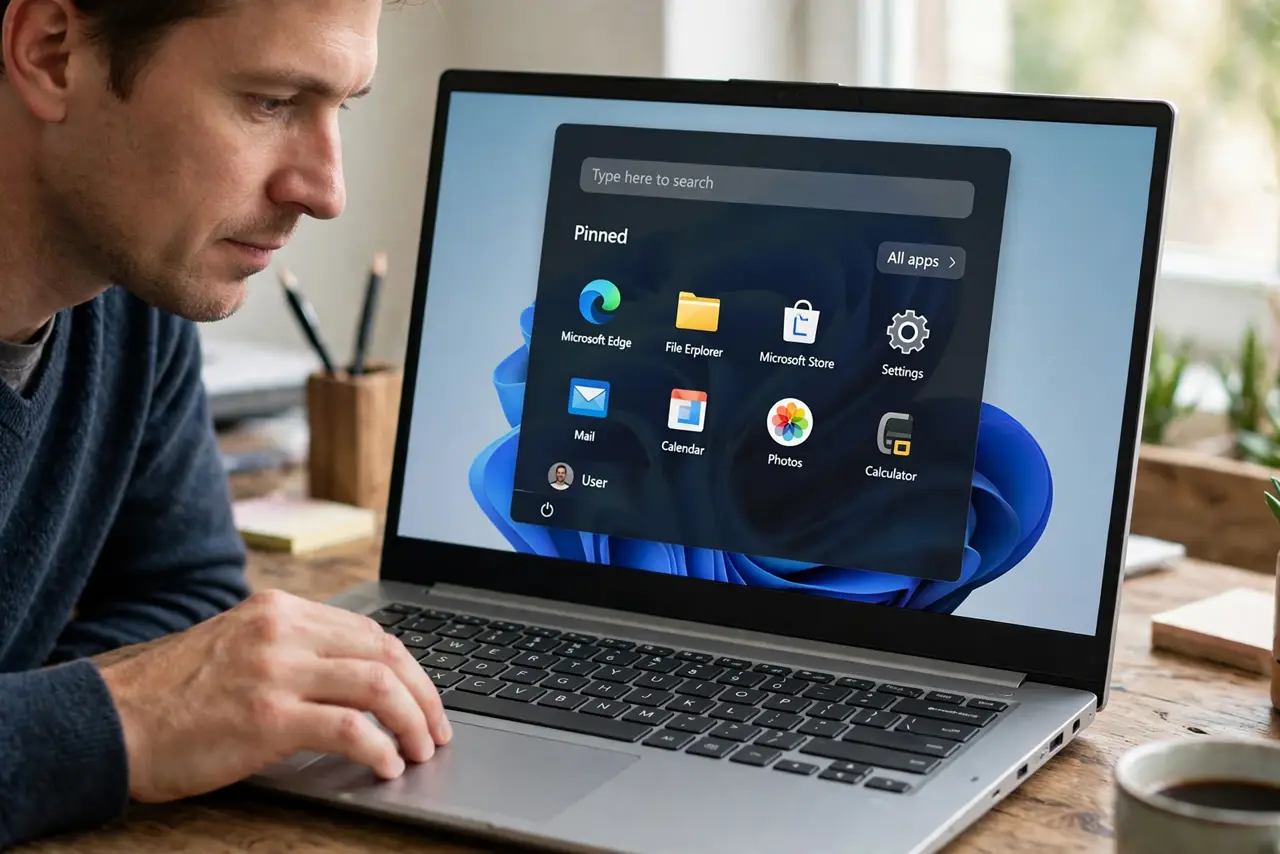
- Open Start and look for All apps. Click Start and look for the All apps button near the top right of the Start panel. On some layouts it is a small button rather than a full list, so click it before concluding the list is gone.
- Check Start personalization settings. Open Settings, then Personalization, then Start, and confirm the layout and folder options match what you expect. A changed layout can replace the app list view with pinned apps only.
- Search for a known installed app. In Start search, type the name of an app you know is installed. If it appears, the app is still there and only the list view is hidden, which narrows the fix to Start settings.
- Restart Windows Explorer cleanly. Press Ctrl, Shift, and Esc for Task Manager, find Windows Explorer under Processes, right-click it, and choose Restart. The taskbar and Start will refresh, which often restores a missing list.
- Re-register Start with a restart. Restart Windows fully, not just sleep and wake, then open Start and check All apps again. A full restart clears the Start menu cache that a quick refresh sometimes leaves behind.
- Create a desktop shortcut as a backup. While you test, right-click a found app in search and choose Open file location, then send a shortcut to the desktop. This keeps the app reachable even if the Start list still needs attention.
What NOT to do
- Do not reinstall apps that are only missing from the list. Search first, because reinstalling wastes time and can duplicate data.
- Do not install a Start menu replacement before restarting Explorer. The built-in list often returns with a simple refresh.
- Do not delete app folders from the Start menu folder. Removing shortcuts there hides apps further and is hard to undo cleanly.
- Do not reset Windows over a missing list. The list is a view setting and a cache, not a sign that Windows itself is broken.
Frequently asked questions
Are my apps deleted if All Apps is empty?
Almost certainly not. Search for one app by name, and if it opens, the apps are fine and only the list view is hidden.
Why does All Apps look different after an update?
Updates sometimes change the Start layout or default view. The personalization settings let you return to the layout you prefer.
Can I pin apps instead of using All Apps?
Yes. Right-click any app and choose Pin to Start, so your most used apps sit on the main Start panel.