Stop Start Search Showing Web Results
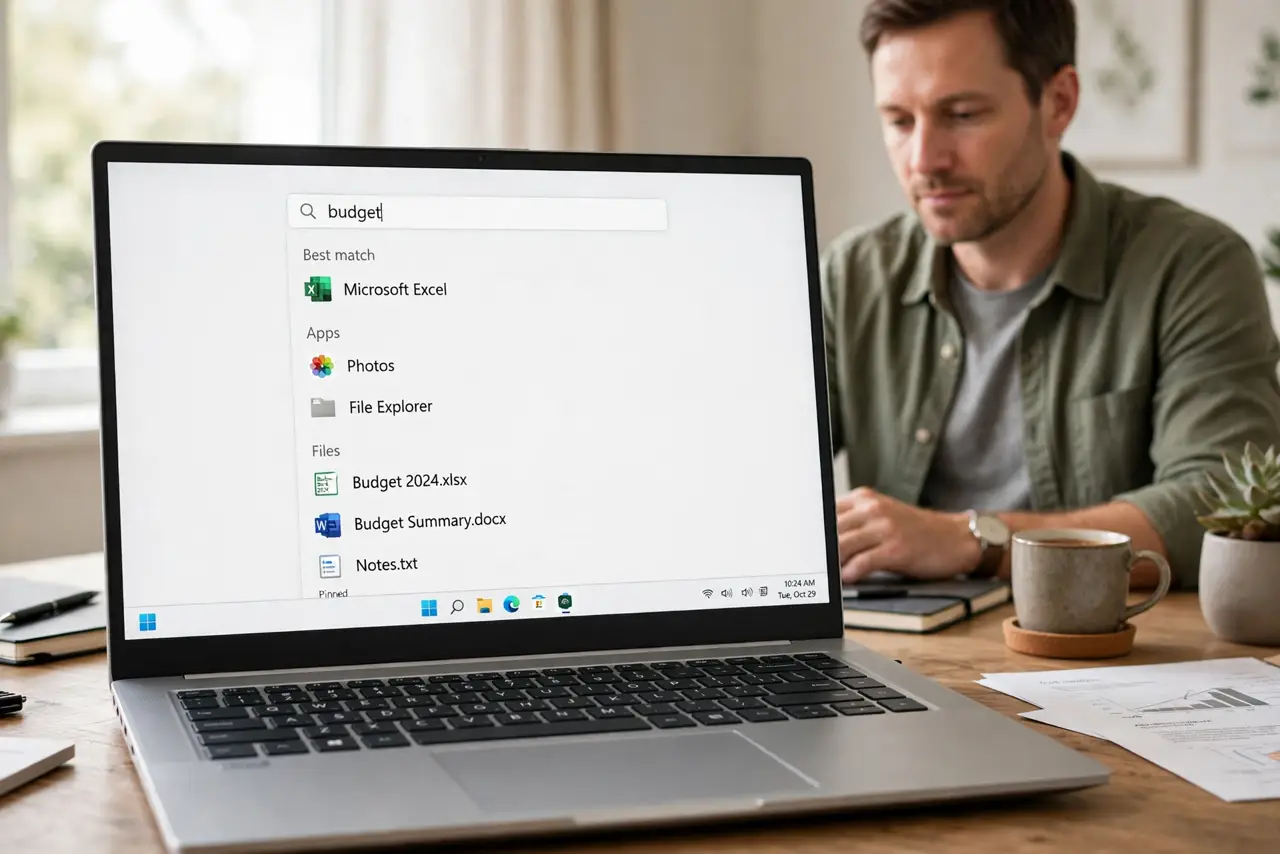
Typing in Start should find your apps and files, not send you to web results you never asked for. Windows mixes in web suggestions and search highlights by default, which slows the search and clutters it. This guide turns those extras off while keeping local search fast. If your Start menu itself is missing items, see the guide on the All Apps list missing from Start.
TL;DR / Quick Fix
Quick fix: Open Search settings from Start. Turn off web search in Start. Then work through the remaining steps in order, checking one change at a time, and stop for a technician if you see damage, swelling, or a burning smell.
Follow these steps
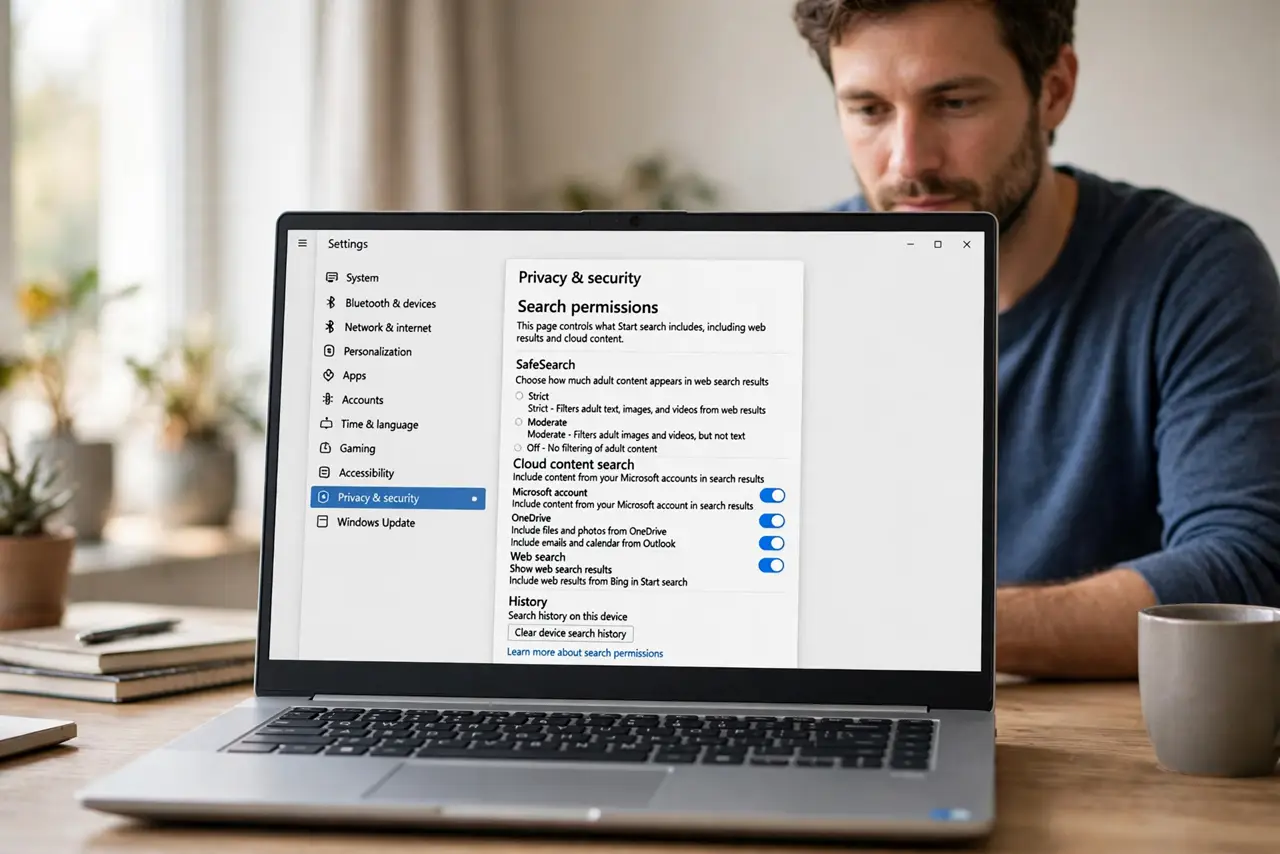
- Open Search settings from Start. Open Settings, then Privacy and security, then Search permissions. This page controls what Start search includes, including web results and cloud content.
- Turn off web search in Start. Under the search options, turn off the setting that includes web results or Microsoft account content, depending on the wording on your version. Start search will then stay local to your PC.
- Turn off search highlights. On the same page, or under Personalization and Taskbar on some versions, turn off Search highlights. Highlights add pictures and stories to the search box, which many people mistake for web results.
- Test with an app name. Open Start and type the name of an installed app, such as Calculator. You should see the app at the top, with no web suggestions underneath, which proves local search is working.
- Check cloud content settings too. In the same Search permissions page, confirm cloud content search is off if you want strictly local results. Cloud content can pull in files from your online account, which also look like extra results.
- Restart Start search with a sign-out. Sign out and back in, then test Start search once more. A fresh session applies the settings cleanly, and if web results return, recheck the same page for a setting you missed.
What NOT to do
- Do not edit the registry to kill web search. The Settings page already covers it, and registry edits can break search entirely.
- Do not disable Windows Search service. That stops local file search too, which is the opposite of a fast Start menu.
- Do not install a Start menu replacement just for this. The built-in toggles solve it without a new app learning your habits.
- Do not assume web results mean malware. Web suggestions are a default Windows feature, not a sign of infection, so check settings before worrying.
Frequently asked questions
Will this stop searching my files?
No. Local file and app search keeps working. Only web suggestions, highlights, and cloud extras are removed.
Where did the search highlights toggle go?
Its location varies by Windows version, between Search permissions and the Taskbar personalization page. Check both if you cannot find it.
Can I still search the web from Start if I want to?
Yes, by opening your browser and searching there. Turning this off only changes Start, not your browser.