Stereo Mix Missing on Windows? Fix It
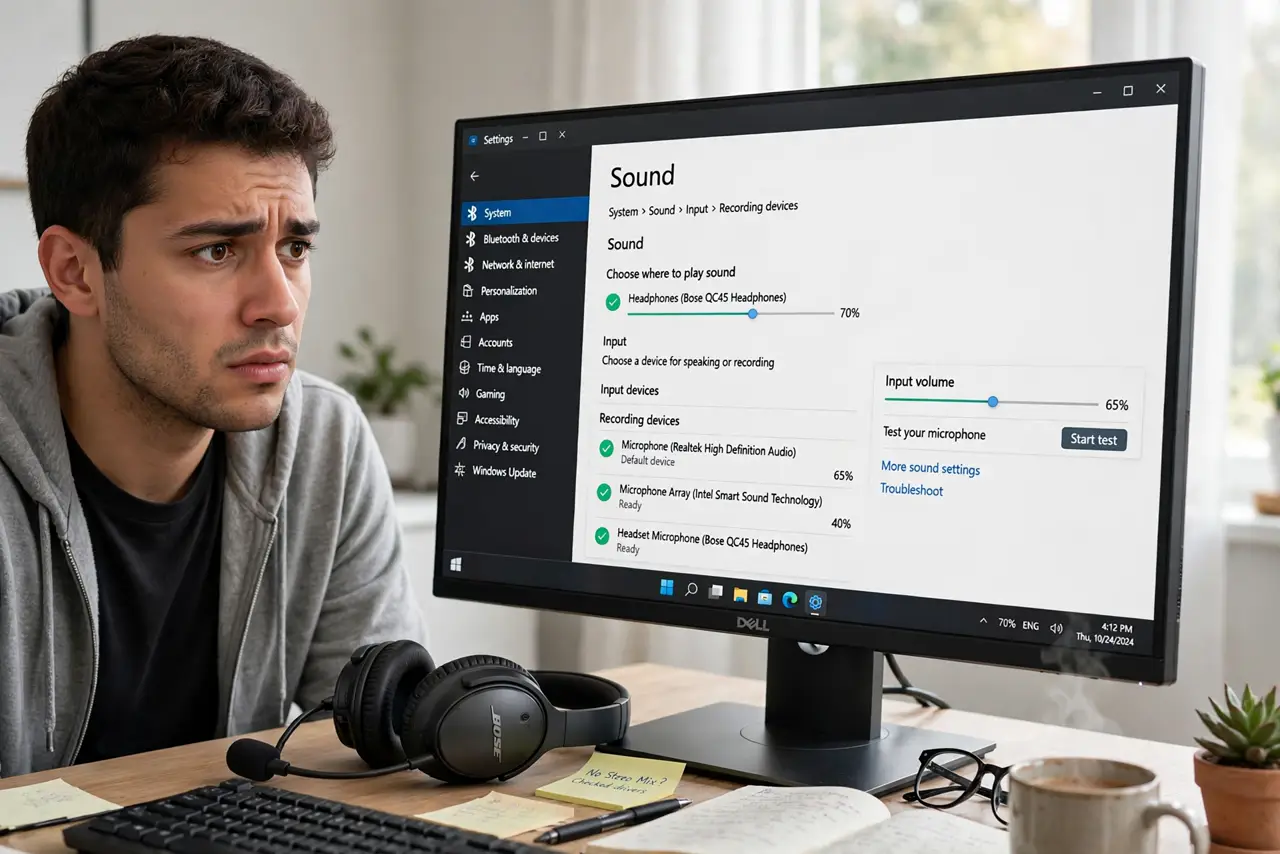
Stereo Mix — the device that records whatever plays through your speakers — is gone from the recording devices list. It is usually just hidden as a disabled device, though some audio drivers removed it entirely. Showing disabled devices brings it back in most cases, a recording-side relative of the Game Bar wrong audio issue.
TL;DR / Quick Fix
Quick fix: right-click in the recording devices list and tick Show Disabled Devices — Stereo Mix usually appears, grayed out. Right-click it and enable it, then set it as default when capturing system audio. If it never appears, your audio driver simply does not include it.
Follow these steps
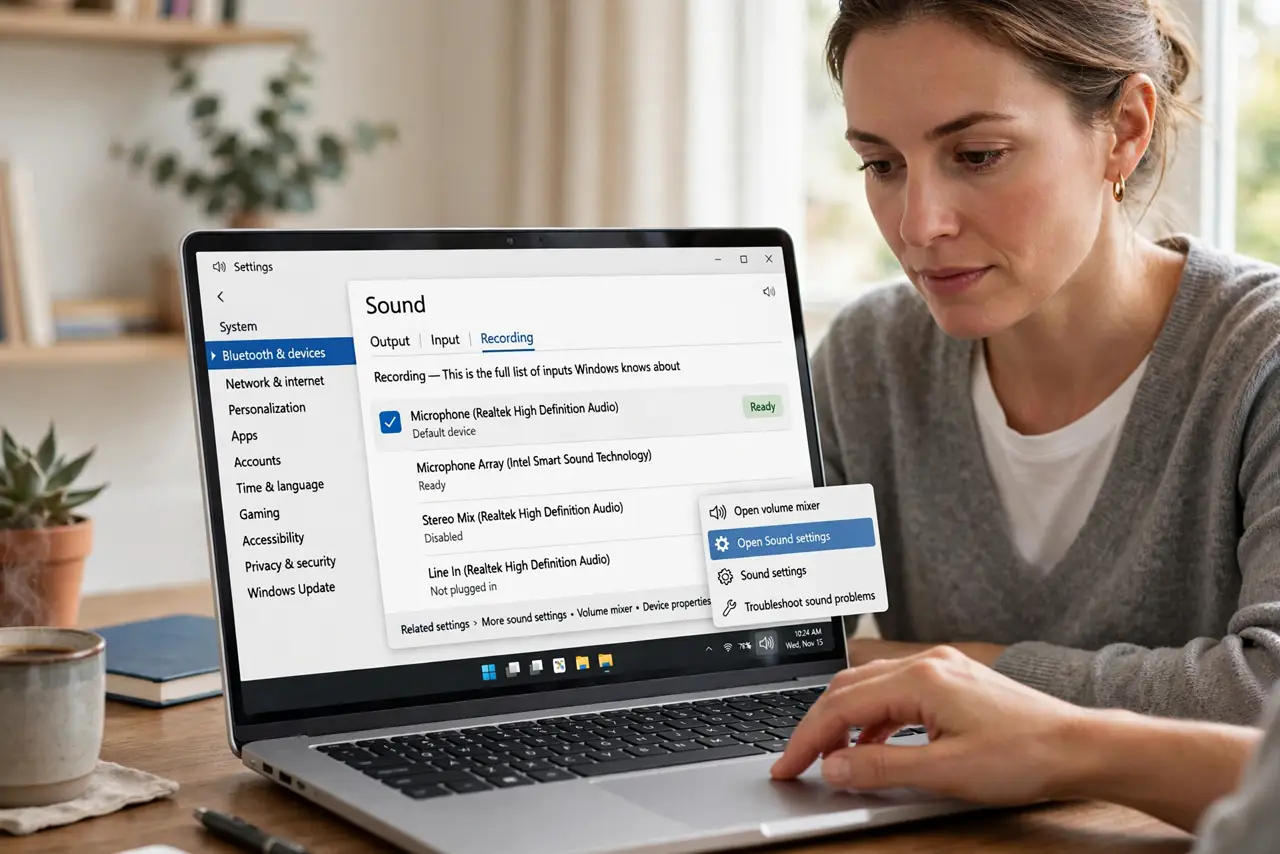
- Open the recording devices list. Right-click the speaker icon and open the sound settings, then the recording tab. This is the full list of inputs Windows knows about.
- Show disabled devices. Right-click in the empty space of the list and tick Show Disabled Devices. Stereo Mix is disabled by default on most systems, which is why it seems missing.
- Enable Stereo Mix. Right-click the newly visible Stereo Mix and choose Enable. It turns from gray to active and becomes selectable.
- Set it as default when recording system audio. Right-click Stereo Mix and set it as the default recording device before capturing. Remember to switch back to your microphone afterward for calls.
- Check for a driver update if it never appears. If Stereo Mix is absent even with disabled devices shown, update the audio driver from the PC or motherboard maker. Some drivers dropped Stereo Mix entirely.
- Test with a short recording. Record a few seconds of playing audio with Stereo Mix selected. A working capture proves the routing is correct.
What NOT to do
- Do not install random virtual audio cables first. Check for the built-in Stereo Mix before adding third-party audio drivers.
- Do not leave Stereo Mix as the default forever. Calls and voice apps will then capture speaker audio instead of your microphone.
- Do not expect Stereo Mix on every PC. Some modern drivers omit it permanently, and no setting can conjure a device the driver does not provide.
- Do not confuse Stereo Mix with microphone monitoring. Stereo Mix captures output audio; monitoring lets you hear your own mic, and they are different features.
Frequently asked questions
What is Stereo Mix for?
Recording whatever plays through your speakers — tutorials, game audio, call audio — without a microphone in the loop.
Why is Stereo Mix disabled by default?
Because an enabled Stereo Mix can cause echo in calls if the speaker output feeds back into the mic path. Disabled-by-default is the safe choice.
My driver has no Stereo Mix at all — now what?
Update the driver from the maker first. If it is still absent, the driver genuinely lacks it, and a virtual audio device is the alternative.