Stop Apps Opening at Startup
You turn on your PC and wait... and wait — a parade of apps you never asked for launches itself: chat clients, updaters, game launchers. Every one slows your login and eats memory all day. Windows gives you a simple switchboard to shut them up, and it takes two minutes.
TL;DR / Quick Fix
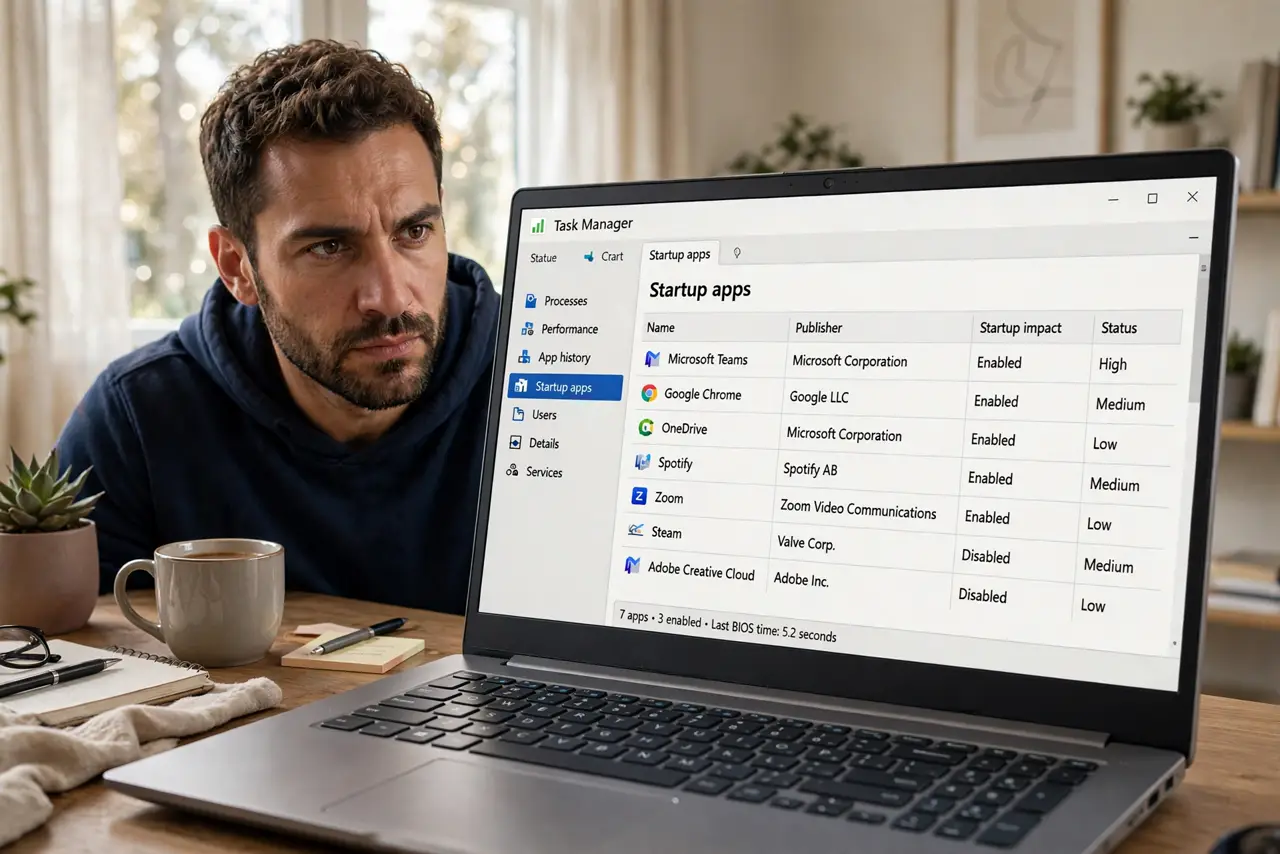
Quick fix: open Task Manager (Ctrl+Shift+Esc), go to the Startup apps tab, and Disable everything you don't need at login. Keep your antivirus and cloud sync; kill the chat apps and game launchers. Restart to feel the difference. Your PC will boot faster and stay snappier all day.
Follow these steps
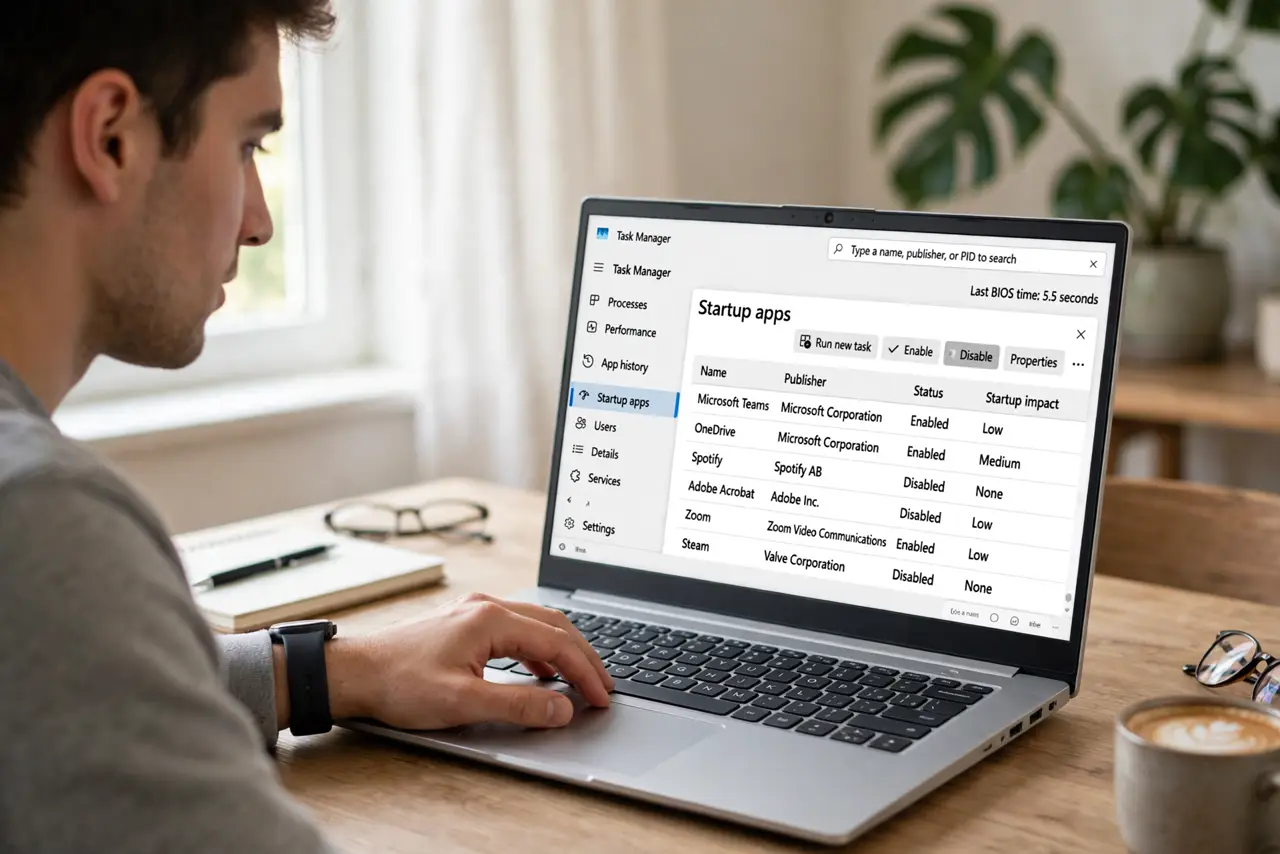
- Open Task Manager's Startup tab. Press Ctrl+Shift+Esc, then click Startup apps (or the Startup tab on older Windows). This lists everything that launches at login, with each app's startup impact rated.
- Sort by startup impact. Click the Startup impact column to sort High to Low. Attack the High-impact apps first — they're the ones actually slowing your login; see slow login culprits for the usual suspects.
- Disable, don't delete. Right-click an app and choose Disable. This stops the auto-launch but keeps the app installed and working — you can still open it manually whenever you want.
- Keep the essentials. Leave your antivirus, cloud storage sync, and audio drivers enabled. Everything else — chat apps, game stores, printer utilities — is a candidate for disabling.
- Check the Settings route too. Some apps hide from Task Manager. Check Settings, Apps, Startup for a second list with simple on/off toggles — disable the same non-essentials there.
- Restart and verify. Reboot and time your login. If something you actually wanted at startup is missing, re-enable it — disabling is fully reversible, so experiment without fear.
What NOT to do
- Do not disable your antivirus or security tools. Faster boot isn't worth an unprotected PC — security software stays, period.
- Do not disable hardware utilities blindly. Audio, trackpad, and graphics helpers often live here — killing them can break function keys or sound.
- Do not use sketchy PC optimizer tools for this. Task Manager does the job safely; third-party optimizers often install the very bloat they claim to remove.
- Do not expect miracles on an old hard drive. Startup apps matter, but a spinning HDD is the real bottleneck — an SSD upgrade dwarfs any startup tweak.
Frequently asked questions
Why do disabled apps keep coming back?
Some apps re-enable themselves on update or have a launch-at-startup option in their own settings. Disable it inside the app's preferences too, not just in Task Manager.
Is it safe to disable everything?
Almost — but keep antivirus and drivers. If you're unsure about an entry, search its name before disabling; disabling is reversible anyway.
What's the difference between Disable and uninstalling?
Disable only stops auto-launch; the app remains fully usable when you open it manually. Uninstalling removes it entirely — start with disabling, it's the gentler fix.