Stop Sharing Updates with Others
Your PC downloads Windows updates — and then quietly uploads them to other PCs on the internet, eating your bandwidth to save Microsoft's. That is Delivery Optimization, and it is on by default. Turning off internet-wide sharing takes less than a minute and stops your connection from moonlighting as a distribution server.
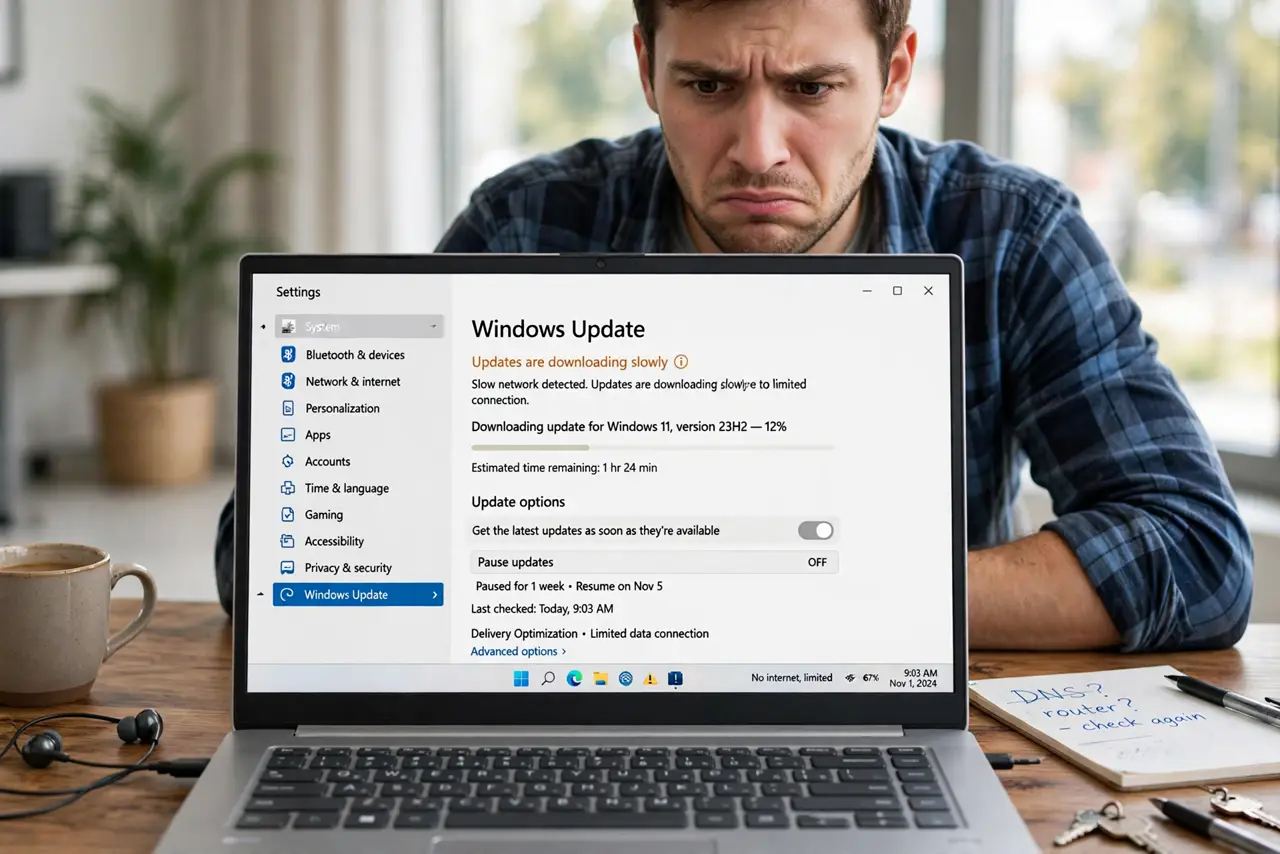
TL;DR / Quick Fix
Quick fix: open Settings, go to Windows Update, then Advanced options, then Delivery Optimization, and turn off 'Allow downloads from other PCs' — or limit it to devices on your local network. Your updates still download normally; your PC just stops uploading them to strangers.
Follow these steps
- Open Windows Update settings. Press the Windows key, type Windows Update settings, and open it. This is mission control for everything update-related.
- Go to Advanced options. Click Advanced options. Delivery Optimization hides here rather than on the main update page.
- Open Delivery Optimization. Click Delivery Optimization. You will see the toggle that controls peer-to-peer update sharing and, usefully, how much data it has already uploaded.
- Turn off sharing — or limit it to your network. Set Allow downloads from other PCs to Off to stop all sharing. Prefer a middle ground? Choose Devices on my local network so your PCs share with each other but never with the internet.
- Cap the bandwidth if you keep it on. Under Advanced options on the same page, you can limit how much upload bandwidth sharing may use. Useful on slow or metered connections where you still want local-network sharing.
- Check it stays off after big updates. Major Windows upgrades occasionally reset settings. After a feature update, glance back at this page — if sharing crept back on, switch it off again.
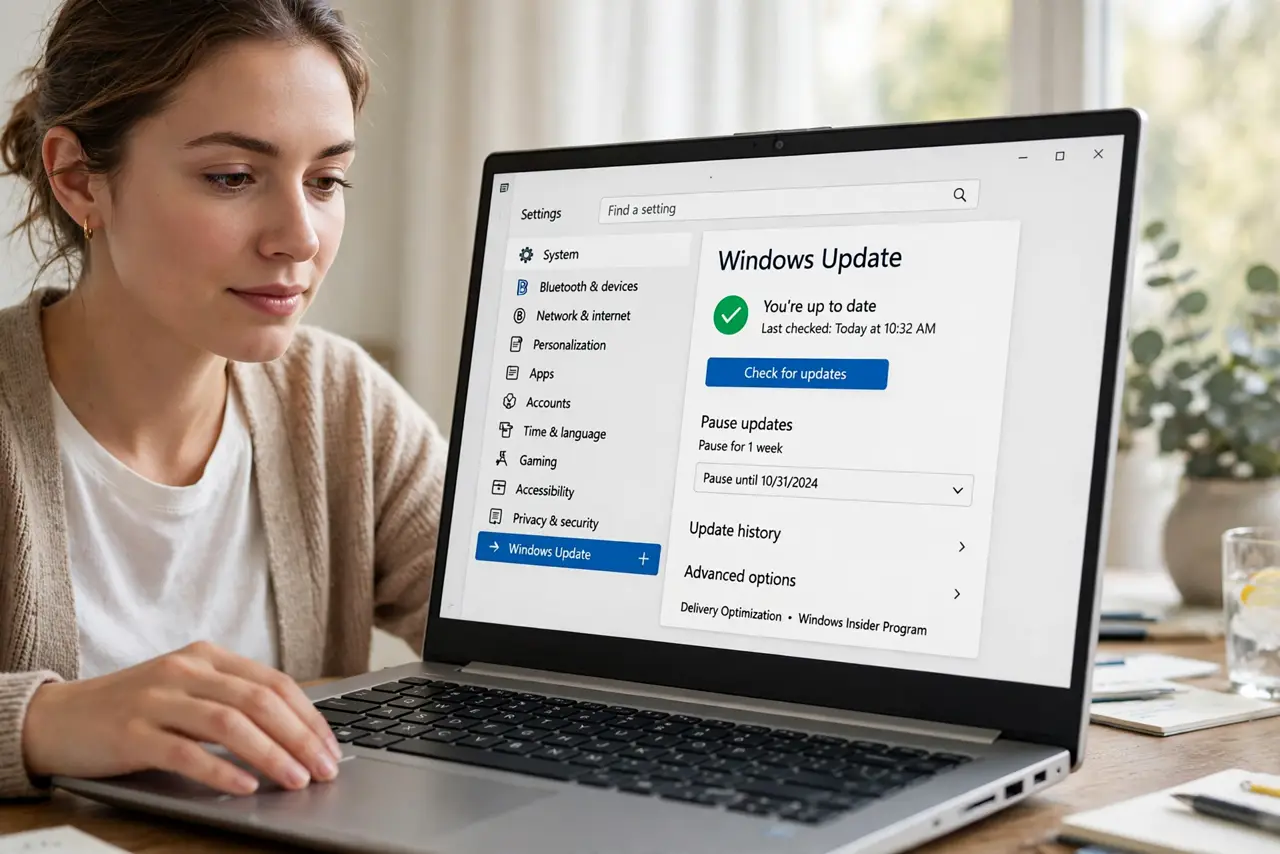
What NOT to do
- Do not disable Windows Update itself to save bandwidth. Unpatched systems are the real cost — share settings, not updates, are what you are turning off.
- Do not assume turning this off speeds up downloads. It stops your uploads; download speed is unchanged.
- Do not forget metered connections. On a capped data plan, also set the connection as metered so Windows itself downloads less.
- Do not confuse this with the update troubleshooter. If updates are failing outright, that is a different fix.
Frequently asked questions
Does turning this off break updates?
No. Your PC still downloads updates from Microsoft normally — it just stops serving them to other PCs.
Why is this on by default?
Peer-to-peer sharing reduces Microsoft's server load and can speed downloads on fast connections. On slow or capped connections, the tradeoff favors turning it off.
Can I see how much I uploaded?
Yes — the Delivery Optimization page shows activity statistics, including total uploaded data. Many people are surprised by the number.