Microsoft Store Update Stuck? Fix It
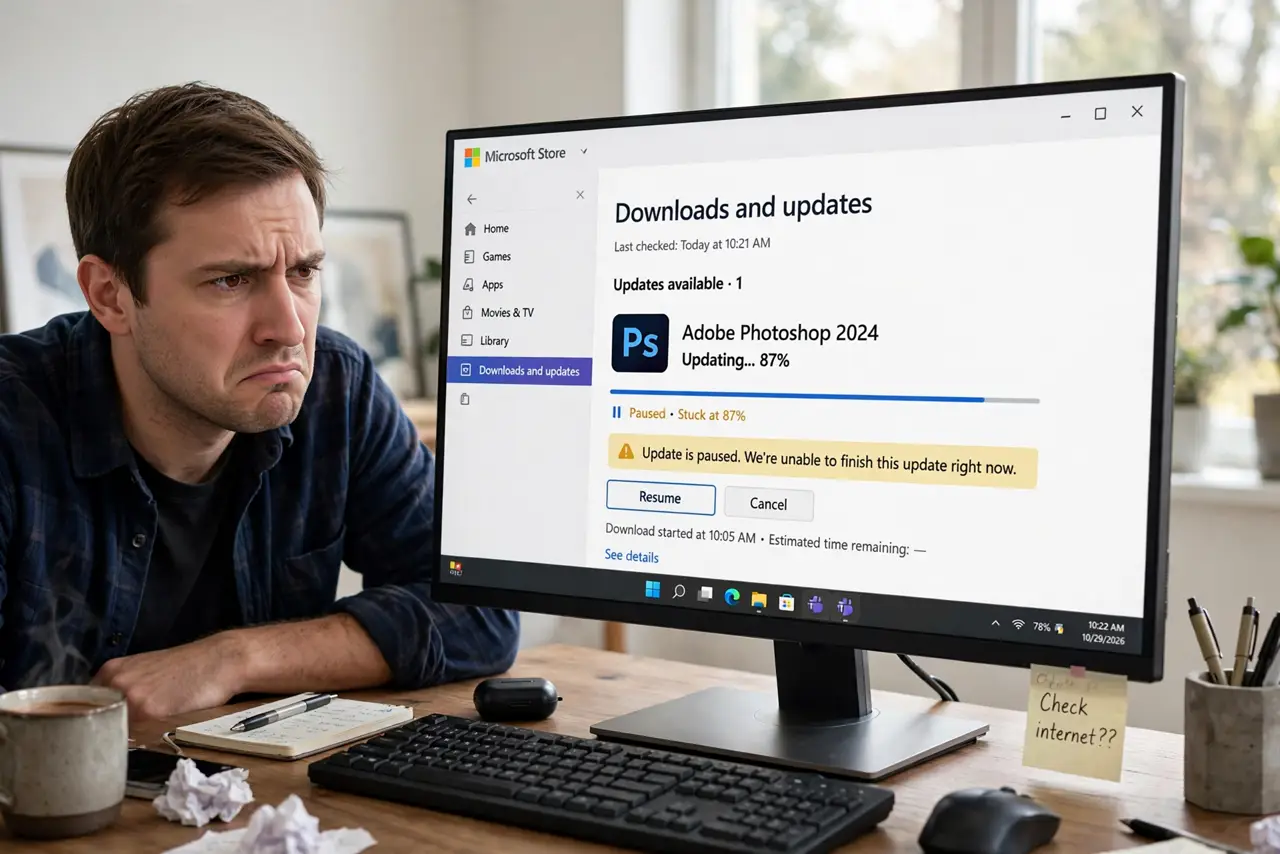
A Microsoft Store app update freezes mid-download — the progress bar never moves, and pausing does nothing. The Store's cache or its download queue is wedged, which is a Store problem rather than an app problem. A short sequence from pause to cache reset clears it, related to the broader stuck Windows Update issue.
TL;DR / Quick Fix
Quick fix: pause the stuck download, then resume it — that alone clears many wedges. If it stays frozen, reset the Store cache with the built-in wsreset command, then repair the Store app in Settings. The queue rebuilds and the update downloads cleanly afterward.
Follow these steps
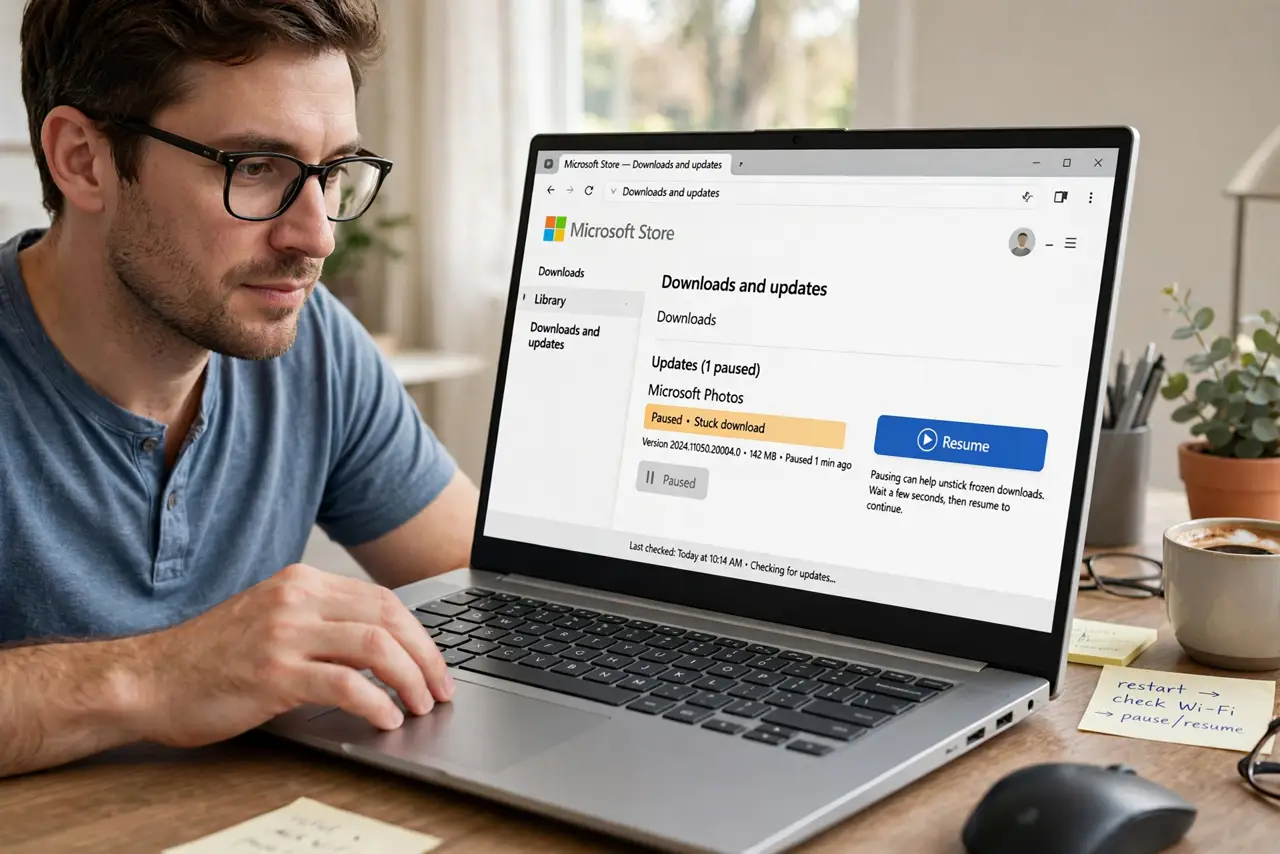
- Pause and resume the stuck download. In the Store's download section, pause the frozen update, wait a few seconds, and resume it. A surprising number of stuck downloads continue normally after this nudge.
- Check your connection and disk space. Confirm the internet works and the drive has free space. The Store rarely says so clearly, but a full drive or a dropped connection freezes downloads silently.
- Reset the Store cache. Run the wsreset command, which clears the Store's cache without touching your apps or account. The Store opens fresh afterward with a clean download queue.
- Repair the Store app itself. In Settings, find Microsoft Store in the apps list and use the Repair option. Repair fixes the Store's own files while keeping your installed apps.
- Sign out and back into the Store. Open the Store's account menu, sign out, and sign back in. A stale account token can stall downloads that otherwise look fine.
- Reset the Store only as a last step. If nothing else works, use the Reset option on the Store app. Reset is stronger than repair and clears the Store's data, so your apps stay but you sign in again.
What NOT to do
- Do not reinstall every stuck app. The problem is the Store's queue, not the apps, so reinstalling them wastes time and data.
- Do not run wsreset repeatedly. Once clears the cache; running it five times does not clear it five times better.
- Do not disable the Store to avoid updates. That breaks app updates and some system components that depend on the Store.
- Do not confuse a slow download with a stuck one. Give a large game update real time on a slow connection before declaring it frozen.
Frequently asked questions
Why do Store downloads freeze?
Because the Store's download queue or cache gets wedged. The queue is fragile, and one bad entry can stall everything behind it.
What does wsreset actually do?
It clears the Microsoft Store's cache and reopens the Store. Your installed apps, purchases, and account are untouched.
Will resetting the Store delete my apps?
No. Reset clears the Store app's own data; the apps you installed from it remain installed.