Fix 100% Disk Usage
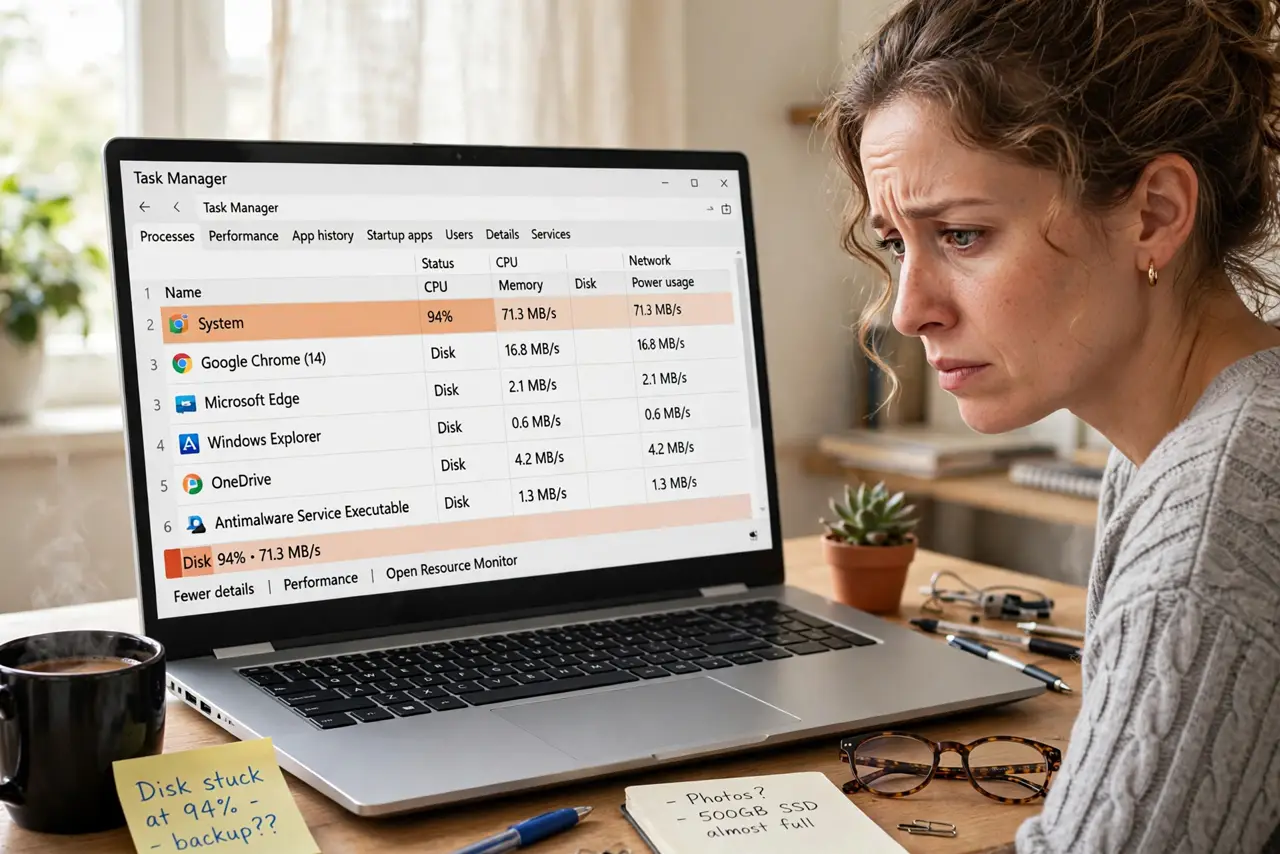
Your PC crawls, the fan screams, and Task Manager shows the disk pinned at 100% while you are doing nothing. On machines with old spinning hard drives, the culprit is often Windows' own background service, SysMain, aggressively 'optimizing' a drive that cannot keep up. Taming it takes two minutes.
TL;DR / Quick Fix
Quick fix: open Services, find SysMain (formerly Superfetch), stop it, and set it to Disabled — then restart. If disk usage drops from 100%, that was the culprit. On machines with old spinning hard drives, this background service is the most common cause of constant disk grinding.
Follow these steps
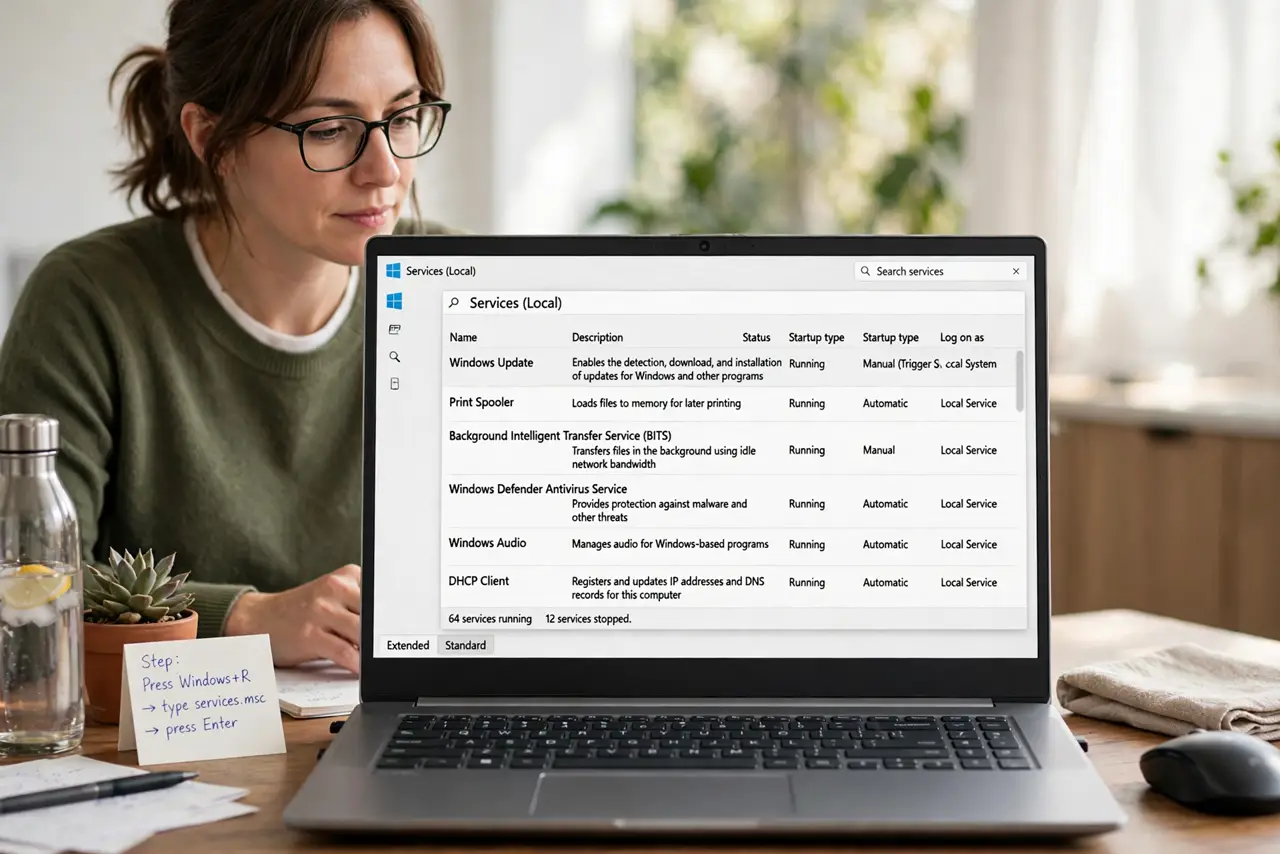
- Open the Services panel. Press Windows+R, type services.msc, and press Enter. This lists every background service Windows runs.
- Find SysMain and stop it. Scroll to SysMain (it may still show as Superfetch on older builds), right-click it, and choose Stop. Watch Task Manager — disk usage often falls immediately.
- Set it to Disabled. Right-click SysMain again, open Properties, and set Startup type to Disabled. This keeps it from coming back on the next boot.
- Restart and verify. Reboot and use the PC normally for a while. Check Task Manager's disk column — sustained 100% should be gone.
- Check what else hammers the disk. If usage is still high, sort Task Manager by the Disk column to find the process. Antivirus scans and Windows Update are the next usual suspects — see high disk use in Task Manager for the full hunt.
- Consider an SSD upgrade. If the drive is a spinning hard disk, SysMain was papering over slow hardware. An SSD is the real long-term fix — the single best upgrade for an old PC.
What NOT to do
- Do not disable random services to 'speed up' Windows. SysMain is a known, safe target — blindly disabling services breaks things.
- Do not assume 100% disk means a virus. Background services and updates cause this far more often than malware.
- Do not re-enable SysMain hoping it 'learns.' On a spinning drive it will just re-saturate the disk — leave it disabled.
- Do not ignore clicking or grinding noises. Software fixes cannot save a physically failing drive — back up immediately if the disk sounds wrong.
Frequently asked questions
What does SysMain actually do?
It preloads frequently used apps into memory to speed launches. On fast SSDs it is harmless; on slow hard drives it chokes the disk it is trying to help.
Will disabling SysMain hurt performance?
On an SSD, you will not notice. On a hard drive, the PC usually feels faster because the disk is no longer saturated.
Disk still at 100% after disabling it?
Look for Windows Update, antivirus scans, or a failing drive. Sort Task Manager by disk usage to identify the process.