Show Seconds on the Windows Taskbar Clock
When the taskbar clock shows hours and minutes but no seconds, timing a short task means opening another clock app. Windows offers a seconds option in Date and time settings, so the fix is a single switch, not a third-party clock tool.
TL;DR / Quick Fix
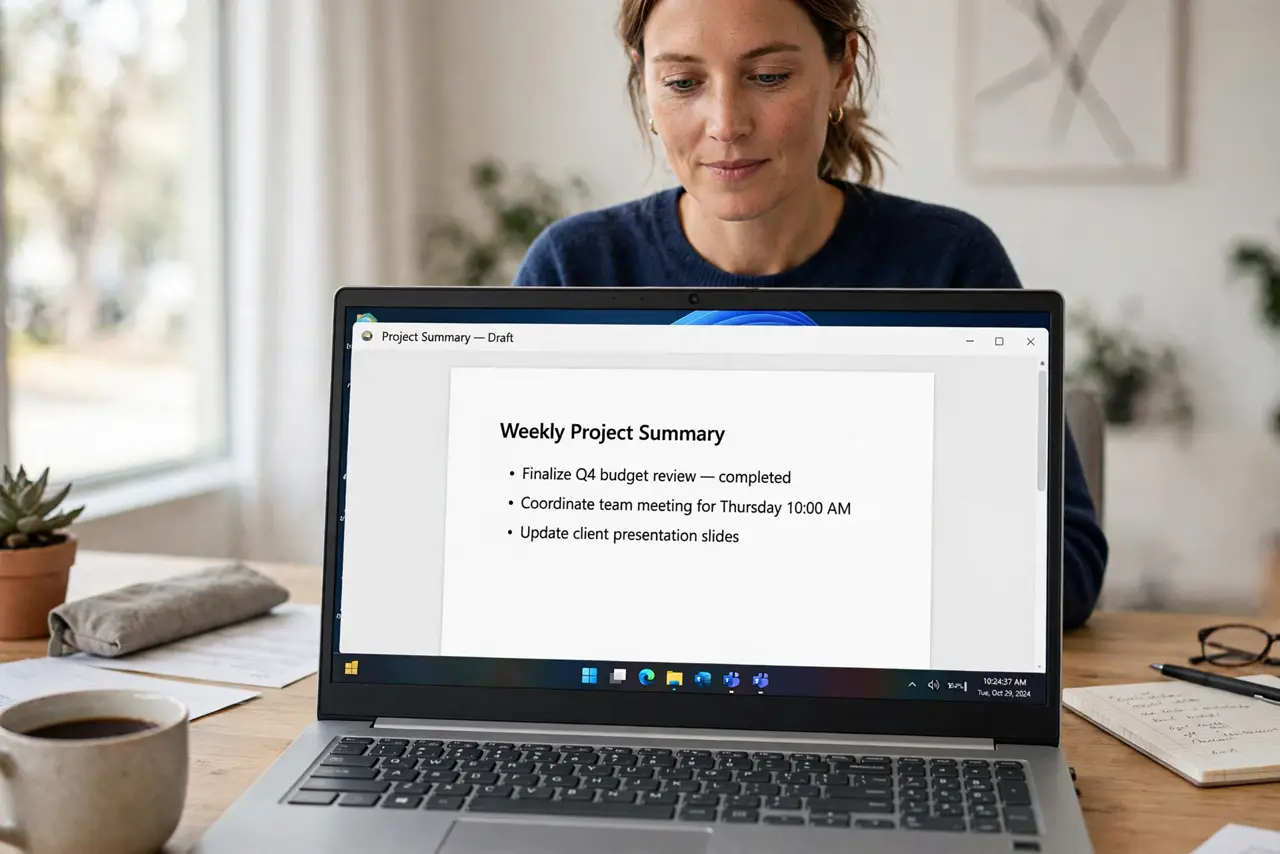
Quick fix: open Settings, then Time and language, then Date and time, and turn on Show seconds in the system tray clock without any restart. Look at the taskbar clock right away: seconds should now tick beside the minutes every second.
Follow these steps
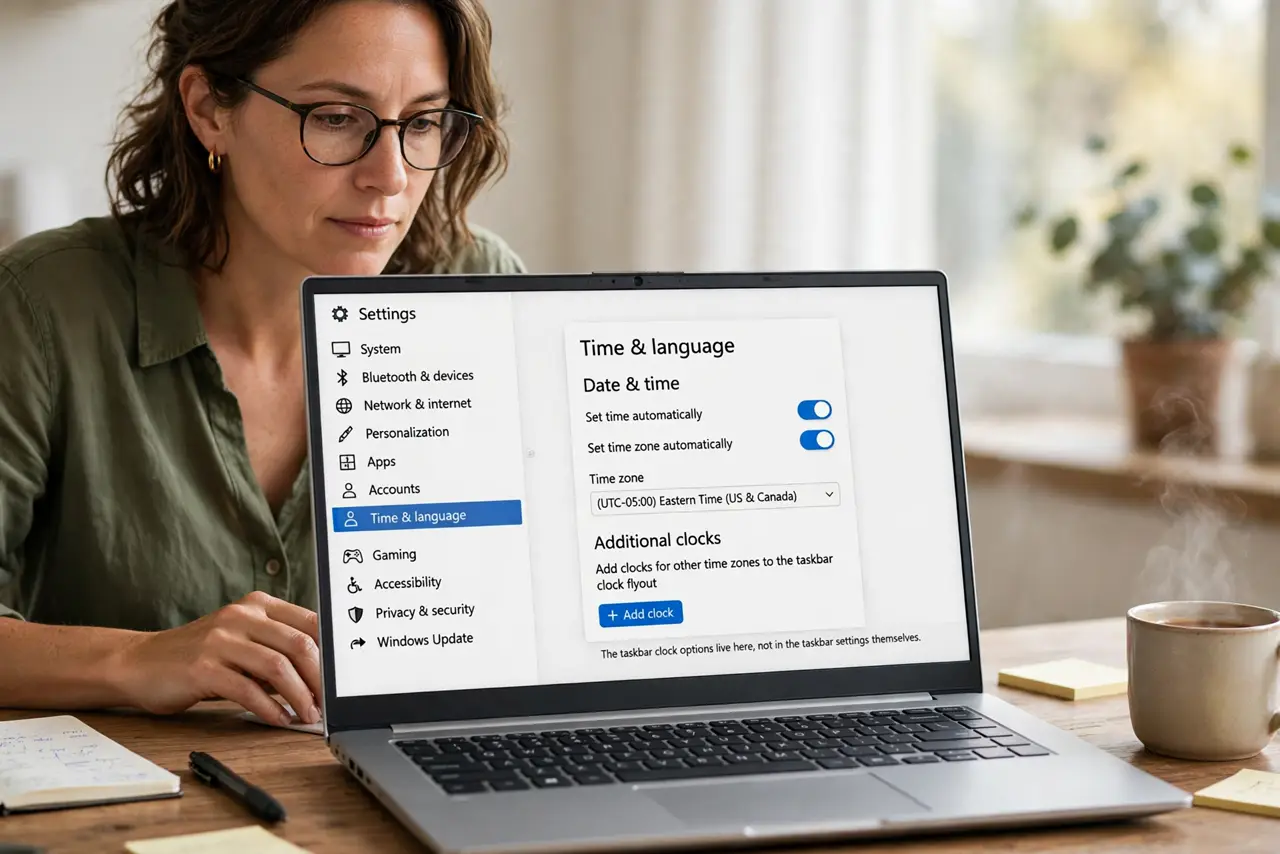
- Open Date and time settings. Open Settings, then Time and language, then Date and time. The taskbar clock options live there, not in the taskbar settings themselves.
- Turn on seconds in the system tray clock. Find Show seconds in the system tray clock and turn it on. The taskbar clock should update at once, without a restart.
- Check the clock right away. Look at the bottom-right taskbar clock and confirm seconds now appear and tick. If they do not, keep going, because another setting may be hiding them.
- Check that the taskbar is not hiding the clock. Open Settings, then Personalization, then Taskbar, and confirm the clock is set to show. A hidden clock cannot show seconds, no matter how correct the date setting is.
- Restart Explorer if seconds do not appear. Open Task Manager, restart Windows Explorer, then check the clock again. A stuck Explorer process can hold the old clock display until it restarts.
- Leave the setting on for daily use. Keep seconds on if you time short tasks often. The extra digits cost almost nothing, and they save you opening a separate timer app.
What NOT to do
- Do not install a third-party clock tool to show seconds. Windows already offers the setting, and extra tools add background load for a job a switch already does.
- Do not change the time format to a custom string to force seconds. The built-in seconds switch is the supported way, and custom formats can break other time displays.
- Do not restart the whole computer before you try restarting Explorer. A full restart takes far longer, while an Explorer restart refreshes the taskbar in seconds.
- Do not assume seconds are missing because the clock is broken. The clock is working, it is simply set to hide seconds, which is the default on many systems.
Frequently asked questions
Where is the seconds setting?
In Settings, then Time and language, then Date and time, under the system tray clock options. It is a single switch, not a format string.
Will seconds drain my battery?
No, in any practical sense. Updating two extra digits on the taskbar uses negligible power compared with the screen and apps.
Can I show seconds on a second monitor taskbar too?
Yes, if that taskbar shows the clock. The same system tray clock setting applies to taskbar clocks that display the time.