Ungroup Taskbar Buttons
Windows 11 launched with the taskbar buttons forcibly grouped — all your Word documents crushed into one icon, no labels, no at-a-glance view. For anyone juggling many windows, it was a genuine productivity hit. Microsoft eventually brought the ungroup option back, buried in settings. Here's where it lives and how to get your labeled buttons back.
TL;DR / Quick Fix
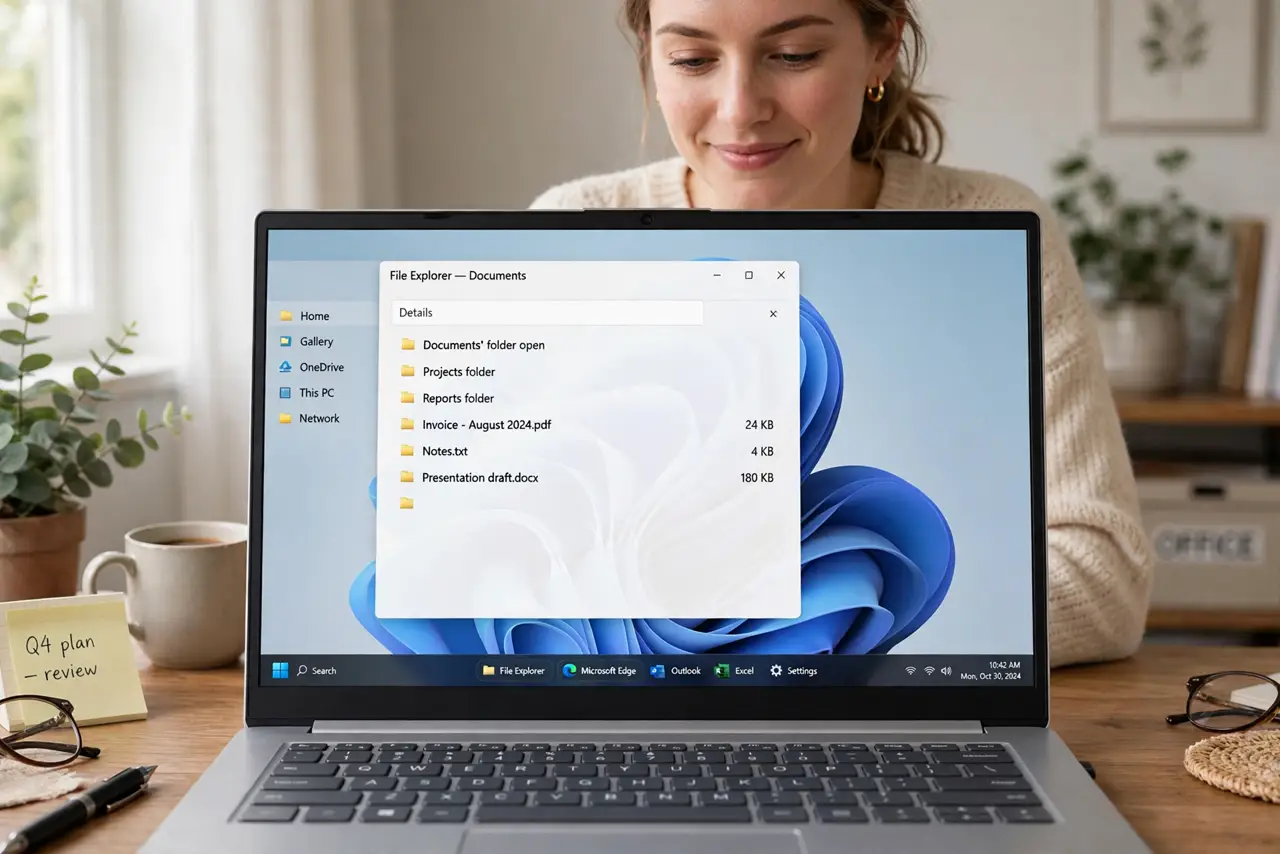
Quick fix: in Windows 11, open Settings, Personalization, Taskbar, Taskbar behaviors, and set Combine taskbar buttons to Never. Each window gets its own labeled button again, like the old days. If the option is missing, a Windows update added it back — install updates first.
Follow these steps
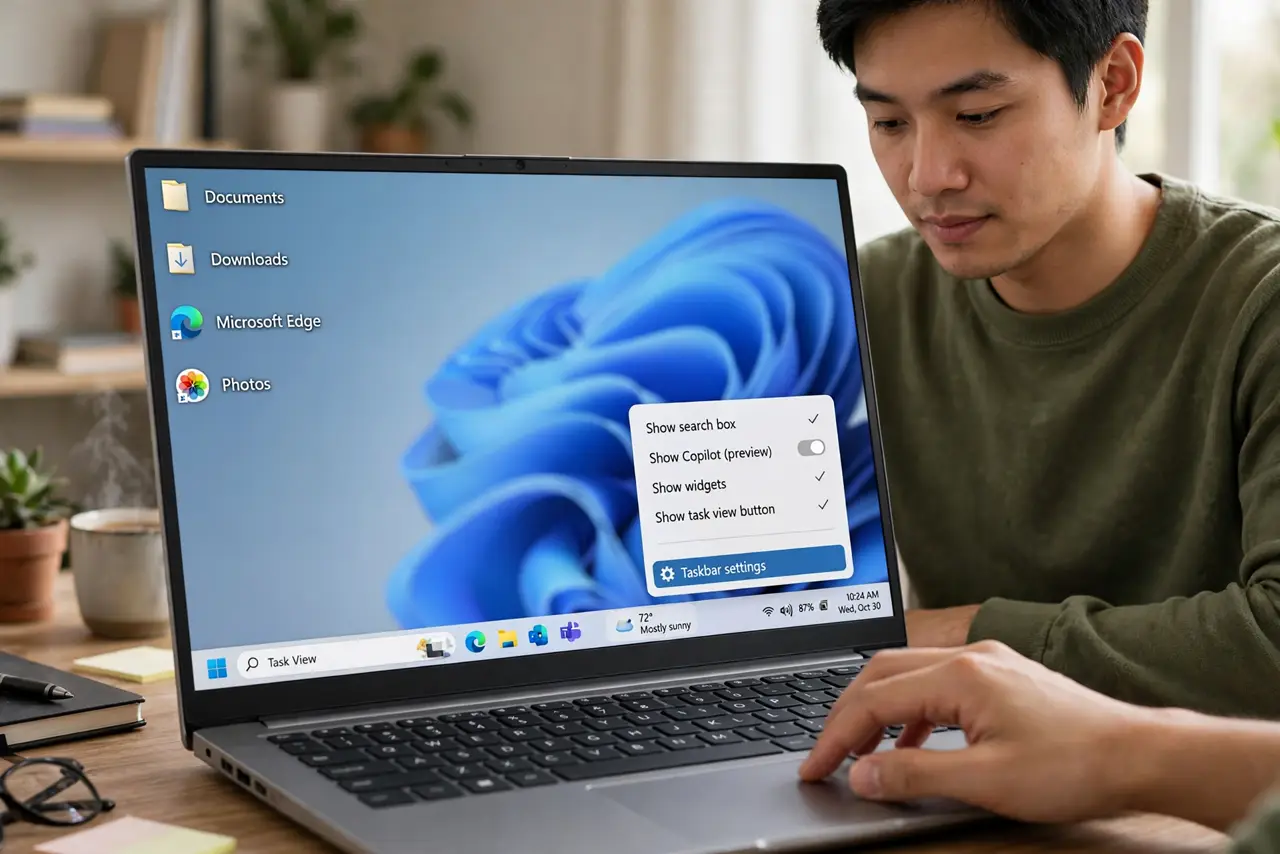
- Open the taskbar settings. Right-click an empty area of the taskbar and choose Taskbar settings, or go to Settings > Personalization > Taskbar. This is mission control for everything the taskbar does.
- Expand Taskbar behaviors. Scroll to the bottom of the taskbar settings page and expand 'Taskbar behaviors.' The grouping option hides here rather than with the main taskbar toggles — Microsoft buried the lede.
- Set Combine to Never. Find 'Combine taskbar buttons and hide labels' and set it to Never. Immediately, every open window gets its own labeled button. 'When taskbar is full' is the middle ground if you want labels until space runs out.
- Check the multi-monitor setting. If you use several monitors, there's a separate combine setting per display under the same section. Set each one — the main taskbar and the others can behave differently, which confuses people.
- Update Windows if the option is missing. The ungroup option returned in a 2023 Windows 11 update. If you only see an on/off toggle with no Never option, you're behind — run Windows Update, reboot, and look again.
- Consider labels vs. space. Ungrouped with labels eats taskbar space fast with many windows. If you routinely run 20+ windows, 'When taskbar is full' gives labels most of the time without the overflow crush. See general taskbar customization for the rest of the layout.
What NOT to do
- Do not install a third-party taskbar replacer for this alone. The native option now exists — extra software for a built-in toggle adds risk for nothing.
- Do not confuse this with the old Windows 10 setting location. Windows 11 moved it; the classic right-click-properties path is gone.
- Do not set Never with 30 windows open and complain about space. Labels are wonderful until the taskbar overflows — match the setting to your real window count.
- Do not forget secondary monitors. An ungrouped main taskbar with grouped secondary ones looks like a bug — set both.
Frequently asked questions
Why did Microsoft remove ungrouping?
The Windows 11 taskbar was rebuilt from scratch and launched without it; user outcry brought it back in a later update. The option is here to stay now.
Can I ungroup on Windows 10?
Yes — Windows 10 always had it: right-click the taskbar, Taskbar settings, 'Combine taskbar buttons' set to Never. No update needed.
Will ungrouping slow down my PC?
No measurable effect. It's purely a display preference — same windows, same resources, just labeled buttons.