Add a Third Monitor
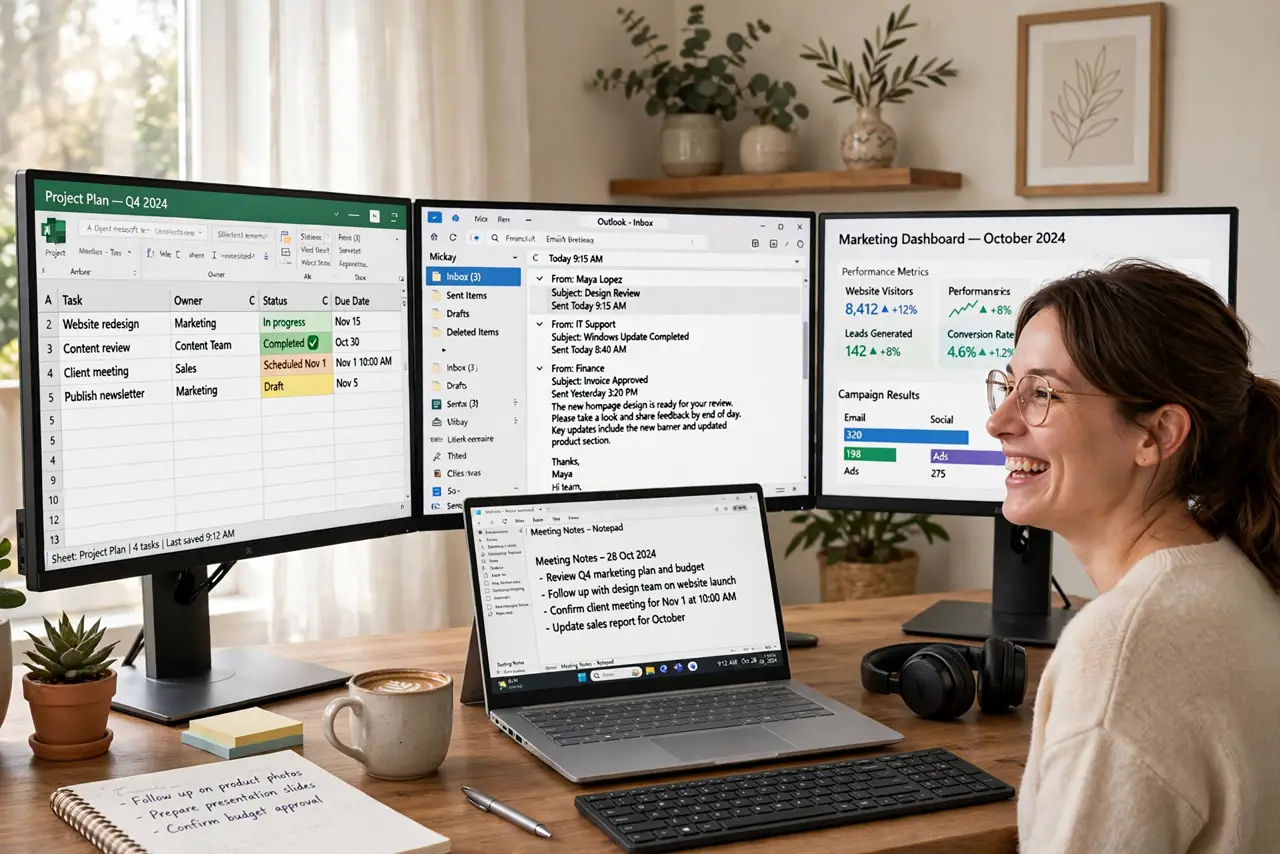
Two screens were a revelation; now you want a third — chat on one, work on two, reference on three. Adding a third monitor is usually just a cable and a setting, but port types and GPU limits decide whether it 'just works'. This guide gets all three glowing.
TL;DR / Quick Fix
Quick fix: adding a third monitor is usually plug-and-play — connect it to a free port on your GPU (not the motherboard), then press Windows+P to choose Extend. Arrange the displays in Display Settings by dragging them into position. Check your GPU's max monitor count before buying.
Follow these steps
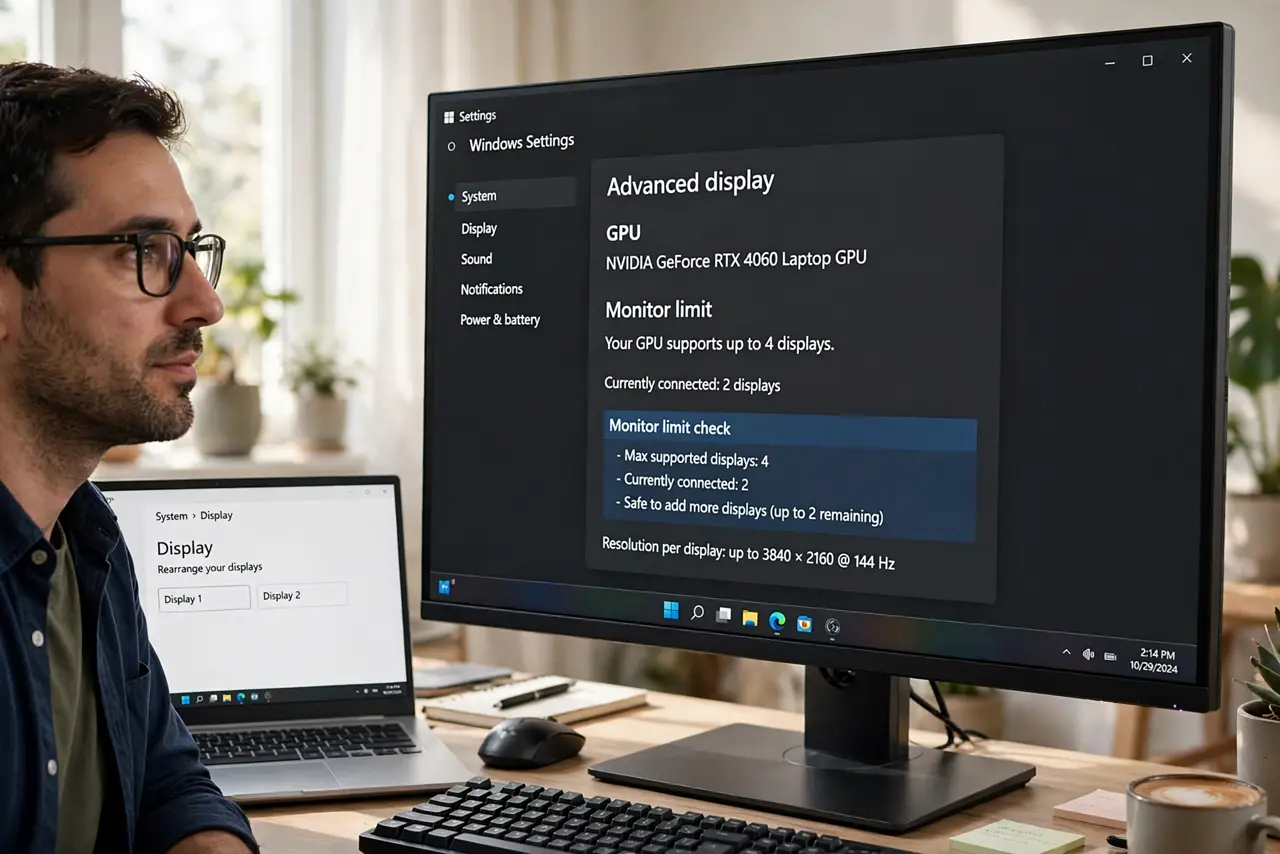
- Check your GPU's monitor limit. Most modern GPUs drive 3-4 displays; some integrated graphics max at two. Check the spec before buying monitor three — the limit is real.
- Use GPU ports, not motherboard. With a dedicated graphics card installed, the motherboard video ports are usually disabled. Plug all three monitors into the GPU.
- Connect with the right cables. Match port to cable: HDMI, DisplayPort, USB-C. Adapters work but add failure points — native connections first.
- Press Windows+P, choose Extend. Extend spans the desktop across all three. Duplicate mirrors — useful for presenting, useless for productivity.
- Arrange displays by dragging. Display Settings shows rectangles — drag them to match physical layout. Wrong order means the mouse 'jumps' between screens unnaturally.
- Set scaling per monitor. Mixed monitors need per-display scaling so text matches in size. 100% on the 1080p, 125-150% on the 4K — tune until dragging windows feels seamless. For wireless options instead, see wireless projection.
What NOT to do
- Do not daisy-chain blindly. DisplayPort daisy-chaining needs MST support on monitor one — check before planning the chain.
- Do not ignore the power strip. Three monitors plus PC can trip an overloaded strip — spread the load.
- Do not expect triple gaming without GPU muscle. Desktop productivity is easy; triple-screen gaming wants serious graphics power.
- Do not leave the arrangement wrong. Five minutes of dragging rectangles saves years of mouse-jump annoyance.
Frequently asked questions
Why is the third monitor not detected?
GPU limit reached, wrong port (motherboard vs GPU), or a bad cable/adapter. Check in that order.
Can I mix different monitor models?
Yes — different sizes and resolutions coexist fine. Match scaling so text feels uniform.
Does it hurt performance?
Desktop use: negligibly. Gaming across three: significantly — the GPU renders three times the pixels.