Touchpad Clicks While You Type on Windows
A cursor that jumps or clicks while you type is usually your palm brushing the touchpad, and Windows has a palm rejection setting meant to stop exactly that. When it fails, sensitivity is too high, the delay is too short, or a driver is out of date. This guide tunes those in order. If the touchpad does not work at all, see laptop touchpad not working.
TL;DR / Quick Fix
Quick fix: Turn on palm rejection delay. Lower the touchpad sensitivity setting. Then work through the remaining steps in order, checking one change at a time, and stop for a technician if you see damage, swelling, or a burning smell.
Follow these steps
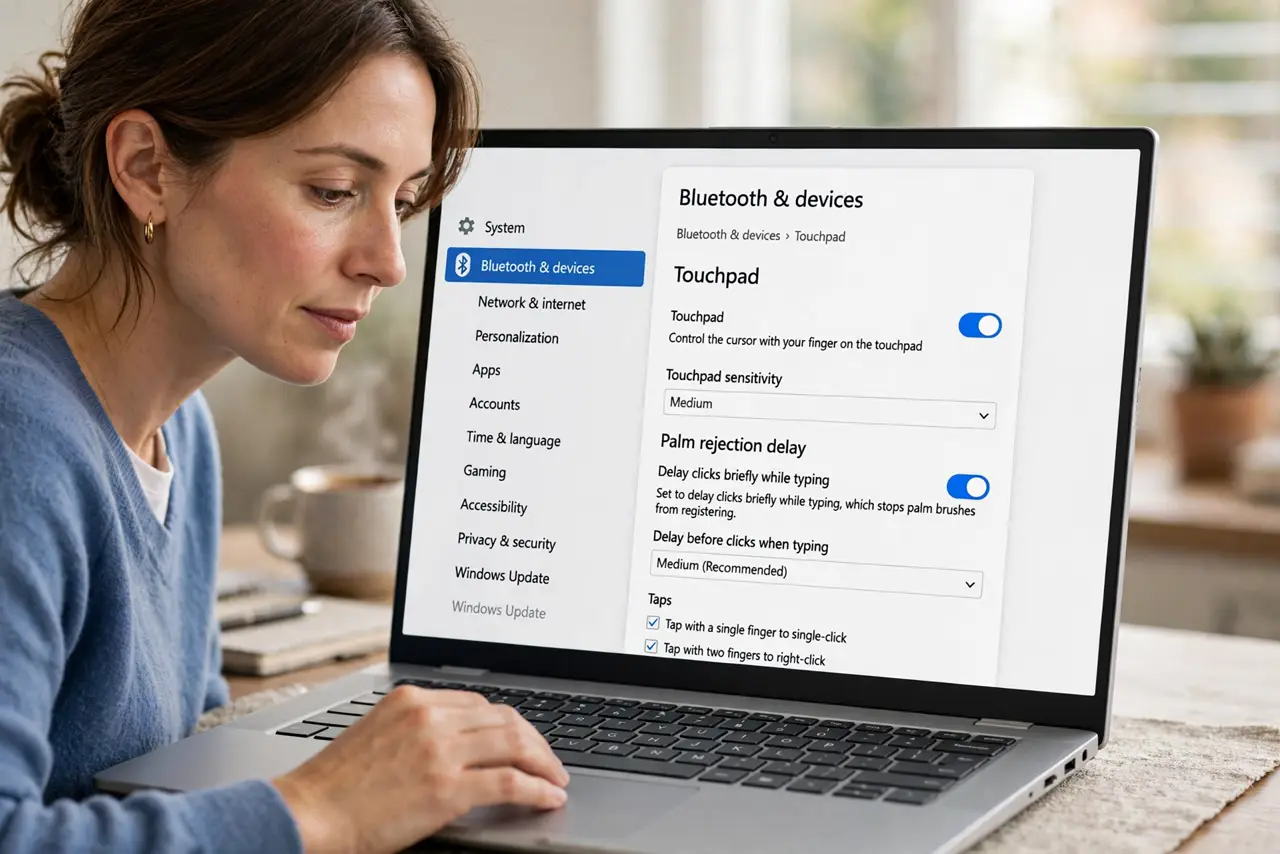
- Turn on palm rejection delay. Open Settings, then Bluetooth and devices, then Touchpad, and look for a palm rejection or touchpad delay option. Set it to delay clicks briefly while typing, which stops palm brushes from registering.
- Lower the touchpad sensitivity setting. In the same Touchpad page, set Taps sensitivity to Medium or Low sensitivity. Lower sensitivity ignores light palm contact while still accepting deliberate taps.
- Test typing in a plain document. Open a text editor and type a paragraph at normal speed, watching the cursor. If jumps stop after the sensitivity change, palm contact was the cause, and the setting is right.
- Check the touchpad driver. Get the newest touchpad driver from the laptop maker site for your exact model. An old driver can ignore palm rejection settings entirely, making the toggles look useless.
- Disable tap-to-click as a test. In Touchpad settings, turn off Tap to click temporarily and type again. If jumps stop, accidental taps were the mechanism, and you can keep taps off or use a lower sensitivity.
- Use a mouse for long typing sessions. For long documents, plug in a mouse and turn the touchpad off while typing, using the Touchpad toggle or its keyboard shortcut. This is a practical fallback, not a defeat, when palm contact is unavoidable.
What NOT to do
- Do not disable the touchpad permanently over palm clicks. Sensitivity and delay settings solve most cases while keeping the touchpad for travel.
- Do not install a touchpad blocker app before trying built-in settings. Windows already has delay and sensitivity controls for this.
- Do not type with wrists hovering awkwardly to avoid the pad. Ergonomic strain is worse than the cursor problem, so fix the setting instead.
- Do not assume the keyboard is faulty. Cursor jumps during typing point to the touchpad, not the keys, in almost every case.
Frequently asked questions
Why does palm rejection fail only sometimes?
Hand position changes with posture, so a palm that misses the pad one day brushes it the next. Sensitivity settings cover that variation.
Does an external keyboard help?
Yes, if you also disable the touchpad while typing, since your palms no longer rest near the built-in pad.
Will a palm rest cover fix it?
A cover can reduce accidental contact, but the sensitivity setting is the reliable fix, and it costs nothing.