Cannot Pause Windows Updates Anymore? Fix It
When Windows says you cannot pause updates anymore, it is because the pause window ran out, not because the setting broke. Pause is meant as a short delay, so the fix is to use the remaining controls well: active hours, scheduling, and timing, rather than fighting the limit.
TL;DR / Quick Fix
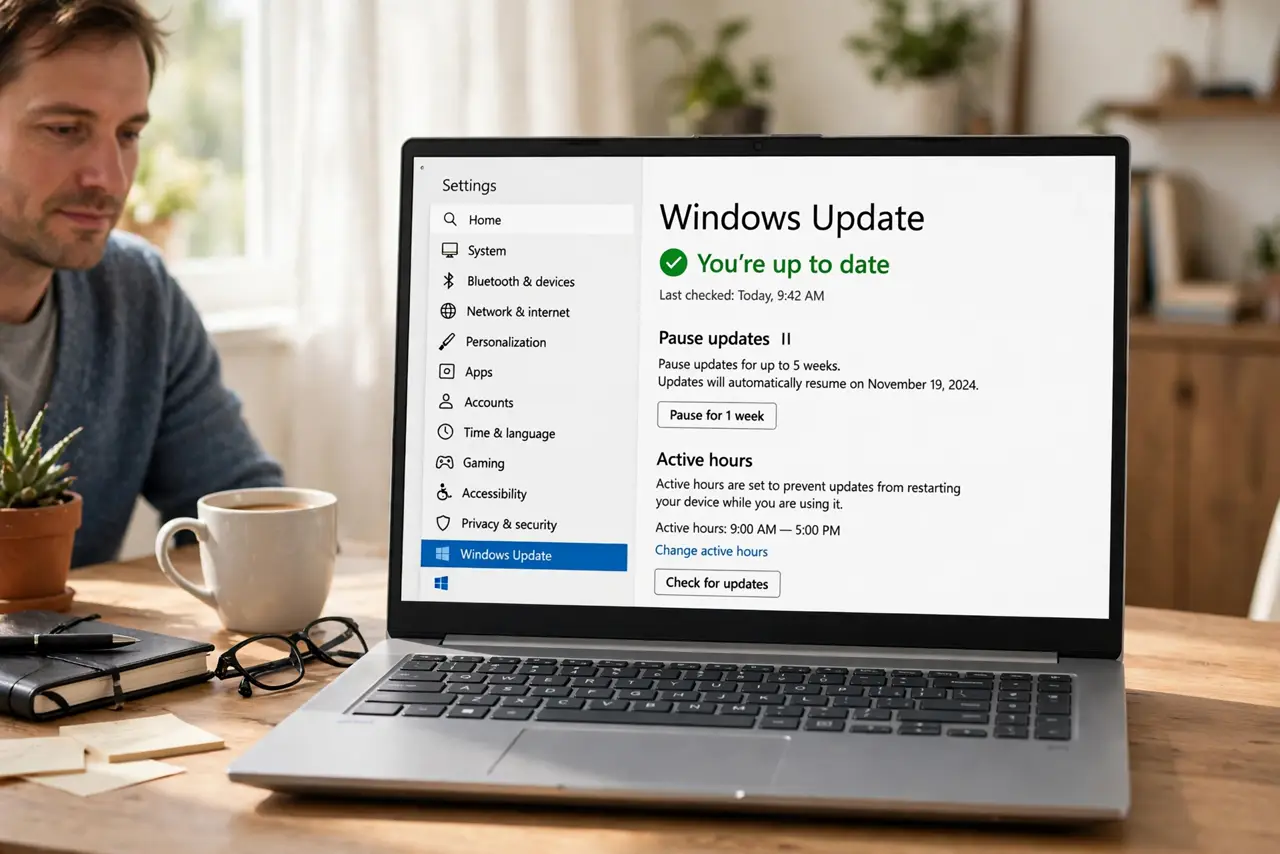
Quick fix: open Settings, then Windows Update, and check the pause date. If pausing is unavailable, set active hours to cover your workday and schedule any pending restart for a time that suits you. Updates will install, but on your schedule, not in the middle of your work.
Follow these steps
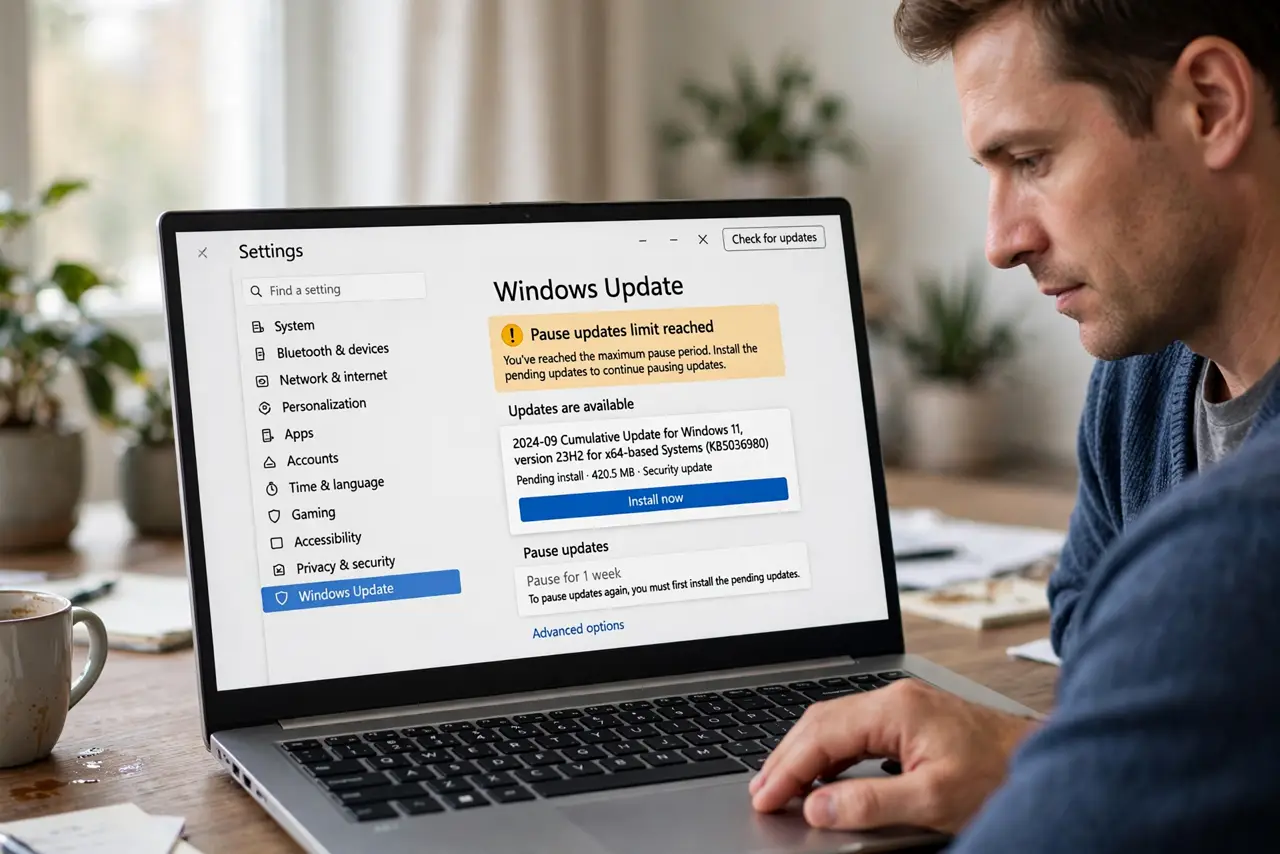
- Check the current pause state. Open Settings, then Windows Update, and read the pause message. If it says the pause limit is reached, Windows needs to install the pending updates before you can pause again.
- Let the pending updates install. Install the pending updates at a time you choose, then restart if asked. Once they are installed, the pause option becomes available again.
- Set active hours for your workday. Open Advanced options, then Active hours, and cover the hours you actually work. Windows will avoid restarting during those hours, which gives you most of the benefit of pausing.
- Schedule restarts on your terms. When a restart is pending, choose Schedule the restart and pick a quiet time, such as lunch or the end of the day, instead of dismissing the notice.
- Pause again, briefly, when you need it. After the pending updates install, pause again only for a short period, such as a deadline week. Short pauses expire on their own, so you never drift far behind.
- Check weekly that nothing is overdue. Once a week, open Windows Update and confirm no update is long overdue. Staying current is the goal, and the pause limit exists to keep you from falling too far behind.
What NOT to do
- Do not turn updates off permanently to get around the pause limit. That leaves security fixes uninstalled and makes the eventual update bigger and more disruptive.
- Do not use a random tool that promises unlimited pausing. Such tools can break Windows Update in ways that are hard to undo.
- Do not keep dismissing restart notices for weeks. The restart does not disappear, it just arrives at a worse moment.
- Do not assume the pause limit means Windows is broken. The limit is by design, and it resets once pending updates install.
Frequently asked questions
How long can I pause updates?
Windows allows a pause of a limited number of weeks, and the exact limit depends on your edition. Once that window ends, pending updates must install before you can pause again.
Why does Windows limit pausing at all?
Pausing is meant for deadlines, not for skipping updates forever. Security fixes lose value if they sit uninstalled for months.
What if I truly cannot restart this week?
Use active hours to cover your workday and schedule the restart for the earliest quiet moment. That keeps you working while the update waits for a safe time.