Fix USB Dropouts
Your USB drive, headset, or external disk randomly disconnects and reconnects — mid-transfer, mid-call, mid-everything. The usual culprit is USB selective suspend: Windows powering down idle USB ports to save battery, then fumbling the wake-up. One settings change usually ends the circus.
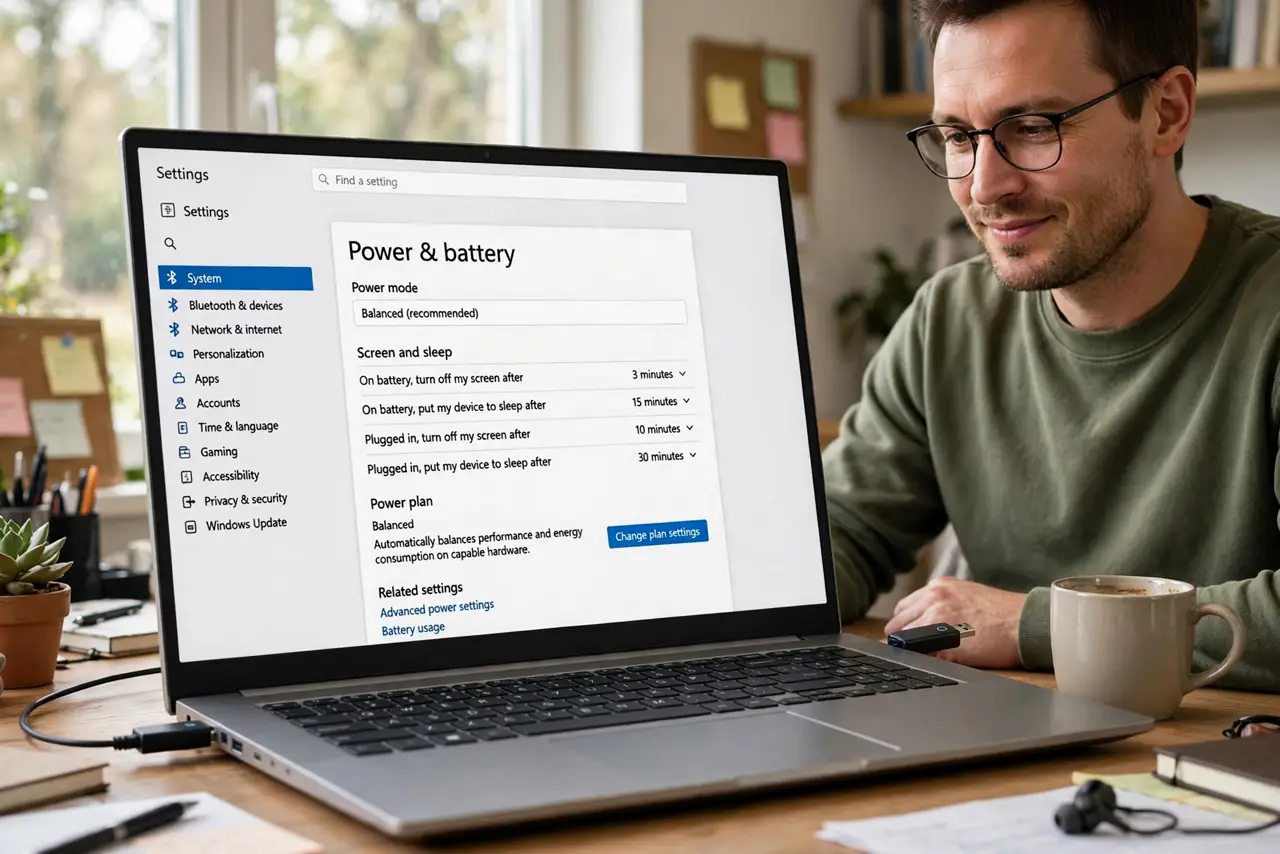
TL;DR / Quick Fix
Quick fix: open the Power Plan settings, expand USB settings, and disable USB selective suspend — for both battery and plugged-in. The random disconnects usually stop immediately. If they persist, try a different port and cable before suspecting the device itself.
Follow these steps
- Open the power plan settings. Control Panel, Power Options, Change plan settings, Change advanced power settings. The USB section hides in the advanced tree — expand it.
- Disable selective suspend. Under USB settings, set USB selective suspend to Disabled for both On battery and Plugged in. This stops Windows from napping the ports — the number one dropout fix.
- Test the device. Use the previously flaky device for a while. Dropouts gone? Done — this single toggle resolves the majority of random USB disconnects.
- Try another port and cable. Front-panel ports and cheap cables cause their own dropouts. Rule out hardware before going deeper — the USB-C cable trap reminds that cables lie.
- Check Device Manager power. In Device Manager, USB Root Hub properties, Power Management — uncheck Allow the computer to turn off this device. Belt and suspenders with the plan setting.
- Update chipset drivers. Ancient USB controller drivers fumble power states. The laptop or motherboard makers chipset driver — not Windows Update alone — is the authoritative source.

What NOT to do
- Do not disable it on a laptop you need all-day from. Selective suspend saves real battery — disable per-plan, not globally, if battery matters.
- Do not assume the device is broken first. Settings, ports, cables — in that order — before buying a replacement.
- Do not use a cheap unpowered hub for hungry devices. External disks need real power; starved hubs brown out and disconnect.
- Do not ignore the cable. Intermittent dropouts are the classic dying-cable symptom — swap it early in the hunt.
Frequently asked questions
What is USB selective suspend?
A power-saving feature that sleeps idle USB ports. Good for battery, occasionally bad at waking back up — hence the dropouts.
Will disabling it hurt battery life?
Slightly — USB ports stay fully powered. For desktop use the cost is zero; for laptops it is modest.
Why only one device drops?
Some devices handle the sleep-wake cycle worse than others. The sensitive one drops; the tolerant ones do not.