Video Thumbnails Show as Blank Icons
Video files show as blank generic icons instead of preview thumbnails in File Explorer. The thumbnail cache may be corrupted, or the show-thumbnails setting got flipped, or the video codec is missing. The fix runs from the simple setting to the cache rebuild — and generic folder previews covers folders that show icons instead of picture previews.
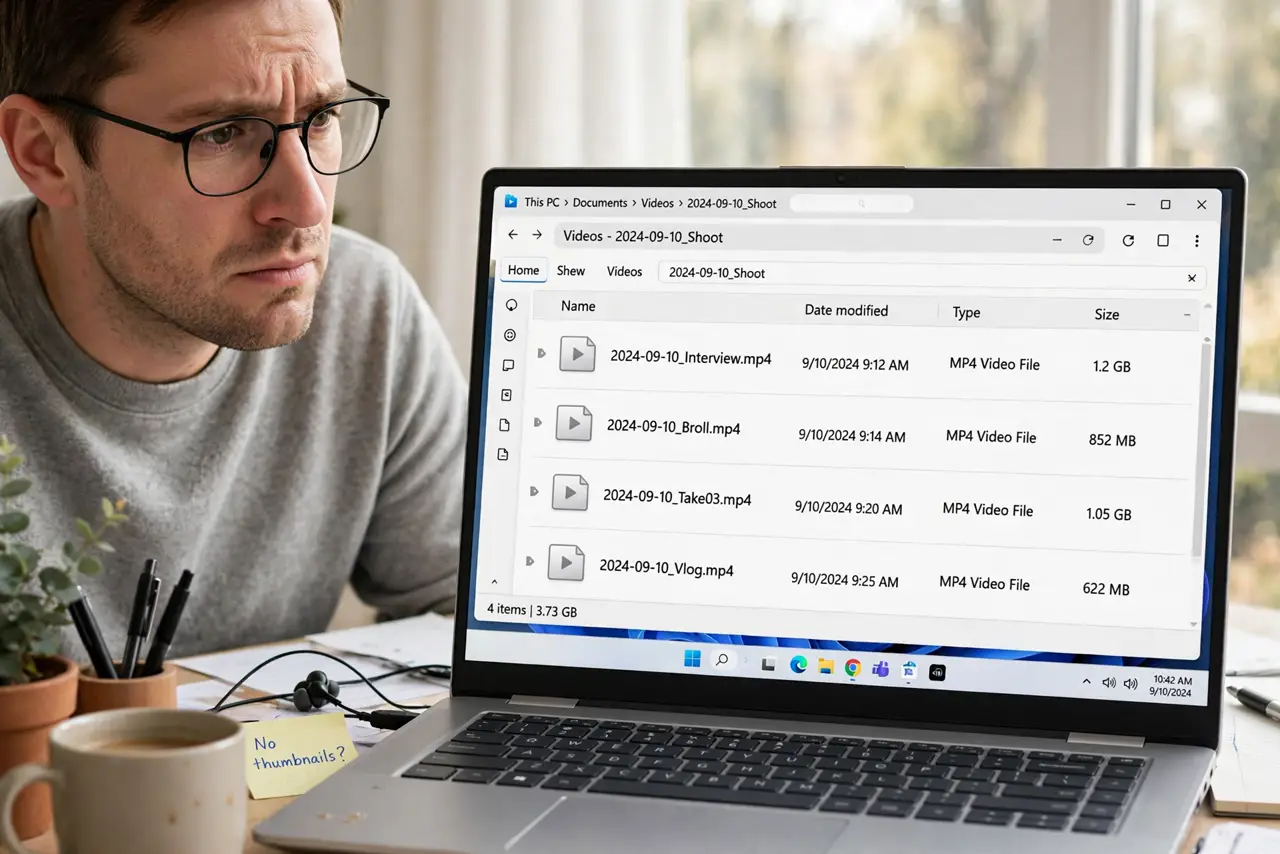
TL;DR / Quick Fix
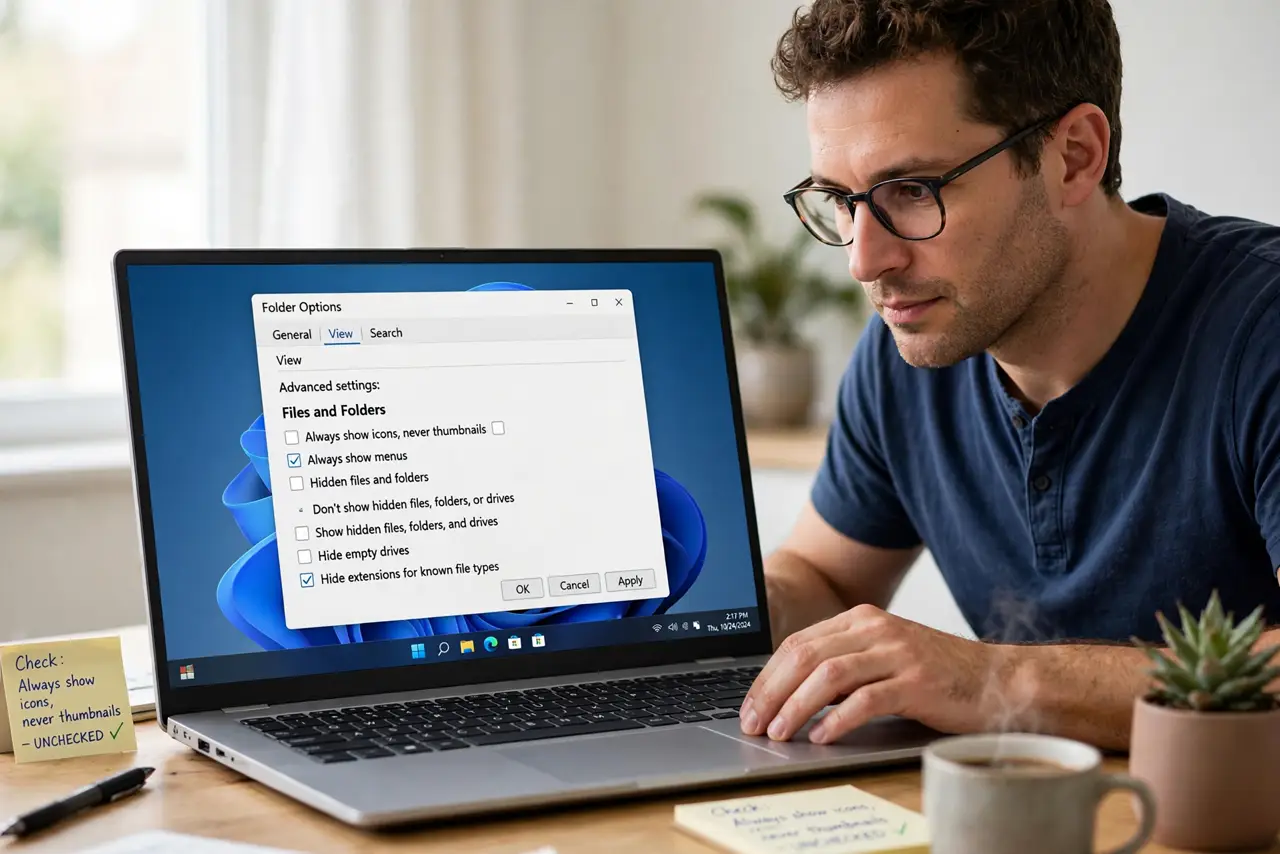
Quick fix: open Folder Options and confirm Always show icons, never thumbnails is unchecked. Then clear the thumbnail cache in Disk Cleanup so Windows rebuilds the previews. If only some formats stay blank, those videos use a codec Windows cannot preview — check playback in the Movies and TV app.
Follow these steps
- Check the show-thumbnails setting. Open Folder Options, go to the View tab, and confirm Always show icons, never thumbnails is unchecked. This one checkbox is the most common cause and the fastest fix.
- Clear the thumbnail cache. Run Disk Cleanup, tick Thumbnails, and clean. Windows deletes the cached previews and regenerates them as you browse, which fixes corruption.
- Browse the folder again slowly. Reopen the video folder and wait. Thumbnail generation takes a moment per file, especially for large videos on a slow drive.
- Check whether the videos actually play. Open a blank-icon video in the Movies and TV app. If it will not play either, the codec is missing, which is a playback problem underneath the preview problem.
- Test one known-good format. Put a plain MP4 in the folder and check its thumbnail. If MP4 previews work but MKV does not, the issue is format-specific codec support.
- Restart Explorer after the cleanup. Restart the Explorer process so it picks up the fresh cache. Stale Explorer instances sometimes keep showing the old blank icons.
What NOT to do
- Do not install random codec packs. They are a historic malware vector and can break playback further; use the format test to diagnose instead.
- Do not confuse thumbnails with the preview pane. They use different mechanisms, and fixing one does not automatically fix the other.
- Do not delete the video files thinking they are broken. A blank icon says nothing about the file's contents; the file is almost certainly fine.
- Do not run Disk Cleanup's every option at once. Only the Thumbnails entry matters here; wiping everything else is unnecessary.
Frequently asked questions
Why do some videos show thumbnails and others do not?
Because thumbnail generation needs a codec for each format. Formats Windows understands preview fine; exotic ones show blank icons.
Will clearing the cache delete my videos?
No. The thumbnail cache holds only the preview images. Your video files are completely untouched.
Why are thumbnails slow to appear?
Because Windows generates each preview by reading the video file. Large files on slow drives take noticeable time.