Virtual Desktop Shortcuts?
Windows lets you keep separate virtual desktops — one for work, one for personal stuff — but switching between them with the mouse is slow, and the keyboard shortcuts are easy to forget. A handful of key combinations turns virtual desktops from a gimmick into a real workflow. Here are the ones worth memorizing.
TL;DR / Quick Fix
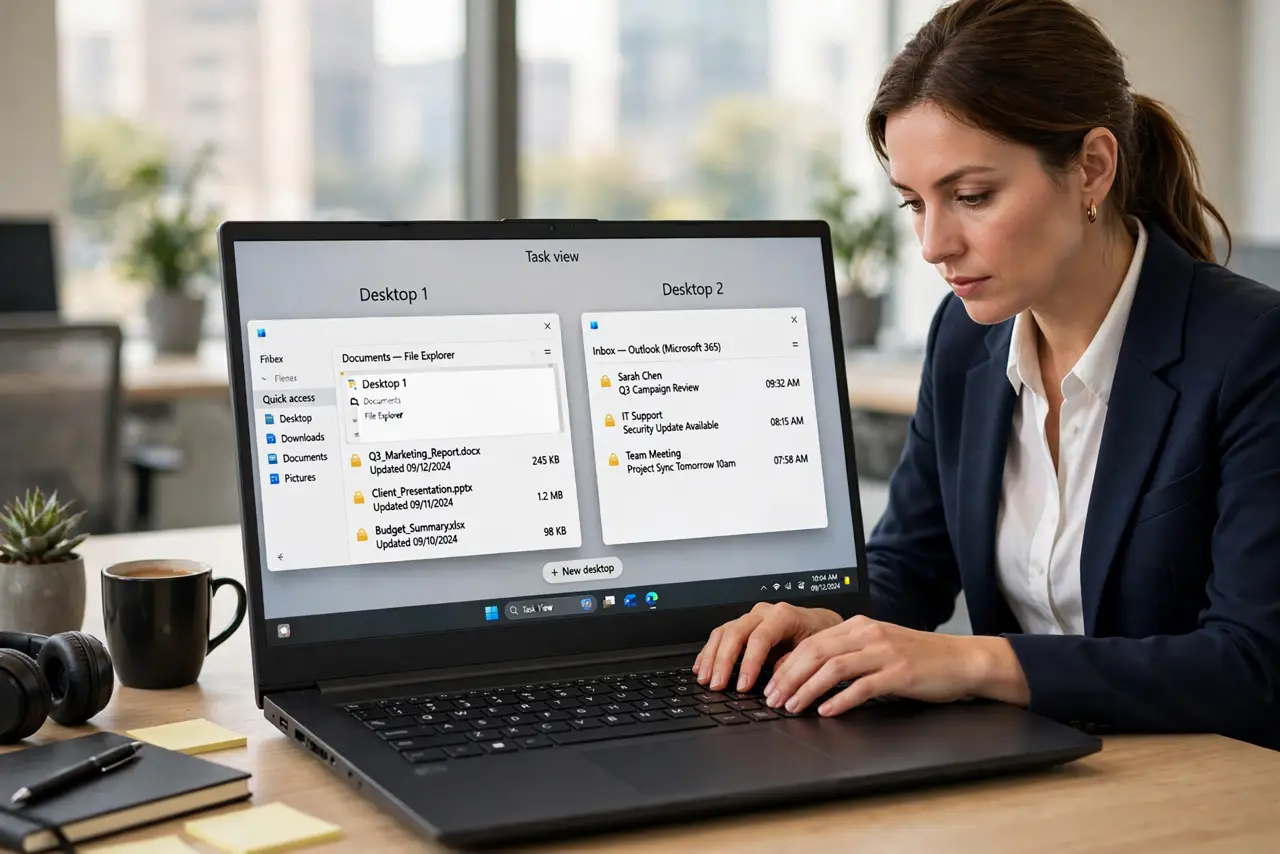
Quick fix: press Windows key plus Tab to see all desktops, Windows plus Ctrl plus D for a new one, and Windows plus Ctrl plus arrow keys to switch. Windows plus Ctrl plus F4 closes the current desktop. Learn these and you will rarely drag windows between desktops again.
Follow these steps
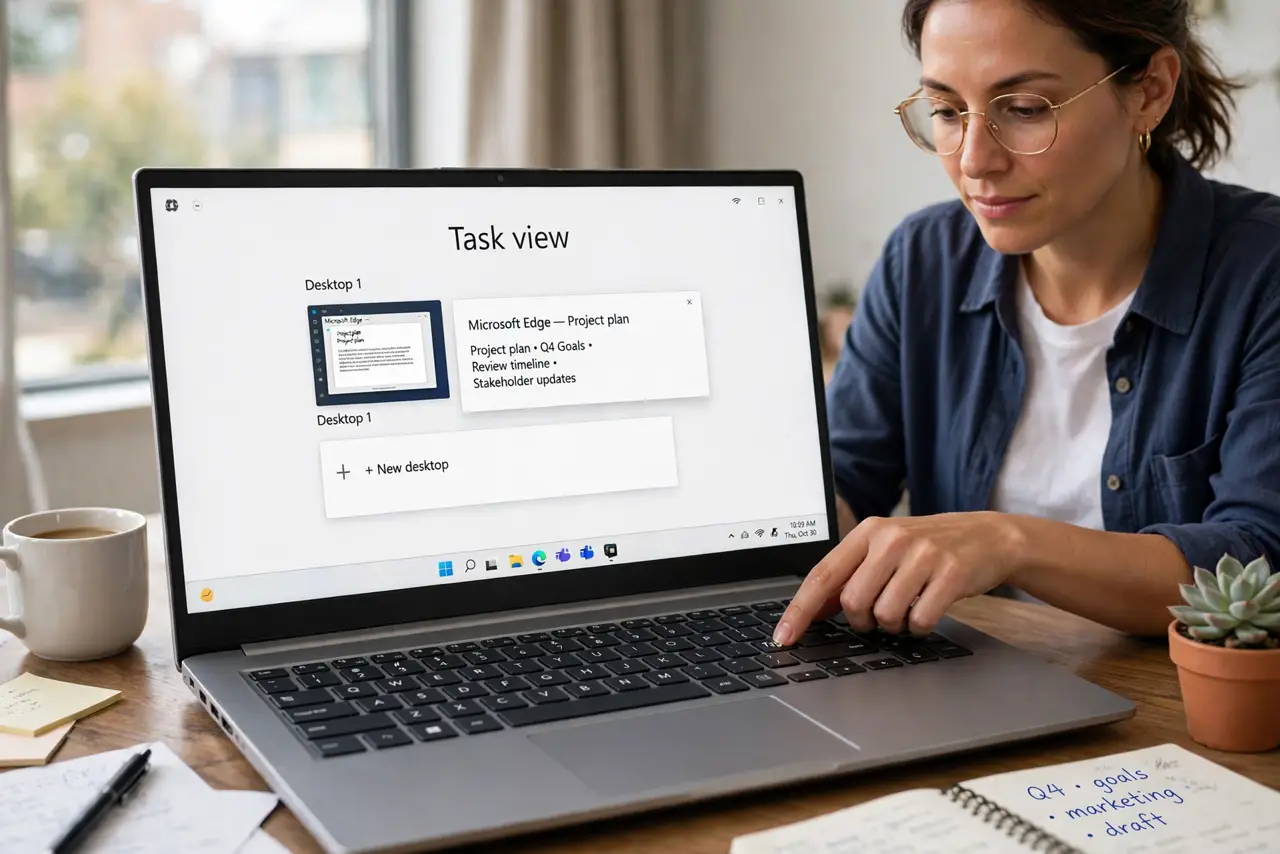
- Open Task View with Windows plus Tab. This shows all open windows and all virtual desktops along the top. It is the map of your workspace — from here you can create, close, and rearrange desktops with the mouse too.
- Create a desktop with Windows plus Ctrl plus D. A fresh empty desktop appears instantly. Keep one per project or context — work, personal, research — and stop stacking everything on a single screen.
- Switch with Windows plus Ctrl plus arrow keys. Left and Right arrows move between desktops in order. This is the shortcut you will use a hundred times a day — it becomes muscle memory within a week.
- Close a desktop with Windows plus Ctrl plus F4. The desktop closes but its windows move to the neighboring desktop — nothing is lost. Clean up desktops you no longer need without fear.
- Drag windows between desktops. In Task View, drag any window onto a desktop thumbnail at the top. Faster than the keyboard when reorganizing: grab, drop, done.
- Fix windows that misbehave. Some apps jump back to the wrong desktop or refuse to stay put — the jumping apps guide covers the fixes, including per-app desktop assignment.
What NOT to do
- Do not create twelve desktops. More than three or four becomes its own mess — the point is separation, not sprawl.
- Do not use virtual desktops as window hiding. Minimizing is faster; desktops are for contexts, not for stashing clutter.
- Do not forget which desktop you are on. Glance at Task View until the habit forms — lost windows are usually one arrow-key away.
- Do not expect every app to remember its desktop. Some apps reopen wherever they want after a restart; pin the important ones.
Frequently asked questions
Do virtual desktops use extra memory?
Barely — they are just window groupings, not separate systems. Ten empty desktops cost nothing; the apps themselves cost the same as always.
Can I name my virtual desktops?
Yes — in Task View, right-click a desktop thumbnail and rename it. Names reset on some updates though, which is a known annoyance.
Why did my windows move desktops after a restart?
Windows does not reliably remember per-desktop placement across reboots. Reopen and reassign — or pin critical apps to all desktops.