Different Wallpaper Per Virtual Desktop
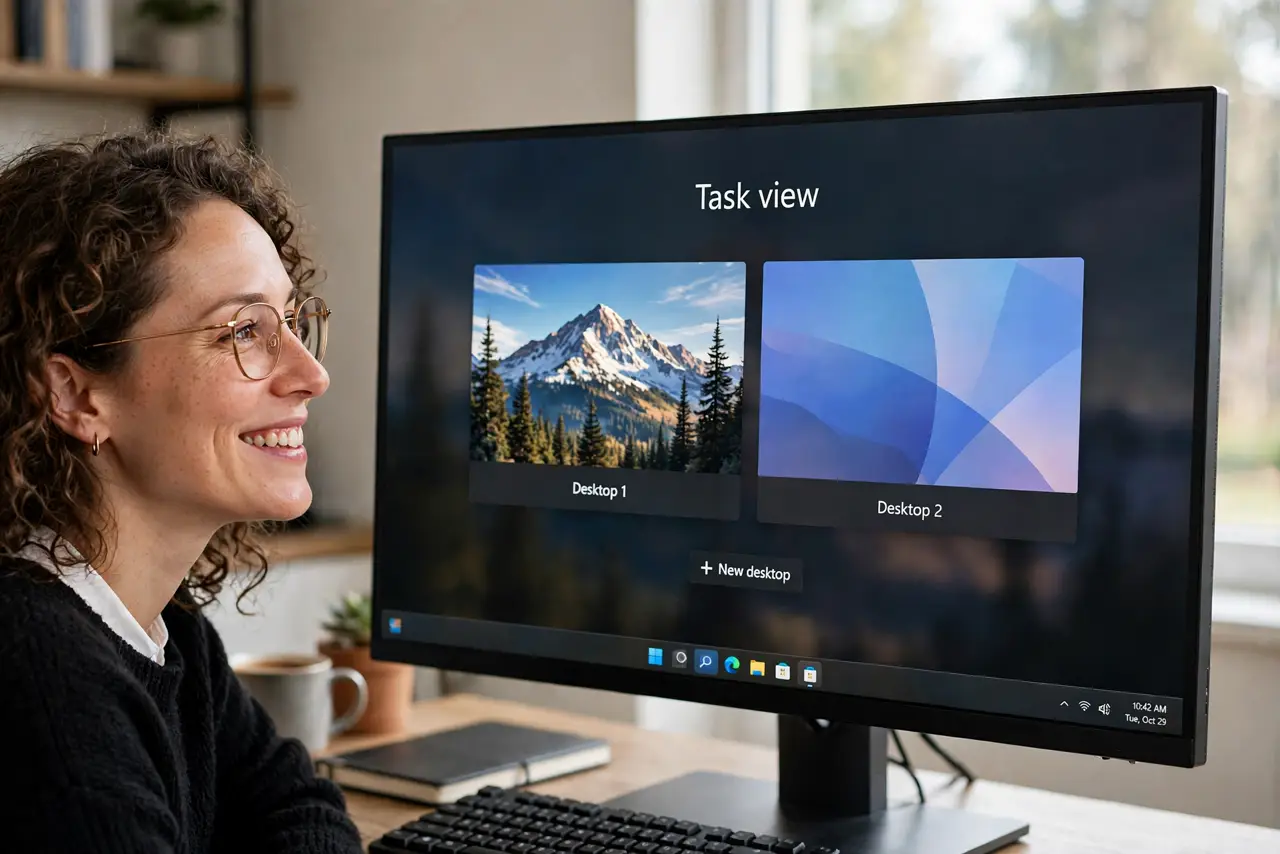
One desktop for work, one for personal — and you want to tell them apart at a glance instead of squinting at Task View. Windows 11 finally lets each virtual desktop keep its own wallpaper, no extra software needed. The option hides in a right-click menu most people never open.
TL;DR / Quick Fix
Open Task View (Win + Tab), right-click a virtual desktop's thumbnail, and choose 'Choose background' — Windows 11 lets each desktop keep its own wallpaper. The option needs Windows 11; it does not exist on Windows 10. If the menu lacks it, install Windows updates first.
Follow these steps
- Open Task View. Press Win + Tab, or click the Task View icon on the taskbar. Your desktops appear as thumbnails along the top.
- Right-click the desktop's thumbnail. Right-click the thumbnail of the desktop you want to customize — not the open windows below it.
- Choose 'Choose background'. This jumps straight to Settings > Personalization > Background, scoped to that desktop. Pick any picture as normal.
- Repeat for each desktop. Go back to Task View and set the next desktop's background the same way. Each keeps its own independently.
- Use contrasting images. Pick visually distinct wallpapers — a dark work image and a bright personal one — so the current desktop reads at a glance.
- Check the choice survived a reboot. Restart once and flip through desktops. If a wallpaper reverted, the image file may have moved — keep wallpaper files in a permanent folder.
What NOT to do
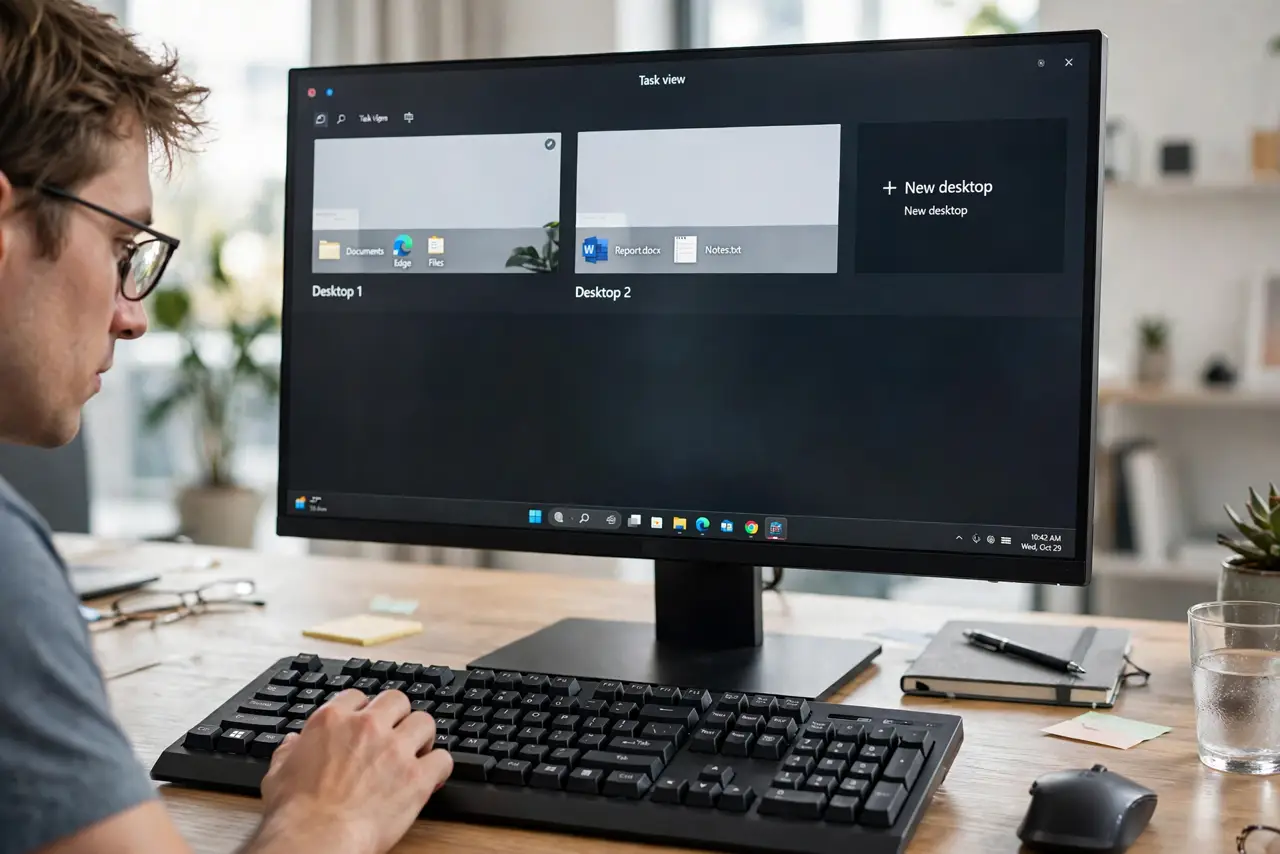
- Do not install a wallpaper manager for this. Windows 11 does it natively — extra tools just add startup bloat.
- Do not set wallpapers from a removable drive. Unplug the drive and the wallpaper breaks — keep images on the internal disk.
- Do not expect this on Windows 10. The per-desktop background is Windows 11 only; Windows 10 needs third-party tools.
- Do not confuse desktop wallpaper with the lock screen. Lock screen images are set separately and stay the same across desktops.
Frequently asked questions
Why is 'Choose background' missing from the right-click menu?
You are on Windows 10, or your Windows 11 needs updating. The option arrived with Windows 11 — update first, then look again.
Do different wallpapers slow down the PC?
No. Windows holds one wallpaper per desktop in memory the same way — the cost is identical to a single wallpaper.
Can each desktop have its own slideshow too?
Yes — the background picker offers slideshow per desktop as well, each with its own folder.