Voice Typing Won't Start on Windows
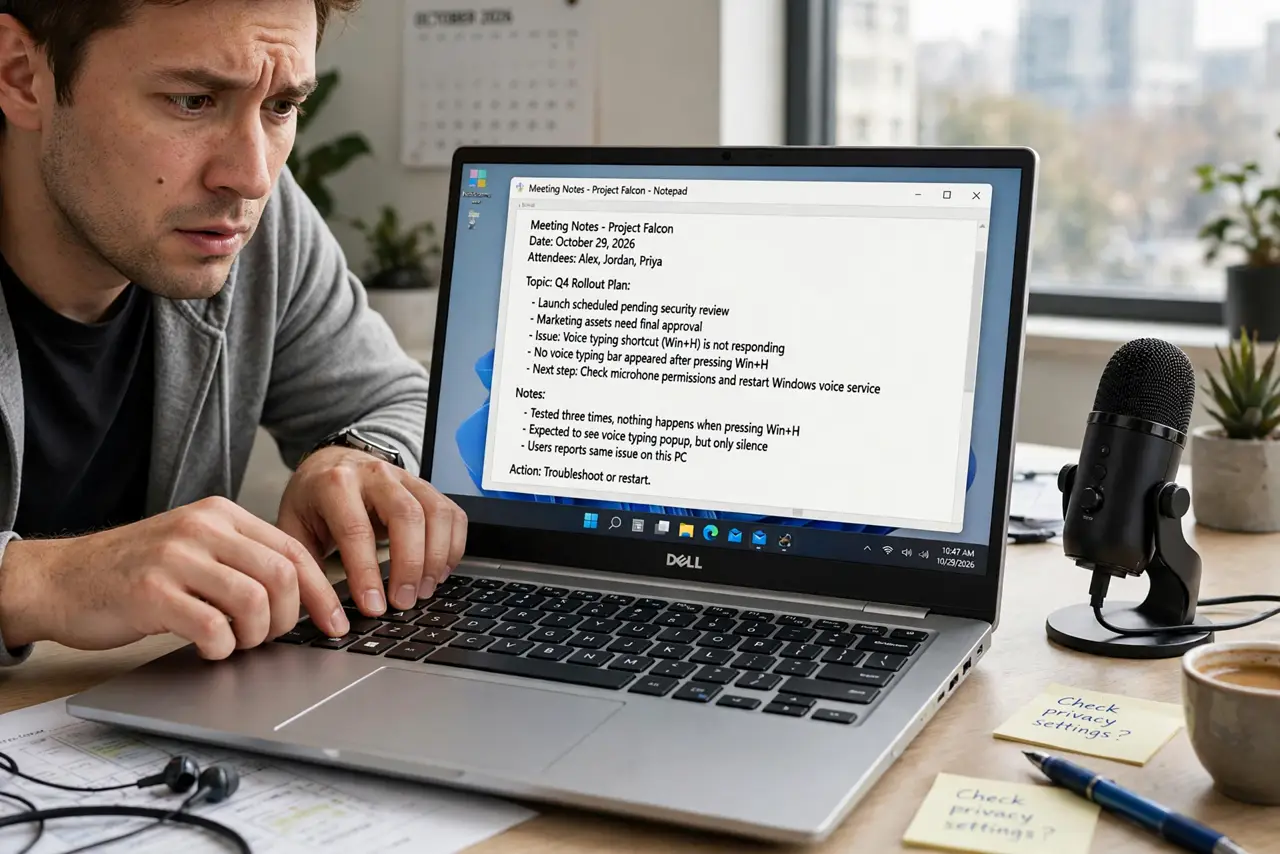
You press Win+H and the voice typing microphone never appears. Voice typing needs online speech recognition enabled, a working microphone with permission, and a focused text field — miss any one and the shortcut silently does nothing. The checklist below walks all three, and the voice access that mishears guide covers the deeper voice-control feature.
TL;DR / Quick Fix
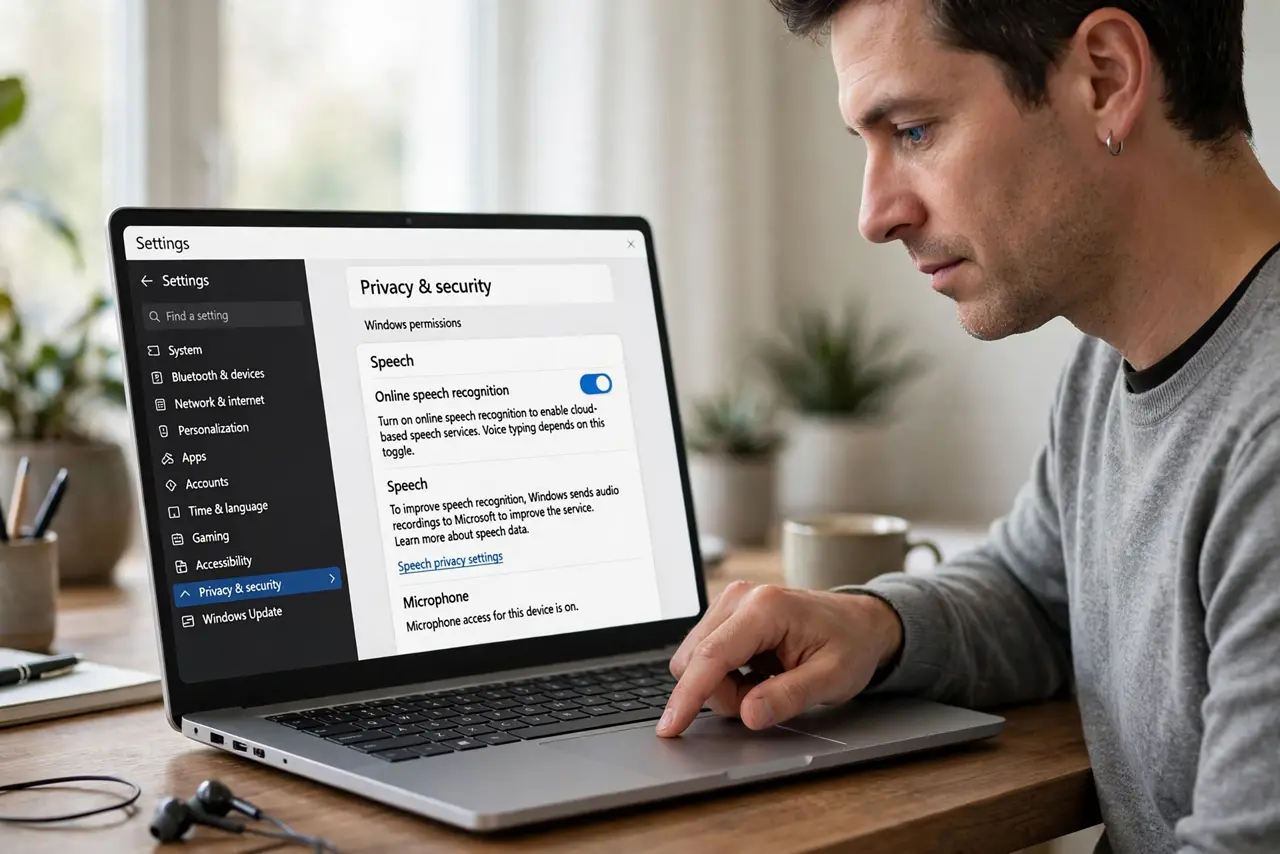
Quick fix: enable online speech recognition in Settings under Privacy and then Speech, and confirm the microphone has permission for desktop apps. Click into a text field and press Win+H again. If the mic toolbar appears but hears nothing, check the input device and volume in sound settings.
Follow these steps
- Enable online speech recognition. Go to Settings, then Privacy and security, then Speech, and turn on online speech recognition. Voice typing depends on this toggle, and it is off by default on many installs.
- Grant microphone permission. In the privacy settings for the microphone, allow desktop apps to access it. Windows blocks the mic at the system level until you permit it, and Win+H cannot override that.
- Check the microphone itself works. Open the sound settings and watch the input volume meter while you speak. A flat meter means the wrong device is selected or the mic is muted at the hardware level.
- Click into a text field first. Focus a document, chat box, or search field before pressing Win+H. Like the emoji panel, voice typing needs a text target to dictate into.
- Press Win+H and watch for the toolbar. With the field focused, press the shortcut. The small microphone toolbar should appear near the top of the screen, ready to listen.
- Test dictation with one sentence. Speak a short sentence and watch the words appear. One successful sentence proves the whole chain — permission, device, recognition — is working.
What NOT to do
- Do not assume the microphone is broken. Permission and recognition toggles cause far more Win+H failures than dead hardware.
- Do not dictate sensitive information casually. Online speech recognition sends audio to Microsoft's servers, so keep passwords and private data off the mic.
- Do not confuse voice typing with voice access. Voice typing only dictates text; voice access controls the whole PC, and they have separate settings.
- Do not leave the mic toolbar listening forever. Stop dictation when done so stray conversation does not become stray text.
Frequently asked questions
Why does Win+H do nothing?
Because online speech recognition is off, the mic lacks permission, or no text field has focus. All three must be true for the toolbar to appear.
Does voice typing work offline?
No. It needs online speech recognition, which sends audio to Microsoft for processing. That is also the privacy tradeoff to know about.
Why does it hear me but type the wrong words?
Usually the wrong input device or low mic volume. Check the sound settings' input meter before blaming recognition.