A Window Snaps to the Wrong Half of the Screen
Dragging a window to the edge of the screen should snap it exactly where you point, but sometimes it lands on the opposite half or fills the whole screen. The cause is usually a fast drag, the wrong edge, or a monitor boundary that Windows treats as one wide screen. This guide slows the process down and tests each edge. If the snap menu itself never appears, start with the guide on Snap layouts not showing.
TL;DR / Quick Fix
Quick fix: Drag slowly and watch the outline. Use the keyboard to snap precisely. Then work through the remaining steps in order, checking one change at a time, and stop for a technician if you see damage, swelling, or a burning smell.
Follow these steps
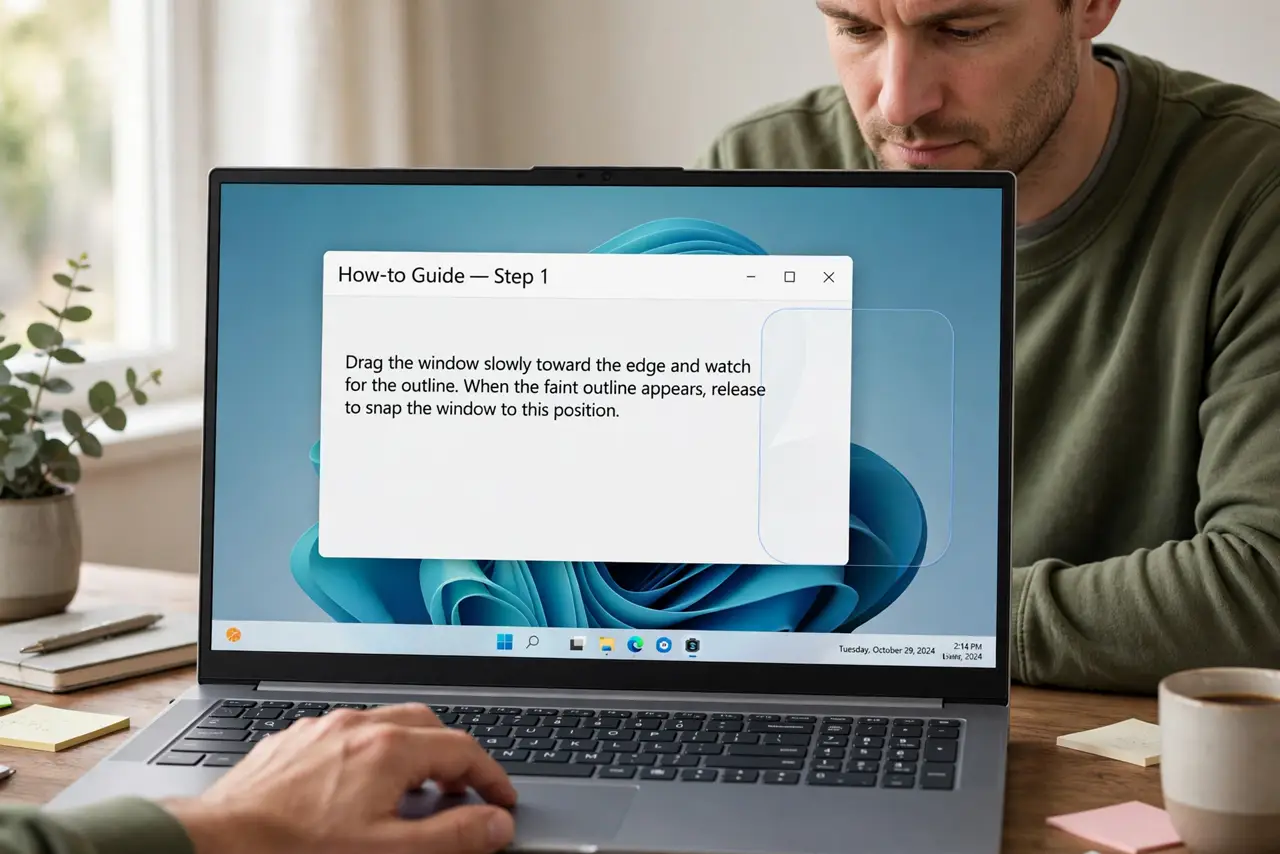
- Drag slowly and watch the outline. Drag the window title bar toward the edge slowly and stop when a faint outline appears. That outline shows exactly where Windows will place the window, so release only when it matches what you want.
- Use the keyboard to snap precisely. Click the window once, then press the Windows key plus a left or right arrow. Keyboard snapping removes drag errors entirely and is the most reliable test of whether snapping works at all.
- Check the monitor edge on multi-monitor setups. If you have two monitors, drag toward the outer edge of the screen you want, not the shared middle edge. Windows treats the shared edge as a pass-through zone, so a window can slide to the other monitor instead of snapping.
- Confirm your screen resolution is correct. Open Settings, then System, then Display, and confirm the screen resolution is the recommended value. A wrong resolution shifts snap zones, so halves no longer line up with the edges you see.
- Restore the window before snapping. If the window is maximized, restore it to a normal size first, then drag or use the keyboard. A maximized window cannot snap to a half until it is restored, and dragging it can behave oddly.
- Test snapping in a standard app. Test with File Explorer or a browser, which snap reliably. If those snap correctly and one other app does not, that app own window rules are the limit, not your snap settings.
What NOT to do
- Do not drag windows by their corners to snap them. Corner drags resize instead of snapping, which is why the result looks wrong.
- Do not install a snap replacement before testing keyboard snapping. If the keyboard works, the feature is fine and the drag was the problem.
- Do not change monitor layout to fix one snap. Moving monitors in Display settings affects every window, so test snapping first.
- Do not keep dragging faster when it fails. Speed is the most common cause, and slowing down is the fix, not a workaround.
Frequently asked questions
Why does a window fill the whole screen instead of half?
Dragging to the top edge maximizes, while dragging to a side edge snaps to a half. Aim for the side edge, not the top.
Why does the window jump to the other monitor?
The shared edge between monitors lets windows pass through. Use the outer edge, or keyboard snapping, to keep the window on one screen.
Does snap work on a single small laptop screen?
Yes. Snap halves still work, but halves are narrow, so keyboard snapping is often easier than dragging.