Set Up a Wireless Printer
New printer, no cable in the box, and a quick-start guide written in riddles. Wireless setup has a reliable order: printer joins the Wi-Fi first, then the PC finds the printer. Do it in that order and it takes ten minutes; do it backwards and you will fight it all afternoon.
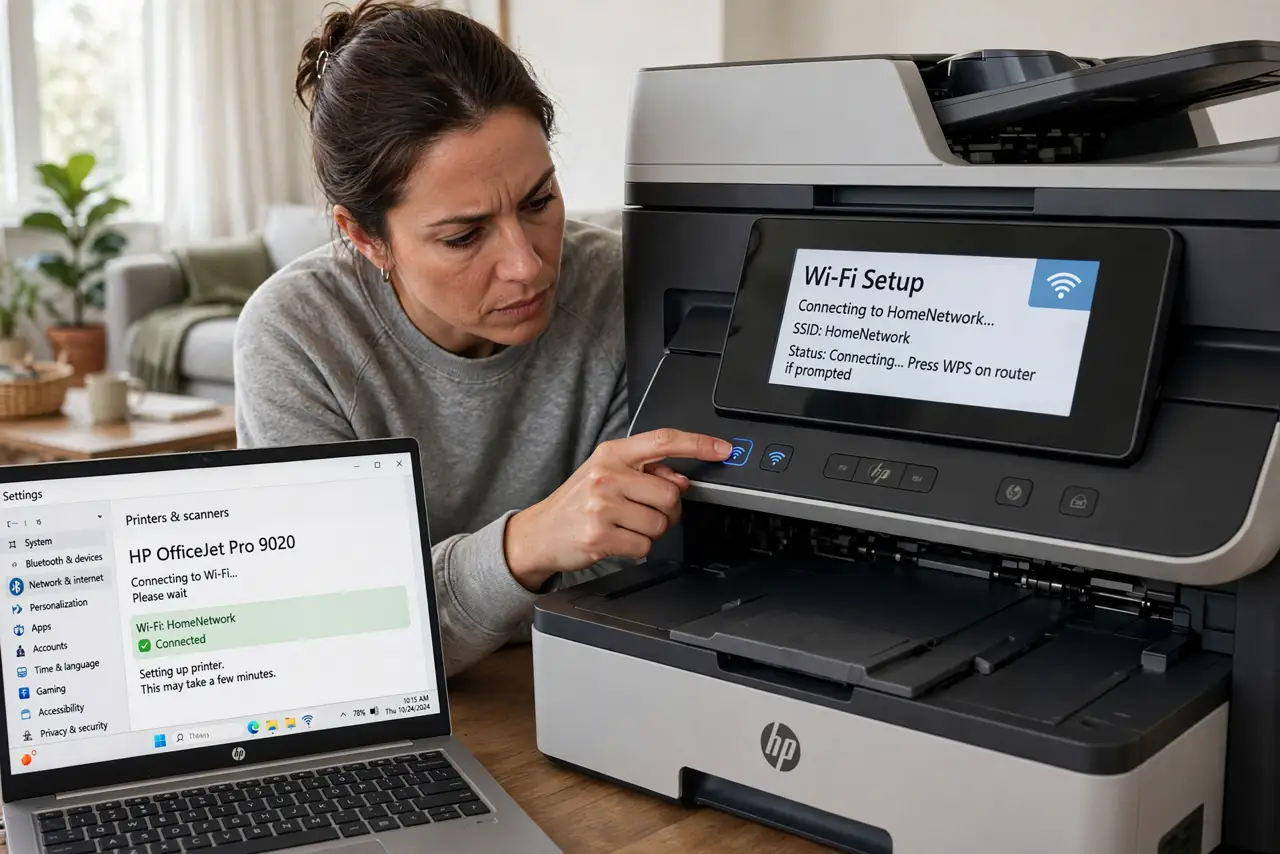
TL;DR / Quick Fix
Quick fix: on the printer's own screen, connect it to your Wi-Fi network first — the step everyone skips. Then on the PC go to Settings, Bluetooth and devices, Printers, and add it; Windows finds network printers automatically. Print a test page now, before you need it for real.
Follow these steps
- Connect the printer to Wi-Fi first. Use the printer's display panel or WPS button to join your home network. The printer must be on the network before the PC can see it — order matters.
- Confirm the right network. Printers love joining the guest network or the neighbor's open one. Print a network config page from the printer to verify the network name.
- Add it in Windows. Go to Settings > Bluetooth & devices > Printers & scanners > Add device. Windows scans the network and lists the printer — click it.
- Let Windows fetch the driver. Windows usually installs the right driver automatically. Only visit the maker's site if Windows fails or features are missing.
- Print a test page. From the printer's properties, print a test page. Confirming now beats discovering a problem during an urgent job.
- Note the IP address. If the printer vanishes later, its IP from the config page lets you re-add it manually — and a static IP prevents most disappearances.
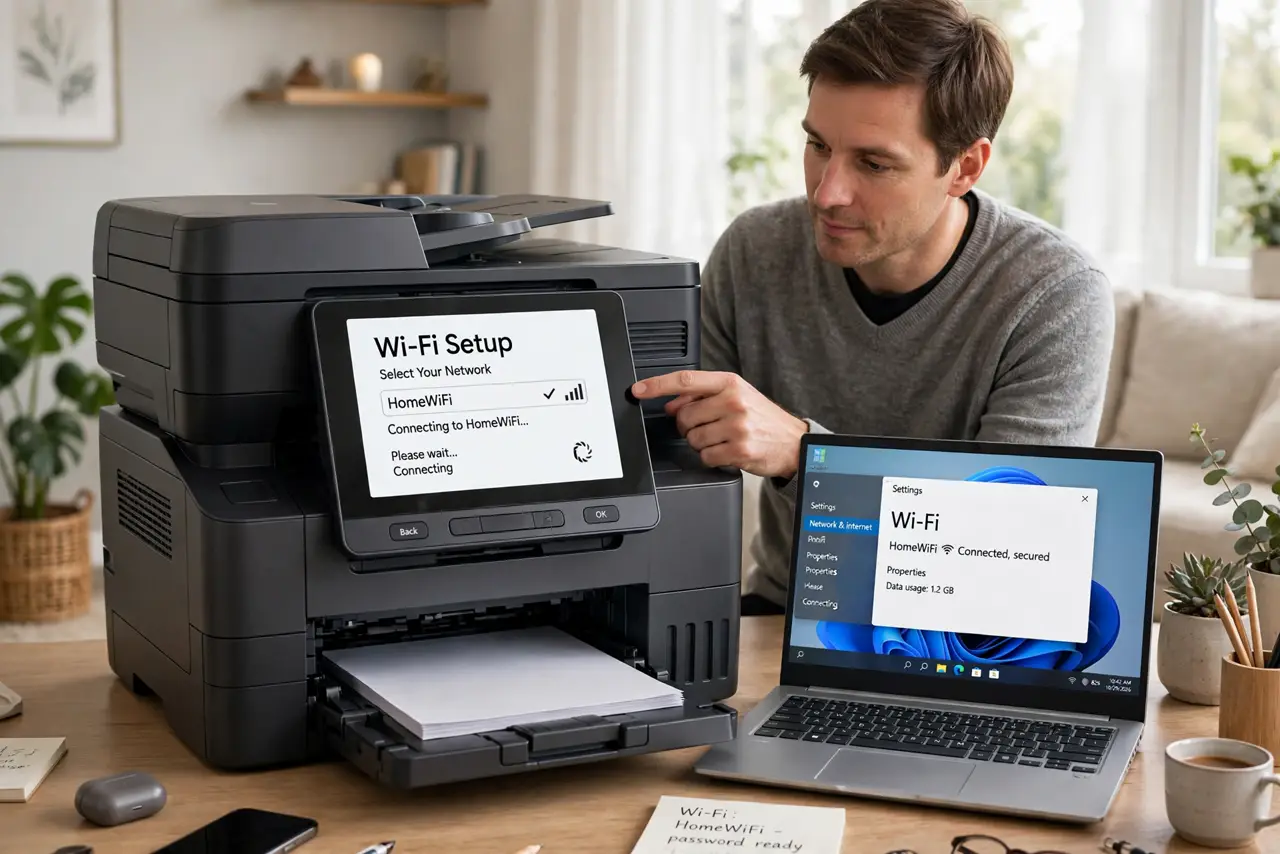
What NOT to do
- Do not try to add the printer before it joins Wi-Fi. The PC cannot find what is not on the network — printer first, PC second.
- Do not use WPS if you can use the display panel. WPS works but the panel method shows you exactly which network joined.
- Do not install the full maker software suite by default. The driver alone prints fine; the suite adds background services you will never open.
- Do not place the printer at Wi-Fi's edge. Weak signal means slow prints and dropouts — printers deserve decent coverage too.
Frequently asked questions
Why can't Windows find my wireless printer?
The printer is not on the same network as the PC — check its network config page. Same network is non-negotiable.
WPS or manual setup — which?
Manual via the display panel: you see the network name and confirm it. WPS is faster but blind.
It worked yesterday and vanished today?
The printer likely grabbed a new IP address. Re-add it, or better, assign it a static IP in your router.