WSL vs a Full Virtual Machine?
You want Linux on your Windows PC and immediately face two options with confusing names: WSL and a virtual machine. They solve the same problem — running Linux software — in very different ways, and picking wrong means a slow setup or missing features. The short version: WSL is Linux woven into Windows; a virtual machine is a whole separate computer inside your computer.
TL;DR / Quick Fix
Quick fix: choose WSL when you mainly need Linux command-line tools alongside Windows apps — it is lighter and faster. Choose a full virtual machine when you want a complete separate Linux desktop in a sandbox. You can run both; start with the one matching your main need.
Follow these steps
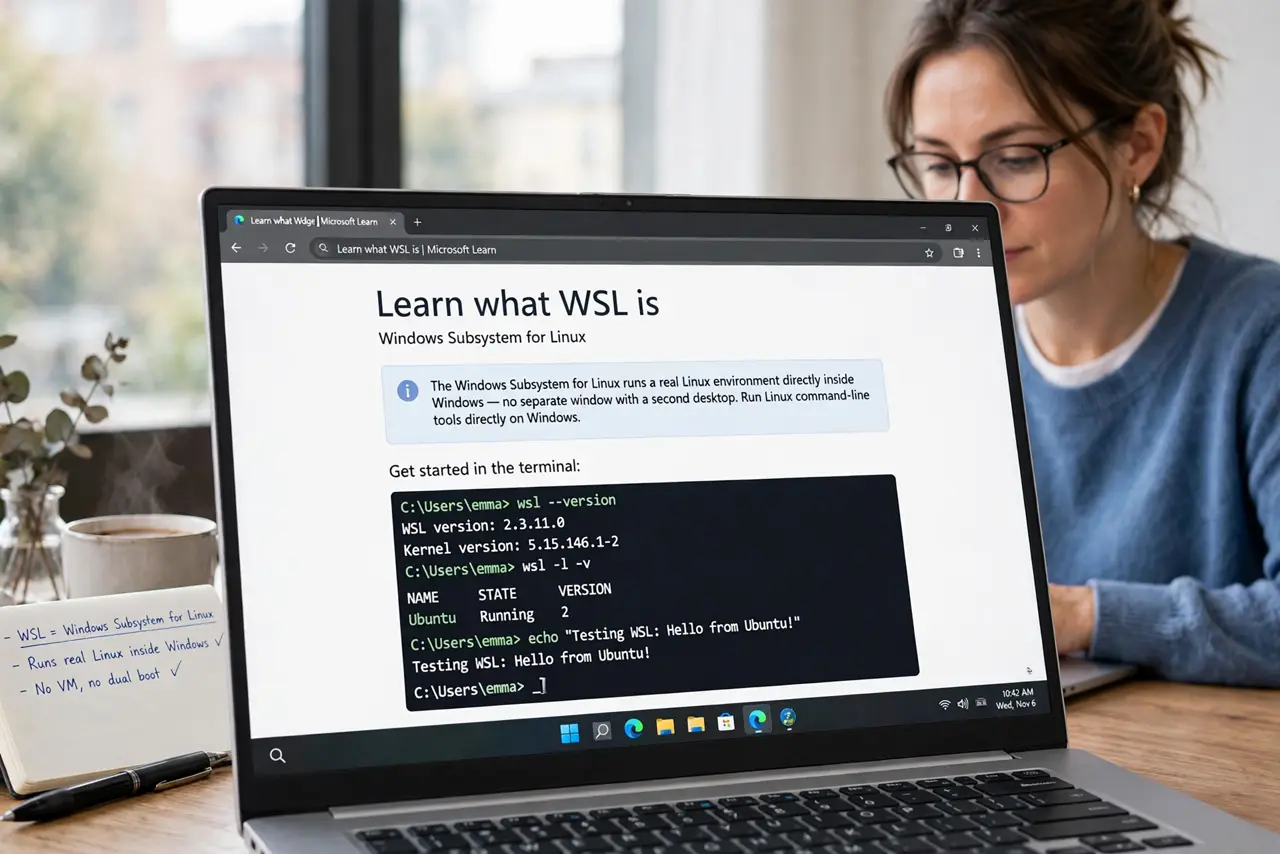
- Learn what WSL is. The Windows Subsystem for Linux runs a real Linux environment directly inside Windows — no separate window with a second desktop. Linux command-line tools run alongside your Windows apps, sharing files easily.
- Learn what a virtual machine is. A virtual machine emulates an entire computer: you install a full Linux system with its own desktop inside a window. It is isolated and complete, but heavier — it needs its own chunk of RAM and disk.
- Choose WSL for command-line work. If you need Linux terminals, developer tools, or scripts while living mostly in Windows, WSL is lighter, faster to start, and integrates with your files. This is the common case.
- Choose a VM for a full Linux desktop. If you want to actually use Linux as a desktop — its own apps, its own interface, fully separated — a virtual machine gives you the real thing in a sandbox.
- Know the hardware tradeoffs. WSL sips resources and starts in seconds; a VM reserves gigabytes of RAM and boots like a real PC. On a modest laptop, that difference decides which one feels usable.
- Remember you can use both. Nothing is permanent: many people run WSL daily and keep a VM for the occasional full-desktop task. Start with the one matching your main need.
What NOT to do
- Do not install a full VM just to run a few terminal commands. That is WSL's job, and a VM is heavy overkill for it.
- Do not expect WSL to be a complete separate computer. It shares Windows underneath — for true isolation, use a VM.
- Do not give a VM all your RAM. Leave Windows enough to breathe or both systems crawl.
- Do not skip backups of anything important inside either. Both can be wiped by a misclick as easily as any folder.
Frequently asked questions
Can WSL run graphical Linux apps?
Modern WSL versions can display Linux graphical apps on the Windows desktop. It works, though a VM still feels more like a native Linux desktop.
Which is better for learning Linux?
WSL for the command line — you will live in the terminal, which is where the learning happens. A VM if you want the full desktop experience too.
Do I need to be a developer to use WSL?
No, but it helps to be comfortable with a terminal. If the command line intimidates you, a VM with a friendly Linux desktop is the gentler start.