ZIP File Will Not Open? Fix It
When a ZIP file will not open, the download may be incomplete, the file may be damaged, or it may need a password you do not have. Checking the file first saves you from extracting a broken archive over good files.
TL;DR / Quick Fix
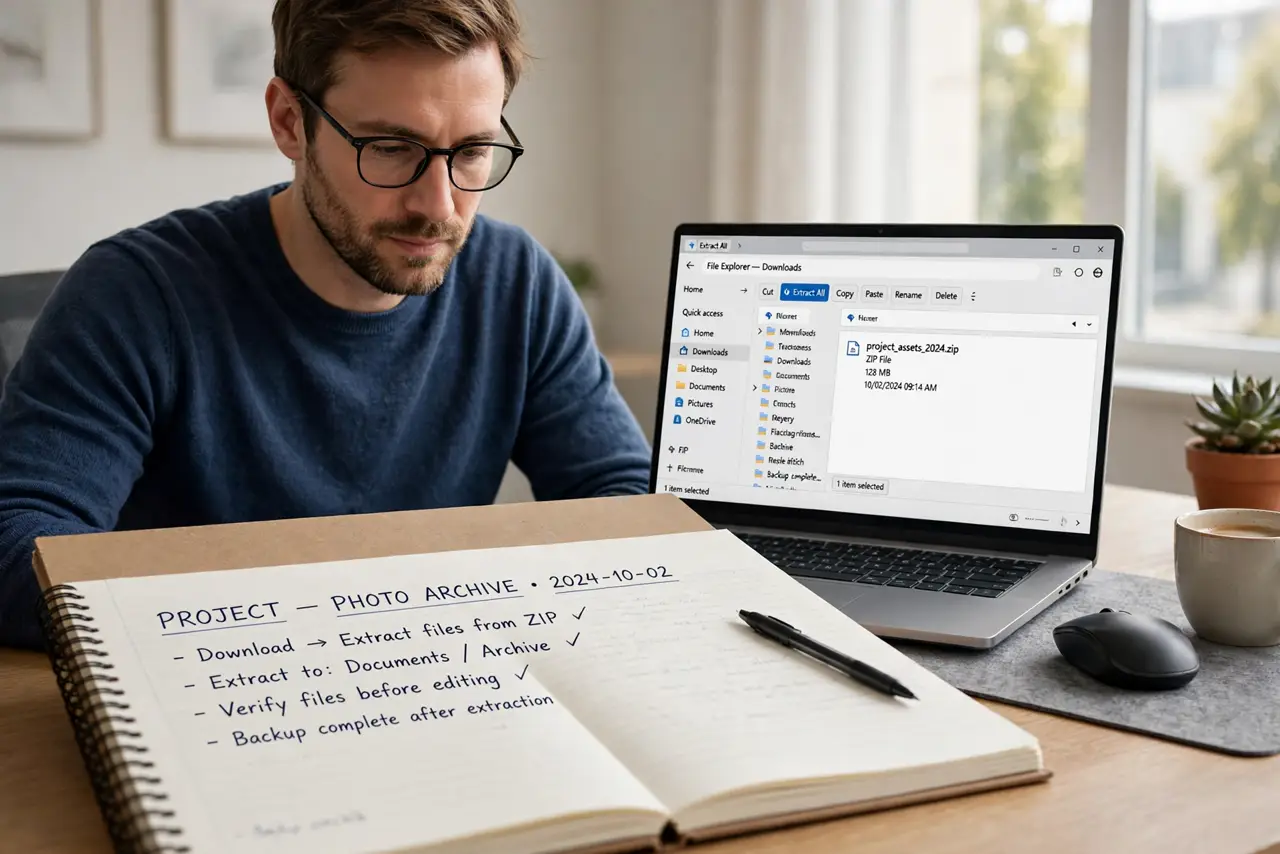
Quick fix: check the file size and download it again if it looks much smaller than expected. Then right-click it and choose Extract All, and pick an empty folder. If it still fails, the archive itself is likely damaged or password protected.
Follow these steps
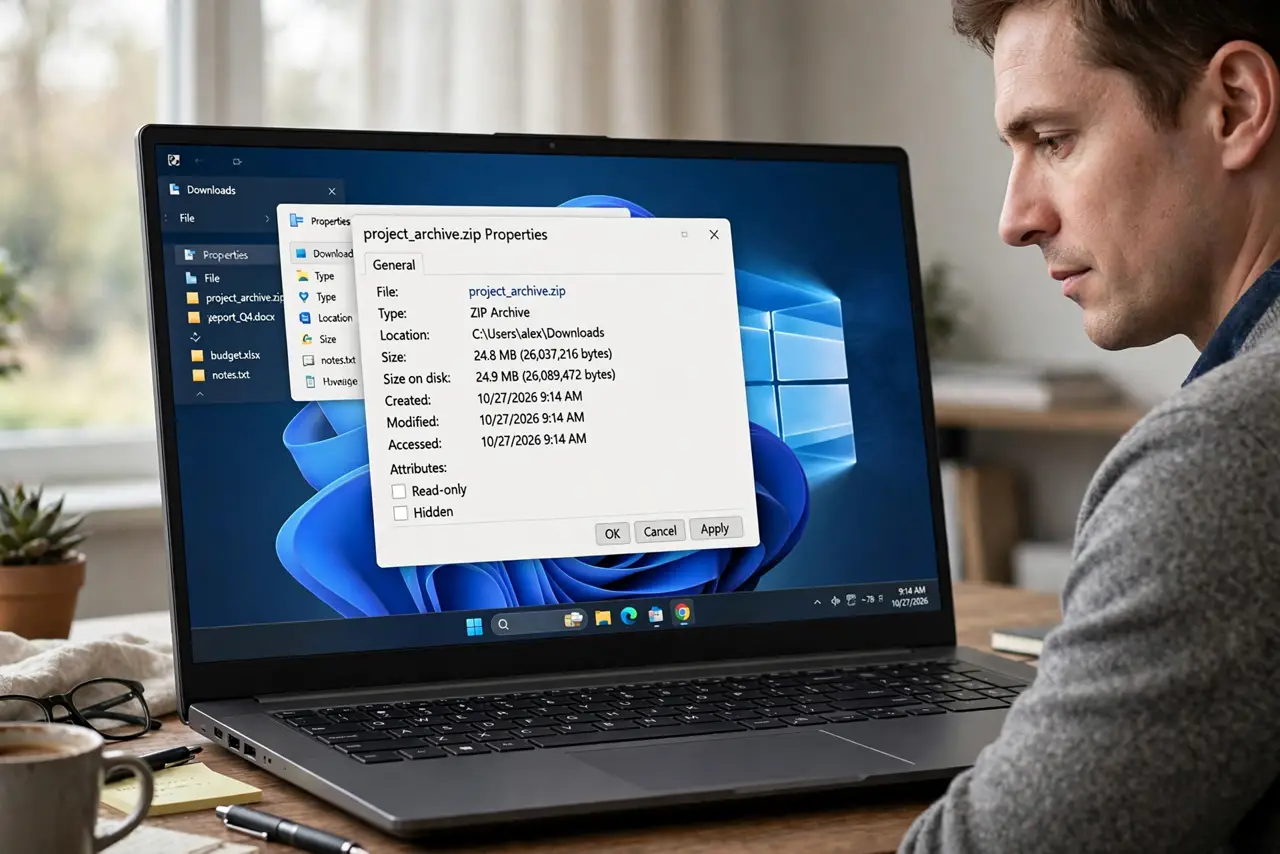
- Check the file size and source. Compare the file size with the source page if one is listed. A file much smaller than expected is usually an incomplete download, not a broken extractor.
- Download it again cleanly. Delete the partial file and download it again on a steady connection. Do not resume a broken download over the same partial file if the site offers a fresh link.
- Use Extract All to an empty folder. Right-click the ZIP file, choose Extract All, and pick a new empty folder. Extracting to an empty folder avoids overwriting files with the same names.
- Test one file inside first. If extraction partly works, open one extracted file and check it. A single good file tells you the archive is partly usable, even if one entry inside is damaged.
- Check whether it needs a password. If Windows asks for a password, the archive is protected. You need the password from the sender, because there is no safe way to open it without it.
- Ask the sender for a fresh copy. If a fresh download still fails, ask the sender to send the files again, or to send them uncompressed. A damaged archive on the sender side will fail for everyone.
What NOT to do
- Do not open a ZIP file from an unknown sender without checking it. Archives can hide harmful files, so only open files you expected from a sender you trust.
- Do not extract to a folder full of important files. Extraction can overwrite files with the same names, so use an empty folder first.
- Do not pay for a repair tool for a damaged ZIP. A fresh download or a fresh copy from the sender fixes most cases, and repair tools rarely recover much.
- Do not keep the only copy inside a damaged ZIP. If any files extract, copy them out at once, so a second failure does not lose them too.
Frequently asked questions
Why does it say the file is invalid?
The download is incomplete, the file is damaged, or it uses a format Windows cannot read. A fresh download is the first test.
It asks for a password I never set. Why?
The sender protected it. Only the sender password opens it, and guessing passwords will not help.
Can I repair a damaged ZIP?
Sometimes one damaged entry can be skipped, but a heavily damaged archive usually needs a fresh copy from the sender.