Airplane Mode Stuck On? Get Wi-Fi Back Fast
Airplane Mode will not turn off, so Wi-Fi and Bluetooth stay dead. The switch, a function key, or a stuck adapter can each hold it on. Try the on-screen switch first, then the hardware checks.
TL;DR / Quick Fix
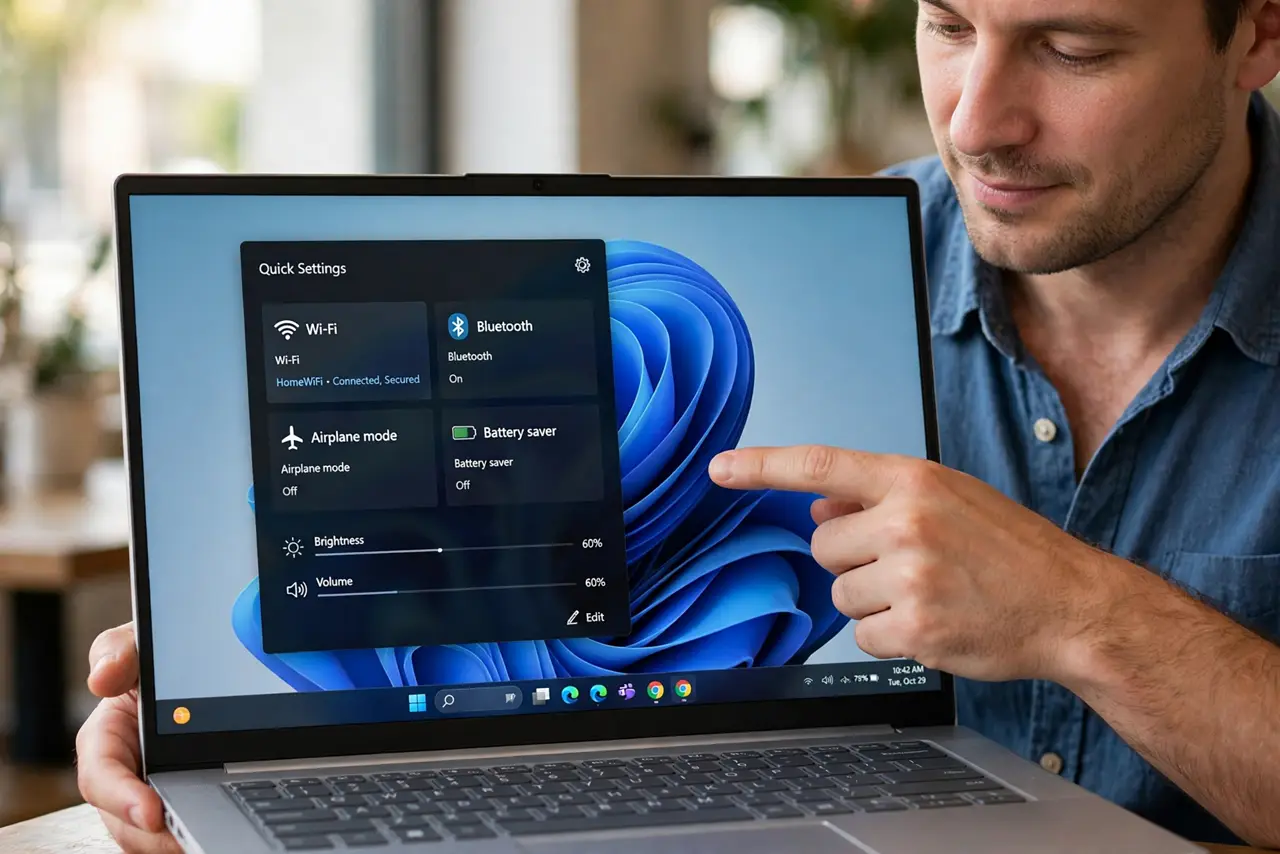
Quick fix: open Quick Settings and toggle Airplane Mode off, then toggle Wi-Fi on separately. If the switch is grayed out or snaps back, check the laptop function key, restart the computer, and re-enable the wireless adapter in Settings afterwards.
Follow these steps
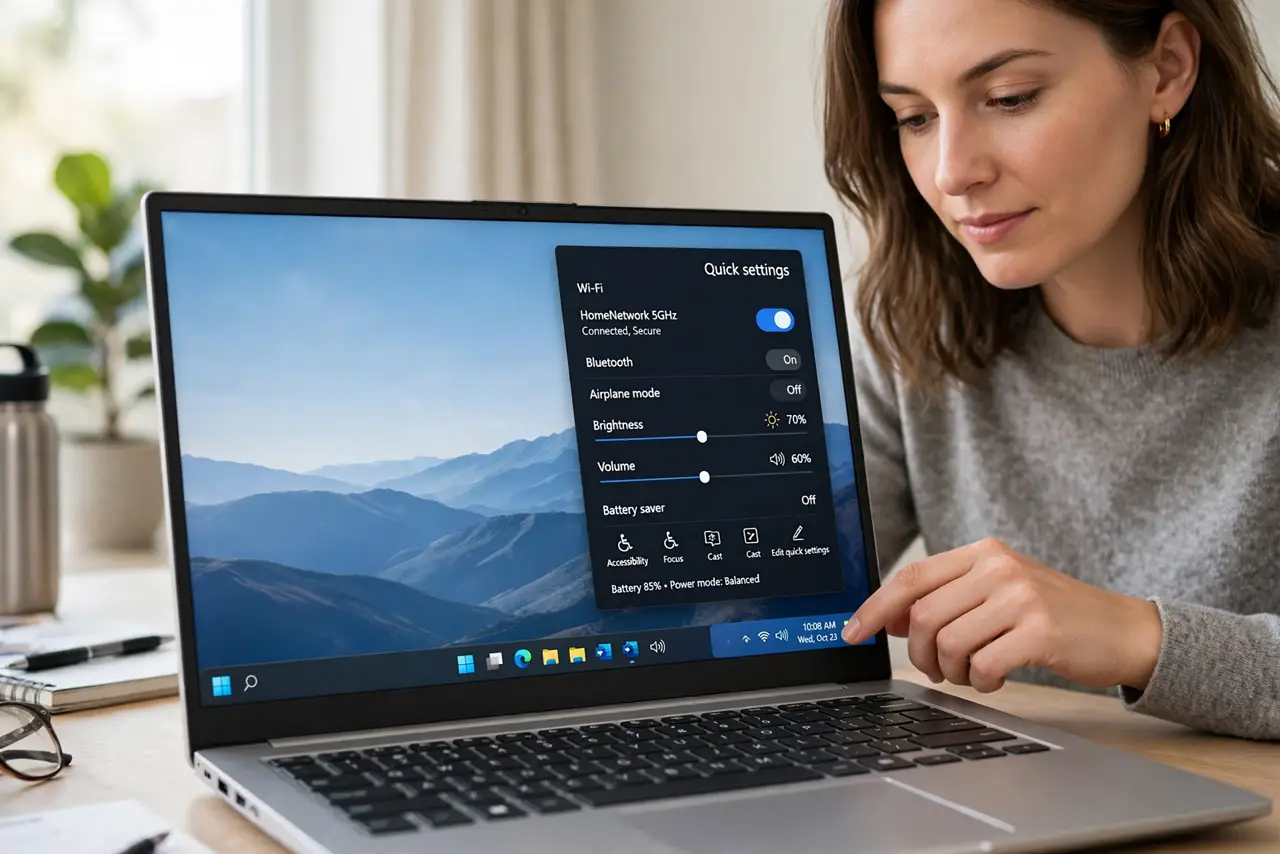
- Toggle Airplane Mode in Quick Settings. Click the network icon in the taskbar to open Quick Settings, then click the Airplane Mode tile to turn it off. Wait a few seconds, then check whether Wi-Fi and Bluetooth return on their own.
- Turn Wi-Fi on separately. If Airplane Mode turns off but Wi-Fi stays off, click the Wi-Fi tile in the same panel. Turning Airplane Mode off does not always restore Wi-Fi to its previous state.
- Check the function key and switch. Look for an airplane symbol on the function keys, and press it with Fn if your laptop requires that combination. Also check for a physical wireless switch on the side of the laptop.
- Restart the computer. Save your work and restart. A stuck wireless state often clears on restart, and it is faster than changing adapter settings that may already be correct.
- Re-enable the wireless adapter. Open Settings, then Network and internet, then Advanced network settings, and check that Wi-Fi is enabled. If it shows as disabled, enable it and wait for networks to appear.
- Run the network troubleshooter. Open Settings, then System, then Troubleshoot, then Other troubleshooters, and run the Network troubleshooter. Follow its suggestions, then test Wi-Fi again.
What NOT to do
- Do not keep toggling Airplane Mode rapidly. Give each toggle a few seconds to take effect, or you will never see which state actually stuck.
- Do not reset network settings before trying the switch, the function key, and a restart. A reset erases saved networks and should be a later step, not the first.
- Do not assume the Wi-Fi hardware failed because Airplane Mode is stuck. A stuck mode is usually a state problem, and hardware failure is far less common.
- Do not ignore a physical wireless switch. An external switch in the off position overrides every on-screen toggle until you move it back.
Frequently asked questions
Why is the Airplane Mode tile grayed out?
A physical switch, a function key lock, or a disabled adapter can gray it out. Check the laptop switch and the adapter state before changing deeper settings.
Should Wi-Fi return automatically?
Usually yes, but not always. If it does not, turn Wi-Fi on by hand in Quick Settings after Airplane Mode is off.
What if a restart does not fix it?
Re-enable the adapter in Advanced network settings and run the network troubleshooter. If both fail, the adapter itself needs a closer look.