Change the Alarm Snooze Length on Android
Android's default nine-minute snooze is either too short to matter or too long to be useful — and most people do not know it can be changed. The setting hides inside the clock app, and some phones need a different clock app entirely. This guide finds it, so your morning routine works your way.
TL;DR / Quick Fix
Quick fix: open the clock app's settings and find the snooze length option — set it to whatever wakes you best. If your built-in clock lacks it, the Google Clock app lets you customize it. A long snooze just delays the inevitable: try placing the phone across the room instead.
Follow these steps
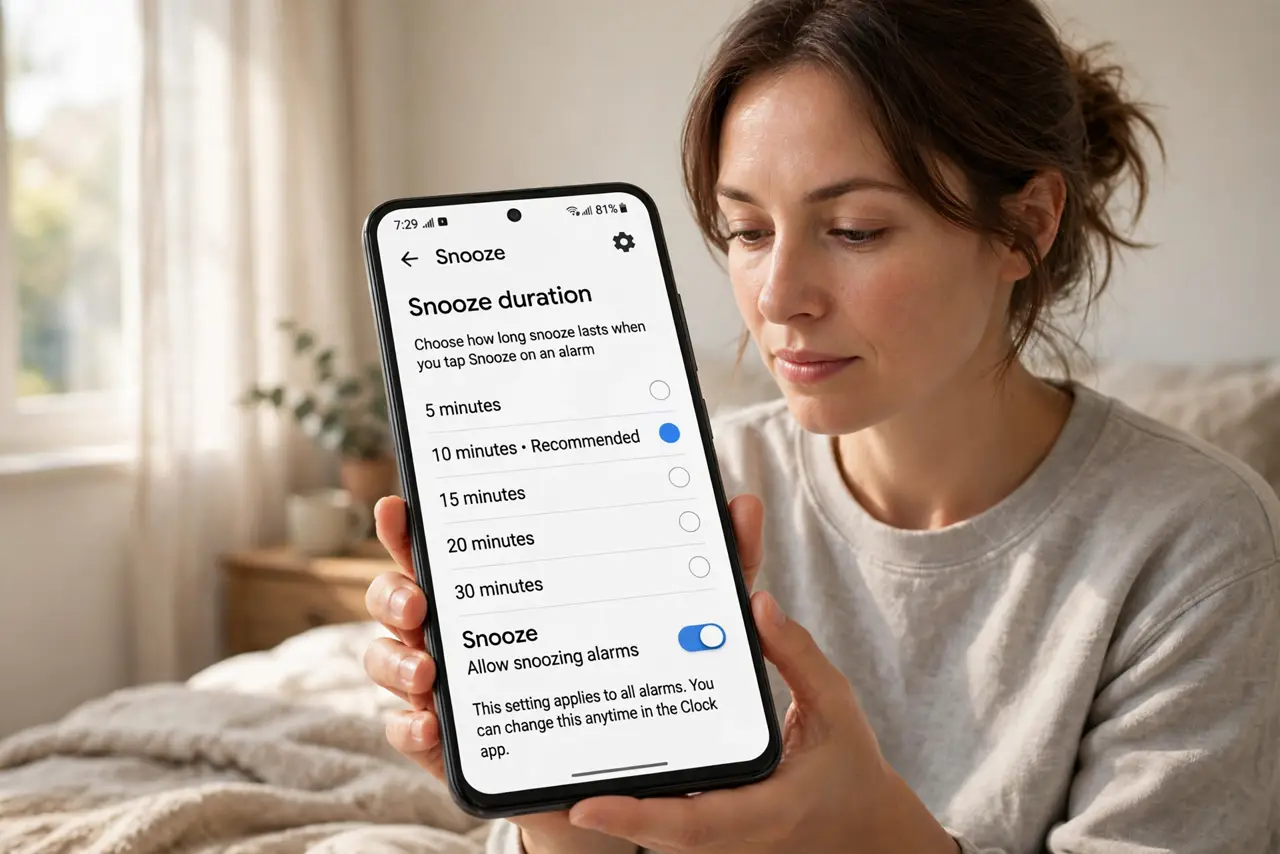
- Open the clock app's settings. Open your clock app and find its settings — usually a gear icon or three dots. The snooze option lives there, not in system settings.
- Find the snooze length option. Look for 'Snooze length' or 'Snooze duration.' Set it to a length that actually gets you up — many people do better with 5 minutes than 9.
- Try the Google Clock app if yours lacks it. If your manufacturer's clock has no snooze setting, install Google Clock from the Play Store. It offers customizable snooze on any Android phone.
- Set the new clock as default if needed. If you switch apps, make sure the new one is allowed to run unrestricted in battery settings, or Adaptive Battery may silence it.
- Test the new snooze once. Set an alarm, let it ring, hit snooze, and confirm it returns after your chosen length. Trust, but verify.
- Consider ditching snooze. Sleep researchers note that snoozing fragments rest. One firm alarm across the room beats three gentle snoozes — but the setting is yours to choose.
What NOT to do
- Do not set a 30-minute snooze and call it an alarm. That is just a delayed alarm with extra steps — set the later time directly.
- Do not switch clock apps without fixing battery settings. A new app with default battery optimization may never ring.
- Do not rely on snooze math when timing matters. If you must be up at 7:00, set 7:00 — not 6:30 with snoozes.
- Do not assume every Android clock has the setting. Manufacturer clocks vary wildly; Google Clock is the reliable fallback.
Frequently asked questions
Can I change the snooze time on Android?
Often yes, in the clock app's settings. If your built-in clock lacks it, the Google Clock app lets you customize it.
Why is the default snooze 9 minutes?
A historical quirk from old mechanical alarm clocks, carried into software. There is no science behind nine minutes.
Is snoozing bad for you?
Fragmented snooze sleep is less restful than continuous sleep. One decisive alarm generally works better than repeated snoozes.