Auto-Archive Unused Apps
Your phone storage is full, but deleting apps feels wrong — you might need them later, and reinstalling means losing logins and settings. Auto-archiving solves exactly this: it removes the app's bulk while keeping your data and the icon, so one tap restores everything. Both Android and iPhone have a version of it.
TL;DR / Quick Fix
Quick fix: turn on auto-archiving and let the phone shrink apps you have not opened in months — Android removes the app but keeps your data and icon, and iPhone does the same with Offload Unused Apps. Tapping the greyed icon reinstalls the app with everything intact.
Follow these steps
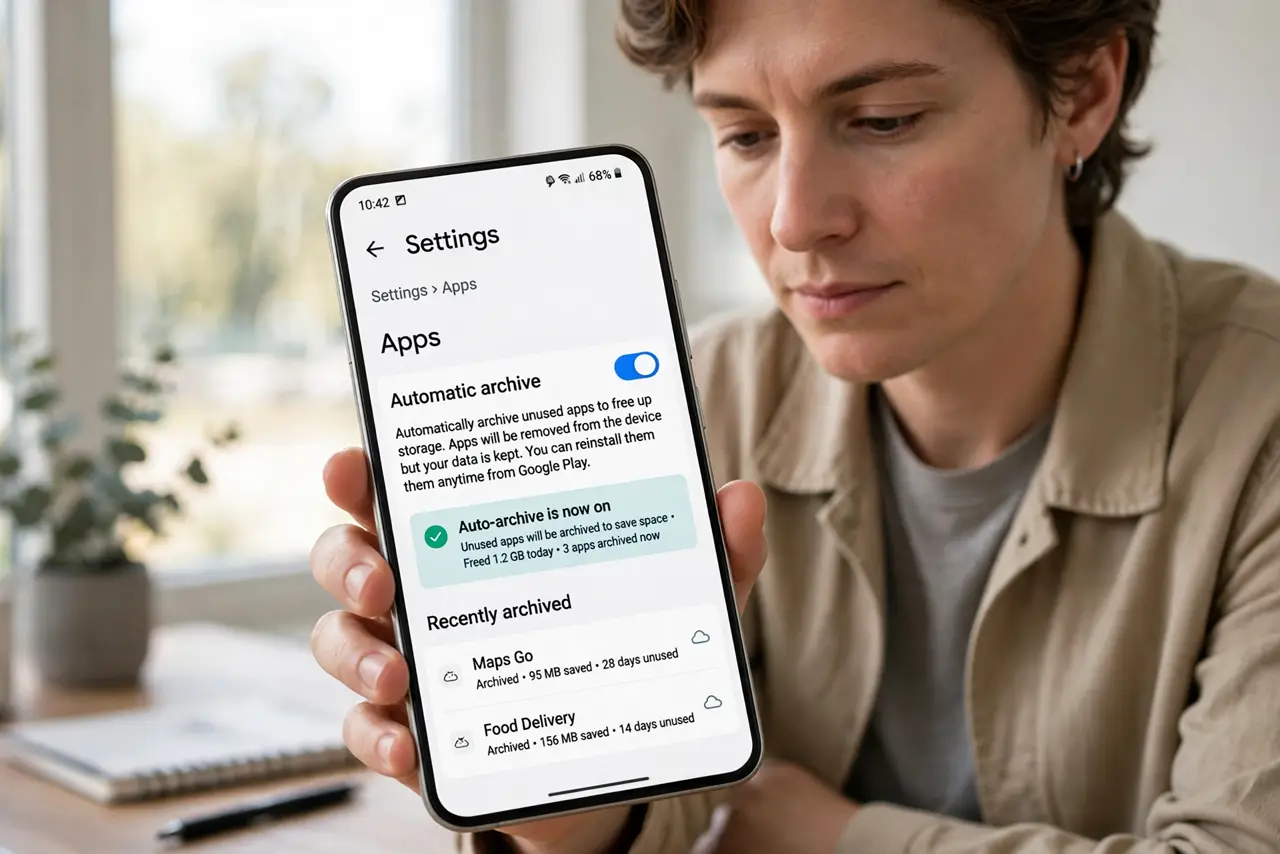
- Turn on auto-archive on Android. Go to Settings, Apps, and enable automatic archiving of unused apps (available on recent Android versions). The system then shrinks apps you have not opened in a while, keeping your data safe.
- Turn on Offload Unused Apps on iPhone. Go to Settings, General, iPhone Storage, and enable Offload Unused Apps. iOS removes the app binary but keeps documents and data — the icon stays, greyed out, with a small cloud badge.
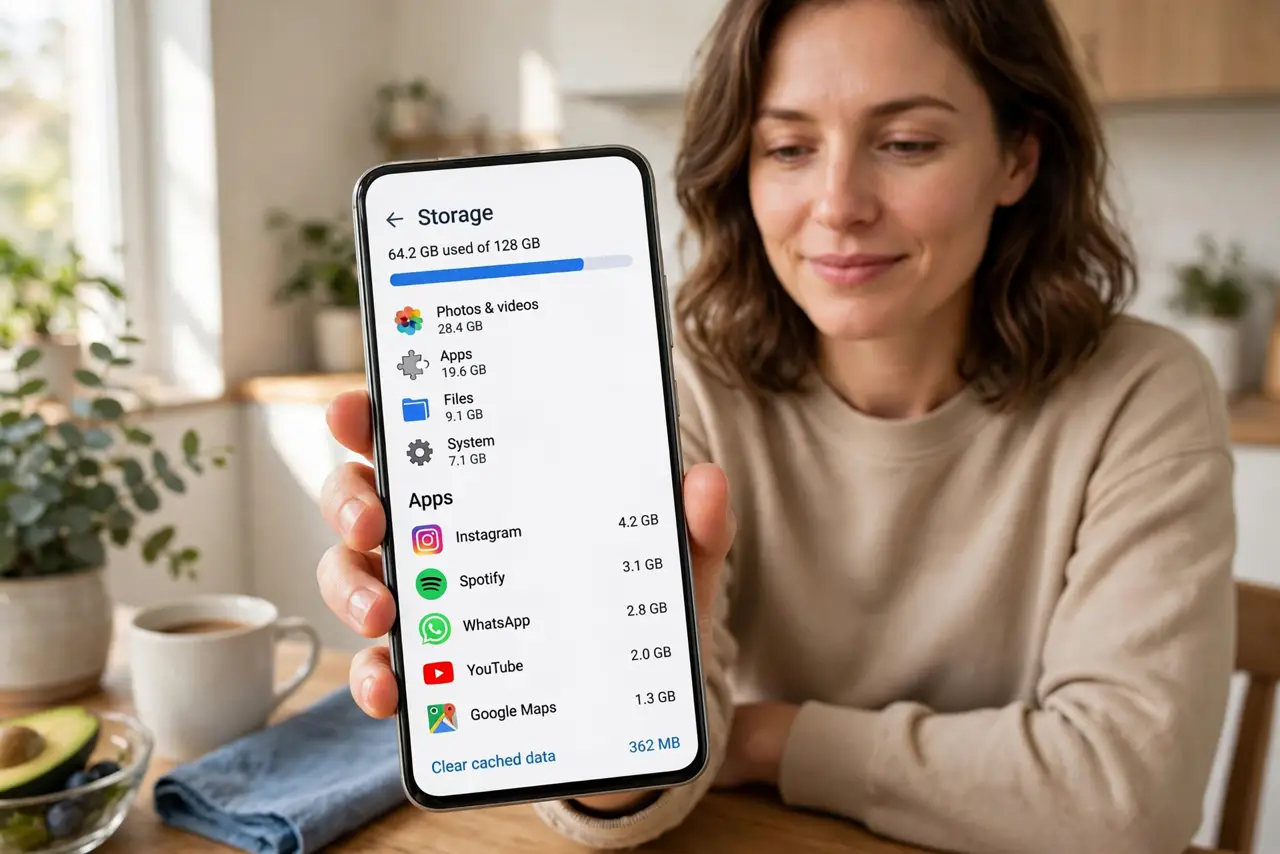
- Review the biggest apps first. Both storage screens sort apps by size. Games and streaming apps with downloaded content are usually the giants — archiving two or three of them can free gigabytes in seconds.
- Know what archiving keeps. Your logins, settings, saved files, and progress stay on the phone. Only the reinstallable app code is removed — that is why the restore is one tap, not a setup process.
- Restore by tapping the icon. When you need the app again, tap its icon and it downloads fresh, then opens with your data exactly as you left it. You need an internet connection for the reinstall — plan ahead for trips.
- Do not confuse archiving with clearing data. Archiving keeps your data; 'Clear storage' or 'Delete app' wipes it. If a storage screen offers both, choose archive or offload — never clear data unless you mean to start over.
What to avoid
- Do not delete apps you might need offline. Archived apps need internet to restore — if you are traveling, restore beforehand.
- Do not archive your authenticator or banking apps. Anything you need urgently without internet should stay fully installed.
- Do not ignore the real storage hogs. Sometimes it is not apps at all — check the iPhone storage breakdown or your Android equivalent before archiving everything.
- Do not turn it on and forget it. Glance at the storage screen every few months; auto-archive is a helper, not a housekeeper.
Frequently asked questions
Is auto-archive safe for my photos?
Yes — archiving touches only app binaries, never your photos, messages, or files. Your personal data is not part of what gets removed.
Why is storage still full after archiving?
System data, cached files, and media often outweigh apps. Archiving fixes the app slice; the storage screen shows which slice is actually biggest.
Can I archive manually instead?
Yes. Long-press any app you rarely use and choose the archive or offload option — handy for one-off space emergencies without enabling the automatic mode.