Stop Unused Apps Draining Battery
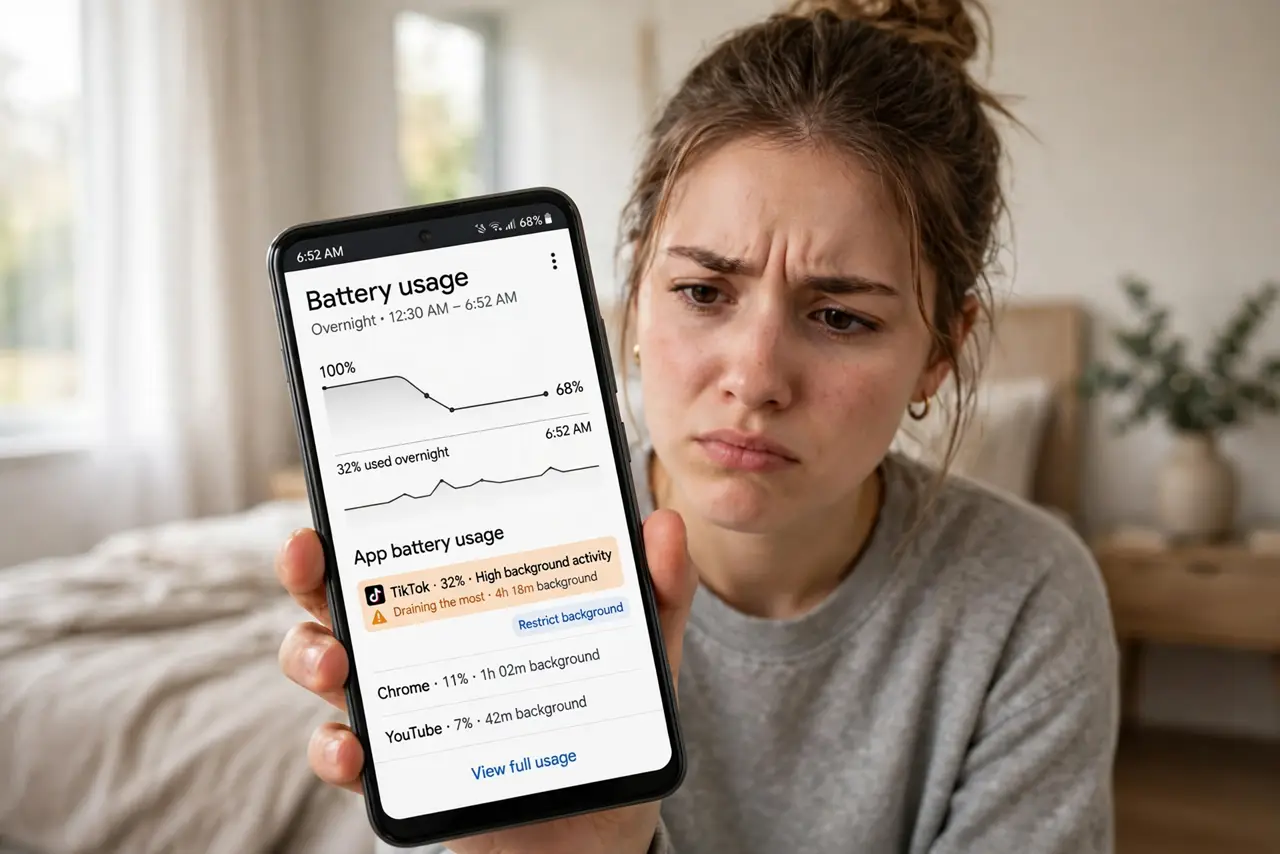
You go to bed at 40% and wake up at 12% — the phone partied all night without you. Android's app standby system is supposed to put unused apps to sleep, but misbehaving apps dodge it. Finding the overnight hogs and restricting them beats any charger hunt. For emergency stretching, see Extreme Battery Saver.
TL;DR / Quick Fix
Quick fix: check Settings > Battery > Battery usage to find the overnight hogs, then set rarely-used apps to Restricted so Android stops them running in the background. Leave Adaptive Battery on — it learns your patterns. Stop force-closing apps manually; it wastes more battery than it saves.
Follow these steps
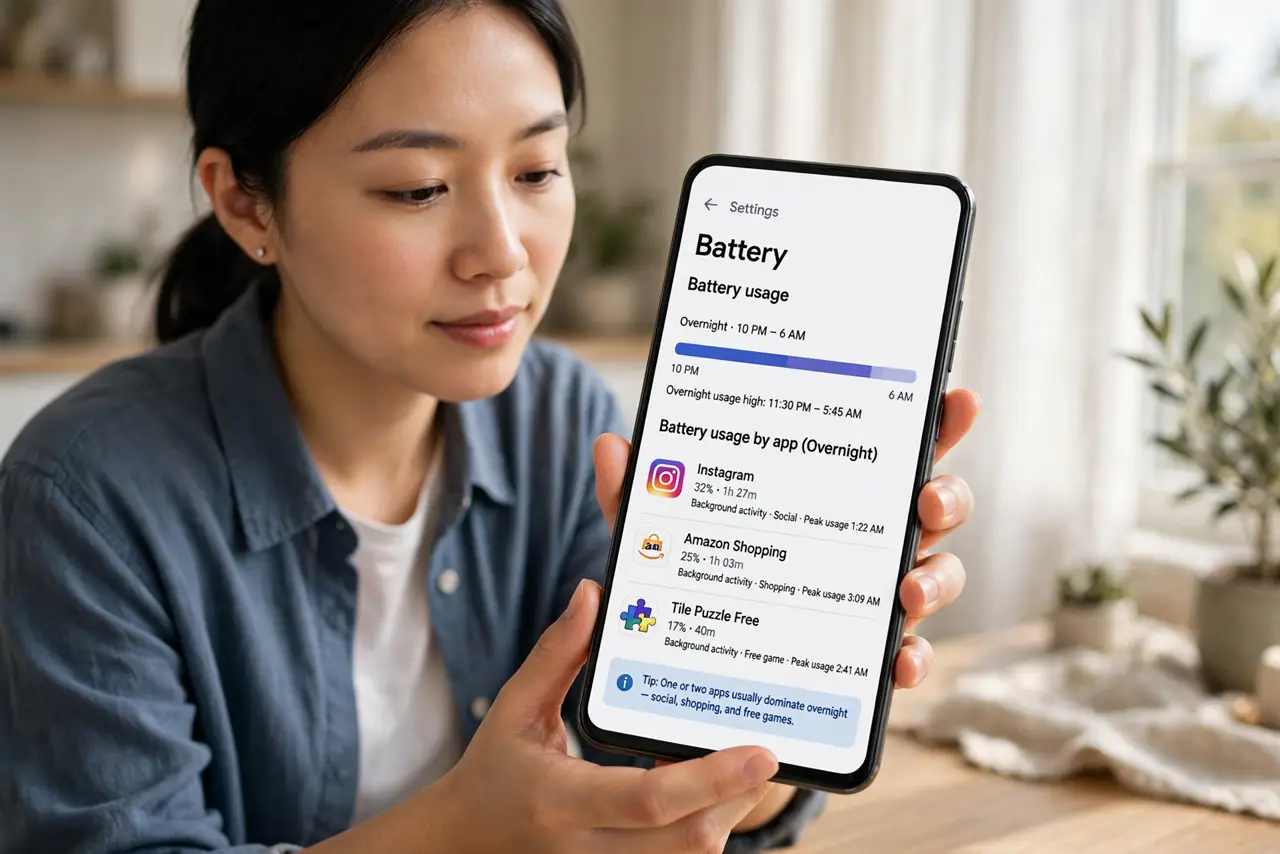
- Find the overnight hogs. Go to Settings > Battery > Battery usage and look at the overnight hours. One or two apps usually dominate — social, shopping, and “free” games are the usual suspects.
- Understand standby buckets. Android sorts apps into buckets — Active, Working Set, Frequent, Rare, Restricted — and throttles background work accordingly. Rarely-used apps should sink to Restricted on their own.
- Restrict the hogs manually. Tap the offending app > App battery usage > set to Restricted. Android now aggressively stops its background activity — notifications from it may delay, which is the point.
- Leave Adaptive Battery on. Settings > Battery > Adaptive Battery learns your routine and pre-restricts apps you never touch at night. It needs a week or two of data to get smart.
- Stop force-closing apps. Swiping apps closed “ to save battery” backfires: reopening them costs more power than the standby they were in. Let the system manage it.
- Use airplane mode overnight. If the drain persists, airplane mode (with Wi-Fi off) is the sledgehammer: nearly zero overnight drain. Alarms still work.
What NOT to do
- Do not restrict messaging or alarm apps. Restricted apps get delayed notifications — your alarm and urgent messages must stay unrestricted.
- Do not install “battery saver” apps from the store. They duplicate built-in features badly and often drain more themselves.
- Do not force-close apps habitually. It feels productive and costs battery — the single most common battery myth.
- Do not ignore a sudden new hog. An app that never drained before and suddenly does may have updated badly — check for its update or restrict it.
Frequently asked questions
Why did my battery die if I was not using the phone?
Background activity: syncing, location checks, and wakeups by misbehaving apps. The usage screen names the culprits.
Restricted vs Optimized — which?
Optimized is the balanced default; Restricted is the hammer for proven hogs. Start with Optimized everywhere, restrict the guilty.
Does this apply to iPhone too?
iPhone manages background apps itself with no per-app buckets to tweak — Background App Refresh is the closest equivalent setting.