Stretch Battery for Days
The charger is nowhere near — a long travel day, a festival, a power outage — and your battery is at 20%. Normal battery saver helps a little; Extreme Battery Saver (or maximum power saving) goes much further, trading nearly everything non-essential for hours of standby. For everyday drain, app standby is the subtler fix.
TL;DR / Quick Fix
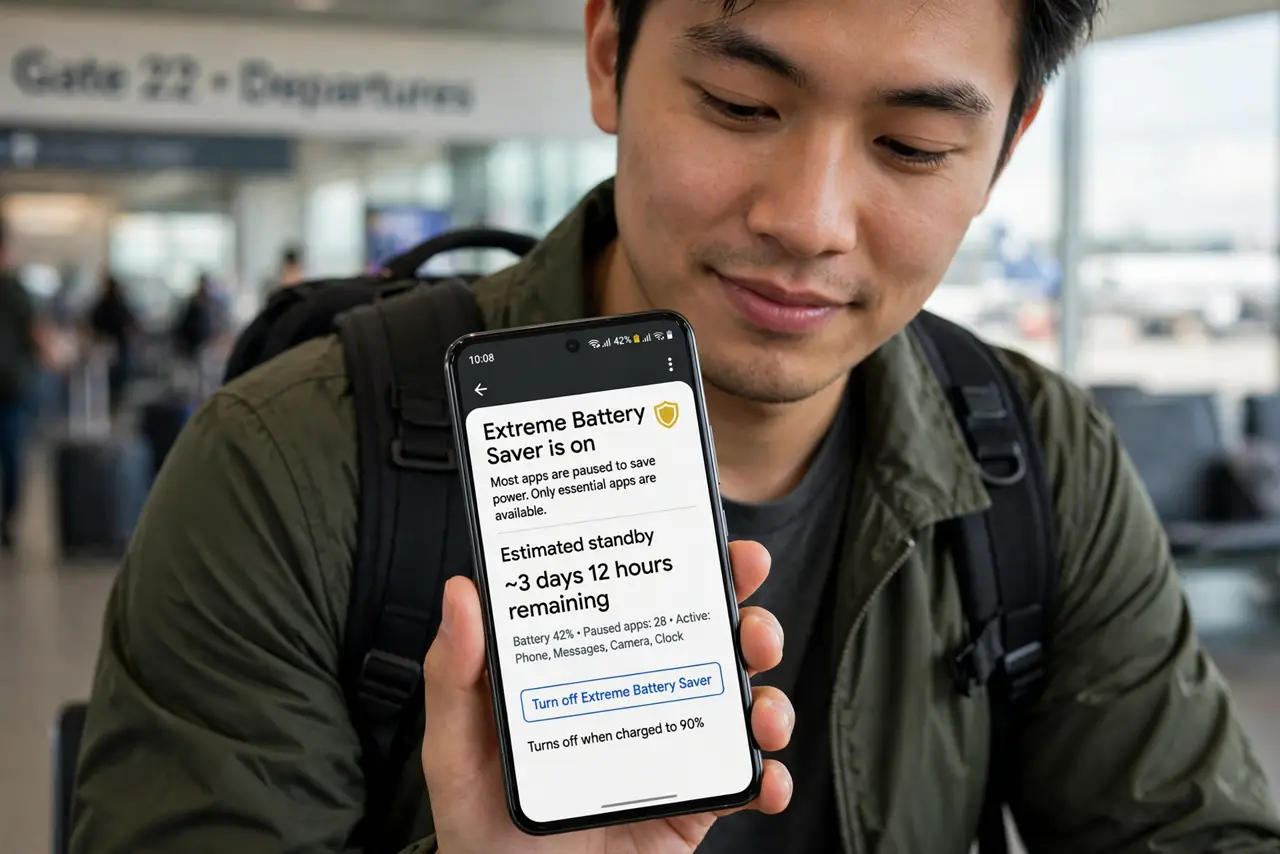
Quick fix: switch on Extreme Battery Saver in Settings > Battery when no charger is near — it pauses most apps and dims the screen, stretching the last 20% across a day or more. Whitelist messaging and maps so essentials keep working. Turn it off once you're plugged in.
Follow these steps
- Find Extreme Battery Saver. Open Settings > Battery > Battery Saver and look for the “Extreme” option (Pixel), or “Maximum power saving mode” (Samsung). It is one level beyond the standard saver.
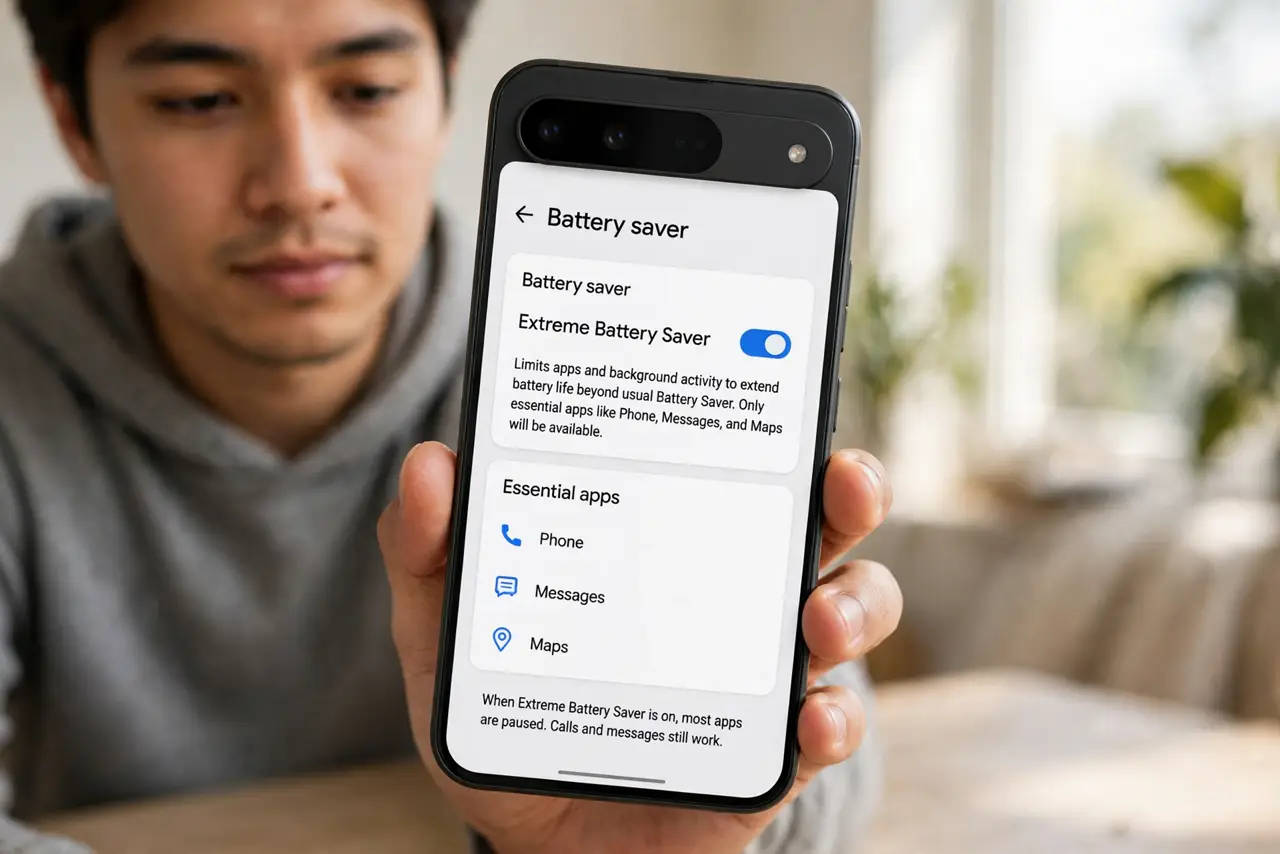
- Understand what it limits. Most apps get paused, background data stops, 5G may drop to 4G, and the screen dims. Calls and texts keep working — it is a smartphone becoming a smart-ish phone.
- Turn it on early, not at 5%. Extreme mode at 20% buys you a day; at 5% it buys you an evening. The earlier you commit, the more the math favors you.
- Whitelist your essentials. Add messaging, maps, and any must-have app to the allowed list before you need them. Discovering your boarding pass app is paused at the gate is bad timing.
- Schedule it if your phone allows. Some phones can auto-enable extreme saving on a schedule or at a battery threshold — set it once and forget it.
- Switch it off when charging. Plug in, turn extreme mode off, and let the phone be a phone again. It is an emergency tool, not a lifestyle.
What NOT to do
- Do not leave extreme mode on permanently. A phone that cannot run its apps is a phone you will resent — use it for emergencies.
- Do not forget what is paused. Alarms still work, but app notifications mostly do not — tell people you may be unreachable.
- Do not enable it at 3% and expect miracles. Physics still applies; extreme saver stretches what is left, it does not create charge.
- Do not confuse it with Adaptive Battery. Adaptive learns your habits quietly; extreme is the big red button for right now.
Frequently asked questions
How much extra time does it really give?
Varies wildly, but stretching the last fifth of a battery across a full day of light use is realistic.
Will I miss calls or texts?
No — phone, SMS, and whitelisted apps keep working. Everything else sleeps.
Does it harm the battery?
No. It reduces drain; it does not change charging physics. Your battery neither knows nor cares.