Autofill Passwords on Android
Typing passwords on a phone keyboard is slow and error-prone — and it trains you to pick weak, memorable ones. Android's autofill fills logins from Google or your password manager with one fingerprint tap. This guide picks the right service and stops the double-prompt annoyance.
TL;DR / Quick Fix
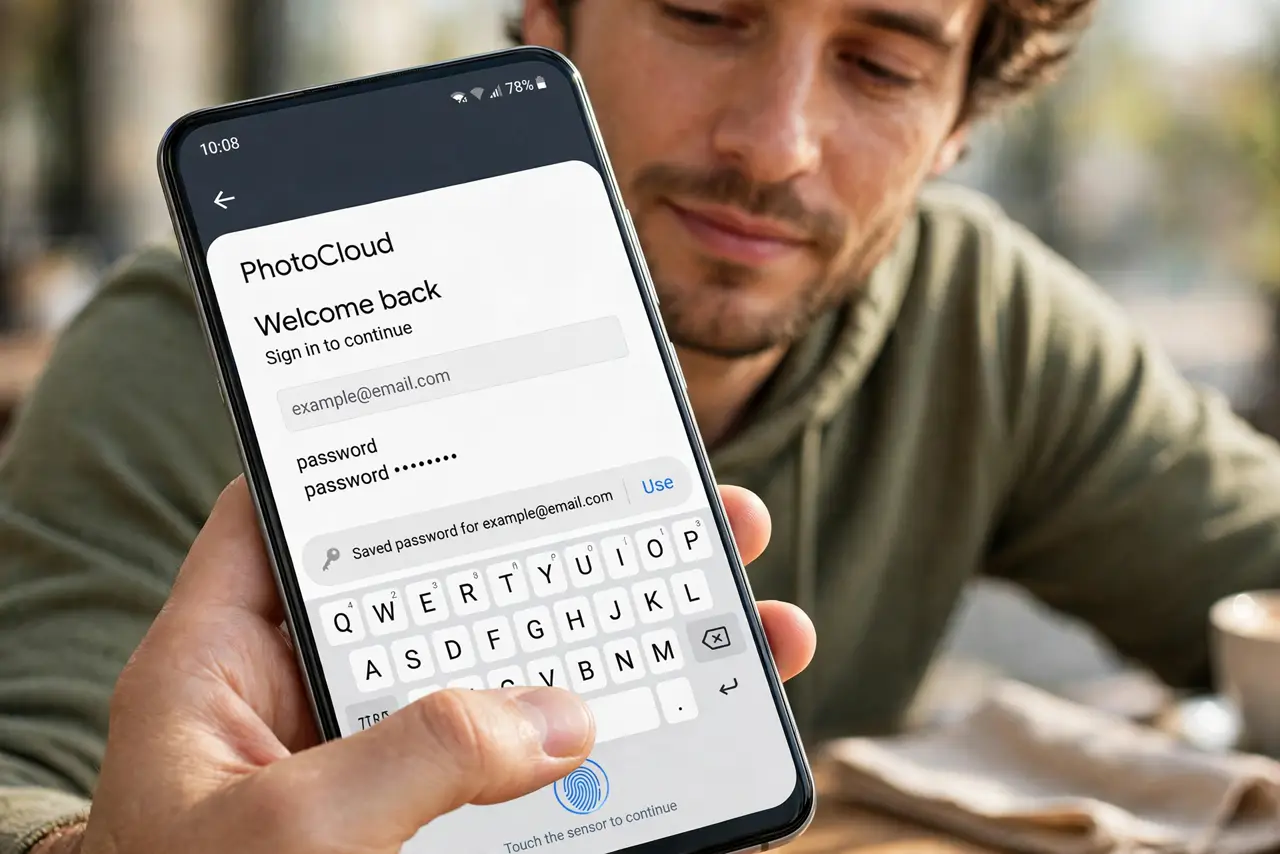
Quick fix: open Settings > Passwords & accounts (or System > Languages) and set your preferred autofill service, such as Google or your password manager. Enable it, confirm with your fingerprint once, and logins fill automatically. Turn off competing services to avoid double prompts.
Follow these steps
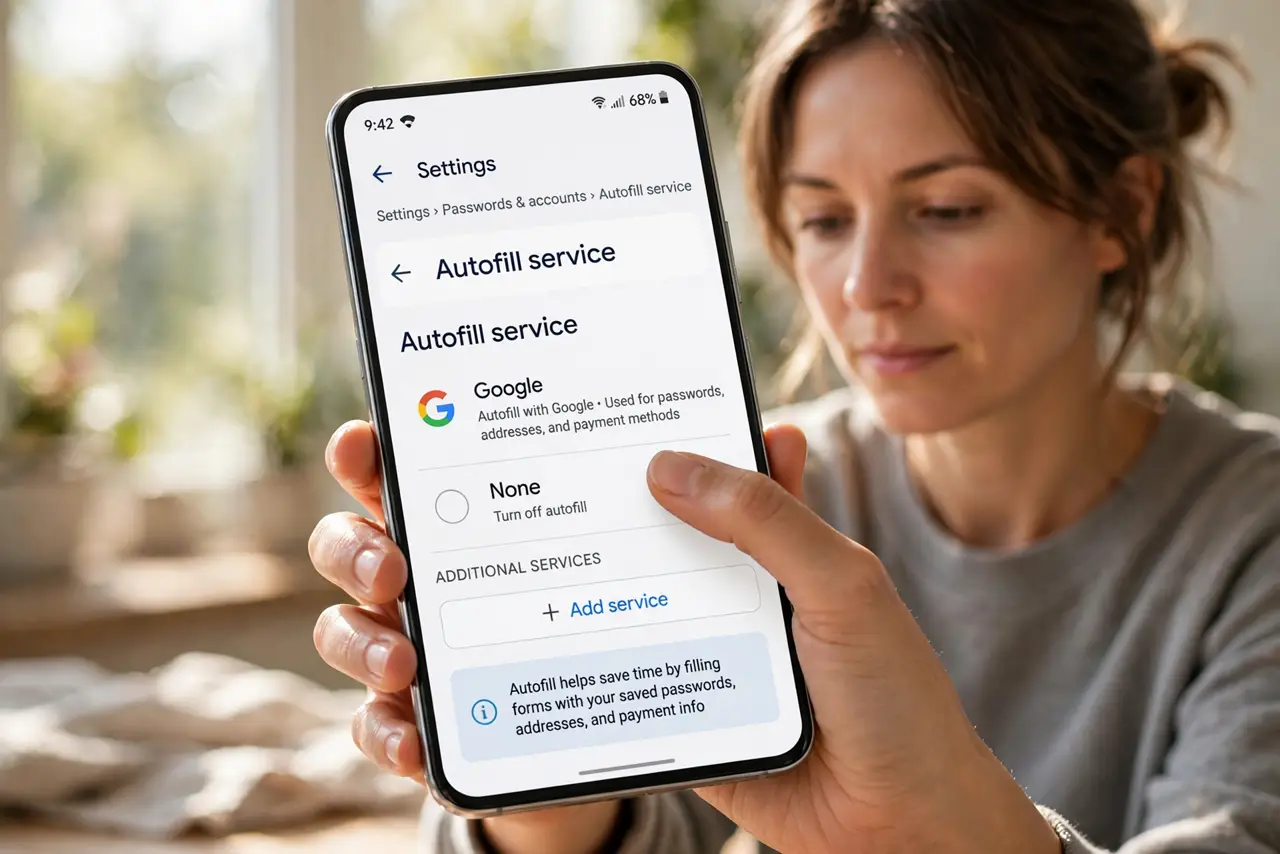
- Open the autofill settings. Go to Settings > Passwords & accounts > Autofill service (on some brands: Settings > System > Languages & input > Autofill service).
- Choose one autofill service. Pick Google or your password manager — not both. Two active services fight and you get double prompts on every login.
- Confirm with your biometrics once. The service asks for fingerprint or face confirmation the first time. This unlocks the vault for that session only.
- Test on a real login screen. Open an app's sign-in page. A suggestion bar or popup should offer the saved credentials — tap it, confirm biometrics, done.
- Add missing logins to the vault. If a site has no saved login, save it when the browser or manager offers. Future logins then take one tap.
- Check iPhone behavior for comparison. iPhones handle this under Settings > Passwords with iCloud Keychain, and their password prompts work a little differently.
What NOT to do
- Do not enable two autofill services at once. Google plus a password manager equals duplicate popups on every single login.
- Do not autofill on someone else's phone. Your vault unlocks with your biometrics — on their device, that protection is gone.
- Do not save logins in the browser when a manager is active. Split vaults mean half your passwords live somewhere you forgot.
- Do not ignore the ‘never for this site’ option. Banking apps you prefer to type manually can be excluded deliberately.
Frequently asked questions
Why does autofill offer the wrong login?
You likely have the credential saved twice — once in Google, once in the manager. Pick one vault and delete the duplicate.
Is autofill safe if someone steals my phone?
The vault needs your fingerprint or PIN each session. Without your biometrics, the thief gets nothing — far safer than a reused memorable password.
Why doesn't autofill appear in some apps?
Some apps block autofill fields deliberately, or draw custom login screens the service cannot read. Copy-paste from the manager is the fallback.