Back Up an Android? Basics
Your phone holds your photos, messages, and two-factor codes — and phones get lost, stolen, and drowned with depressing regularity. Android's built-in backup to your Google account covers most of it automatically, but 'most' hides real gaps. Here is what gets backed up, what does not, and how to close the gaps before you need them.
TL;DR / Quick Fix
Quick fix: Android backs up apps, settings, call history, and texts to your Google account automatically — check it under Settings > System > Backup. Photos need Google Photos backup enabled separately. Verify the backup exists before you need it, not after disaster strikes.
Follow these steps
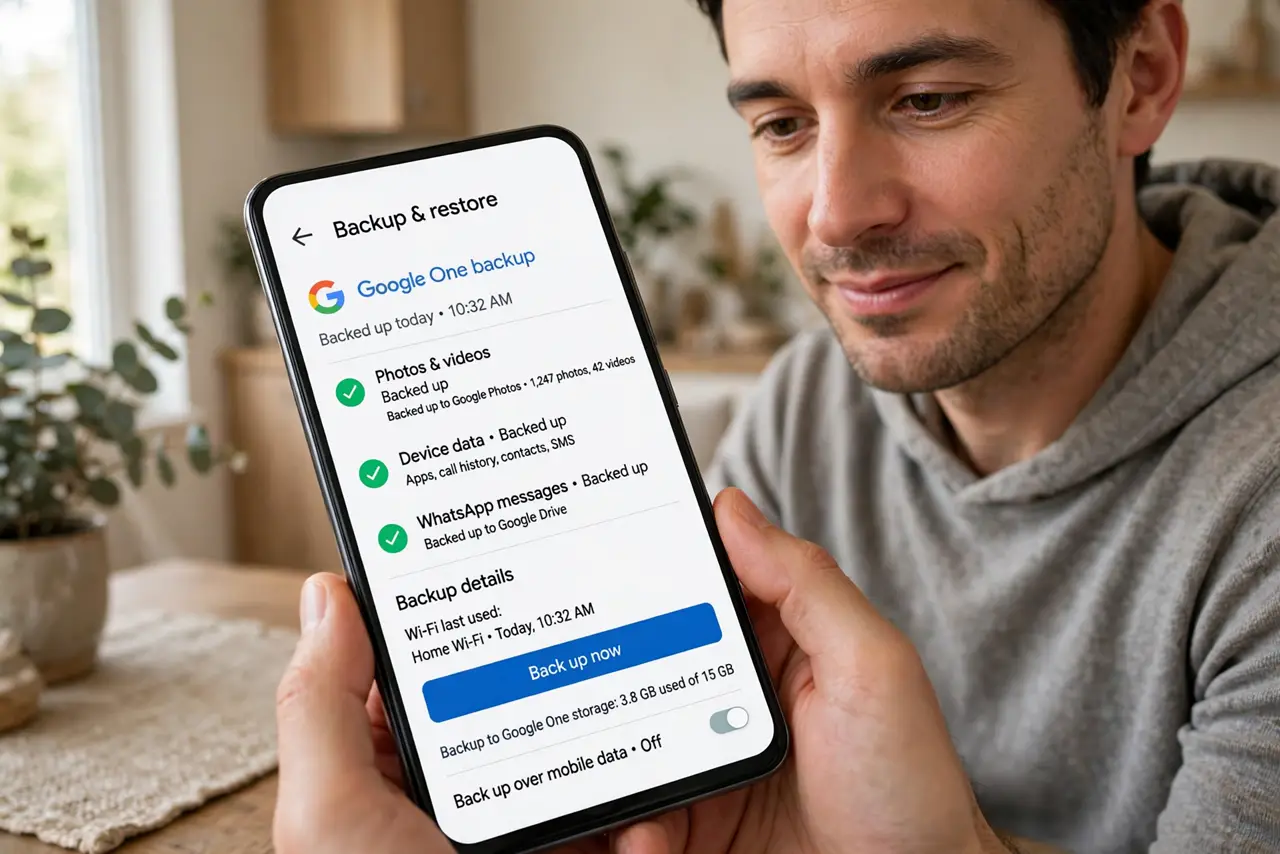
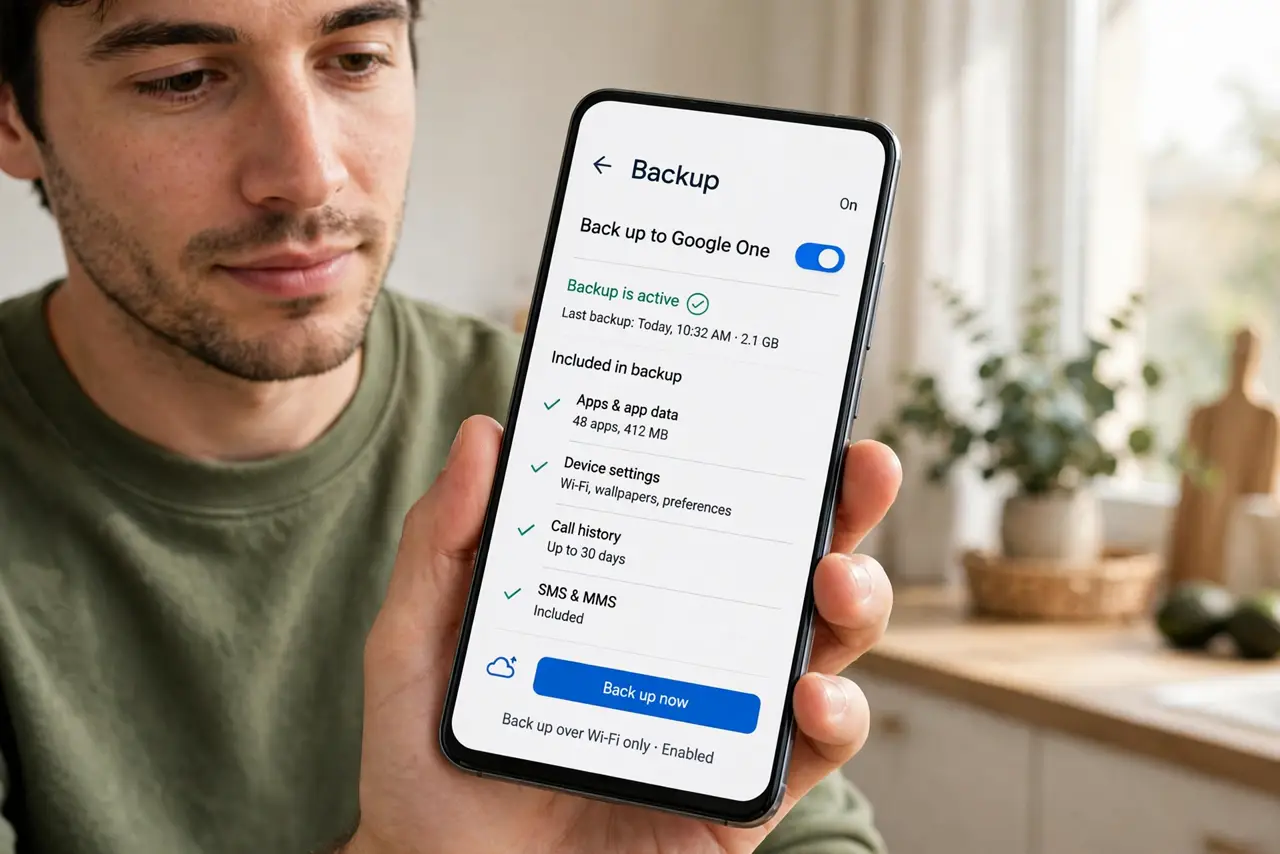
- Check the built-in backup. Go to Settings > System > Backup (wording varies slightly by maker) and confirm it is on and recently completed. This covers apps, app data, settings, call history, and SMS — the skeleton of your phone life.
- Enable Google Photos backup. Photos are NOT in the system backup — they need Google Photos backup turned on separately. Open Google Photos, check backup status, and confirm your pictures are actually uploading.
- Know the gaps. WhatsApp chats need their own backup setting inside WhatsApp. Authenticator codes need cloud sync or manual transfer. Downloads and some app files are not backed up. List your critical apps and check each one.
- Back up before big changes. System update, factory reset, new phone — trigger a manual backup first (the Backup screen has a 'Back up now' option). Automatic schedules are daily-ish; manual is certain.
- Test the restore story. A backup you have never restored is a hope, not a plan. When you get your next phone, restore from the backup instead of starting fresh — that is the test. See the new Android transfer guide for the full move.
- Keep a second copy of photos. Cloud backup is one copy. Periodically copy photos to a computer or external drive too — accounts get locked, services change terms, and 'the cloud' is someone else's computer.
What NOT to do
- Do not assume photos are in the system backup. They are not — Google Photos backup is a separate switch that must be on.
- Do not forget WhatsApp and authenticator apps. They need their own backup settings — the system backup does not cover their data properly.
- Do not start a factory reset without a manual backup. Automatic backups run on their own schedule, which is never 'right before you need it.'
- Do not rely on a single cloud copy. Accounts get locked and services change — a local copy of irreplaceable photos is cheap insurance.
Frequently asked questions
What exactly does Android backup include?
Apps and their data, system settings, Wi-Fi passwords, call history, and SMS. Not included: photos (separate), some app-internal files, and downloads.
How do I know my backup worked?
The Backup settings screen shows the last successful backup time. If it is old or failing, fix it now — a stale backup is barely better than none.
Is Google One backup different?
Google One extends the same system with more storage and extras. The backup mechanism is the same; One mainly buys you space for those photos.