Back Up Everything to Google
A new phone is exciting for exactly one day — then comes the dread: years of photos, messages, apps, and Wi-Fi passwords to move over, and the fear of losing something irreplaceable. Google One backup on Android handles nearly all of it automatically: when the new phone signs in, your old phone's life reassembles itself. The trick is making sure the backup actually ran before you wiped the old one.
TL;DR / Quick Fix
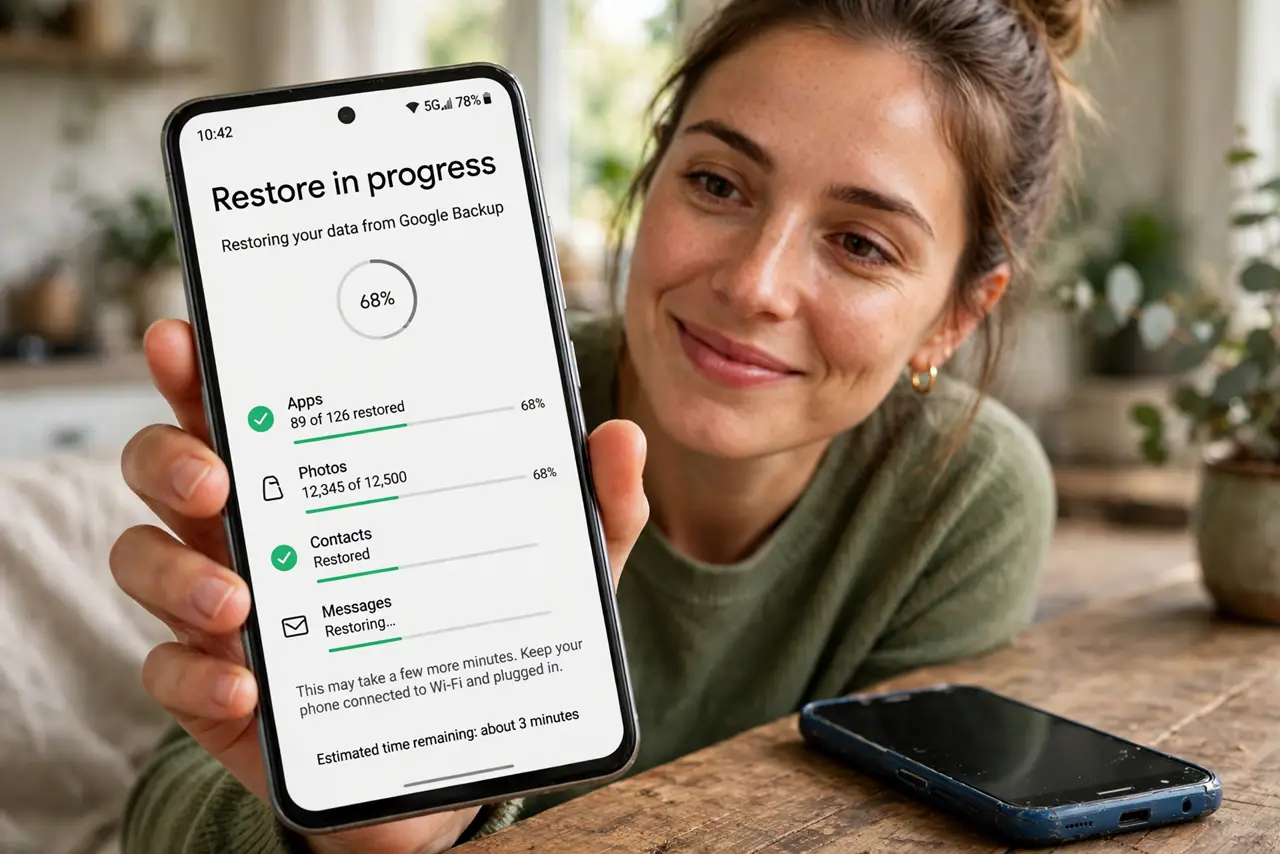
Quick fix: on the old phone open Settings, go to Google, then Backup, and confirm Google One backup is on — tap Back up now. On the new phone, sign into the same Google account during setup and choose Restore. Photos, apps, messages, and settings come along.
Follow these steps
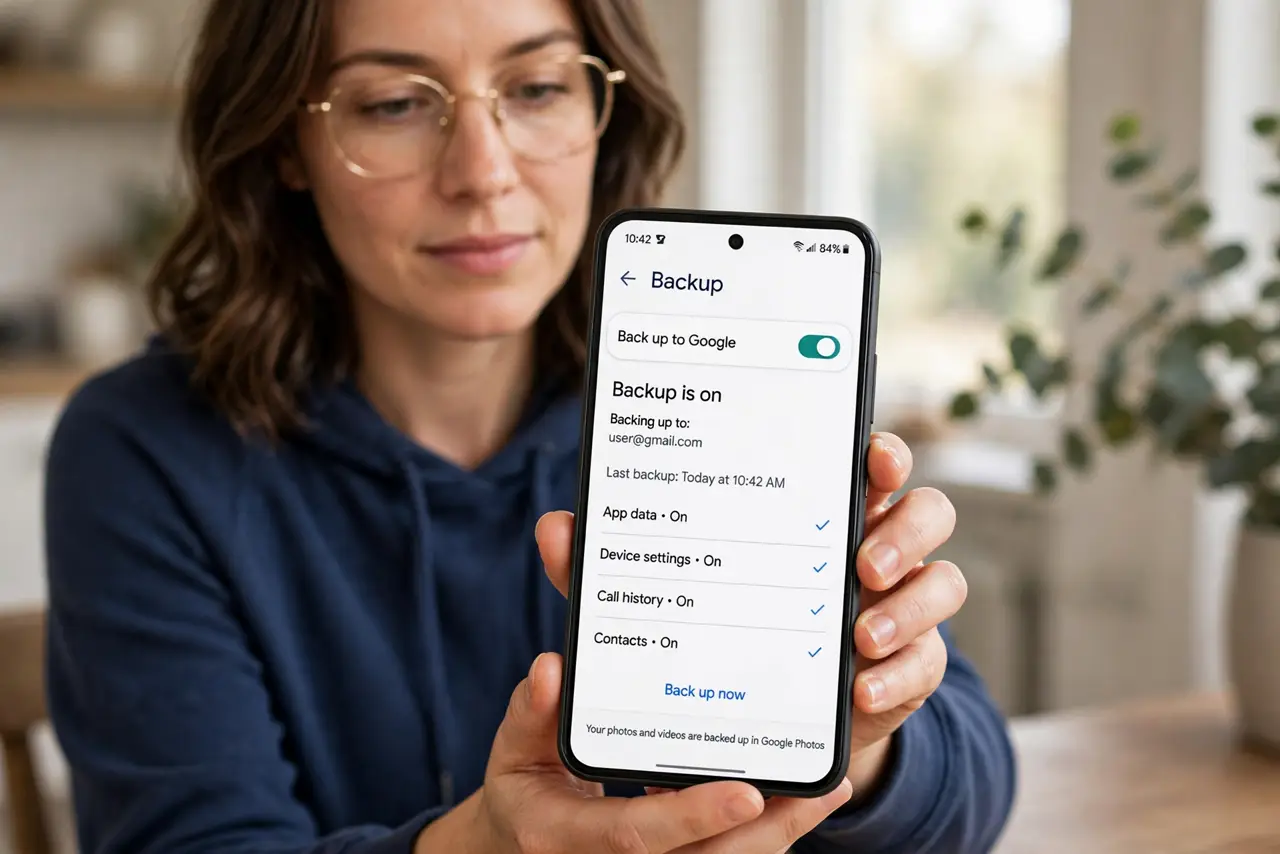
- Confirm backup is on. On the old phone: Settings, Google, Backup — verify Google One backup is enabled. This covers apps, messages, call history, device settings, and more.
- Run a manual backup now. Tap Back up now and wait for it to finish on Wi-Fi. Do not start the move on a stale backup — this one fresh snapshot is what the new phone will restore.
- Check what is included. The backup screen lists categories and sizes. Photos may live in Google Photos separately — confirm that backup is current too, since it is the irreplaceable part.
- Sign in on the new phone. During the new phone's setup, sign into the same Google account and choose to restore from the old device's backup. The phone downloads apps and settings over Wi-Fi.
- Verify before wiping the old phone. Open the new phone and check: photos, messages, authenticator apps, and banking apps. Only factory-reset the old phone after everything critical is confirmed present — transfer checklists help here.
- Re-authenticate sensitive apps. Banking, authenticator, and payment apps deliberately do not transfer credentials — sign into each fresh on the new phone. This is security working as designed, not a backup failure.
What NOT to do
- Do not wipe the old phone first. Restore, verify, then wipe — in that order, always. The old phone is your safety net.
- Do not restore over mobile data. App and photo restores are huge — do it on Wi-Fi or face a wrecked data cap.
- Do not assume authenticator codes transferred. Move or re-register two-factor authentication separately before wiping — losing these locks you out.
- Do not skip the manual backup. An automatic backup from last week misses this week's photos — tap Back up now.
Frequently asked questions
What exactly does Google One backup include?
Apps and app data, SMS and call history, device settings, and — with Google Photos — photos and videos. Some app logins still need re-entering.
Is my backup private?
It is tied to your Google account and encrypted in transit and at rest. Anyone with your Google password can access it — so protect that account with two-factor authentication.
How much storage does the backup use?
Google One includes a base amount of storage shared across services; large photo libraries may need a paid tier. Check usage in the Google One app.