Let Google Screen Unknown Calls
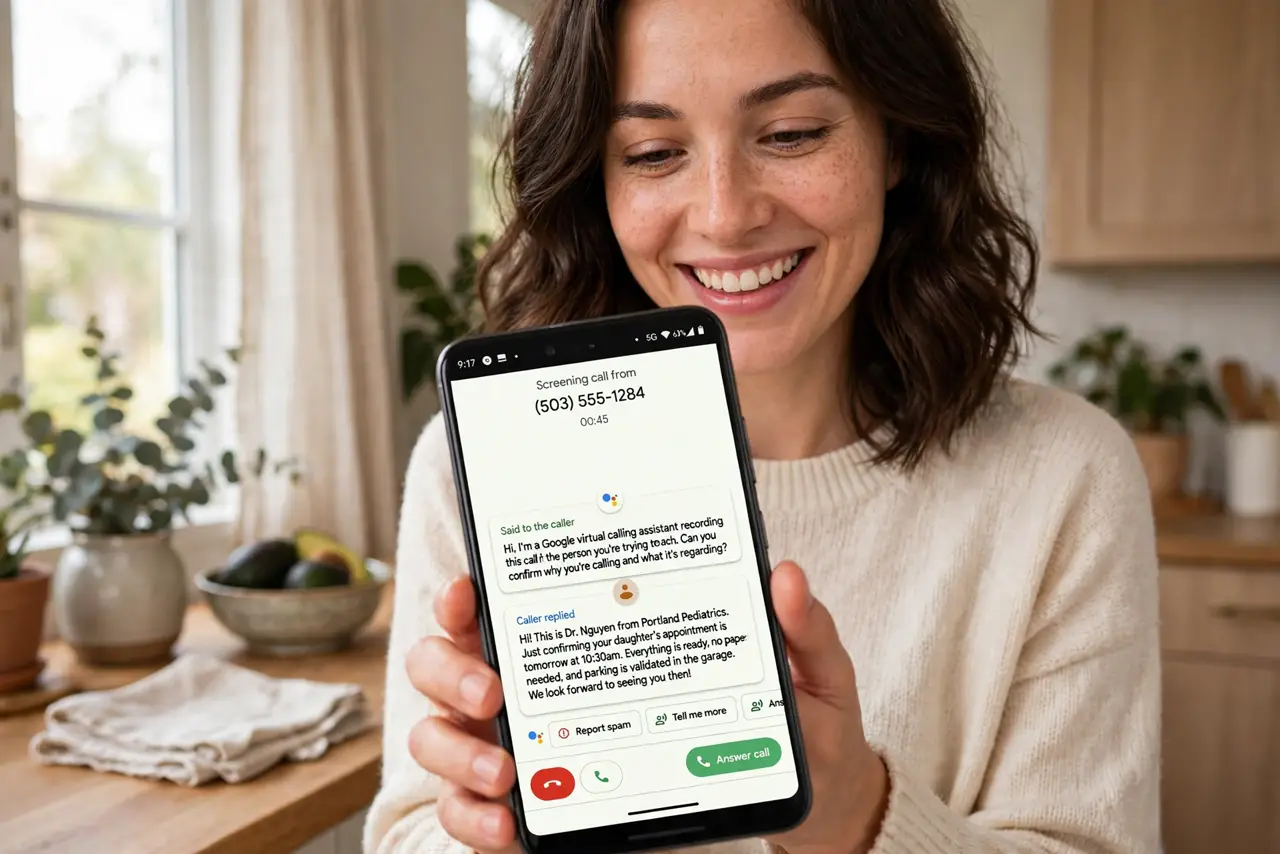
Unknown number, and the eternal gamble: spammer or the pharmacy? Call Screen lets Google Assistant answer first, ask who is calling and why, and show you the live transcript — you decide while they talk to a robot. It is the closest thing to a spam-call force field on a Pixel.
TL;DR / Quick Fix
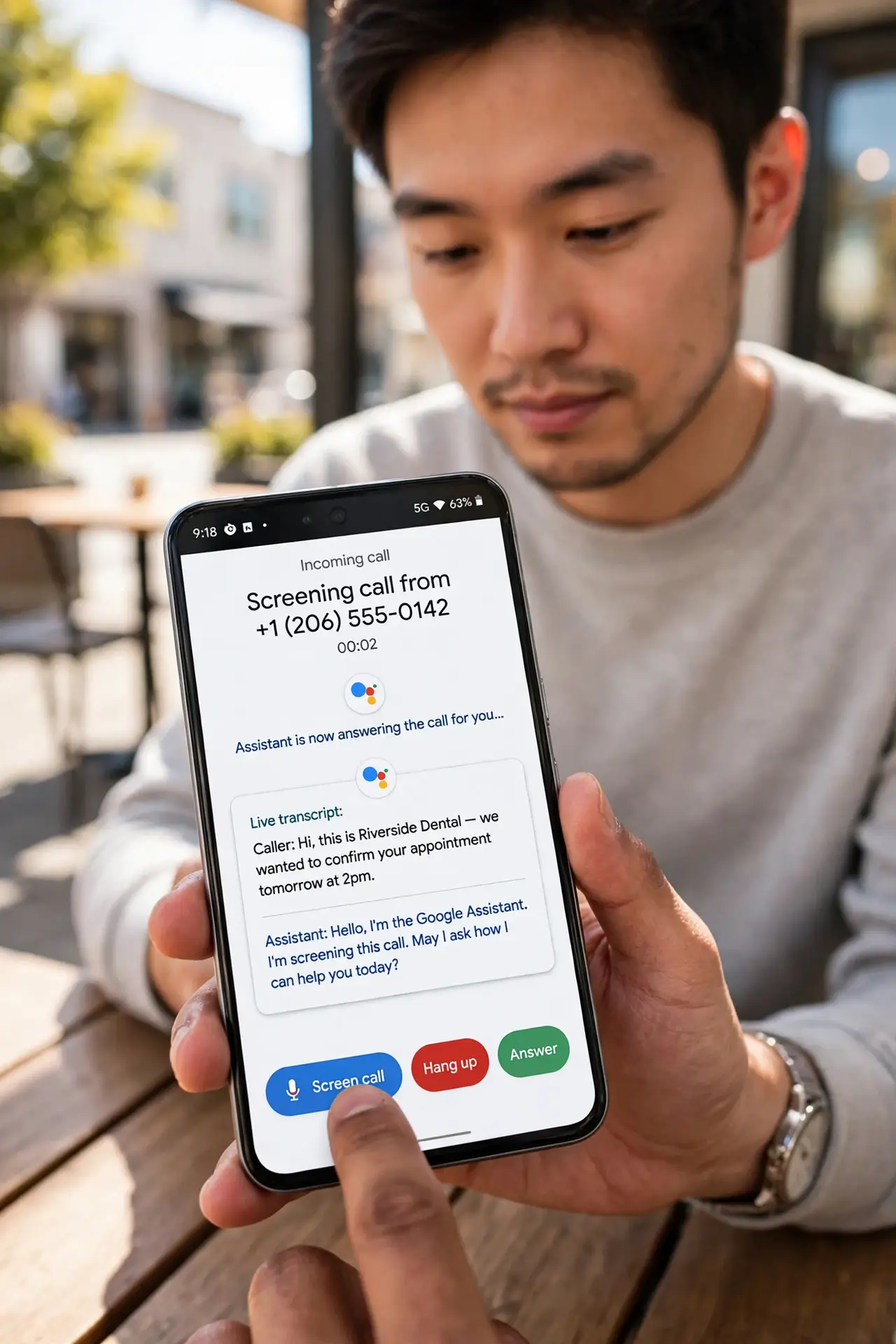
Quick fix: when an unknown number calls your Pixel, tap Screen call. Google Assistant answers, asks who's calling and why, and shows you a live transcript — then you accept, decline, or block. Enable automatic screening for spam under Phone app Settings > Spam and Call Screen.
Follow these steps
- Screen a call manually. On the incoming call screen, tap Screen call. The Assistant answers with a standard greeting and the transcript appears live.
- Read the transcript, then decide. The caller states their business in text. Tap to accept the call, send a quick reply, or hang up and block.
- Enable automatic spam screening. Open the Phone app > Settings > Spam and Call Screen. Set known spam to decline silently and unknown numbers to screen automatically.
- Check the screening level. Maximum protection screens everything unknown; Basic only filters obvious spam. Match it to how many legit unknown calls you get.
- Review screened calls later. The Phone app's Recents keeps transcripts of screened calls — handy when you declined something that turned out to matter.
- Know the limits. Call Screen is Pixel-first, US-centric, and needs network. Some regions and carriers restrict it — check availability in your Phone settings.
What NOT to do
- Do not screen calls from your doctor or pharmacy blindly. Whitelist important numbers or you will miss the calls that matter.
- Do not assume every Android has it. Call Screen is a Pixel feature — Samsung and others have their own spam filters, not this one.
- Do not let auto-screening answer job recruiters rudely. The default greeting is polite, but verify it fits your situation.
- Do not forget it needs data. Without a network connection, screening cannot reach Google's systems — the call rings through normally.
Frequently asked questions
Is Call Screen free?
Yes — it is built into Pixel phones with no subscription. Carrier spam filters are the separate, sometimes paid, service.
Does the caller know they're screened?
Yes — the Assistant announces itself and asks for their name and reason. Legitimate callers answer; robocalls usually hang up.
Can I use Call Screen on Samsung?
Not Google's version. Samsung phones have Smart Call spam labeling instead — different system, same goal.