Let Google Screen Spam Calls
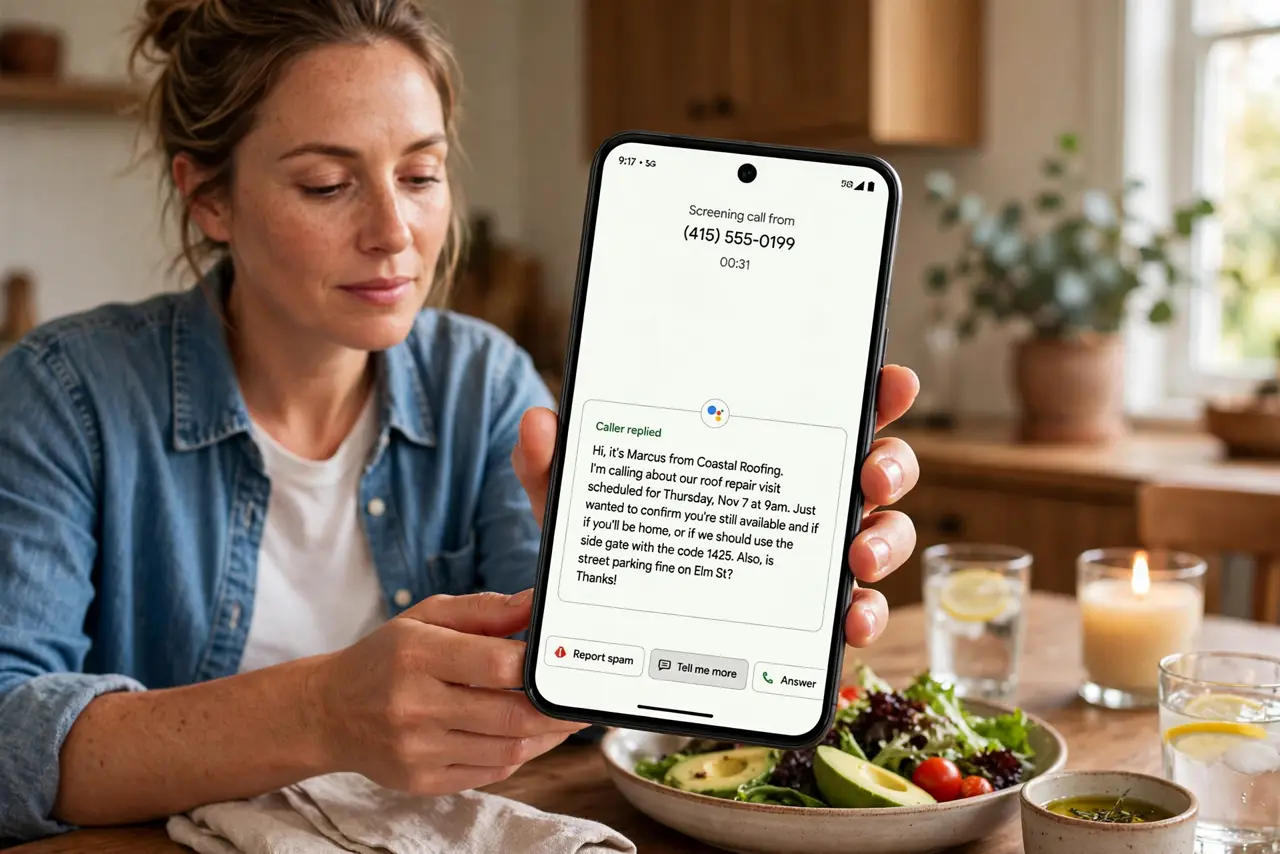
Another 'unknown number' lighting up your phone during dinner. You ignore it — but what if it was the pharmacy? Google's Call Screen answers unknown callers for you: the Assistant asks who is calling and why, shows you the live transcript, and you decide whether to pick up. Spam dies quietly; real callers get through.
TL;DR / Quick Fix
Quick fix: on Pixel phones, turn on Call Screen in the Phone app's settings so Google answers unknown numbers, asks the caller's business, and shows you a live transcript — you tap accept or decline without ever hearing the ring. Spammers hang up on the robot; real callers explain themselves.
Follow these steps
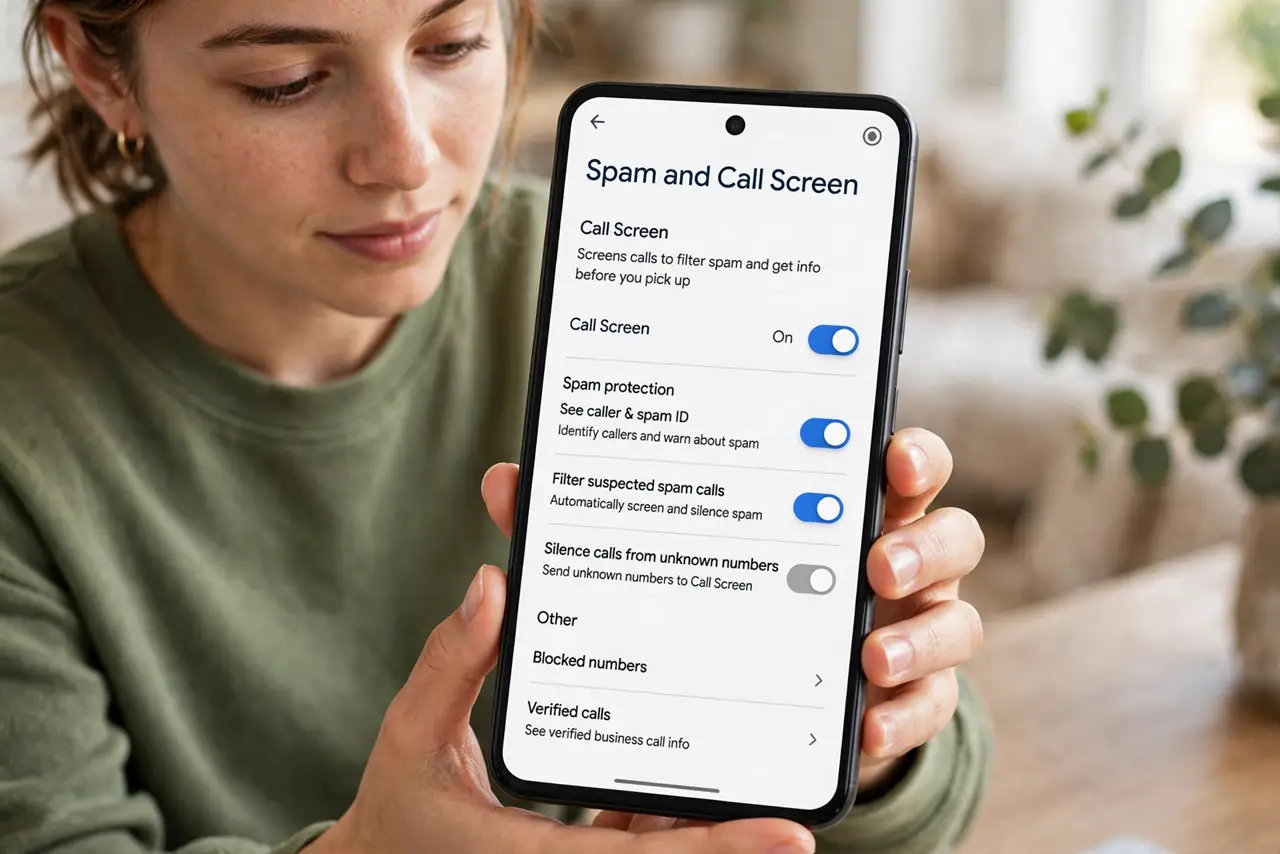
- Open the Phone app settings. Open the Google Phone app, tap the three dots, then Settings, then Spam and Call Screen. The whole feature lives in this one menu.
- Turn on Call Screen. Enable it and choose when it acts: automatically for spam and unknown numbers, or manually per call. Automatic is the set-and-forget choice.
- Pick the voice. Choose the Assistant voice that answers. It identifies itself as a screening service and asks the caller to state their name and reason — most robocalls hang up at this point.
- Read the live transcript. When a screened call comes in, you see the caller's words appear live. Tap accept to join, decline to end it, or send a quick suggested reply.
- Review the spam folder. Screened spam lands where you can review it later. Check occasionally — legitimate callers with odd numbers sometimes get screened too.
- Know the limits. Call Screen is a Pixel feature (expanding slowly elsewhere). iPhone users get Live Voicemail instead — same idea, different name. And it needs a data connection to transcribe.
What NOT to do
- Do not ignore every unknown number manually anymore. That is the old gamble — screening gives you the information to decide.
- Do not set it to screen your contacts. Known callers should ring through normally; screening is for the unknown.
- Do not assume it catches everything. Sophisticated spam adapts; the transcript still lets you spot the fakes fast.
- Do not forget it needs data. Without a data connection the transcription cannot run — calls fall back to normal ringing.
Frequently asked questions
Is Call Screen available on my phone?
It is built for Pixel phones and expanding to others. Check the Phone app's settings — if the menu is absent, your model does not have it yet.
Do callers know they are being screened?
Yes — the Assistant introduces itself as a screening service. Legitimate callers handle it fine; spammers usually hang up.
What is the iPhone equivalent?
Live Voicemail shows a live transcript of voicemails as they are recorded — the same 'see before you answer' idea in Apple's style.