Use Android Across Devices
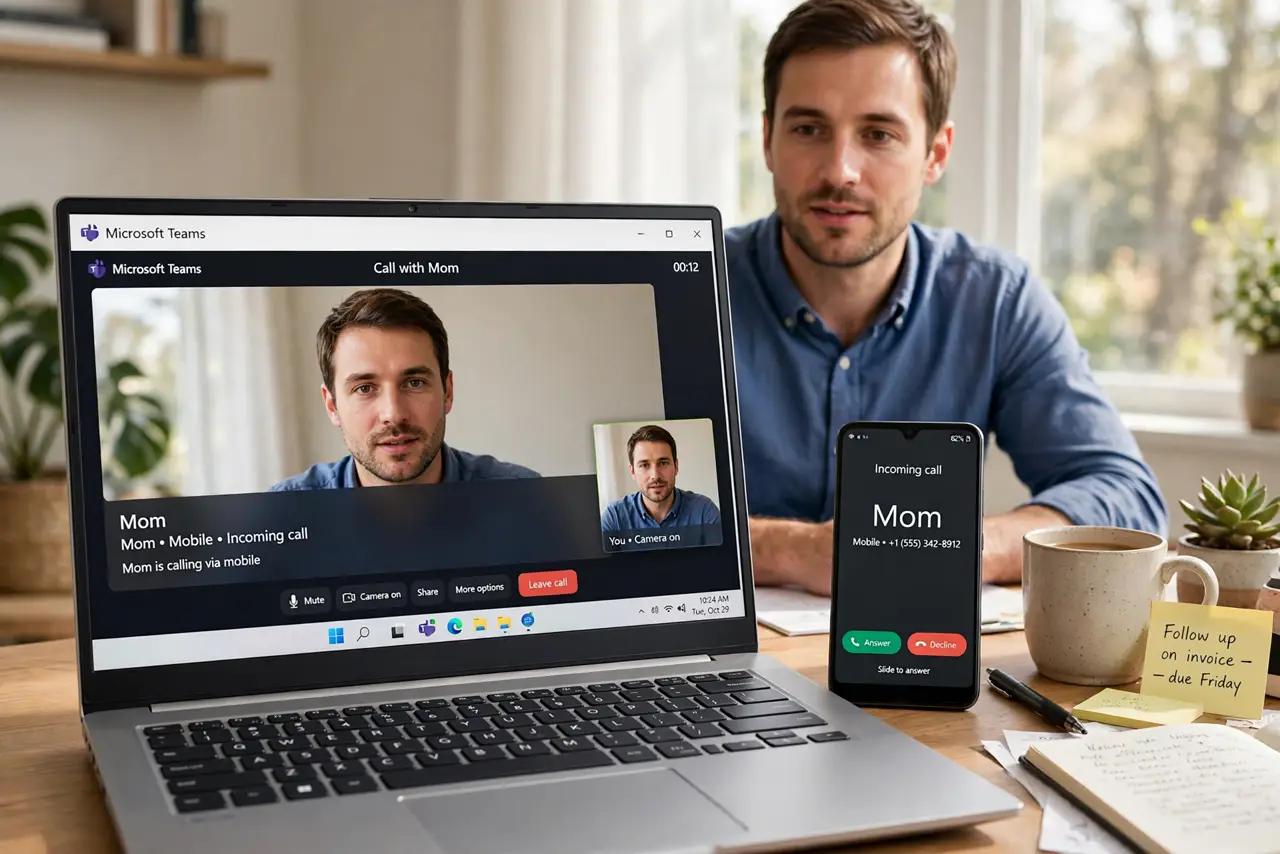
Your phone rings in your bag while you are deep in work on your laptop, and by the time you dig it out, the call is gone. Or a text code you need is on the phone charging in the other room. Modern phones can share calls, messages, and clipboards across your devices — you just have to connect them once. Here is how to stop the device shuffle.
TL;DR / Quick Fix
Quick fix: link your phone to your other devices once, and calls, texts, notifications, and even your clipboard follow you to the laptop or tablet. On Android use the cross-device services in Settings; on iPhone use Continuity with the same Apple ID. One setup, then your devices act like one.
Follow these steps
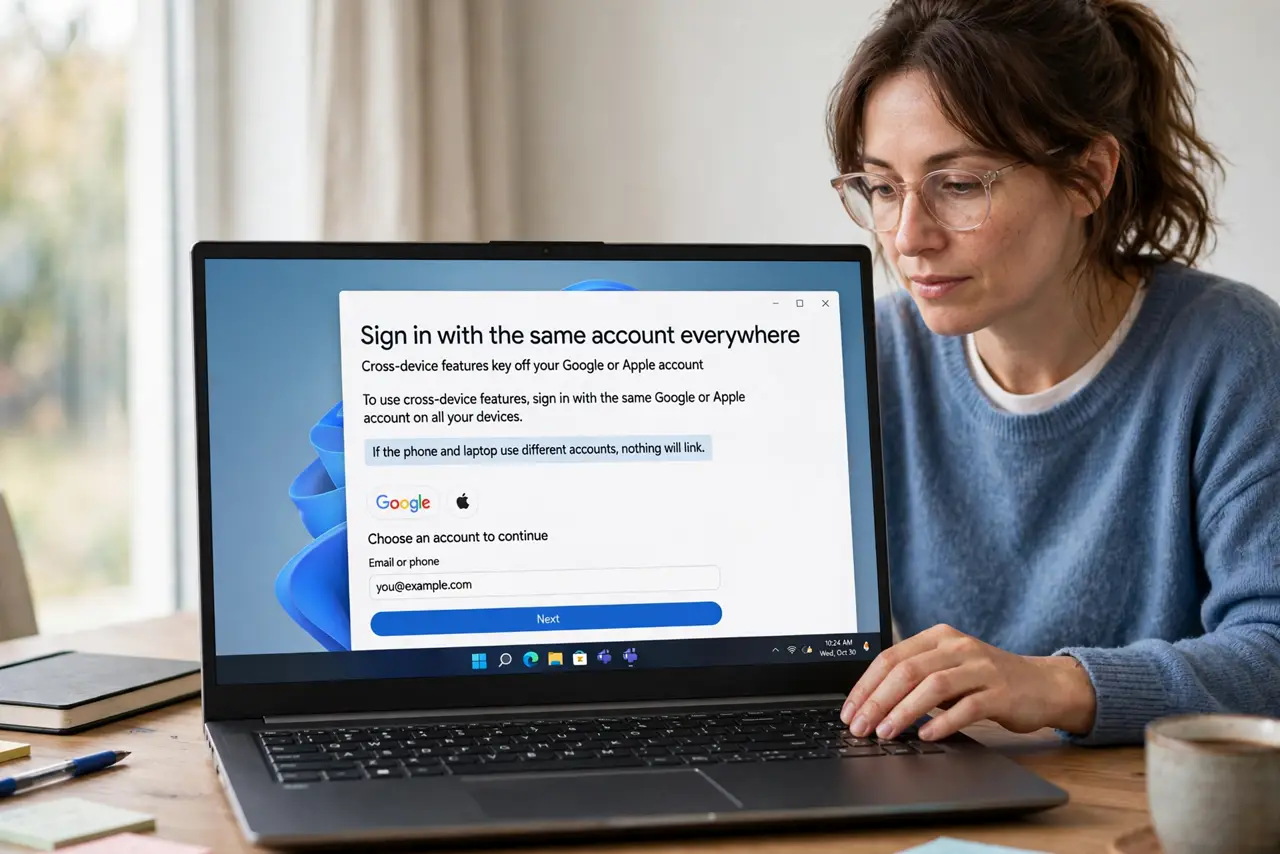
- Sign in with the same account everywhere. Cross-device features key off your Google or Apple account. If the phone and laptop use different accounts, nothing will link — unify the sign-in first.
- Enable the phone-link feature. On Android, open Settings and look for cross-device or linked-devices services, then pair with your laptop or tablet. On iPhone, the equivalent Continuity features tie iPhone, iPad, and Mac together.
- Grant the permissions it asks for. Calls, messages, and notifications need explicit permission on the phone. Deny them and the feature silently does nothing — accept the prompts during setup.
- Test with a real call. Have someone call you while you work on the laptop. Answer from the laptop once to prove the chain works — discovering it is broken during an important call is the worst timing.
- Keep Bluetooth and Wi-Fi on. The devices find each other over Bluetooth and move data over Wi-Fi. Aggressive battery savers that kill background radios will break the link — exempt the companion apps.
- Know what does not cross over. Banking codes via SMS usually arrive fine, but some secure apps deliberately stay phone-only. Do not be surprised when one stubborn app refuses to leave the phone.
What NOT to do
- Do not pair devices on public or work Wi-Fi and expect it to work. Many networks block device-to-device discovery — use a trusted home network for setup.
- Do not ignore the permission prompts. Half-linked devices that receive notifications but cannot answer calls are a permissions problem.
- Do not leave old devices linked. A sold or lost tablet still signed in can receive your calls and codes — unlink it the day you retire it.
- Do not expect iPhone-to-Windows pairing to match Apple-to-Apple. Cross-platform links work but with fewer features than same-ecosystem pairs.
Frequently asked questions
Can I answer calls on my laptop without my phone nearby?
No — the phone does the actual calling; the laptop is a remote control. Keep the phone powered and within Bluetooth range.
Why do texts arrive but calls do not?
Calls need an extra permission (phone/audio) beyond notifications. Re-run the setup and accept every prompt.
Is it safe to link devices like this?
Yes on your own devices and networks. The link is encrypted between your signed-in devices — just unlink anything you sell or give away.