Unlock Developer Options
Buried in your Android settings is a hidden menu — Developer Options — with animation controls, USB debugging, and performance tools. It is hidden for good reason: the wrong toggle can make your phone misbehave. But a few of its settings are genuinely useful for regular users, if you know which ones to touch and which to leave alone.
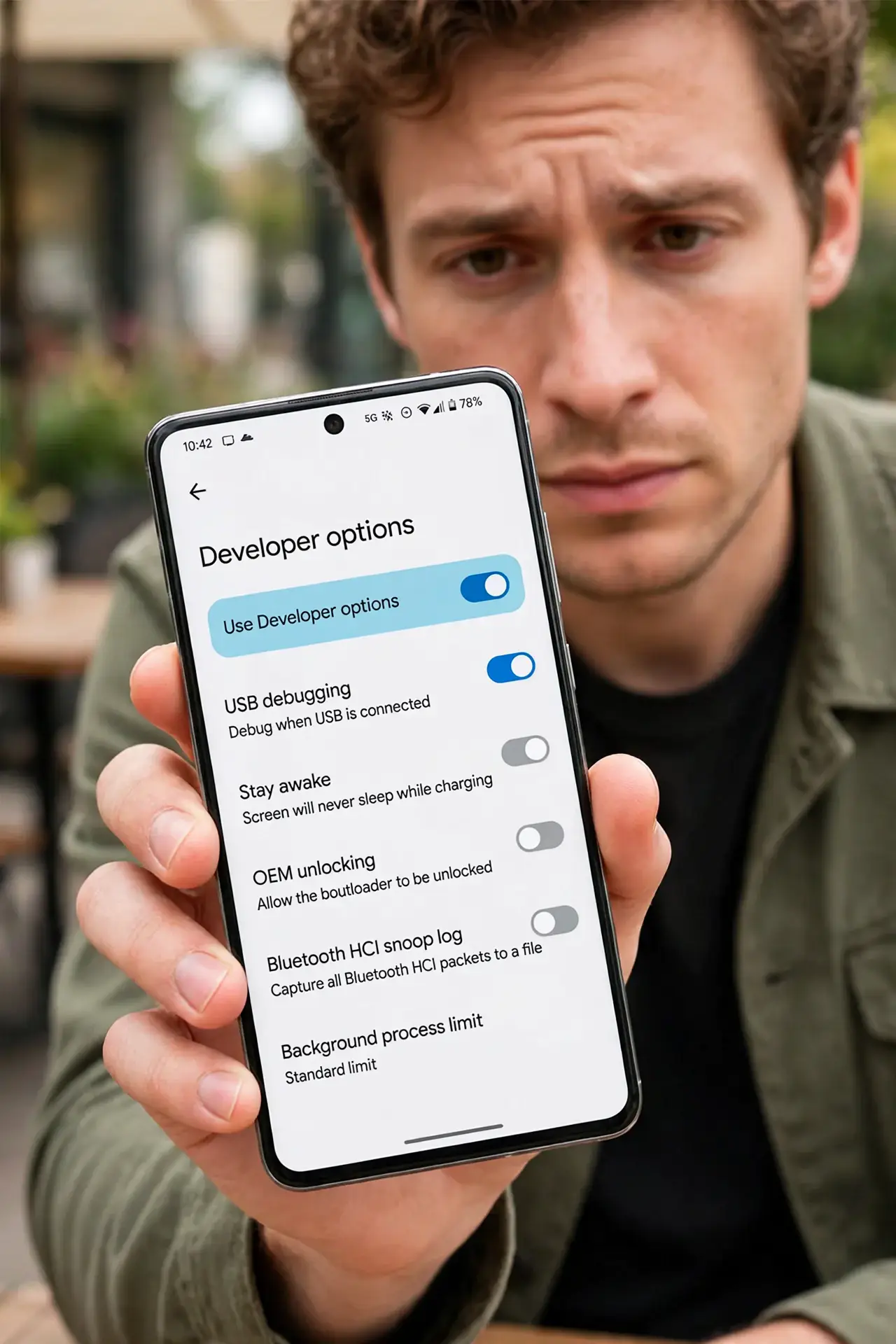
TL;DR / Quick Fix
Quick fix: open Settings, go to About phone, and tap Build number seven times to unlock Developer Options. Useful and safe: animation scale tweaks and USB debugging when needed. Leave everything else at defaults — most toggles are not meant for daily use.
Follow these steps
- Unlock the menu. Open Settings, About phone, and tap Build number seven times. Enter your PIN when asked. A toast confirms you are now a developer — the menu appears in Settings, usually under System.
- Find the menu. Look in Settings, System, Developer options. On some brands it hides under Additional settings — search Settings for developer if it plays hide and seek.
- Speed up animations safely. The Window, Transition, and Animator duration scales control animation speed. Dropping them from 1x to 0.5x makes the phone feel snappier — cosmetic, safe, and instantly reversible.
- Enable USB debugging only when needed. This lets a computer talk to your phone deeply — needed for backups, development, and some repair tools. Turn it on for the task, then off again; see what USB debugging does before enabling.
- Leave the scary toggles alone. OEM unlocking, USB configuration defaults, background process limits — these can brick workflows or weaken security. If you do not know what it does, do not touch it.
- Know how to hide the menu again. Toggle Developer options off at the top of the menu to disable everything at once. The menu stays visible but inert — to fully hide it, clear the Settings app's data.
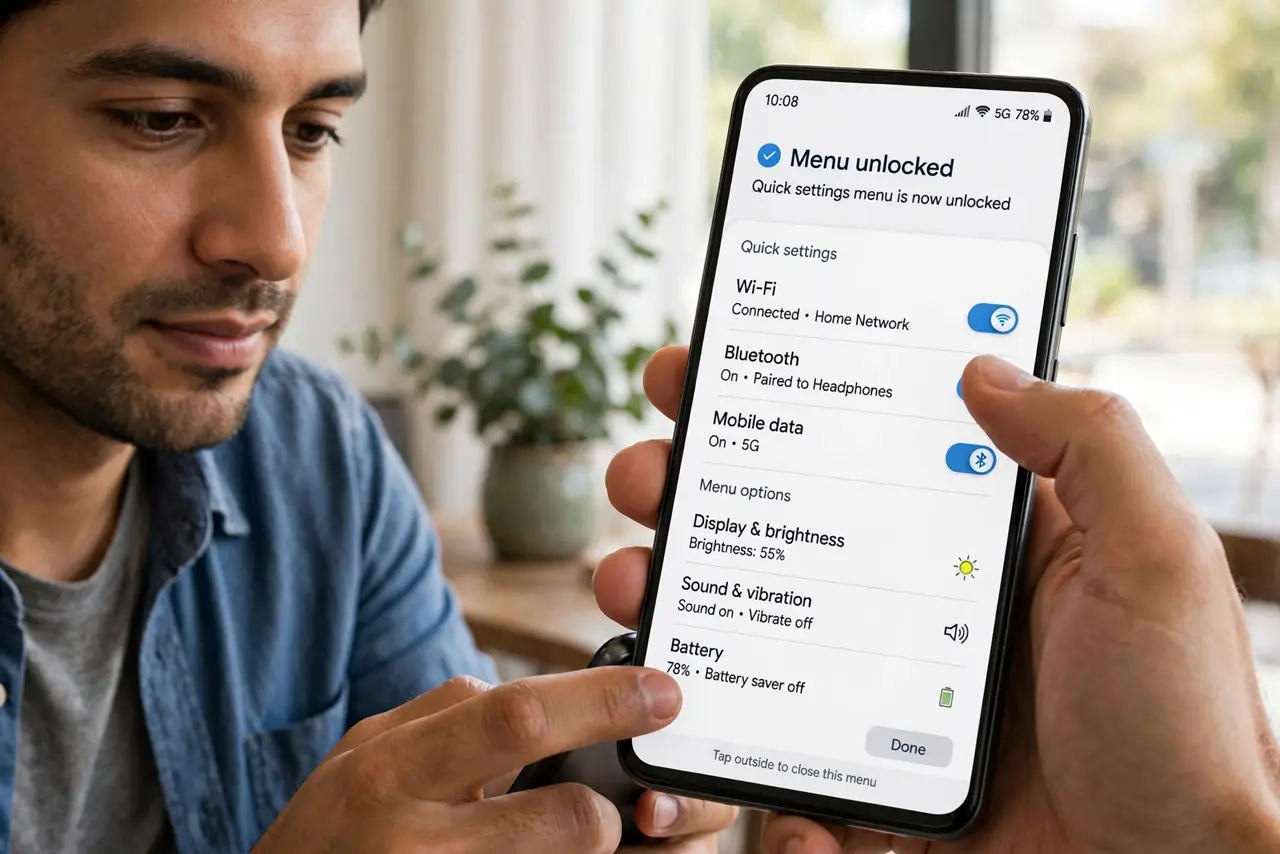
What NOT to do
- Do not enable OEM unlocking casually. It wipes the phone and weakens theft protection — only for those deliberately unlocking bootloaders.
- Do not change background process limits. Aggressive limits break notifications and alarms in confusing ways.
- Do not leave USB debugging on permanently. An unlocked, debugging-enabled phone plugged into a hostile computer is an open book.
- Do not toggle radios and networking options. Mock locations and mobile data always-on have niche uses — and surprise side effects.
Frequently asked questions
Will enabling developer options void my warranty?
No — unlocking the menu itself changes nothing and is fully supported. Only specific actions inside (like unlocking the bootloader) carry consequences.
Why would a regular user ever need this?
Animation tweaks, USB debugging for backups, and seeing running services. Most people need it once, for one task, then forget it.
Can I break my phone from this menu?
Mostly no — defaults are safe and everything is reversible. The genuinely dangerous options (like OEM unlocking) warn you explicitly first.