Driving Mode on Android? Setup
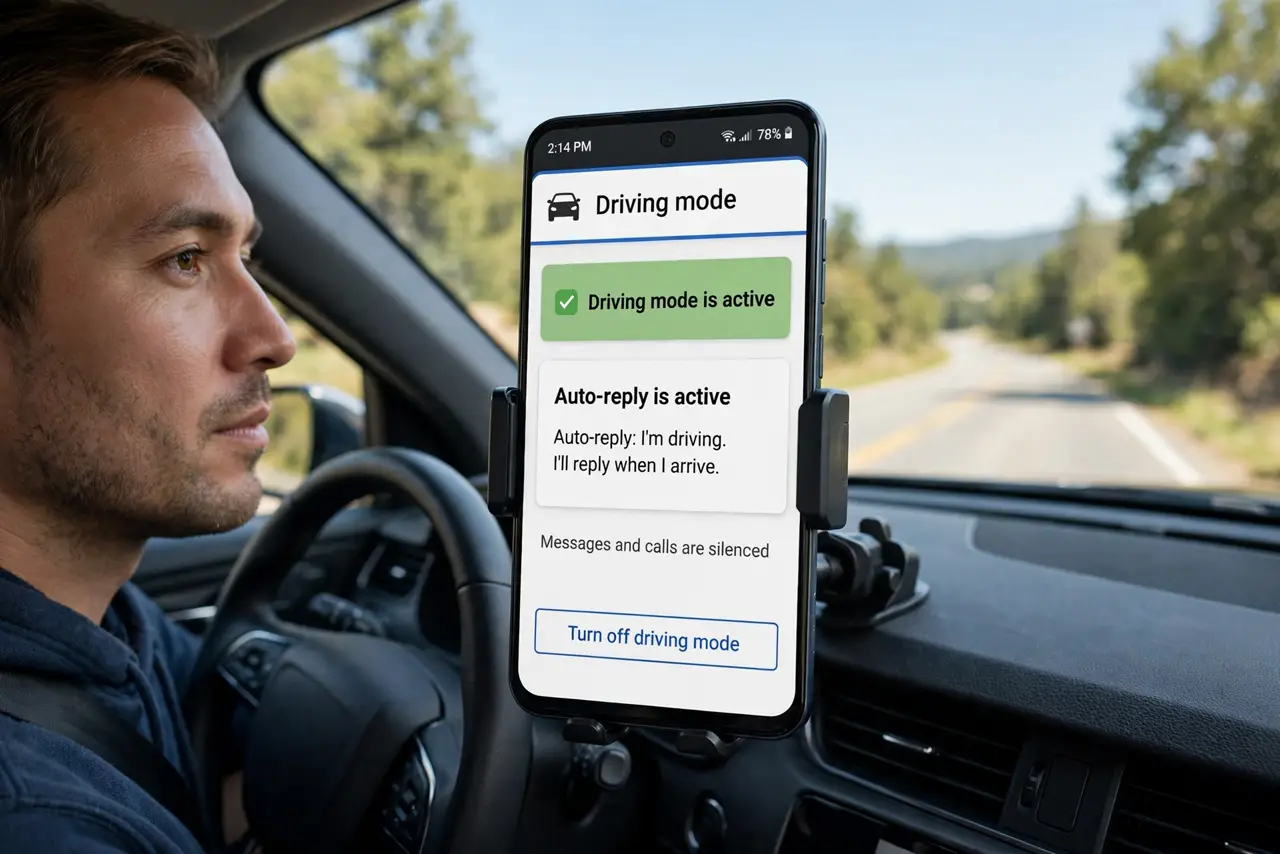
Texts at 70 mph kill — and willpower alone loses to the buzz. Android's Driving Mode silences notifications, quiets calls, and can auto-reply 'I'm driving' the moment your car connects or motion says you are moving. Set the trigger once and it just works, every drive, without remembering.
TL;DR / Quick Fix
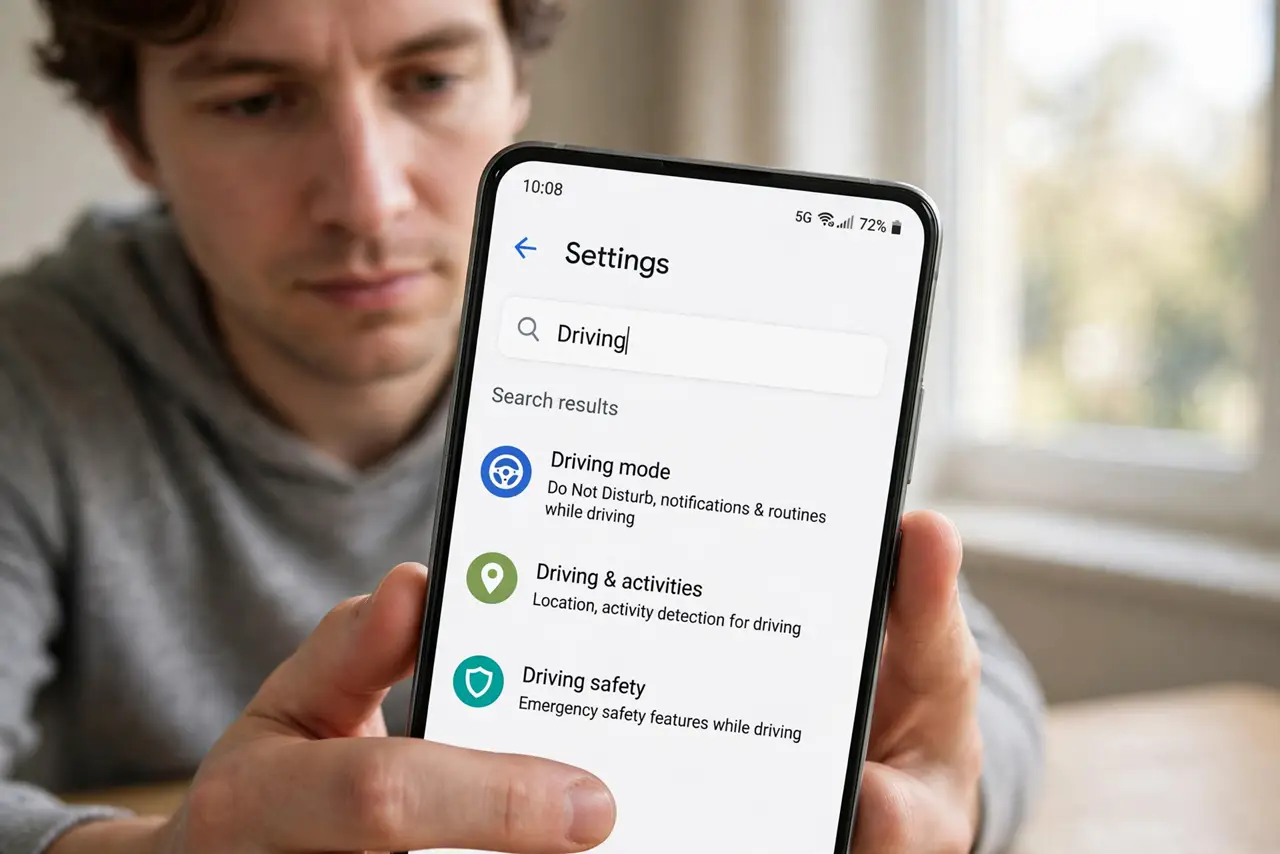
Quick fix: open Settings > Connected devices > Driving mode (or search Settings for Driving) and set it to turn on automatically with Bluetooth or when driving is detected. It silences notifications and can auto-reply to texts. Add your car's Bluetooth as a trigger so it never forgets.
Follow these steps
- Find Driving mode. Open Settings and search 'Driving' — the path varies by brand, usually under Connected devices or Digital Wellbeing.
- Set the automatic trigger. Choose your car's Bluetooth connection as the trigger — the most reliable. Driving detection via motion sensors is the backup.
- Configure the auto-reply. Enable the automatic text reply: 'I'm driving right now.' Callers and texters learn instantly instead of wondering.
- Allow the exceptions. Navigation, music, and calls from favorites can break through. Driving Mode quiets distractions, not the whole phone.
- Test it parked. Connect the car's Bluetooth and confirm Driving Mode engages. A trigger that never fires is just a setting you admire.
- Teach passengers the override. A passenger can dismiss Driving Mode for the trip — but the driver should never be the one reaching for it.
What NOT to do
- Do not trigger it on the bus. Motion detection can mistake transit for driving — Bluetooth-to-car is the precise trigger.
- Do not let it silence navigation. Confirm maps and music are in the allowed list before the first real drive.
- Do not text 'just one quick reply' at lights. The auto-reply exists because quick replies become long ones — let it work.
- Do not forget passengers. If you ride along often, the dismiss-per-trip habit beats disabling the whole feature.
Frequently asked questions
How does the phone know I'm driving?
Car Bluetooth connection is the reliable signal; motion and activity detection is the fallback. Bluetooth wins on accuracy.
Will I miss emergency calls?
No — calls from starred contacts and repeated callers break through. Driving Mode filters noise, not emergencies.
Does it work with Android Auto?
Yes — Android Auto engages its own driving interface, and Driving Mode's silencing complements it.