Set Up Family Link
Handing a kid their first phone is exciting and slightly terrifying. Google Family Link lets you set screen-time limits, approve app installs, and filter content from your own phone — without hovering over their shoulder. This guide walks through installing it, linking a child account, and choosing sane defaults that grow with the kid.
TL;DR / Quick Fix
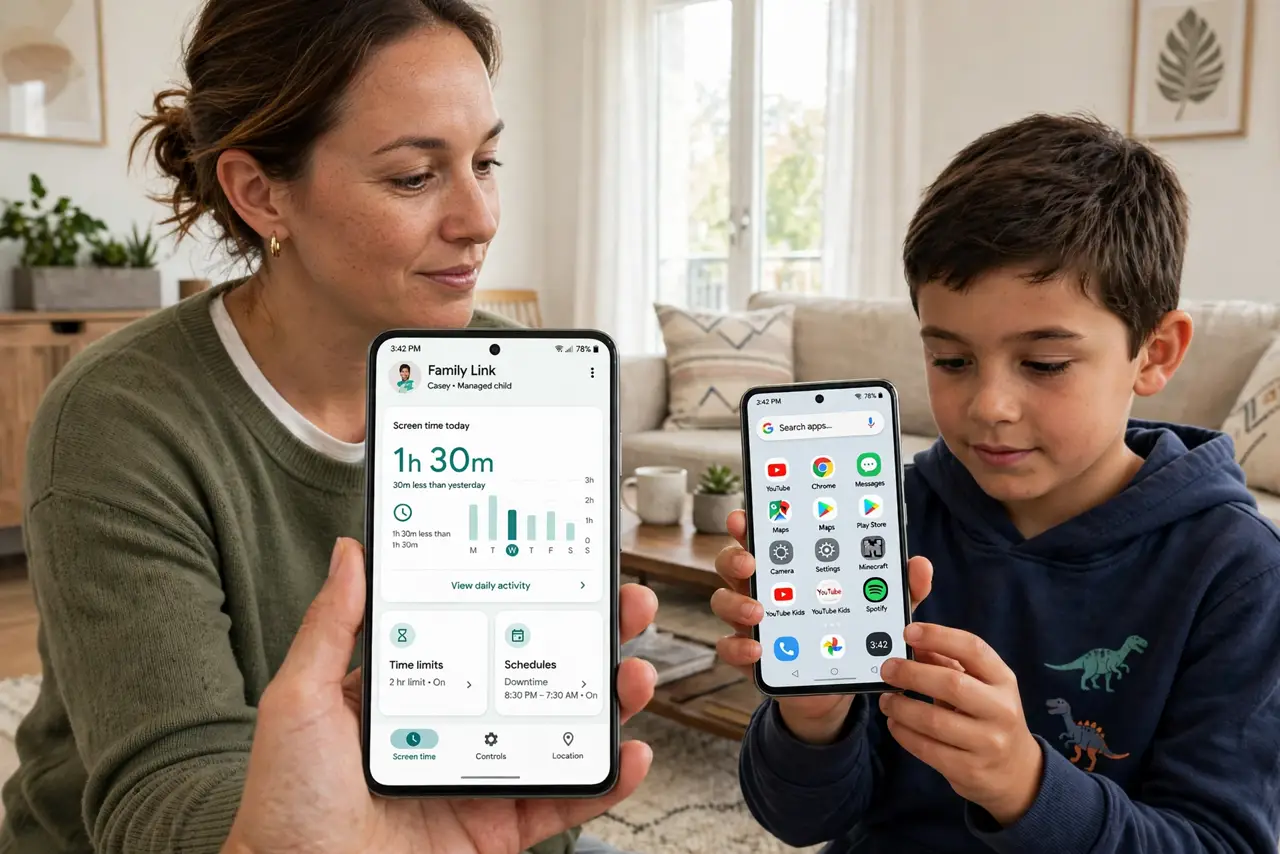
Quick fix: install Google Family Link on your phone and the child's Android, create or sign in to a child Google account, and link the devices. Set daily limits, bedtime, and content filters in the app. Approvals for new installs arrive as notifications on the parent phone.
Follow these steps
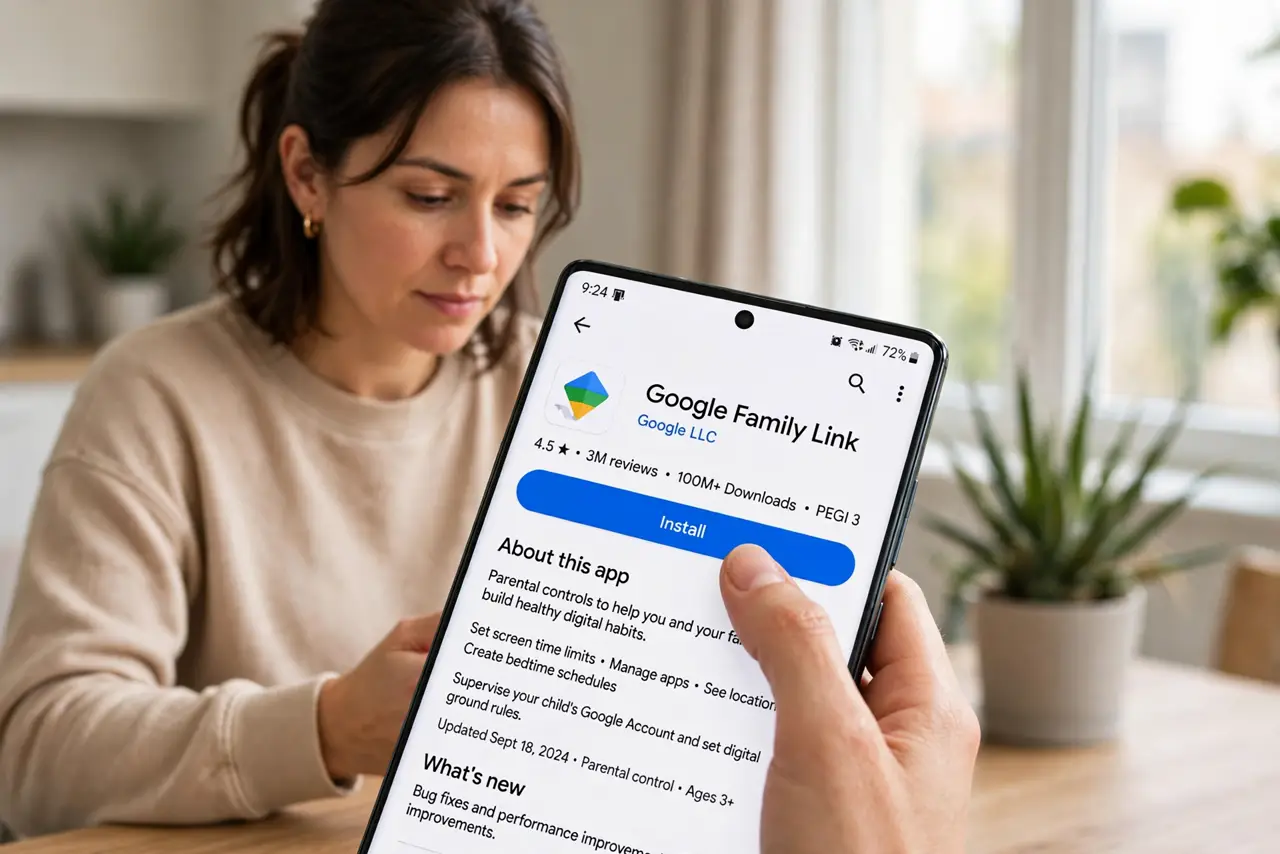
- Install Family Link on both phones. Get Google Family Link from the Play Store on your phone and on the child's Android. You will use your phone as the parent device and theirs as the child device.
- Create or sign in to the child account. If the child has no Google account, Family Link creates a supervised one. If they have one, sign in and accept the supervision invite — the account keeps its data.
- Link the devices in the app. Follow the on-screen pairing: a code appears on one phone, you enter it on the other. Keep both phones on Wi-Fi and nearby for the few minutes this takes.
- Set daily limits and a bedtime. In Family Link, choose a daily screen-time limit and a bedtime window. Start generous and tighten later — overly strict bedtime rules are the top reason kids ask to remove supervision.
- Turn on content filters and SafeSearch. Enable the filters for Google Search, Chrome, and YouTube Kids under Content restrictions. These are not perfect, but they cut the worst of the web automatically.
- Test an app approval. Have the child request an app from the Play Store. Approve it from the notification on your phone so you both see how the flow works before it matters.
What NOT to do
- Do not set a 30-minute daily limit on day one. Start generous and tighten gradually, or the kid will fight the system instead of using it.
- Do not rely on Family Link as the only safeguard. Talk about what is okay online — no filter replaces that conversation.
- Do not forget your own parent PIN. Losing it locks you out of changing settings, and recovery takes days.
- Do not install a second parental-control app on top of Family Link. They conflict, drain battery, and confuse both of you.
Frequently asked questions
At what age does Family Link supervision end?
Supervision can continue until the child turns 13 (or the applicable age in your country), when they may choose to manage their own account. You will get a notification before that happens.
Can my child bypass Family Link?
A factory reset removes supervision, which is why the child account itself — not just the app — carries the restrictions. Check the device periodically for unfamiliar apps.
Does Family Link work on iPhones?
Partially. The parent app runs on iPhone for managing, but a child needs an Android device or Chromebook for full supervision of their own device.