Android Bedtime Mode Feels Too Strict
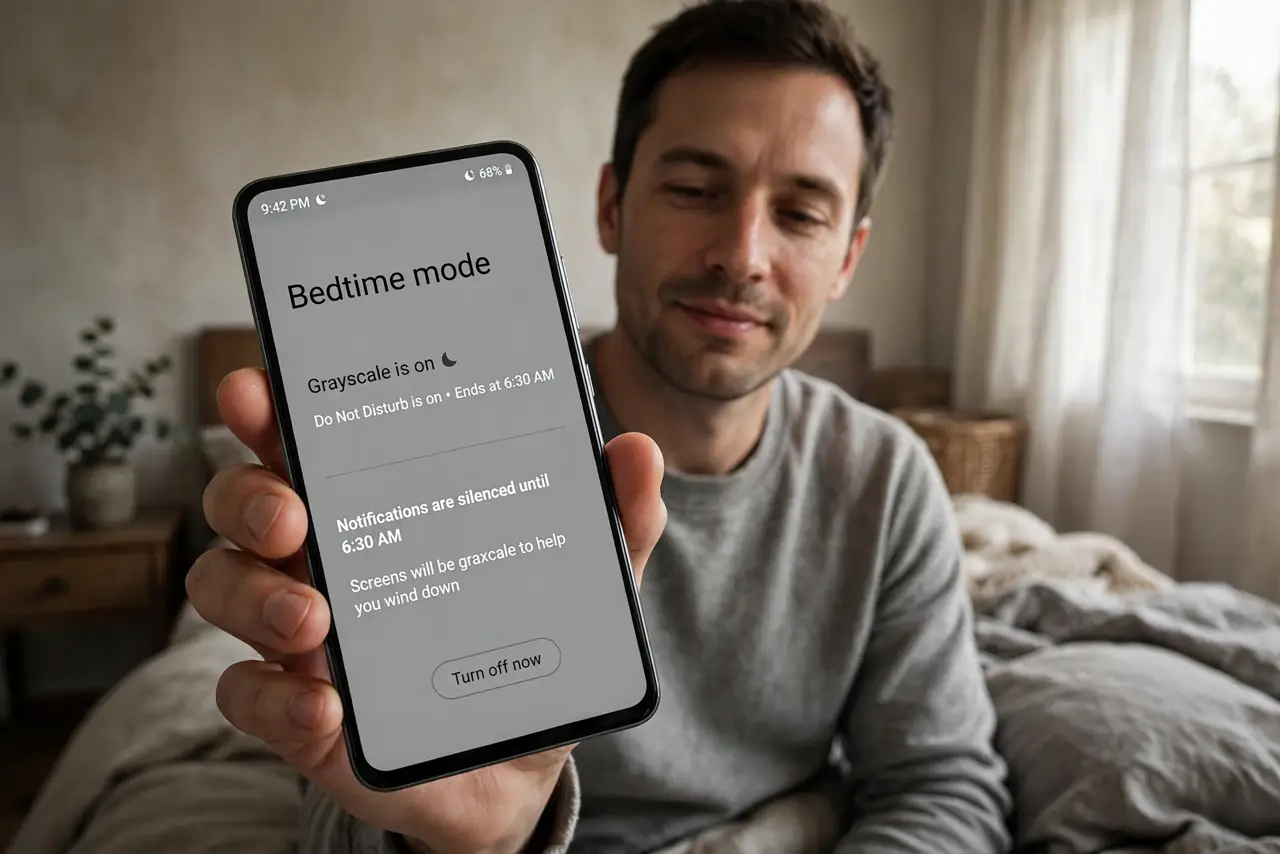
Bedtime mode grays the screen, silences apps, and will not let you finish what you were doing. It is doing its job — but the schedule and strictness are yours to tune.
TL;DR / Quick Fix
Quick fix: open Settings, then Digital Wellbeing, then Bedtime mode, and move the schedule later or shorten it. Turn off the grayscale or the Do Not Disturb parts you do not need. You can also pause Bedtime mode for tonight only without changing the schedule.
Follow these steps
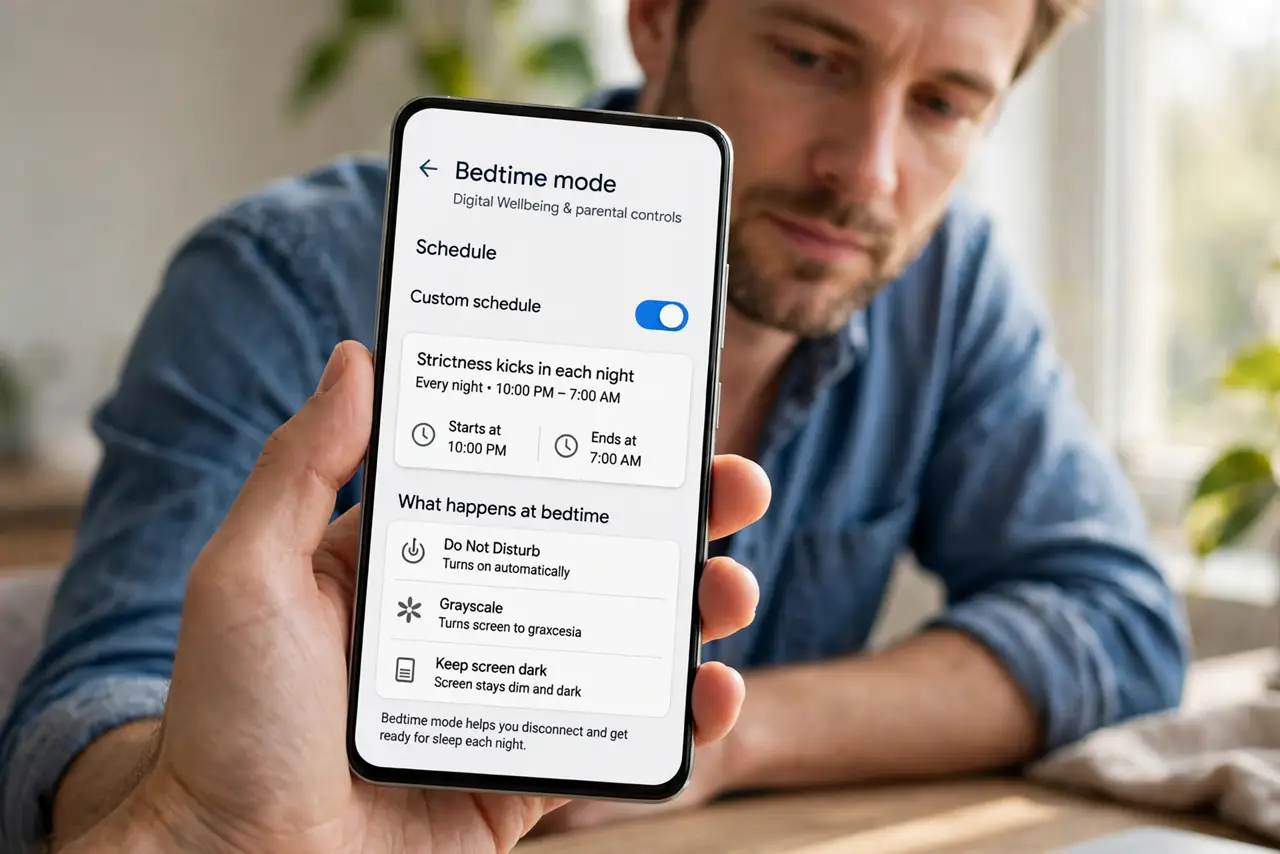
- Open the Bedtime mode schedule. Open Settings, then Digital Wellbeing and parental controls, then Bedtime mode. The schedule page shows exactly when the strictness kicks in each night.
- Shift the start time later. Move the start 30 to 60 minutes later to match your real bedtime. A schedule that starts while you are still working will always feel too strict.
- Turn off the parts you do not need. Bedtime mode bundles grayscale, Do Not Disturb, and app pauses. Keep the wind-down reminder but switch off grayscale if the gray screen is what bothers you.
- Pause it for tonight only. Most phones offer a 'pause for tonight' option on the Bedtime mode screen. Use it for late nights without dismantling the whole schedule.
- Allow the apps you truly need. Add essential apps — like a meditation timer or e-reader — to the allowed list. Bedtime mode should block doomscrolling, not your wind-down routine.
- Check it is not a work profile rule. If the strictness appeared suddenly, a work profile or parental app may be enforcing it. Check with whoever manages the device before fighting the settings.
What NOT to do
- Do not delete the Digital Wellbeing app to escape Bedtime mode. It is a system feature, and disabling it removes usage insights you may actually want.
- Do not set the schedule to 3 a.m. just to avoid it. A schedule that never triggers is the same as no schedule — tune it instead of neutering it.
- Do not fight grayscale by cranking brightness to maximum. The gray is the point; if you hate it, turn that part off honestly instead.
- Do not assume Bedtime mode is malware because the screen went gray. It is a built-in Android feature, and the schedule page explains exactly what it does.
Frequently asked questions
Can I keep the reminder but drop the grayscale?
Yes. Bedtime mode's parts are independent — keep the bedtime reminder and switch off grayscale, Do Not Disturb, or app pauses individually.
Why did Bedtime mode turn on by itself?
A schedule was set — possibly during phone setup. A work profile or parental app may also enforce it, so check the Bedtime mode page to see the hours it is enforcing.
Does Bedtime mode block alarms?
No. Alarms still sound. It quiets notifications and apps, not the alarm you set for the morning.