Free Space With Files by Google
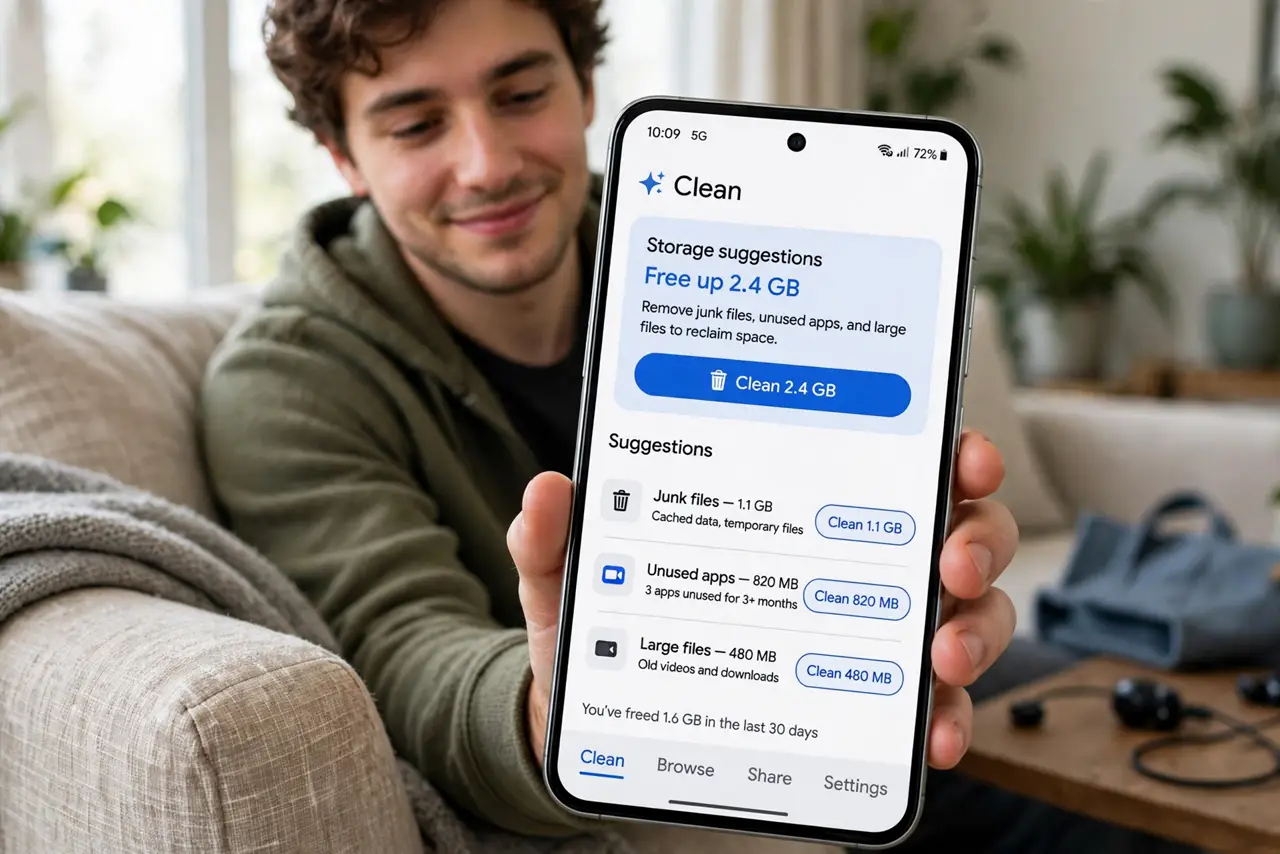
The 'storage almost full' warning always arrives at the worst moment — mid-video, mid-update. Files by Google has a Clean tab that finds the real hogs for you: junk files, duplicates, blurry photos, forgotten downloads, and memes. Work its suggestions top to bottom and you can claw back gigabytes in minutes.
TL;DR / Quick Fix
Quick fix: open Files by Google, tap Clean, and work through its suggestions — junk files, duplicates, blurry photos, and memes — deleting in batches. Then empty the Trash, which holds deletions for 30 days. Review the Large files section too; a few forgotten videos often free gigabytes.
Follow these steps
- Open the Clean tab. Launch Files by Google and tap Clean at the bottom. It scans and groups reclaimable space into suggestion cards.
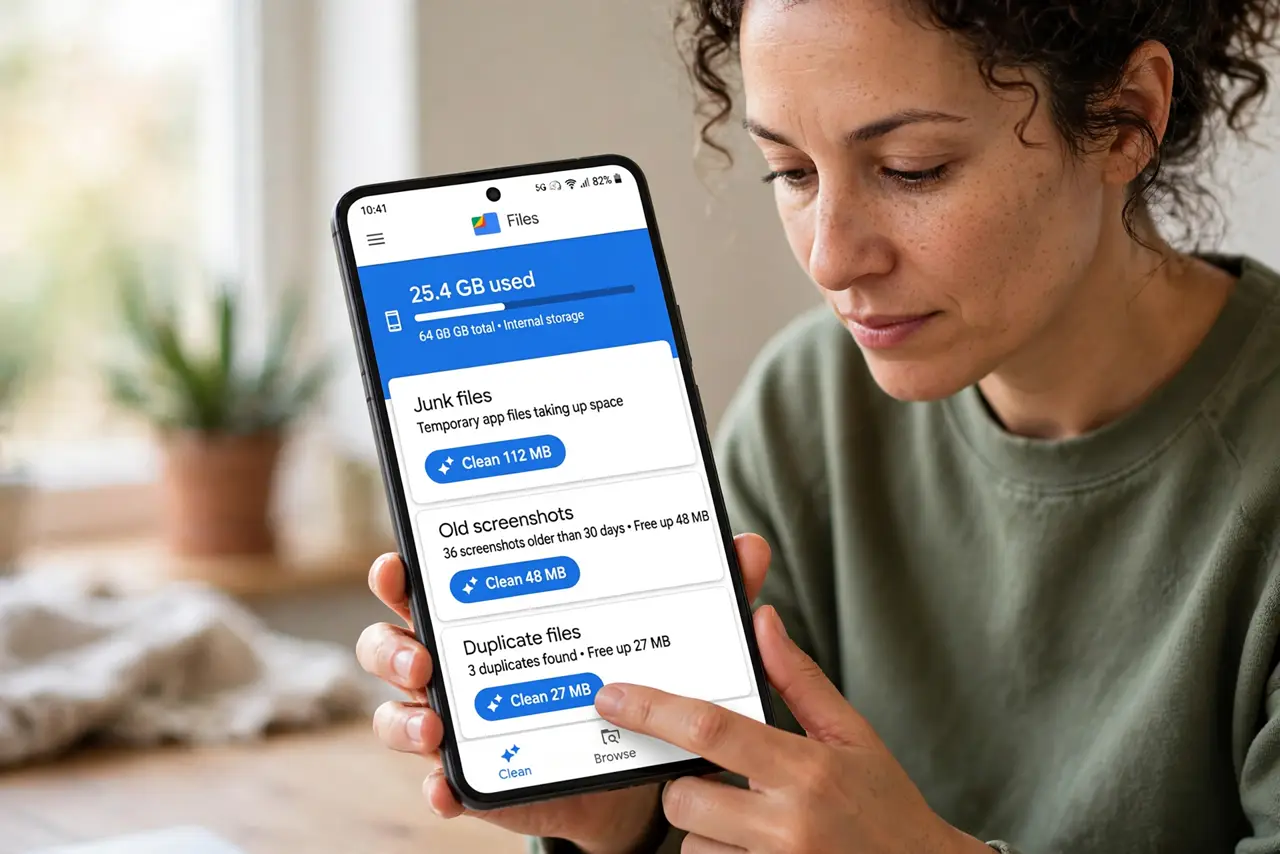
- Clear junk files first. The Junk files card holds temporary leftovers apps abandoned. Safe to delete — that is the one-tap win.
- Review duplicates and blurry photos. Files flags duplicate images and blurry shots. Review before deleting — keep the sharp originals, drop the rest.
- Attack memes and old downloads. The Memes and Downloads cards surface files you saved and forgot. Your Chrome downloads live here too.
- Empty the Trash. Deletions sit in Trash for 30 days still eating space. Open Trash in Files by Google and empty it to actually free the room.
- Check Large files last. Sort by size and eyeball the top entries. One forgotten 4K video often beats an hour of nibbling small files.
What NOT to do
- Do not delete from the Clean tab blindly. Review each card — 'duplicates' occasionally flags the keeper.
- Do not forget the Trash. Deleting without emptying it frees zero bytes.
- Do not clear app data from system settings hoping for the same effect. That logs you out of apps; the Clean tab does not.
- Do not ignore the warning until updates fail. System updates need breathing room — clean before the update, not during.
Frequently asked questions
Is it safe to delete what Files by Google suggests?
Junk files, yes — they are abandoned temp data. Duplicates, memes, and large files deserve a quick review first.
Why is my storage still full after deleting?
Empty the Trash — deletions wait 30 days there. Also check for offline maps and downloaded videos in other apps.
How often should I run the Clean tab?
Monthly is plenty for most people. Heavy photo and video shooters benefit from a weekly pass.