Gboard Suggests the Wrong Language? Fix It
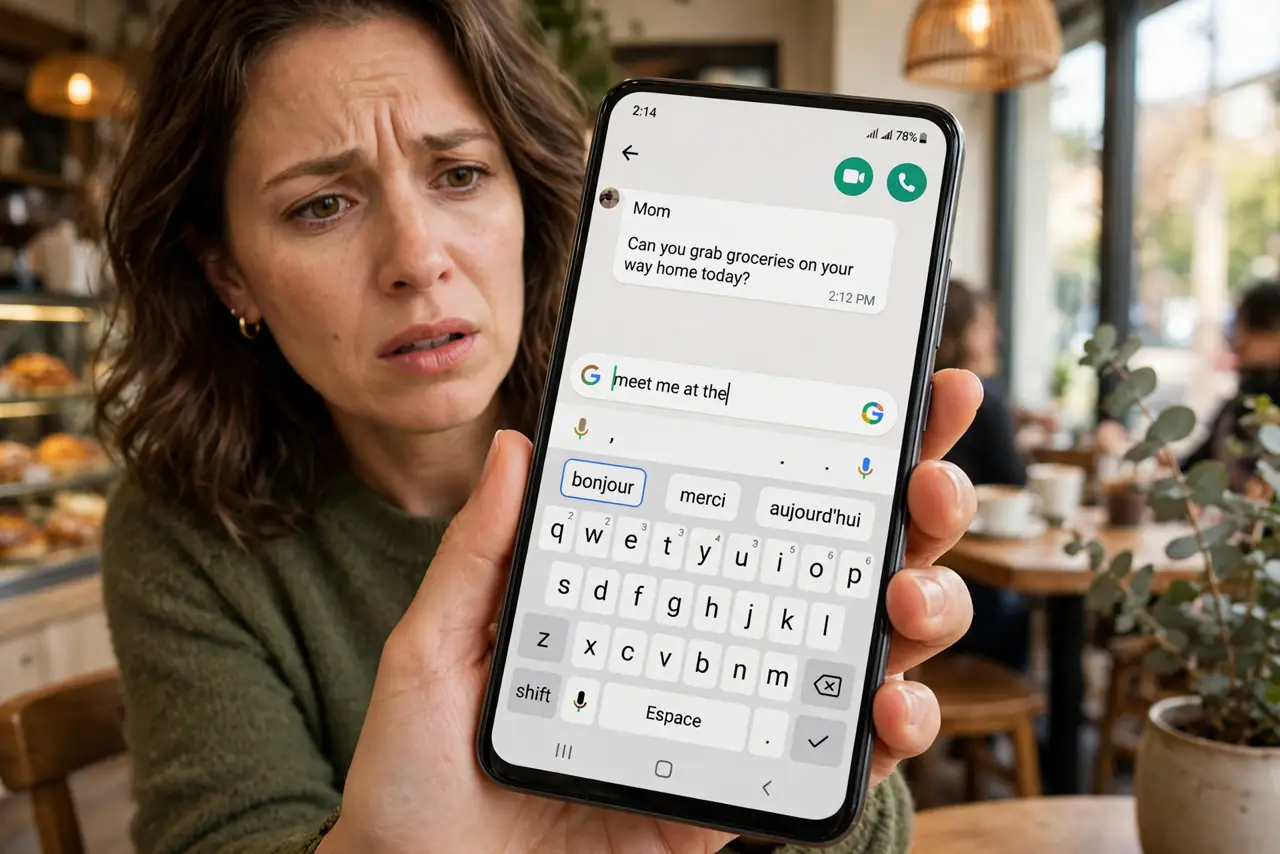
Gboard keeps suggesting words in the wrong language, or autocorrect 'fixes' your Spanish into English. This happens when the keyboard language does not match the language you are typing, or when multilingual typing guesses badly. This guide gets Gboard speaking your language again — the same kind of language switching problem iPhone users hit too.
TL;DR / Quick Fix
Quick fix: open Gboard settings, check the active language matches what you are typing, and turn off automatic language detection if it guesses wrong. Remove languages you never use. If suggestions stay wrong, clear Gboard's data in app settings — you will lose learned words but gain correct suggestions.
Follow these steps
- Check which language is active. Long-press the space bar or tap the language key to see the active language. Gboard often sits on the wrong one after switching apps.
- Add or reorder your languages. In Gboard settings, Languages, make sure your real languages are added and ordered with your main one first. The first language wins ties.
- Turn off automatic language detection. If Gboard guesses the language per sentence and guesses wrong, disable the automatic detection. Manual switching beats wrong guessing.
- Remove languages you never use. Extra languages pollute suggestions and autocorrect. Delete every language you do not type in — fewer languages, better predictions.
- Clear Gboard's learned data. In the phone's app settings, clear Gboard's storage or data. This wipes learned words — including wrongly learned ones — and starts suggestions fresh.
- Retrain it by typing normally. After clearing, type normally for a few days without fighting it. Gboard relearns your vocabulary quickly when the language list is clean.
What NOT to do
- Do not keep fighting autocorrect word by word. Fix the language list once instead of correcting every sentence forever.
- Do not enable every language 'just in case.' Each extra language degrades suggestions in the ones you actually use.
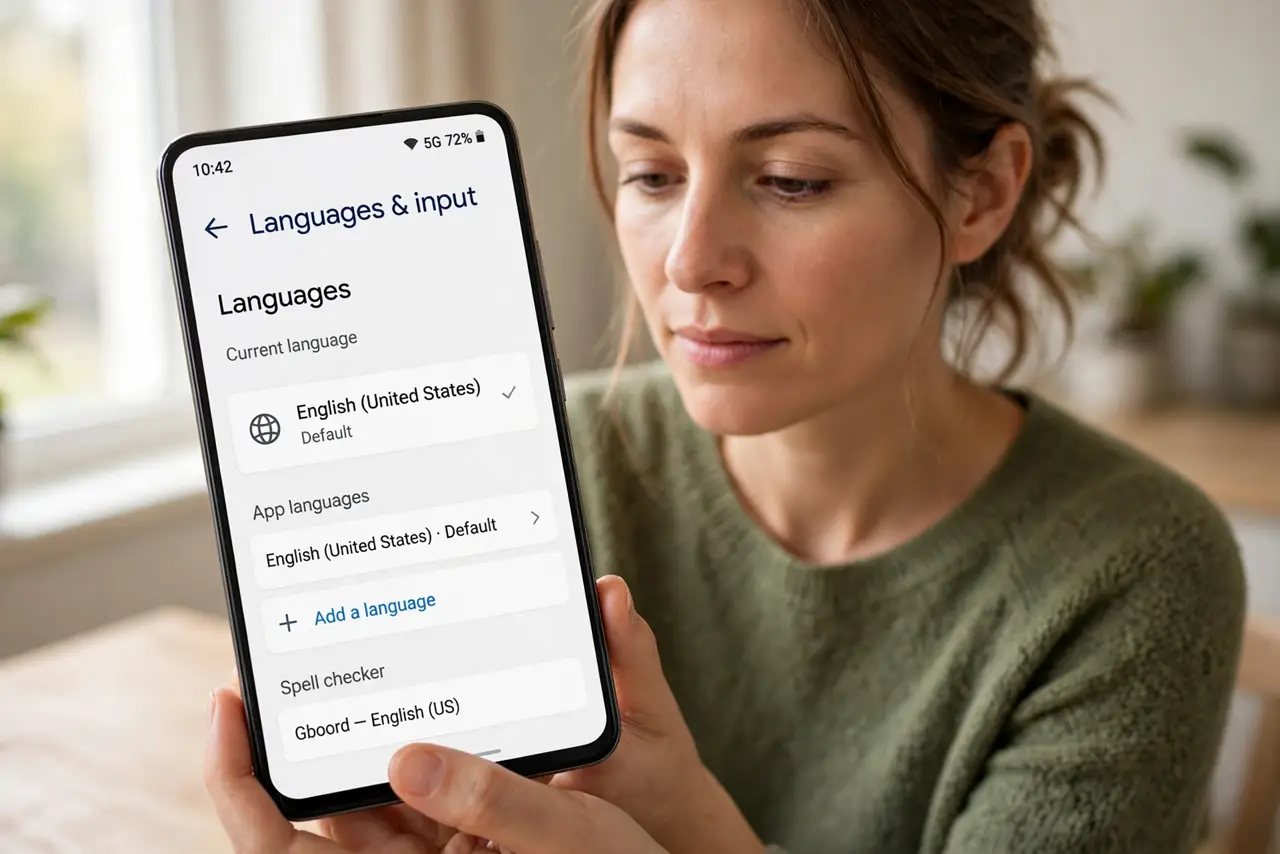
- Do not confuse the system language with the keyboard language. Changing the phone's language does not always change Gboard's.
- Do not install a second keyboard app to dodge this. One well-configured Gboard beats two fighting keyboards.
Frequently asked questions
Why is Gboard suggesting the wrong language?
The active keyboard language does not match what you are typing, or automatic language detection is guessing badly. Check the language key first.
How do I stop Gboard from switching languages by itself?
Turn off automatic language detection in Gboard settings and remove languages you do not use.
Will clearing Gboard data delete my personal dictionary?
It clears learned words and typing data for Gboard. Your contacts and system dictionary are unaffected.