Talk to Gemini Live
Sometimes you need to think out loud — brainstorming, rehearsing, working through a problem hands-free while you cook or drive. Gemini Live is the conversational mode: a natural back-and-forth voice chat instead of one-shot questions. Here is how to start it and get the best conversations.
TL;DR / Quick Fix
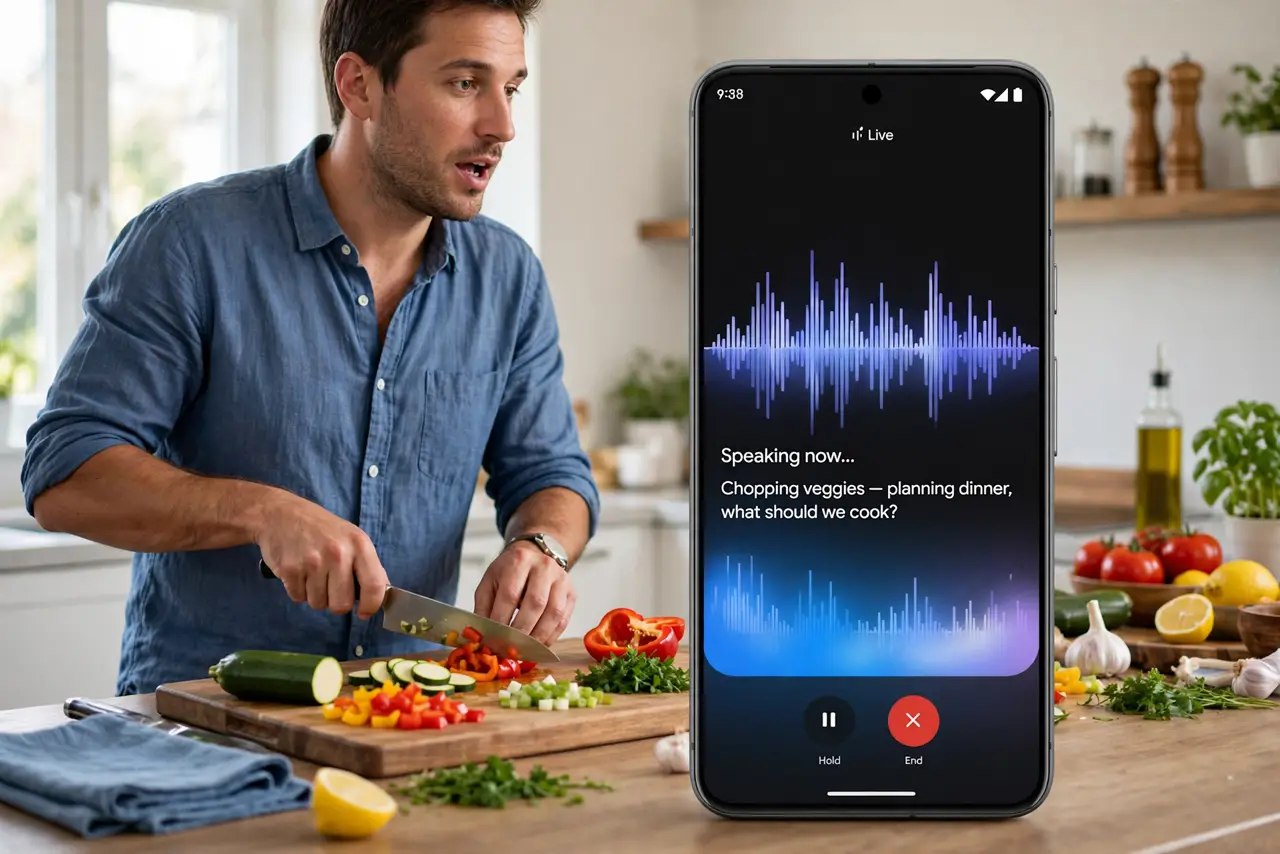
Quick fix: on Android, open the Gemini app and tap the Live button to start a natural voice conversation — interrupt, ask follow-ups, and think aloud. It needs an internet connection and works best with a clear microphone. Set it as your assistant for hands-free access anywhere.
Follow these steps
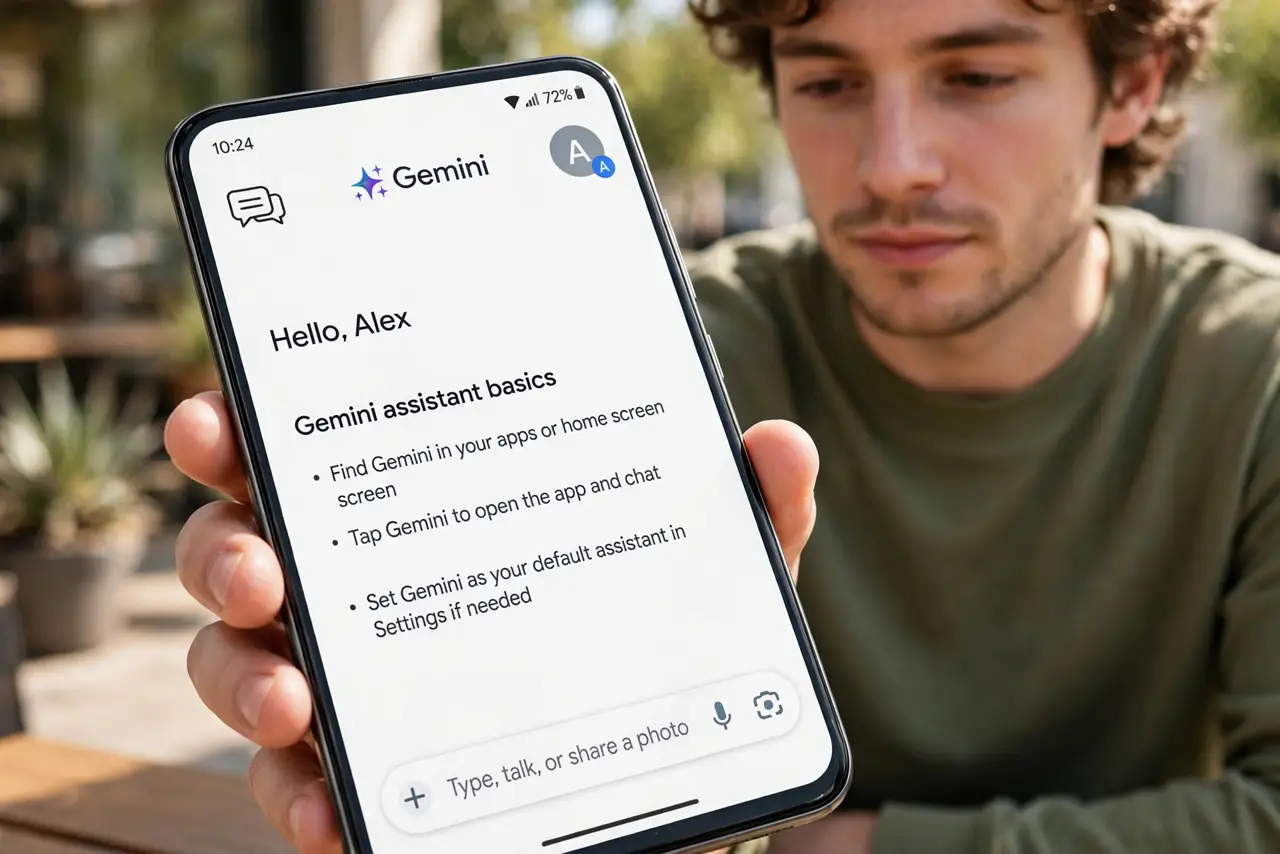
- Open the Gemini app. Find Gemini on your Android phone — see the Gemini assistant basics if you have not set it up as your assistant yet.
- Tap the Live button. The Live mode button starts the conversational session — the interface shifts to a flowing voice waveform instead of the text box.
- Talk naturally. Interrupt it, change direction mid-sentence, think aloud — Live mode is built for messy human conversation, not commands. That is the whole upgrade over one-shot questions.
- Ask follow-ups. Say go deeper, give an example, or what about the opposite — the conversation keeps context, so follow-ups build instead of restarting.
- Use it hands-free. Set Gemini as your default assistant for voice-activated access. Cooking, driving, walking — the hands-free cases are where Live shines.
- Explore the visual side. Gemini can also discuss what the camera sees — see the Gemini and photos guide for the ask-about-photos flow.
What NOT to do
- Do not expect perfect memory. Long conversations can lose early context — recap important points if the chat runs long.
- Do not share sensitive info freely. Voice conversations may be processed online — keep passwords and private data out of it.
- Do not use it while driving distracted. Hands-free helps, but deep conversation still divides attention — keep drives simple.
- Do not assume it is always right. Conversational confidence is not accuracy — verify important facts independently.
Frequently asked questions
Is Gemini Live free?
The core conversational mode is available in the Gemini app; some advanced features sit in paid tiers. Check current offerings.
Does it work offline?
No — Live mode needs an internet connection for the real-time voice processing. Offline, use the standard assistant.
Can I use it on iPhone?
Yes, inside the Google app — the fullest experience is on Android, but iPhone users get the conversational mode too.