Gmail Notifications Arrive Late? Fix It
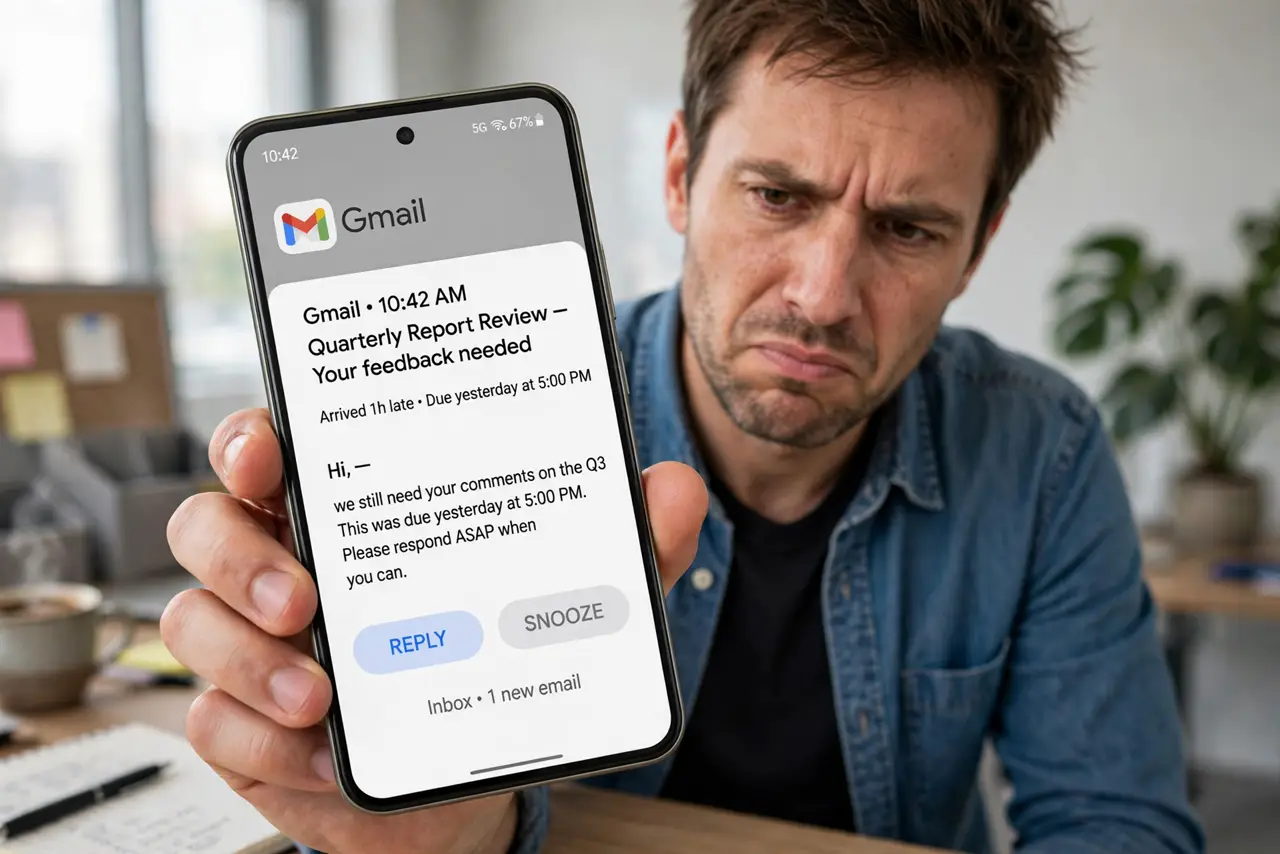
Gmail messages arrive, but the notification shows up minutes or hours late — you only see the email when you open the app. On Android this is almost always battery optimization or Data Saver throttling Gmail's background sync. This guide restores instant alerts without killing your battery savings.
TL;DR / Quick Fix
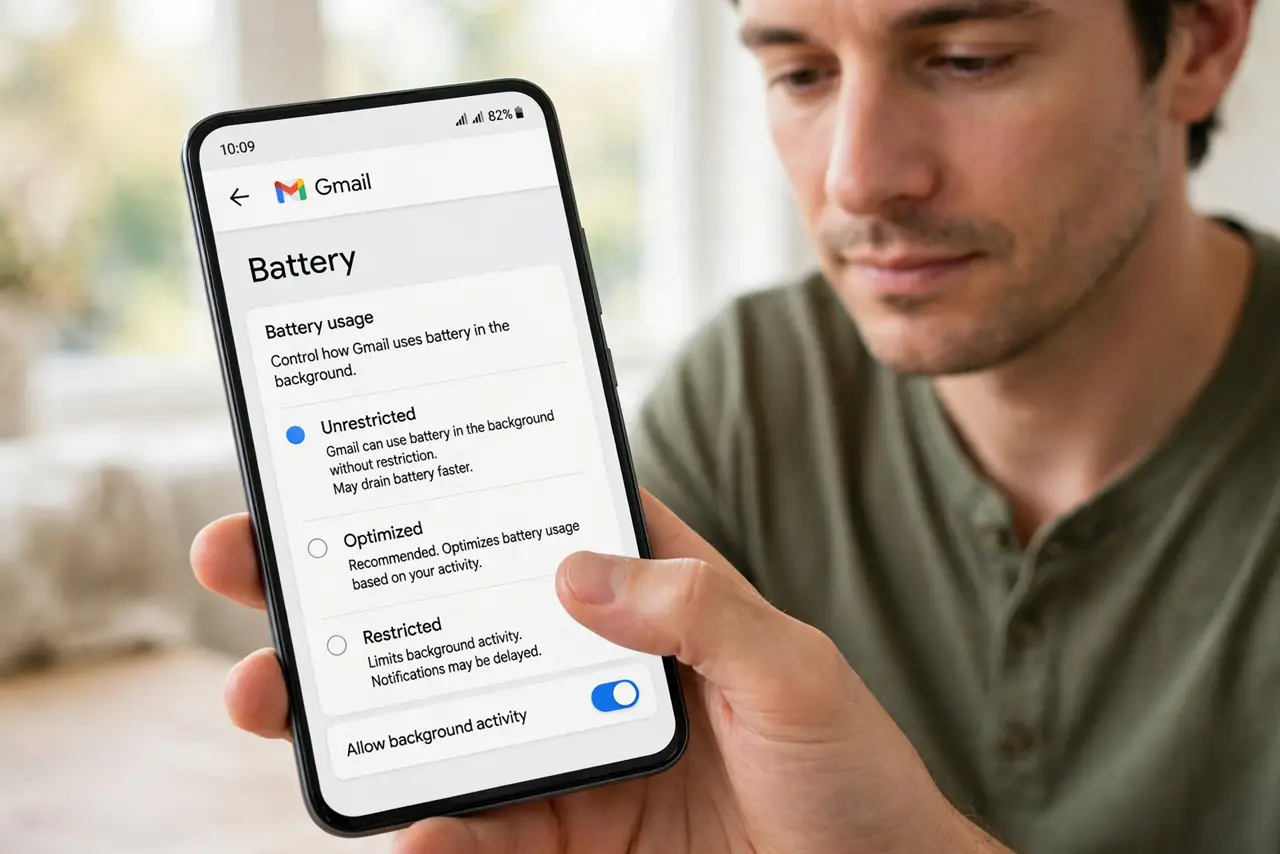
Quick fix: set Gmail's battery usage to Unrestricted and add it to Data Saver's allowed list. Check that Gmail sync is on in account settings. If notifications were instant before and suddenly lag, an update reset the battery optimization — re-apply the Unrestricted setting.
Follow these steps
- Set Gmail to Unrestricted battery. In app settings, change Gmail's battery usage to Unrestricted. This is the fix in most cases — the system was putting Gmail to sleep.
- Whitelist Gmail in Data Saver. Add Gmail to the unrestricted apps list in Data Saver settings. Background sync cannot work through an active data restriction.
- Confirm sync is enabled. In account settings, verify Gmail sync is toggled on for your Google account. A disabled sync looks exactly like delayed notifications.
- Check notification categories. In Gmail's notification settings, confirm the labels you care about — Primary, in particular — have notifications enabled with sound.
- Lock Gmail in recent apps. Pin Gmail in the recent-apps view so aggressive memory management cannot sweep it away between syncs.
- Test with a sent email. Email yourself from another device and time the notification. If it arrives within a minute, the fix held.
What NOT to do
- Do not turn off all battery optimization in frustration. Whitelisting Gmail alone preserves the savings everywhere else.
- Do not assume Gmail is broken after one late notification. Occasional delays happen on any network — look for a pattern.
- Do not disable Gmail notifications to 'fix' duplicates. Duplicates come from multiple accounts or labels, not from the sync fix.
- Do not forget work-profile Gmail. A second Gmail in a work profile has its own battery and sync settings to check.
Frequently asked questions
Why are my Gmail notifications late?
Battery optimization or Data Saver is throttling Gmail's background sync. Setting Gmail to Unrestricted battery fixes the common case.
Do I need to keep Gmail unrestricted forever?
Yes, if you want instant notifications. The battery cost of one whitelisted email app is tiny.
Notifications are instant on Wi-Fi but late on data — why?
Data Saver is the likely culprit. Whitelist Gmail in Data Saver and the delay should vanish.