Lock Individual Apps
Your phone has a lock screen, but once it is unlocked, every app is wide open — messages, photos, banking, all of it. Sometimes one app deserves its own lock: the banking app, the photo gallery, the chat with sensitive conversations. Here is how to give individual apps their own protection without locking the whole phone down harder.
TL;DR / Quick Fix
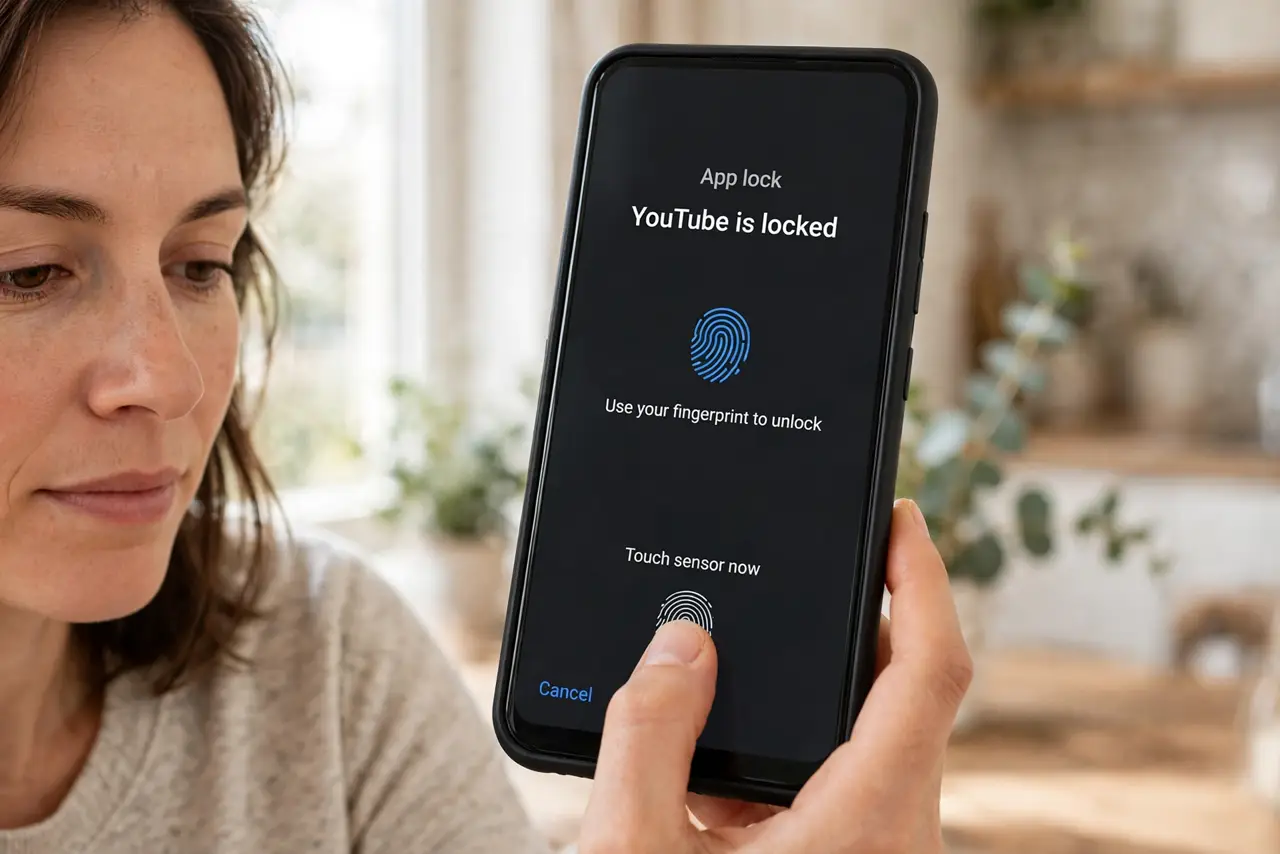
Quick fix: most Android phones include a built-in app lock in Settings under Security or Privacy — enable it, set a pattern or PIN, and pick which apps it guards. On iPhone, long-press the app and choose Require Face ID. The locked app then needs biometrics every time.
Follow these steps
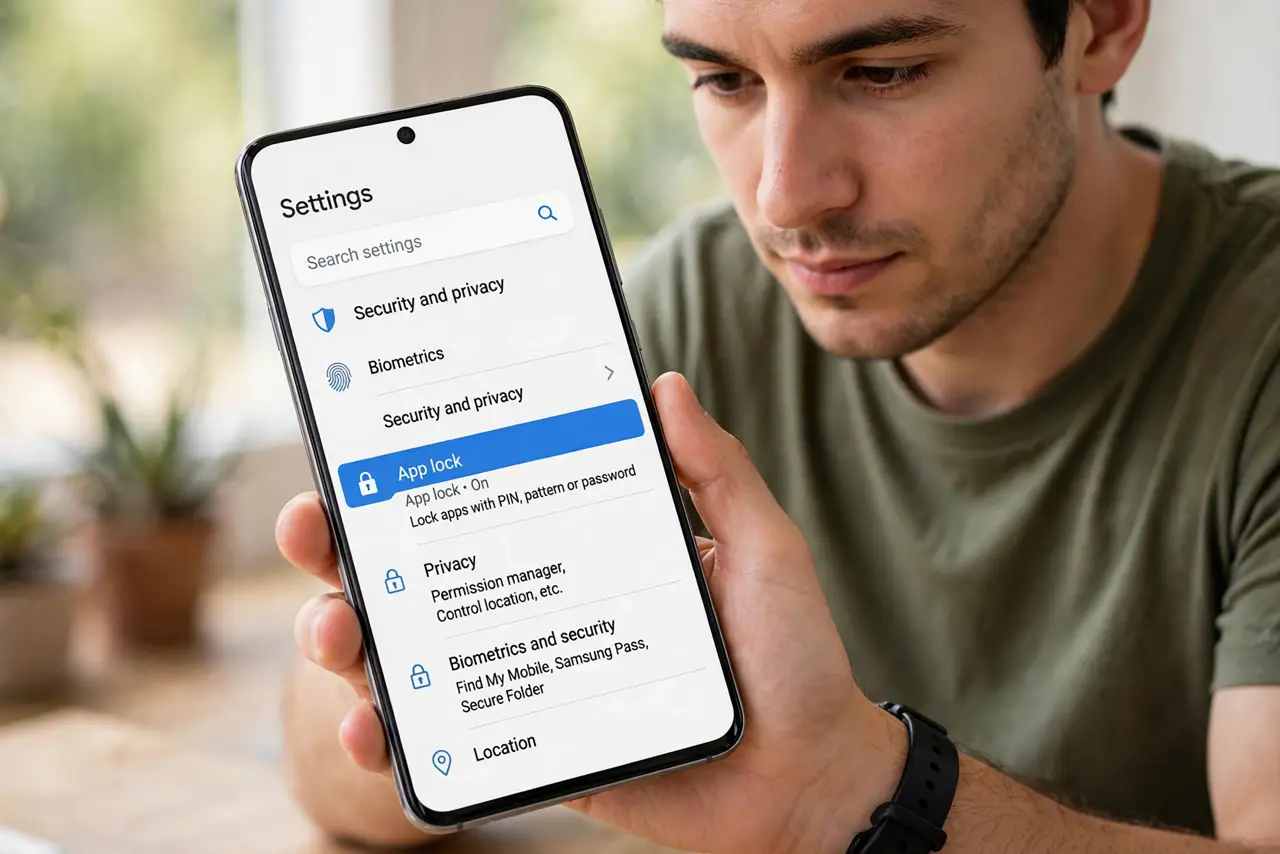
- Check for a built-in app lock first. Many Android phones ship with one: look in Settings under Security, Privacy, or a dedicated App Lock section. Samsung, Xiaomi, and others include it free — see the Android app lock guide for the common paths.
- Use Private Space for sensitive apps on newer Android. Android's Private Space hides apps in a separate locked area — stronger than a simple lock, since the apps do not even appear in the app drawer.
- Lock apps on iPhone with Face ID or Touch ID. On recent iOS, long-press an app icon and choose Require Face ID. That app then needs your face or fingerprint every time it opens — no third-party app needed.
- Set a different PIN from your lock screen. If your phone's app lock allows it, use a different code than your main unlock PIN. That way someone who shoulder-surfed your lock screen still cannot open the guarded apps.
- Test the lock before trusting it. Lock the app, then try opening it from a notification, from search, and from a widget — some locks only guard the icon tap. Close any gaps you find.
- Remember: an app lock is not encryption. It stops casual snoopers, not a determined thief with your unlocked phone. For truly sensitive data, the app's own login and your phone's full lock screen are the real defenses.
What to avoid
- Do not install a sketchy third-party locker full of ads. Built-in tools from your phone maker are safer and do not harvest your data.
- Do not use the same PIN as your lock screen. One guessed code should not open everything — vary them.
- Do not assume notifications are locked too. Message previews on the lock screen can leak what the app lock hides — hide notification content as well.
- Do not forget the lock exists when you need the app fast. In an emergency, fumbling a second PIN is a real cost — keep the code memorable.
Frequently asked questions
Can someone bypass an app lock?
A casual snooper, no. But app locks are a speed bump, not a vault — a factory reset or your unlocked phone in the wrong hands defeats them. Treat them as privacy, not security.
Do locked apps still send notifications?
Yes, usually — and previews may show content. Pair the lock with hidden notification content for real privacy.
Is Private Space better than app lock?
For hiding apps entirely, yes. For just adding a biometric gate to one app you use daily, a simple lock is quicker and less fiddly.