Customize Lock Shortcuts
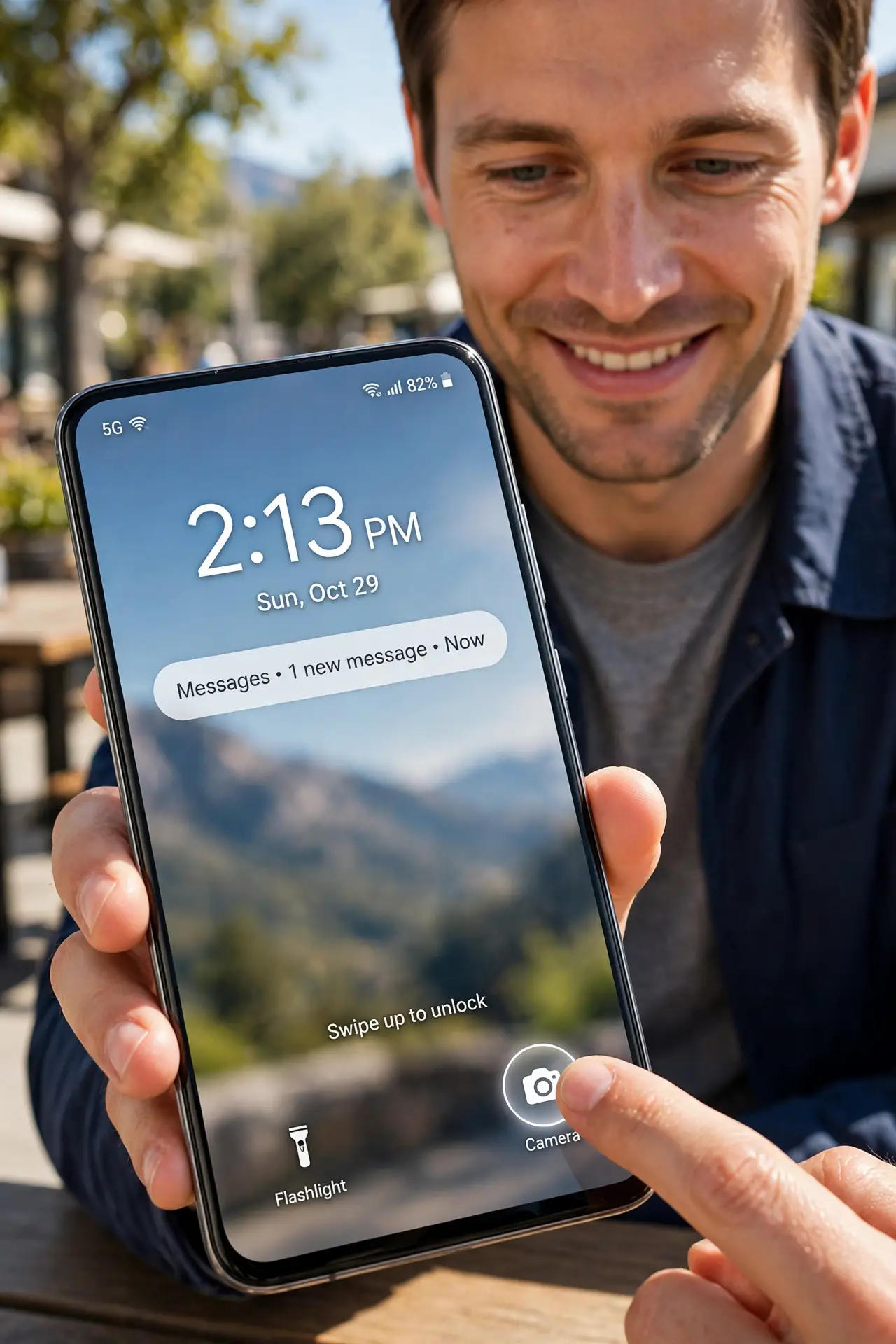
Your camera is buried three swipes deep when the moment is happening now. Lock screen shortcuts put your two most-used tools — camera, flashlight, wallet — one tap from the locked screen. This guide sets them so the moment never waits.
TL;DR / Quick Fix
Quick fix: customize the lock screen shortcuts — on Pixel, go to Settings, Display, Lock Screen, Shortcuts, and pick two actions like camera and flashlight. The camera stops being buried three swipes deep. Choose the two tools you actually reach for daily.
Follow these steps
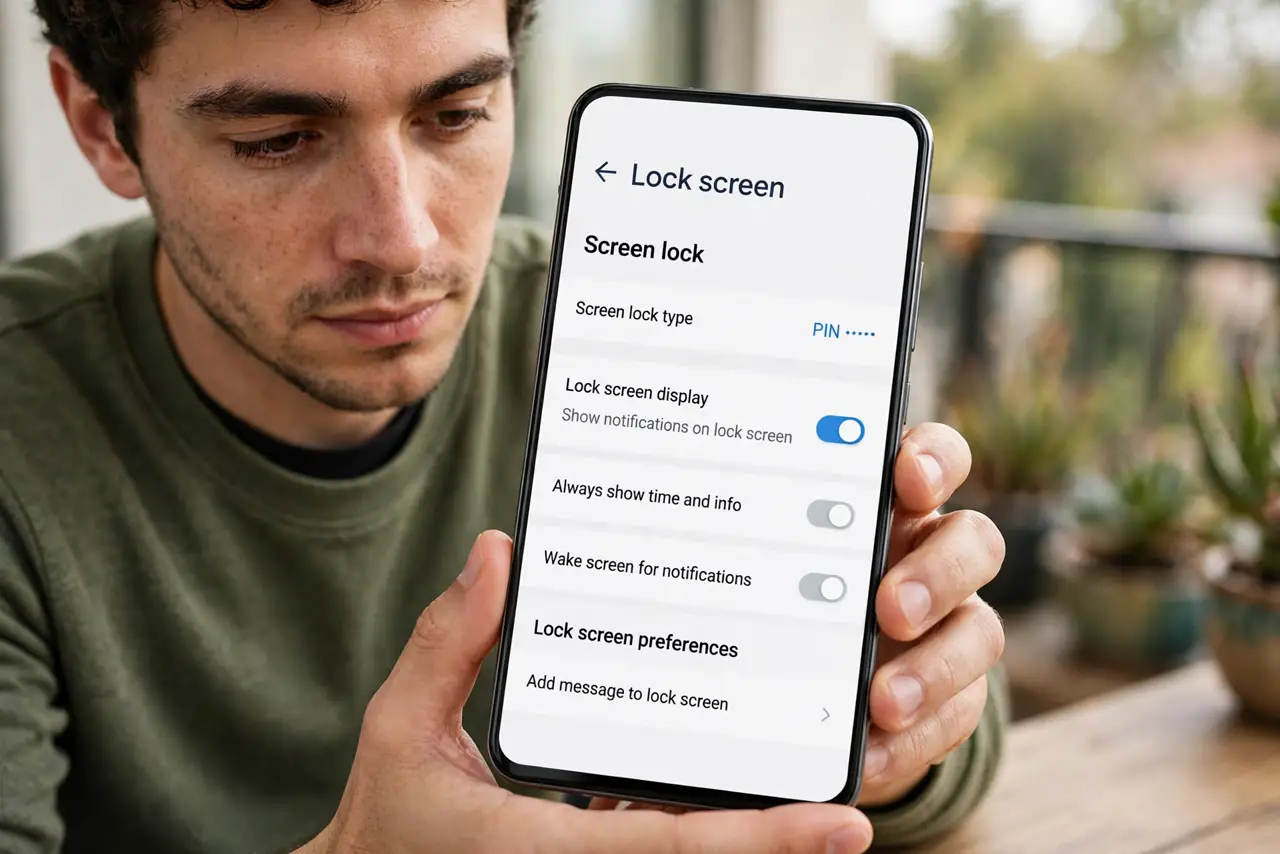
- Open lock screen settings. Settings, Display (or Wallpaper and Style), Lock Screen, Shortcuts. The exact path varies by maker — Pixel's is the reference.
- Pick your two shortcuts. Choose the two actions you reach for most: camera and flashlight for most people, wallet or QR scanner for others. Two slots — choose like it matters.
- Test from locked. Lock the phone and tap the shortcuts. Camera should open instantly without unlocking — that is the whole point.
- Match them to your theme. Shortcuts follow the Material You theme palette — visual cohesion comes free with the system.
- Consider the security tradeoff. Lock screen means anyone holding the phone taps them — camera yes, banking no. Camera and flashlight are safe; think twice before adding anything sensitive.
- Pair with themed icons. Shortcuts plus themed icons plus wallpaper is the complete lock-to-home look — small settings, big polish.
What NOT to do
- Do not add sensitive actions. Lock screen means anyone holding the phone taps them — camera yes, banking no.
- Do not forget the shortcuts exist. Set them, then actually use them for a week until muscle memory forms.
- Do not expect iPhone parity. iPhone lock customization is a different system — this guide is Android's path.
- Do not overlook the wallet shortcut. Tap-to-pay from the lock screen is the shortcut power users swear by.
Frequently asked questions
Can I add more than two shortcuts?
Stock Android allows two. Third-party lock screens offer more, with security tradeoffs.
Why is the camera shortcut slow?
First launch after reboot is slowest; it speeds up after. Keep the camera app updated too.
Do shortcuts work with a work profile?
Personal shortcuts stay personal — work profile apps follow their own policies.