Theme Android Your Way
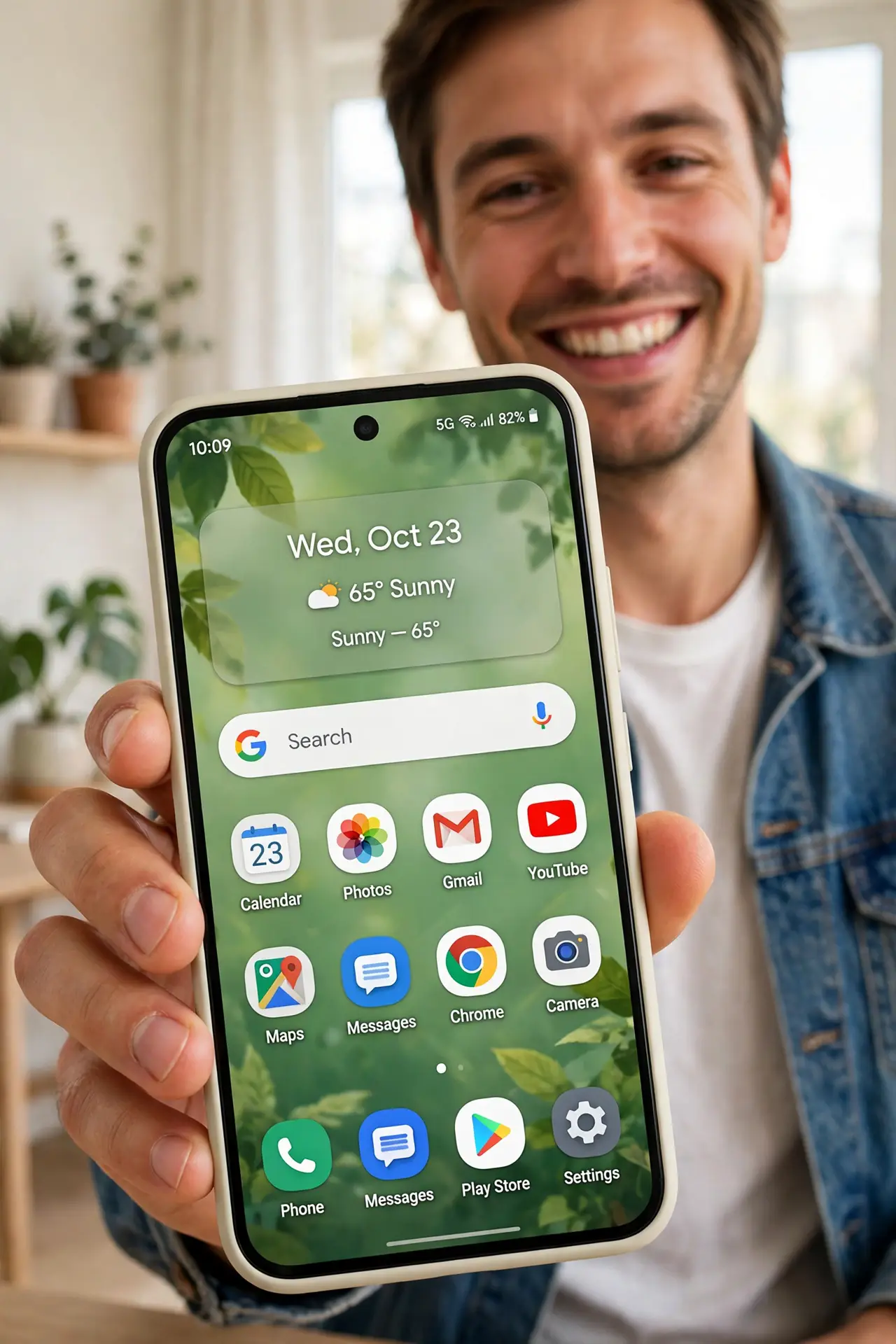
Stock Android looking boring is a choice, not a fate. Material You recolors your entire phone from your wallpaper — icons, widgets, quick settings, even app accents shift to match. This guide themes the phone in two minutes and keeps it fresh.
TL;DR / Quick Fix
Quick fix: Material You themes Android from your wallpaper — long-press the home screen, choose Wallpaper and Style, and pick a palette. App icons, widgets, and system colors follow automatically. Change the wallpaper and the whole theme reshuffles to match.
Follow these steps
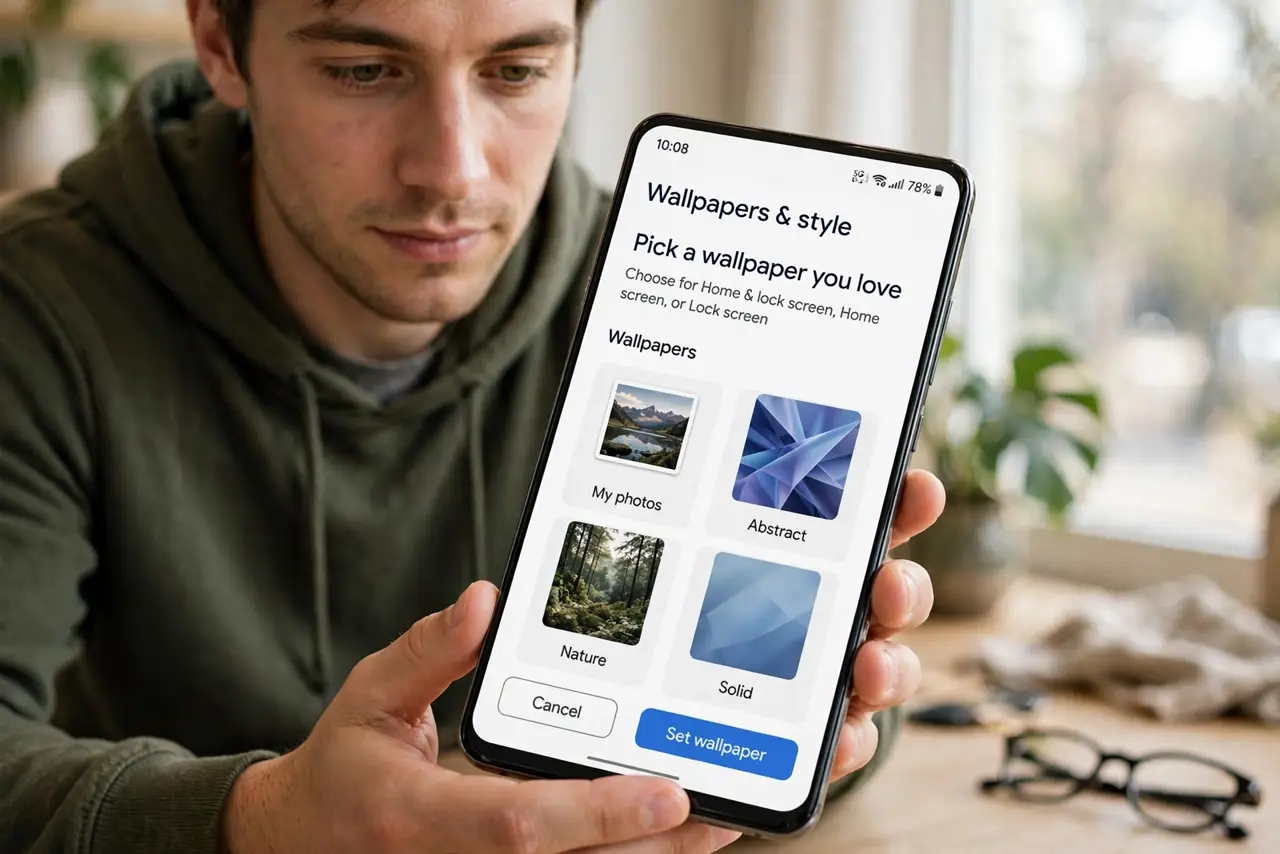
- Pick a wallpaper you love. Long-press the home screen, Wallpaper and Style. The theme derives from the wallpaper — start with an image whose colors you actually like.
- Choose a color palette. Android extracts palettes from the wallpaper — vibrant, muted, monochrome options. Preview each; the phone recolors live as you browse.
- Apply themed icons. Toggle themed icons so app icons adopt the palette. Supported apps recolor fully; others get a tinted treatment — see themed icons deep-dive for the details.
- Match the widgets. Google widgets follow the theme automatically. Third-party widgets vary — restyle or replace the ones that clash.
- Set lock screen to match. The lock screen clock and shortcuts can follow the palette too. Cohesion from lock to home is what makes it feel designed.
- Refresh with new wallpapers. New wallpaper, new palette — retheme seasonally or whenever boredom strikes. Two minutes, whole new phone feeling.
What NOT to do
- Do not expect every app to theme. Third-party icons opt in — holdouts keep their brand colors, and that is fine.
- Do not pick a wallpaper for the theme alone. You stare at the wallpaper most — love the image first, theme second.
- Do not forget dark mode interplay. Palettes shift between light and dark — preview both before committing.
- Do not confuse launchers with theming. Third-party launchers replace the system; Material You themes it — pick one approach.
Frequently asked questions
Which Android versions have Material You?
Android 12 and up, with the full dynamic color on Pixel first. Samsung and others implement their own versions.
Why do some icons not change?
The app has not added themed-icon support. Nothing you can do except wait or use an icon pack.
Does theming drain battery?
No — it is just colors. No performance or battery impact whatsoever.