Notification Dots Won't Clear? Fix It
You have read every message, but the little dot on the app icon refuses to disappear. Stuck notification dots are usually a launcher glitch or an unread item hiding in a muted chat. This guide clears them for good — and fixes the badge count when the number itself is wrong.
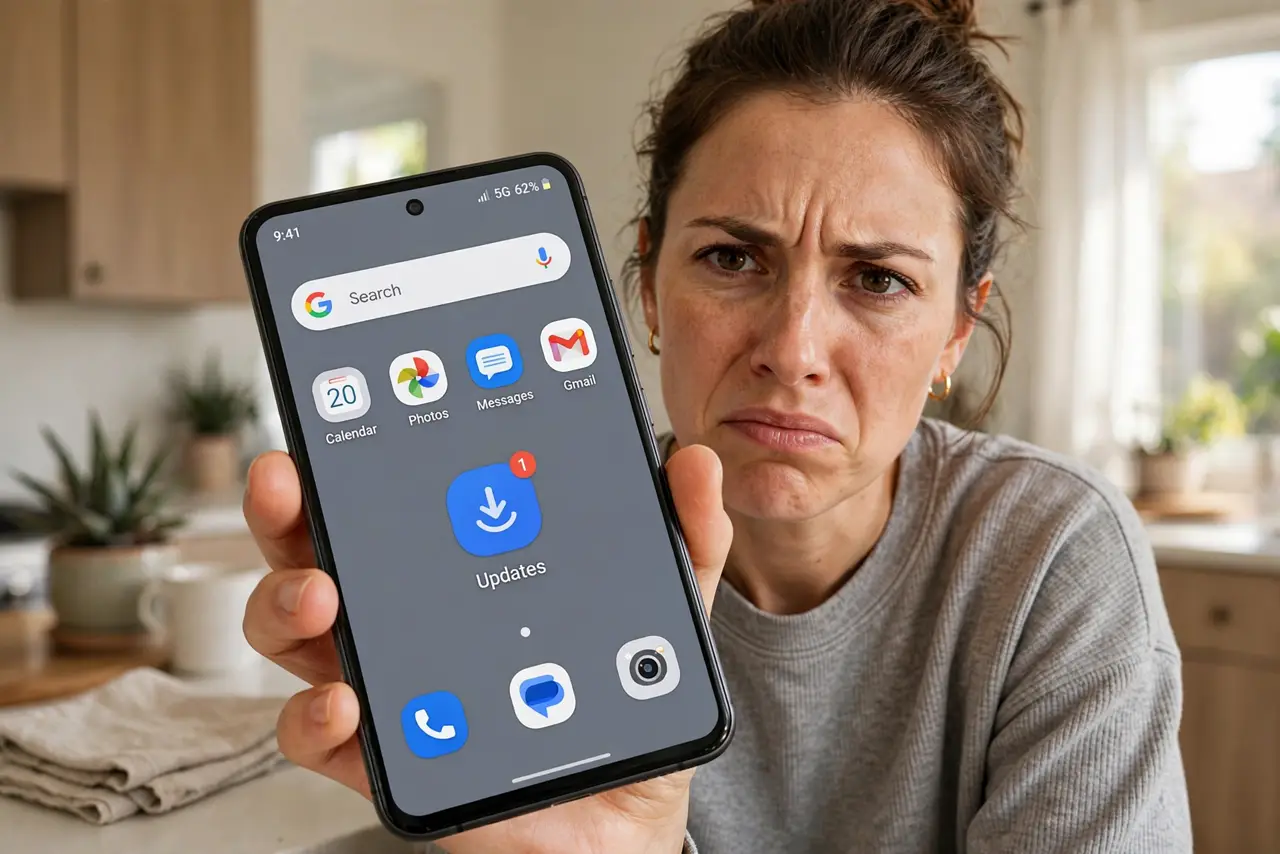
TL;DR / Quick Fix
Quick fix: long-press the app icon, open the notification preview, and dismiss every item — including muted chats. If the dot stays, restart the phone, then clear the launcher app's cache. Dots that survive all of that usually need the app's own unread counter reset inside the app.
Follow these steps
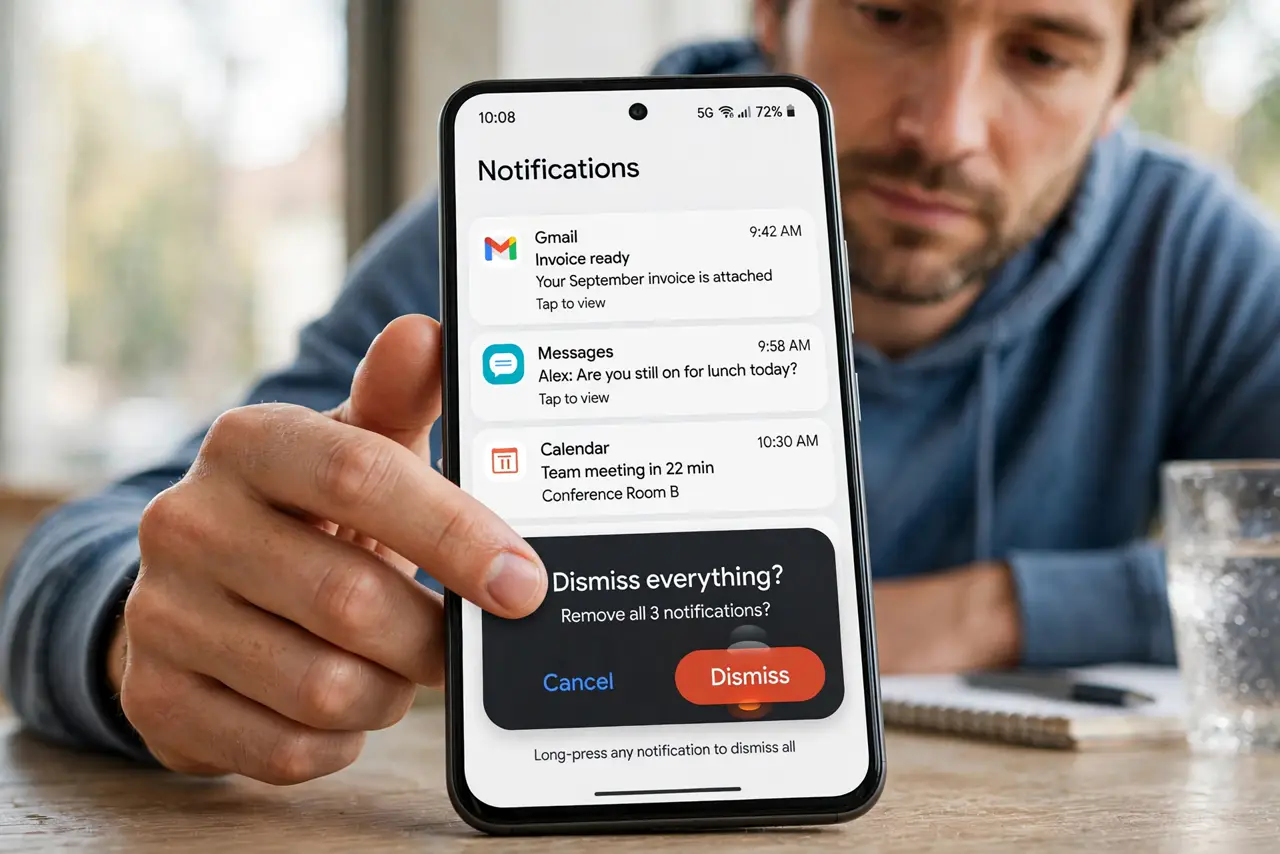
- Dismiss everything via long-press. Long-press the app icon to see its notification shade. Dismiss every item, including ones in muted or archived chats — hidden unreads hold the dot hostage.
- Open the app and check every tab. Unread items hide in secondary tabs, spam folders, and archived chats. Open each section until the in-app unread counter hits zero.
- Restart the phone. A restart clears stuck launcher states. If the dot was a glitch rather than a real unread, it vanishes here.
- Clear the launcher's cache. In app settings, clear the cache of your launcher app. This resets the dot rendering without touching your home screen layout.
- Toggle notification dots off and on. In Notifications settings, disable notification dots, restart, then re-enable. The reset often clears phantom dots.
- Reinstall the app as a last resort. If one app's dot never clears, reinstall that app. Back up its data first if it holds anything important.
What NOT to do
- Do not ignore muted chats. They are the number one hiding place for the unread item keeping the dot alive.
- Do not clear the launcher's data instead of cache. Clearing data can wipe your home screen layout; cache is the safe one.
- Do not assume the dot means a new message. After these steps, a remaining dot is a glitch, not a secret message.
- Do not disable dots for every app in frustration. Fix the stuck one — dots are useful when they work.
Frequently asked questions
Why won't the notification dot go away?
An unread item is hiding in a muted chat, archived folder, or secondary tab — or the launcher's dot state is glitched.
What's the difference between dots and badge counts?
Dots just signal 'something new'; badge counts show a number. They are controlled by related but separate settings.
Will clearing the launcher cache delete my home screen?
No — cache only. Your layout, widgets, and folders stay exactly as they are.