Find Dismissed Notifications
You swiped away a notification on reflex — and half a second later realized it was the important one: the delivery code, the appointment reminder, the reply you needed. Do not panic and do not dig through apps one by one: Android keeps a notification history log, and iPhone holds unopened alerts in Notification Center. This guide finds the dismissed alert in under a minute. To stop the reflex, consider snoozing instead of swiping.
TL;DR / Quick Fix
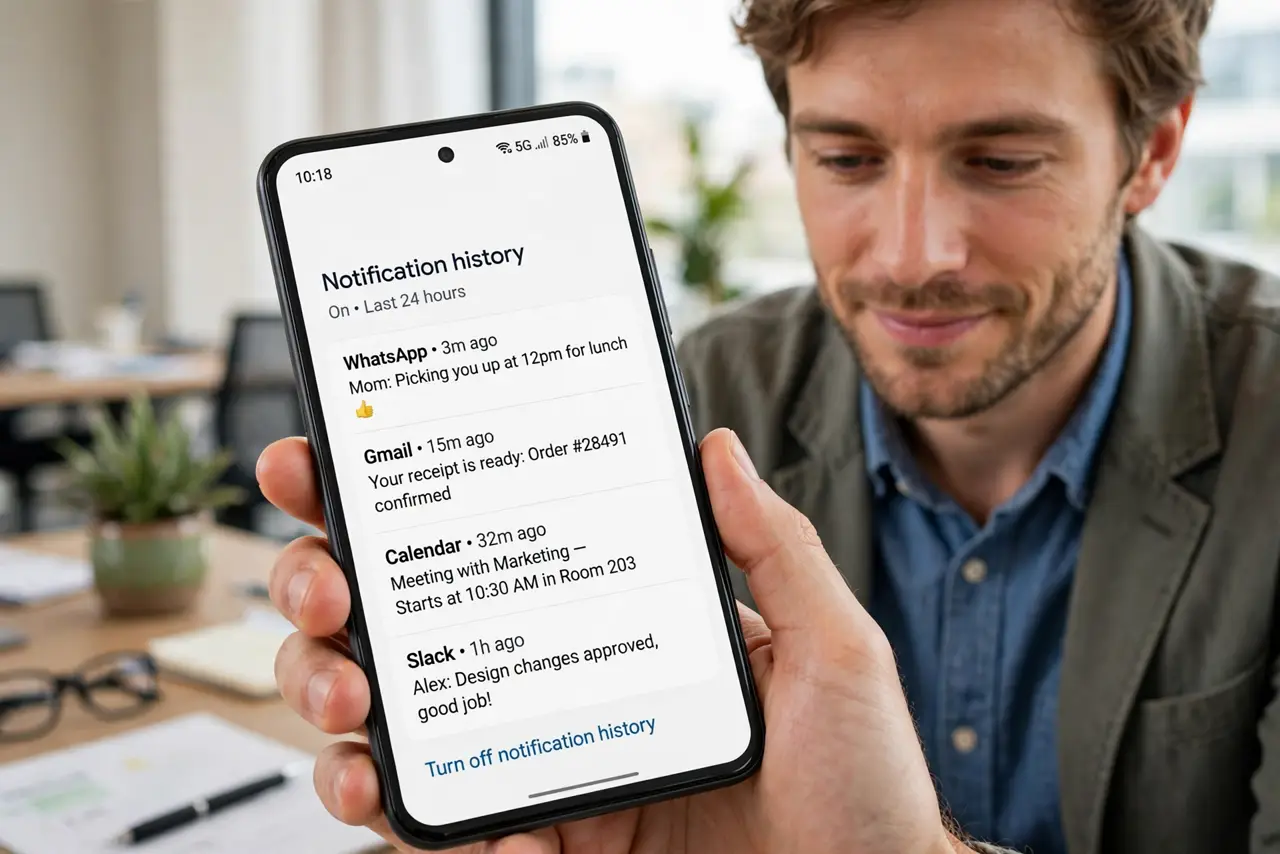
Quick fix: find dismissed notifications on Android in Settings, then Notifications, then Notification history — every recent alert is listed there. On iPhone, swipe down from the top to open Notification Center, where unopened alerts wait. Turn on notification history now so the next swiped-away alert is recoverable.
Follow these steps
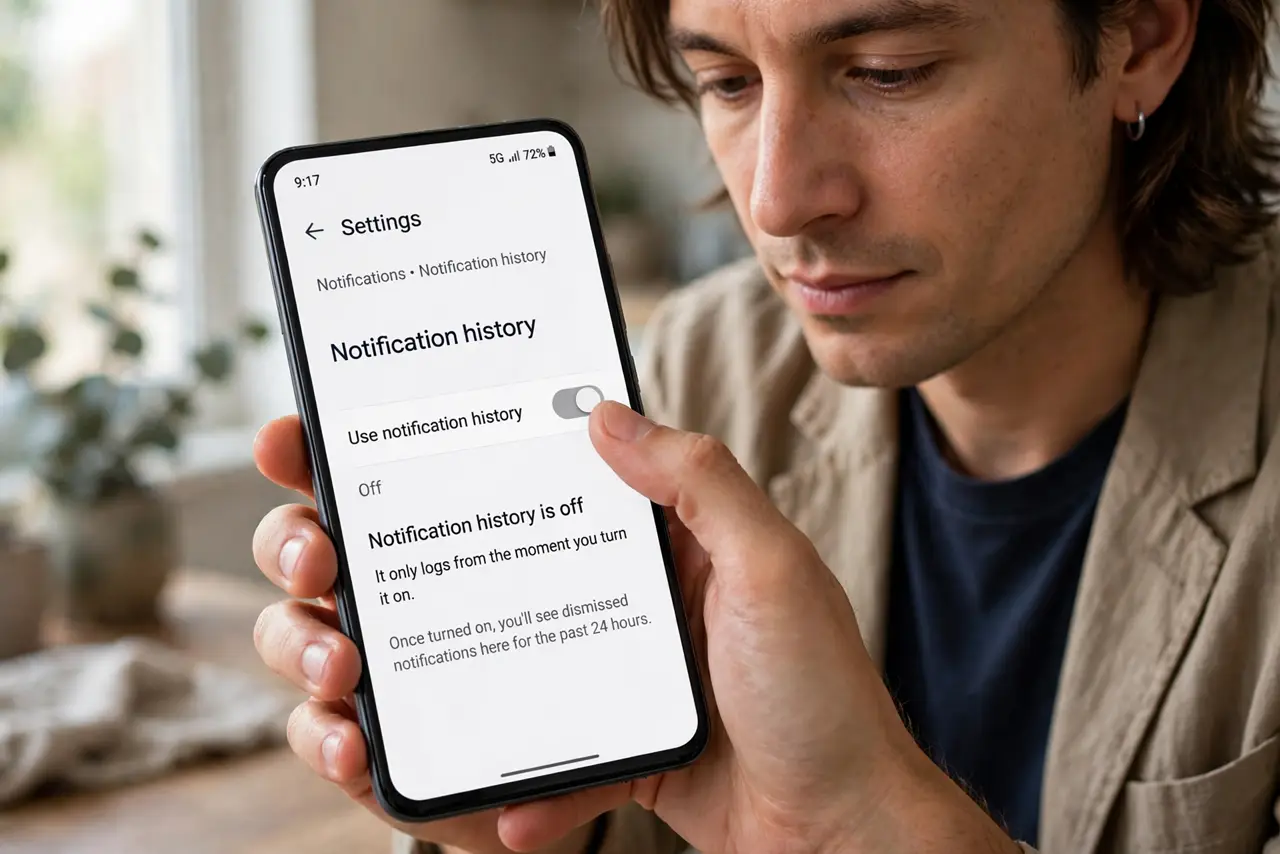
- Open Notification history on Android. Go to Settings, then Notifications, then Notification history. If it is off, turn it on now — it only logs from the moment you enable it, so enable it before you need it.
- Find the dismissed alert in the log. The history lists recently dismissed notifications with the app name, time, and content. Scroll to the right time window — your swiped-away alert is almost certainly there.
- Check Notification Center on iPhone. Swipe down from the top of the screen. Alerts you have not opened yet wait here, grouped by app — a dismissed banner often still sits in the list below.
- Search the app itself as backup. If the log is empty (history was off), open the app that sent it — messages, email, delivery apps all keep the content in-app. The notification was just a pointer; the data lives in the app.
- Act on it immediately. Copy the code, save the reminder, reply to the message — now, before a second swipe can happen. Retrieval is step one; the task still needs doing.
- Enable history today for next time. Android's toggle is the whole safety net. Turn it on now while you remember — future-you, mid-swipe-regret, will be grateful.
What NOT to do
- Do not swipe notifications on reflex. The half-second pause to read first prevents the entire recovery mission.
- Do not assume a dismissed notification is gone forever. Android's history and the sending app both keep it — check before mourning.
- Do not enable history only after losing one. It cannot log retroactively — the time to enable it is right now, while you are thinking about it.
- Do not confuse Notification Center with the lock screen. iPhone's lock screen shows recent items; Notification Center (swipe down) holds the fuller unopened list.
Frequently asked questions
How far back does Android's history go?
Roughly the last 24 hours of notifications, depending on volume. It is a safety net for today's swipes, not an archive.
Can I recover a notification I dismissed weeks ago?
No — the log does not go back that far. For old items, the sending app's own history (email, messages) is your only recourse.
Why is my notification history empty?
Because the toggle was off when the notification arrived. Enable it now — it starts logging from this moment forward.