Snooze Notifications
A notification arrives at the worst moment — mid-meeting, mid-drive, mid-thought. You cannot deal with it now, but dismissing it means forgetting it, and forgetting it means trouble later. Snoozing is the third option: the alert goes away now and returns at a time you choose. Both Android and iPhone can do it, in slightly different places. Find the pattern in your notification history if the snoozed one still slips away.
TL;DR / Quick Fix
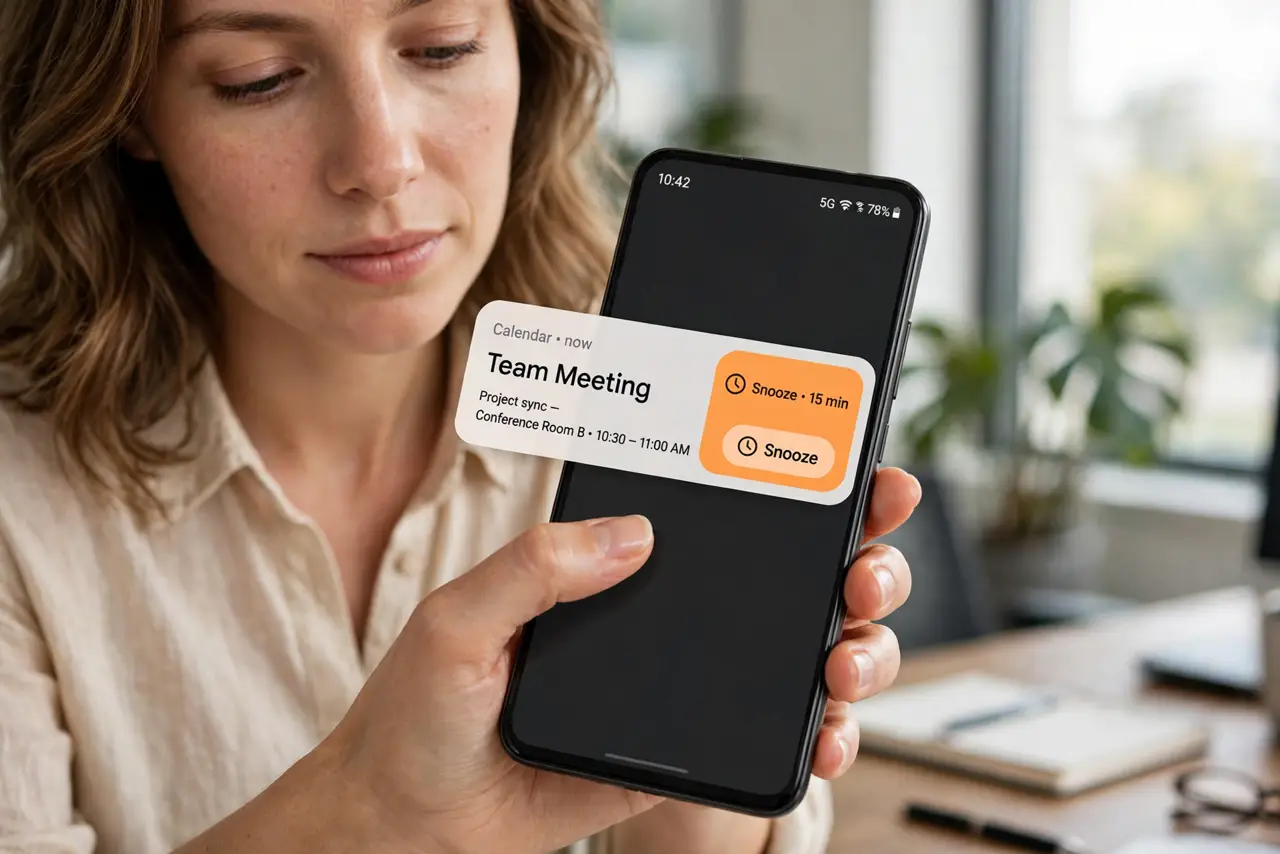
Quick fix: snooze a notification by swiping it slightly and tapping the clock icon — on Android you pick 15 minutes to 2 hours, on iPhone use scheduled summaries or reminders to resurface it. The alert hides now and returns later. Snoozing beats dismissing when the task still matters.
Follow these steps
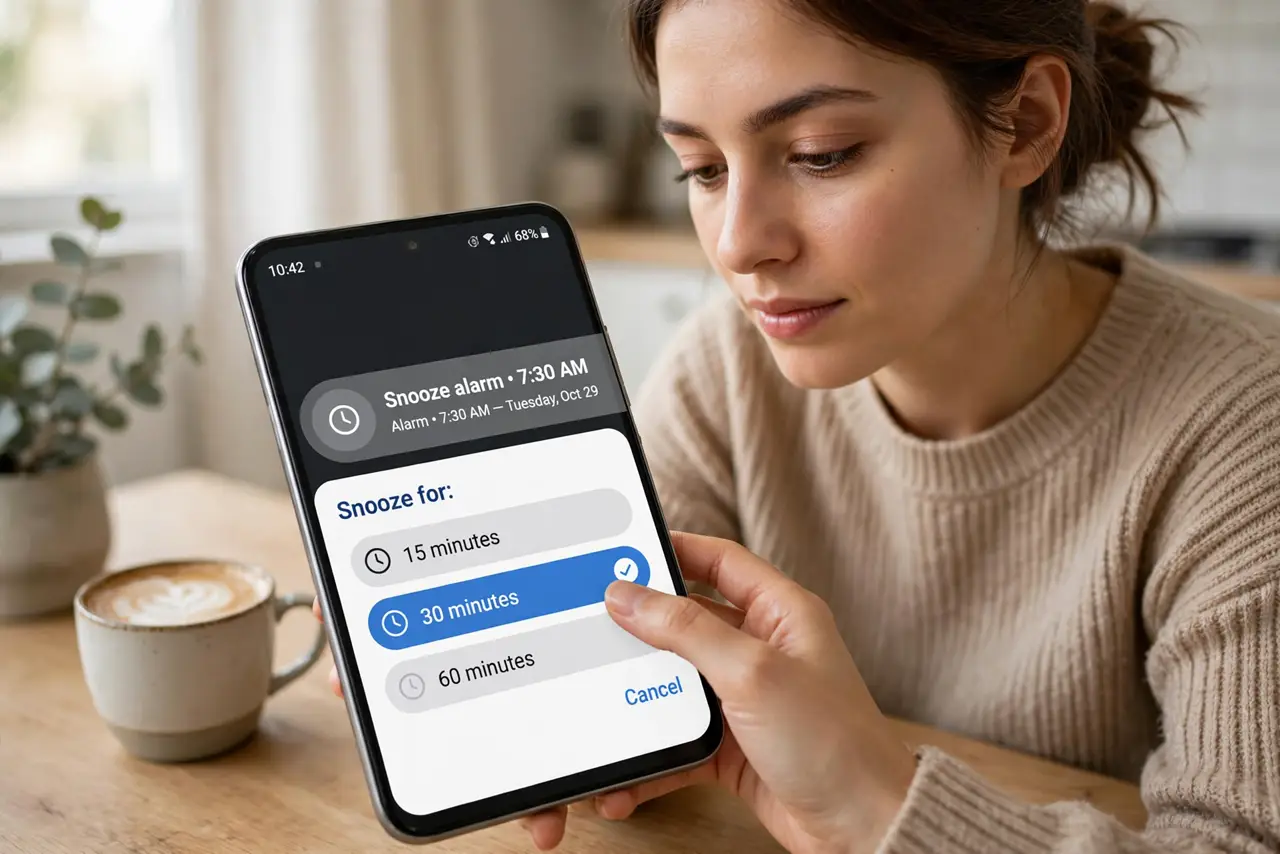
- Snooze on Android: swipe, tap the clock. Swipe the notification slightly to the side (not all the way — that dismisses it) and tap the clock icon. Choose 15 minutes, 30 minutes, 1 hour, or 2 hours — the alert vanishes until then.
- Resurface on iPhone: use Reminders or summaries. iPhone has no per-notification snooze clock; instead, long-press the notification and set a reminder, or let Scheduled Summary re-deliver non-urgent alerts in a batch. Either way the item returns on your schedule.
- Pick a time you will actually act. Snoozing to 'later' fails when later is vague. Choose the snooze length to match a real moment — 'after this meeting,' 'when I am at my desk' — not a random delay.
- Snooze the task, not just the alert. For anything important, add a calendar event or reminder alongside the snooze. Two systems beat one — the snooze handles the ping, the reminder handles the memory.
- Clear snoozed items deliberately. When the alert returns, deal with it immediately or snooze once more with a purpose. Snooze loops — the same alert returning five times — mean the task needs scheduling, not snoozing.
- Use snooze instead of 'mark unread.' Mark-unread buries the item; snooze resurfaces it. For time-sensitive items, the resurfacing behavior is the entire point — choose the tool that brings it back.
What NOT to do
- Do not swipe all the way on Android. A full swipe dismisses — the snooze clock only appears on a partial swipe. Slow down the thumb.
- Do not snooze the same alert five times. Repeated snoozing is procrastination with extra steps — schedule the task instead.
- Do not snooze truly urgent items. If it needs action in the next minutes, act now — snoozing urgency just delays the inevitable.
- Do not rely on memory as the backup. 'I will remember when it comes back' is how snoozed alerts die — pair important ones with a real reminder.
Frequently asked questions
What is the longest Android snooze?
Two hours per snooze, but you can re-snooze when it returns. For longer delays, convert it to a reminder or calendar event instead.
Why does iPhone not have a snooze button?
Apple's model pushes batching (Scheduled Summary) and Reminders instead of per-alert snoozing. Different philosophy, same outcome: the alert returns on your terms.
Do snoozed notifications survive a restart?
Generally yes on Android — the system restores them. But do not bet anything critical on it; reminders and calendar events are the durable option.