Identify Songs Automatically
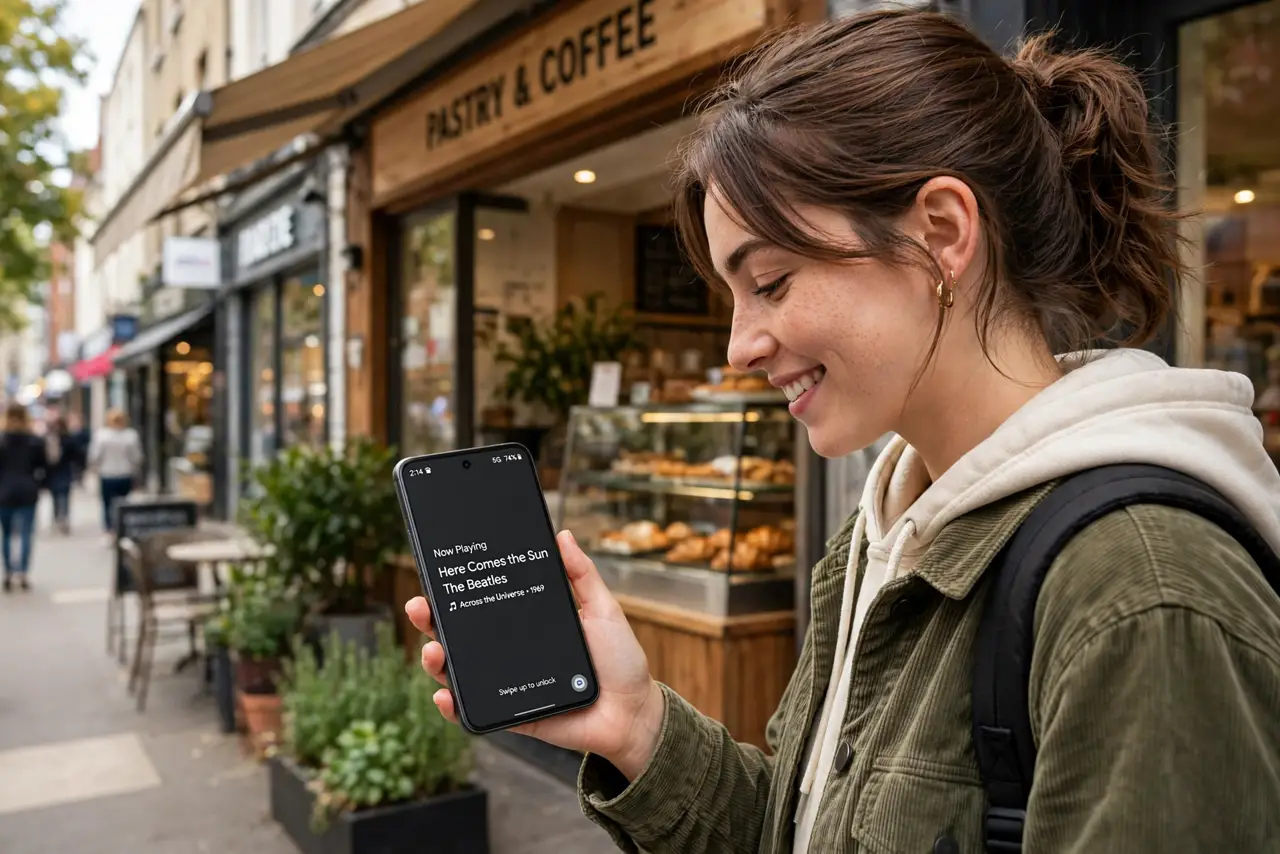
A song drifts out of a passing car, a store speaker, a TV scene — and it is gone before you can ask anyone. Now Playing on Pixel phones listens passively and names songs on your lock screen without you lifting a finger. It is the closest thing to a personal DJ who never sleeps.
TL;DR / Quick Fix
Quick fix: on Pixel phones, open Settings, Sound, Now Playing, and turn it on — your lock screen then names songs playing around you automatically, no tapping needed. It works offline and keeps a history you can revisit. Other Android phones can use the Shazam app for the same job.
Follow these steps
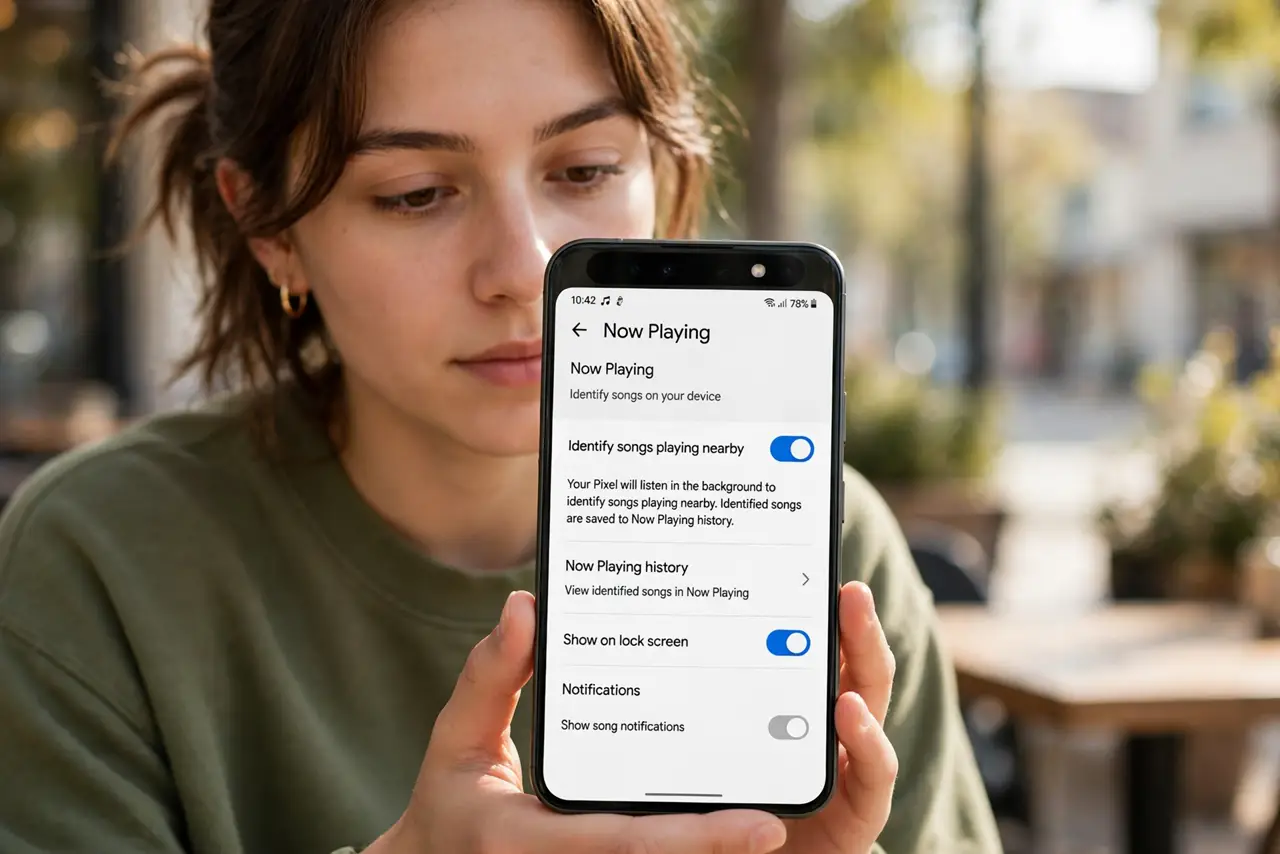
- Turn on Now Playing. Open Settings, then Sound and vibration, then Now Playing, and enable 'Identify songs playing nearby.' Your Pixel starts listening passively.
- Glance at the lock screen. When music plays nearby, the song title appears on the lock screen automatically. No taps, no wake-ups — it is just there.
- Browse your history. Tap the notification or open Now Playing history in Settings to see everything it has caught. Each entry links out to streaming and YouTube.
- It works offline. The recognition database lives on the phone, so it identifies songs without data or Wi-Fi. Privacy bonus: audio never leaves your device.
- Not on a Pixel? Use Shazam. Install the Shazam app for manual identification, or see the Shazam guide — it covers the same job on any phone.
- Exclude it where you want quiet. Now Playing settings let you manage notifications. If lock-screen song titles annoy you somewhere, tune it rather than disabling the whole feature.
What NOT to do
- Do not expect it to name everything. Obscure tracks, live versions, and heavy remixes can stump the on-device database.
- Do not confuse it with always-recording. It matches audio fingerprints locally — it is not uploading your conversations.
- Do not leave history unreviewed for months. The best finds fade from memory — check the list weekly and save what you love.
- Do not assume it drains the battery. The low-power audio chip handles listening with negligible impact.
Frequently asked questions
Does Now Playing use mobile data?
No. Recognition runs on-device with a downloaded song database — no data, no uploads.
Can I turn off the lock-screen display?
Yes. Keep identification on but disable the lock-screen notification in Now Playing settings.
Why didn't it catch a song?
Very new releases, obscure tracks, or heavy background noise can beat it. Try Shazam for a second opinion.