Use Google Maps Offline
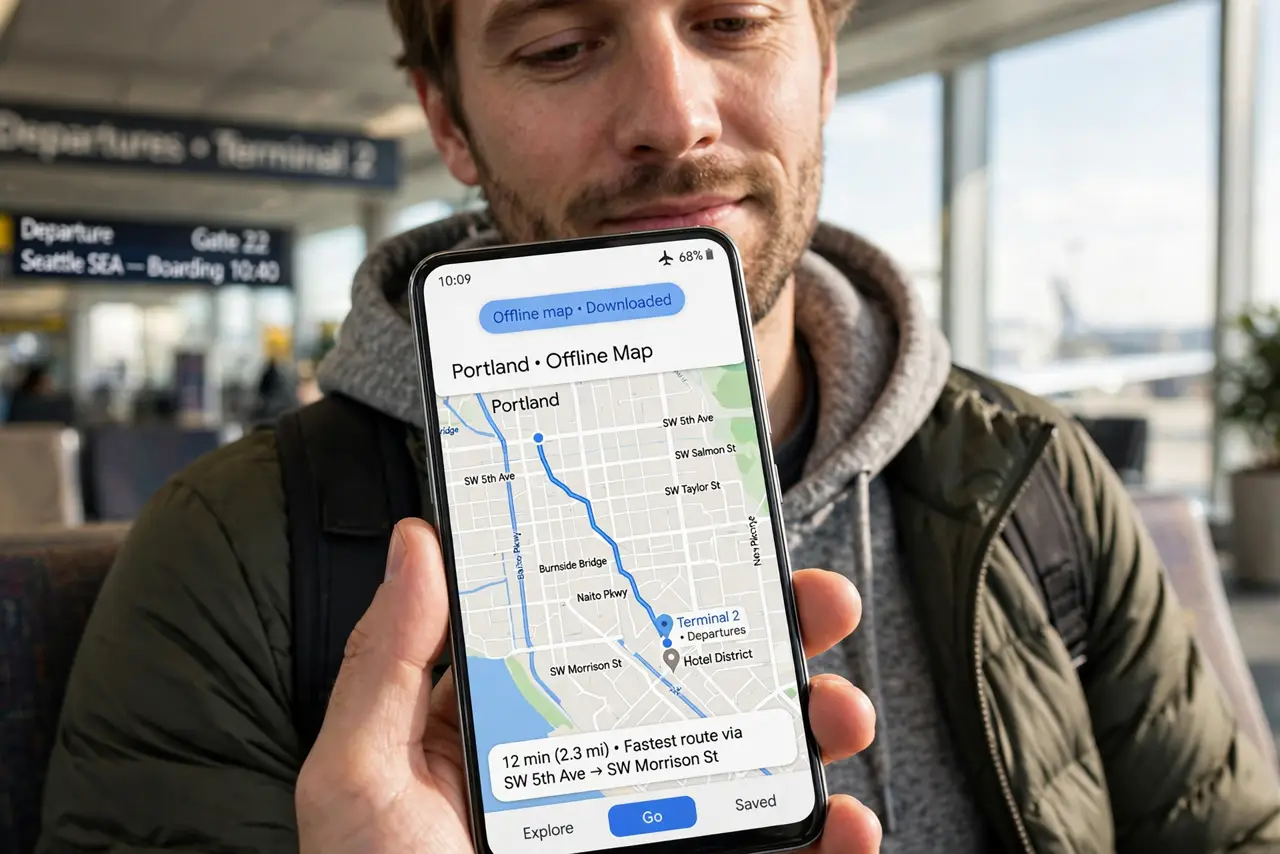
Roaming charges, dead zones, subway tunnels — Google Maps goes fully offline if you prepare. Downloaded regions give you search, routing, and turn-by-turn navigation with zero connection, and they update themselves on Wi-Fi. The trick is downloading before you need them, not during.
TL;DR / Quick Fix
Quick fix: in Google Maps, tap your profile picture, choose Offline maps, tap Select your own map, and frame the area. Download on Wi-Fi — regions expire after a year, so refresh before big trips. Offline navigation works; live traffic and transit do not.
Follow these steps
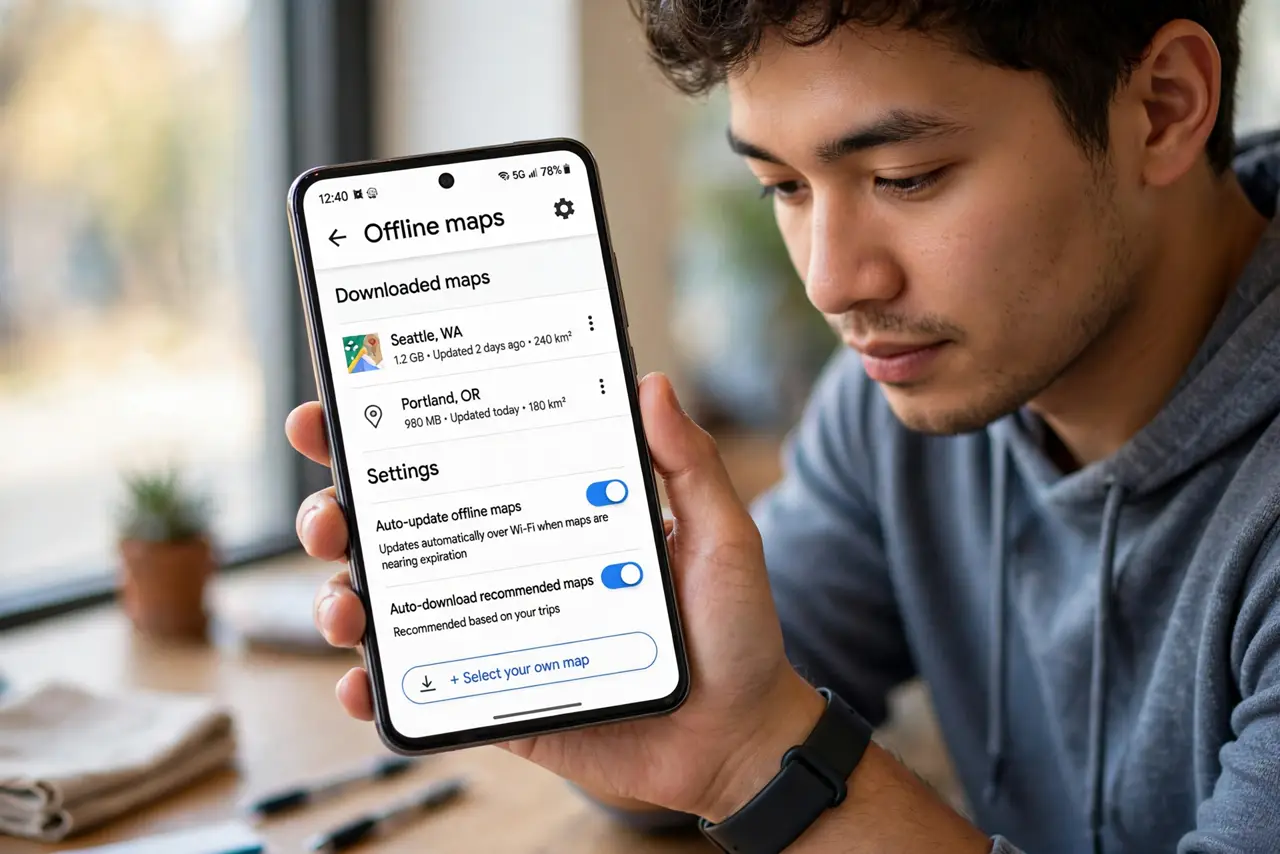
- Open Offline maps. Tap your profile picture in Google Maps, then Offline maps. Downloaded areas and the auto-update setting live here.
- Select your own map. Tap Select your own map, frame the region with pinch and drag, then Download. Google shows the size before you commit.
- Download on Wi-Fi. Regions run hundreds of megabytes. Let them finish on Wi-Fi — and enable auto-update so they refresh themselves.
- Navigate fully offline. Search, directions, and turn-by-turn voice guidance all work without a connection. GPS positioning needs no data plan.
- Know the offline limits. No live traffic, no transit schedules, no business hours or reviews. The road network and your saved places carry the trip.
- Refresh before expiry. Downloaded maps expire after about a year. Google auto-updates on Wi-Fi if enabled — check before the big trip anyway.
What NOT to do
- Do not download mid-crisis on cellular. A 400 MB region on roaming data is an expensive lesson — prepare on Wi-Fi.
- Do not frame regions too small. A map that ends mid-route strands you — include the whole journey plus margin.
- Do not trust year-old downloads blindly. Roads change; the auto-update only runs on Wi-Fi, so verify freshness.
- Do not forget offline maps for the return leg. Download both directions' regions — the way back needs maps too.
Frequently asked questions
What's the difference from iPhone offline maps?
Same concept, different app. See the iPhone guide for Apple Maps' version — the preparation habit is identical.
Can I download a whole country?
Technically, but it is gigabytes and unwieldy. Regions sized to your actual route work better and update faster.
Why did my offline map disappear?
It likely expired — downloads last about a year. Re-download, and turn on auto-update for next time.