Limit App Photo Access
An app wants access to 'all photos' and the alternative seems to be not using the app at all — but there is a middle path on both iPhone and Android. Limited photo access hands the app only the images you choose, keeping the rest of your gallery invisible to it. This is the setting to reach for every time an app's demand feels bigger than its job. For the related skill of sharing just chosen photos, that guide covers the picker flow in detail.
TL;DR / Quick Fix
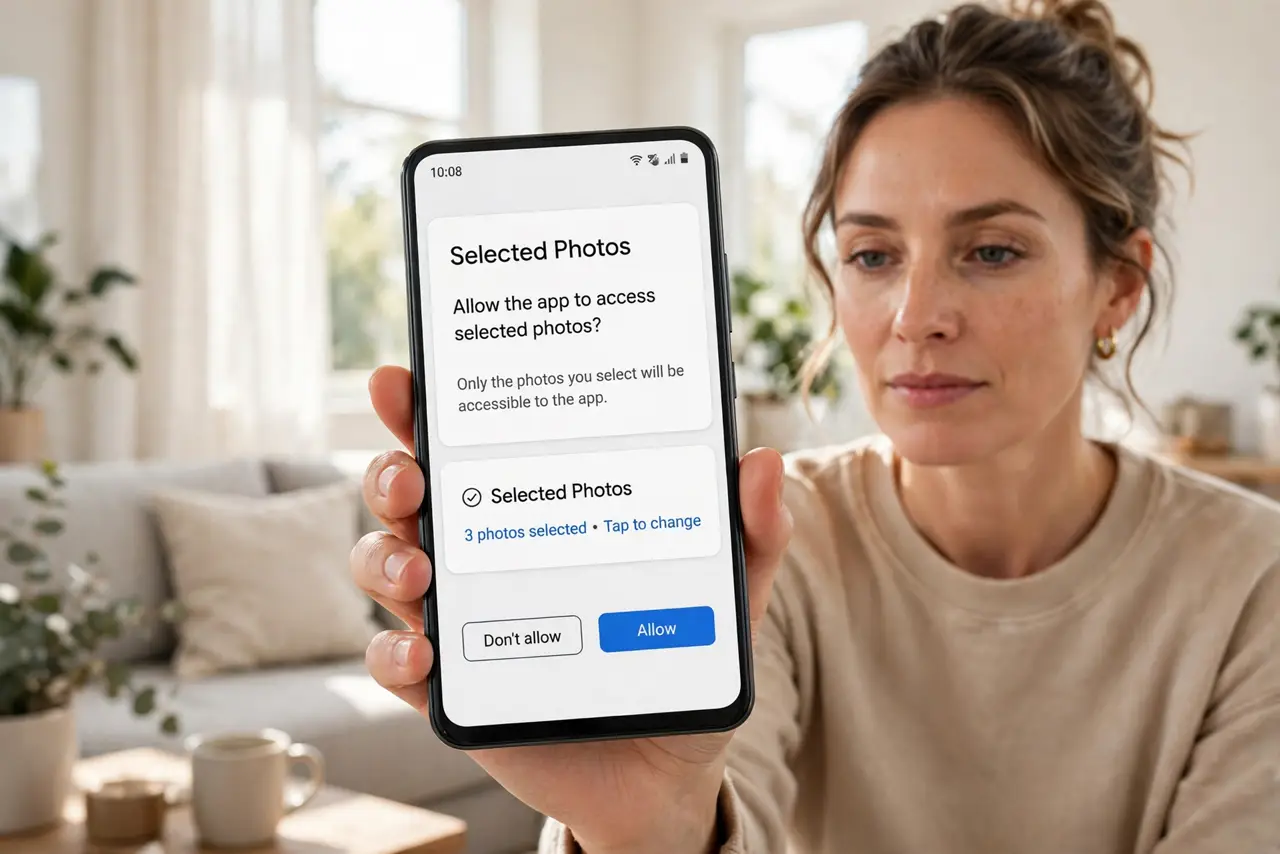
Quick fix: when an app demands all your photos, give it limited access instead — on iPhone choose 'Selected Photos', on Android pick 'Allow selected' or use the system photo picker. You can downgrade permissions anytime in Settings under Privacy. The app gets what it needs; the rest stays private.
Follow these steps
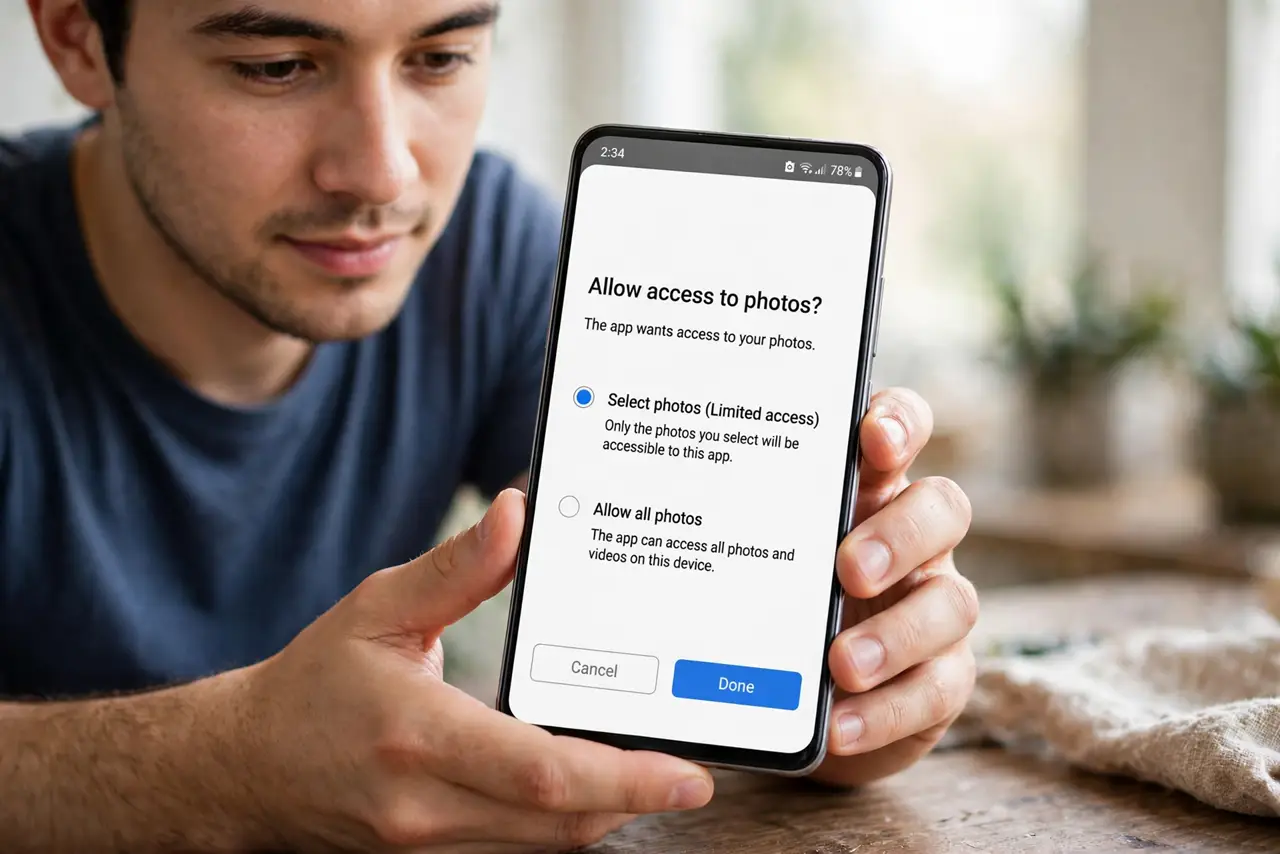
- Answer the prompt with the limited option. When the permission dialog appears, choose 'Select Photos' (iPhone) or the limited/selected option (Android) instead of full access. This is the moment of maximum leverage — five seconds now saves a settings hunt later.
- Pick only what the app needs. Select the specific photos for the task at hand — the profile picture, the document scan. The app cannot see, list, or stumble upon anything else in your library.
- Downgrade apps you already approved. iPhone: Settings, Privacy and Security, Photos — switch each app from Full Access to Selected Photos. Android: Settings, Privacy, Permission Manager, Photos and videos — change 'Allow all' to 'Allow selected' where offered.
- Add more photos later as needed. On iPhone, return to the same settings screen to select additional photos anytime. Access grows with your trust and your needs — never the other way around.
- Audit which apps hold full access. Once a month, glance at the photo permission list. Any app with full access that only needed it once is a downgrade candidate — see your permission history to spot the quiet ones.
- Prefer apps that use the system picker. Apps built on the system photo picker never need gallery permission at all — they receive only the files you tap. Reward those apps with your business; they respect the boundary by design.
What NOT to do
- Do not tap 'Allow Full Access' to dismiss the prompt faster. The extra seconds of choosing are the entire privacy win — do not skip them.
- Do not assume limited access breaks features. Most apps work perfectly on selected photos — full access is demanded out of laziness, not necessity.
- Do not forget cloud-linked photos. Limited on-device access does not cover images the app reaches through a connected cloud account — check those links too.
- Do not grant full access 'temporarily' and forget. Temporary permissions have a way of becoming permanent — downgrade the moment the task is done.
Frequently asked questions
Can the app see new photos I take later?
No — on iPhone, newly taken photos stay invisible until you explicitly add them. Android's picker shares per session. Your future photos are safe by default.
What if the app refuses limited access?
Then decide consciously: does its core job truly need everything? A backup app might; a meme maker does not. Choose with eyes open, or find an alternative.
Does limited access affect iCloud or Google Photos?
It affects what the app can reach on the device. If the app also connects to your cloud photo account separately, review that connection too — it is a second door.